I Built a macOS App With Zero Swift Knowledge. Here's How You Can Too.
A beginner friendly guide to building macOS and iOS apps using AI vibe coding assistants in Xcode. No Swift experience needed. Works with your existing Claude or ChatGPT subscription.
I don’t know Swift.
I’ve never taken a Swift course.
Never read the documentation.
Never built an iOS or macOS app in my life.
My programming knowledge starts and ends with “enough Python to be dangerous” and some JavaScript I’ve picked up from building this website.
And yet, five days ago, I built a working macOS app. From scratch. In about 20 minutes.
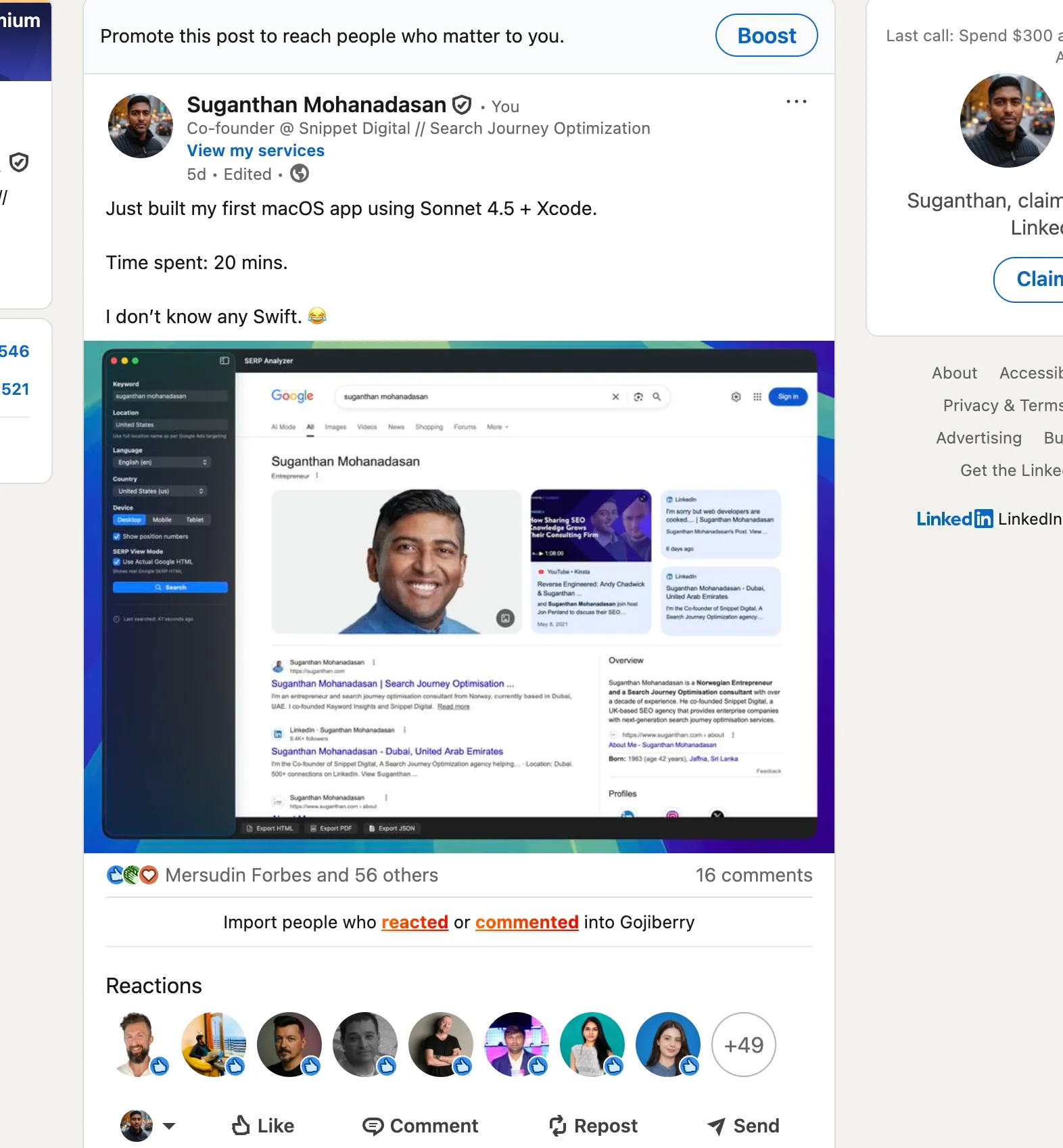
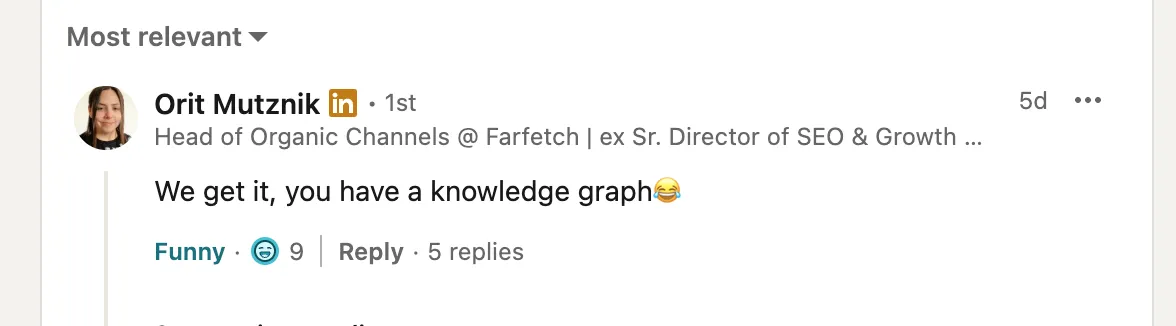
This isn’t a flex. (Apart from getting roasted on Linkedin by my friend lol)
It’s genuinely wild that this is possible now.
And I want to show you exactly how to do it, because the barrier to building native apps has never been lower.
What I Built

I built a SERP Analyzer. A native macOS app that lets you punch in a keyword and location, hit search, and get back a rendered view of the actual Google search results page.
Nothing groundbreaking, but a proper functioning app with a UI, API calls, and data rendering.
The kind of thing that would have taken a Swift developer a few days and taken me approximately forever.
“
The whole thing was built using Claude Sonnet 4.5 inside Xcode.
I described what I wanted in plain English, and the AI wrote the Swift code, built the interface, and helped me debug the errors along the way.
Here’s the thing that got me excited enough to write this:
It works with your existing subscription.
If you’re already paying for Claude Pro ($20/month) or ChatGPT Plus ($20/month), you have everything you need. No API keys. No extra billing. No hidden costs.
What You Need Before You Start
Let’s keep this simple:
- A Mac. You need macOS to run Xcode. No way around this.
- Xcode 26.3 or later. Free from the Mac App Store. It’s a big download (around 12GB), so grab a coffee.
- A Claude Pro/Max subscription or a ChatGPT Plus/Pro subscription. You probably already have one of these.
That’s it. Seriously.
Step 1: Install Xcode
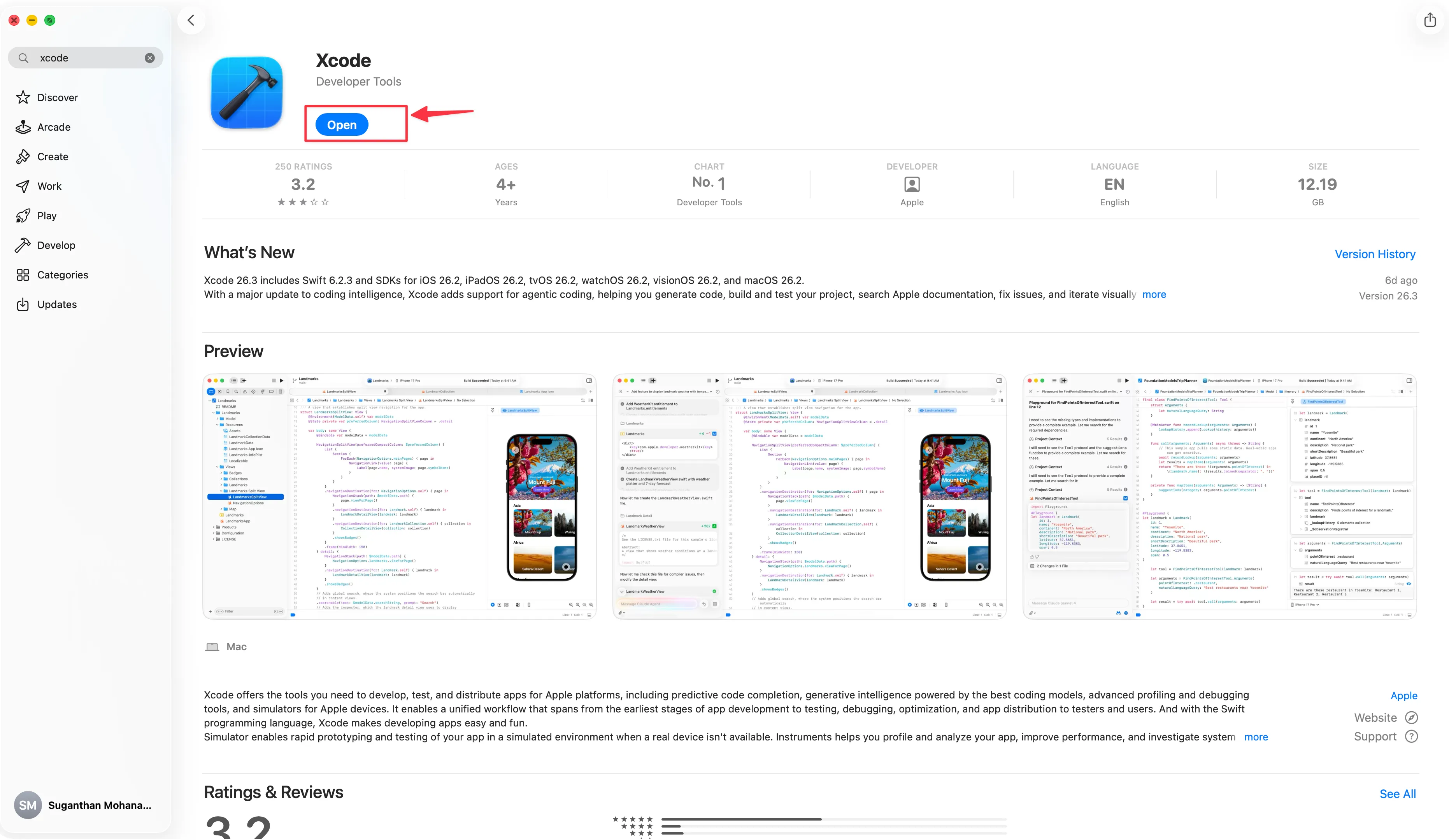
Open the Mac App Store and search for Xcode. Download it. This will take a while depending on your internet speed.
Once installed, open it and let it finish installing any additional components it asks for. You might need to agree to a license agreement.
“
Step 2: Connect Your AI Assistant
This is the bit that makes everything possible. Xcode 26.3 has native support for AI coding agents built right in. No extensions to install. No terminal commands. Just a settings toggle.
After you install Xcode, you will see a prompt to install coding intelligence (Often it starts automatically)
Let it install.
For Claude (Anthropic)
- Open Xcode
- Go to Xcode > Settings > Intelligence
- Click Anthropic
- Sign in with your Claude account (the same one you use for claude.ai)
“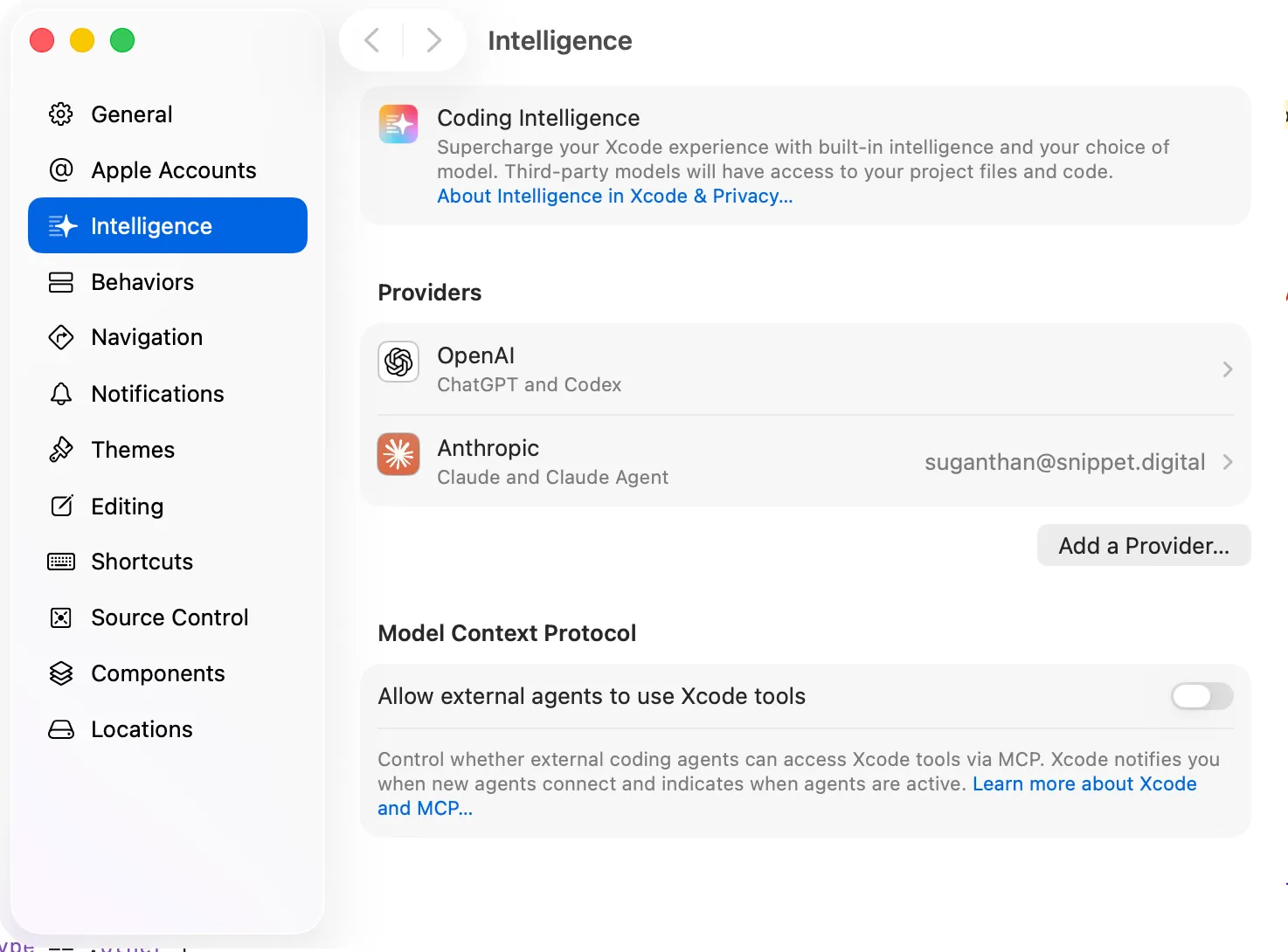
That’s it. Claude is now your coding partner inside Xcode. It uses your existing Pro or Max subscription quota, so there’s no separate bill.
For OpenAI Codex
- Same path: Xcode > Settings > Intelligence
- Click OpenAI > Codex
- Sign in with your ChatGPT account
Works with ChatGPT Plus ($20/month), which gives you 30 to 150 Codex messages per 5 hours. ChatGPT Pro ($200/month) gives you significantly more.
Click ‘Get’ to install Codex.
Sign in to your account.
Select ChatGPT (You can also use the OpenAI API Key but mind that is charged separately)
Sign into your ChatGPT account
Choose Codex from the conversation model :)
For GitHub Copilot
If you already have a Copilot subscription, there’s an official Xcode extension. Download it from the GitHub releases page, install it, and enable it in Xcode’s Extensions settings. Copilot is great for inline code completions but doesn’t have the same agentic capabilities as Claude or Codex in Xcode 26.3.
Step 3: Create a New Project
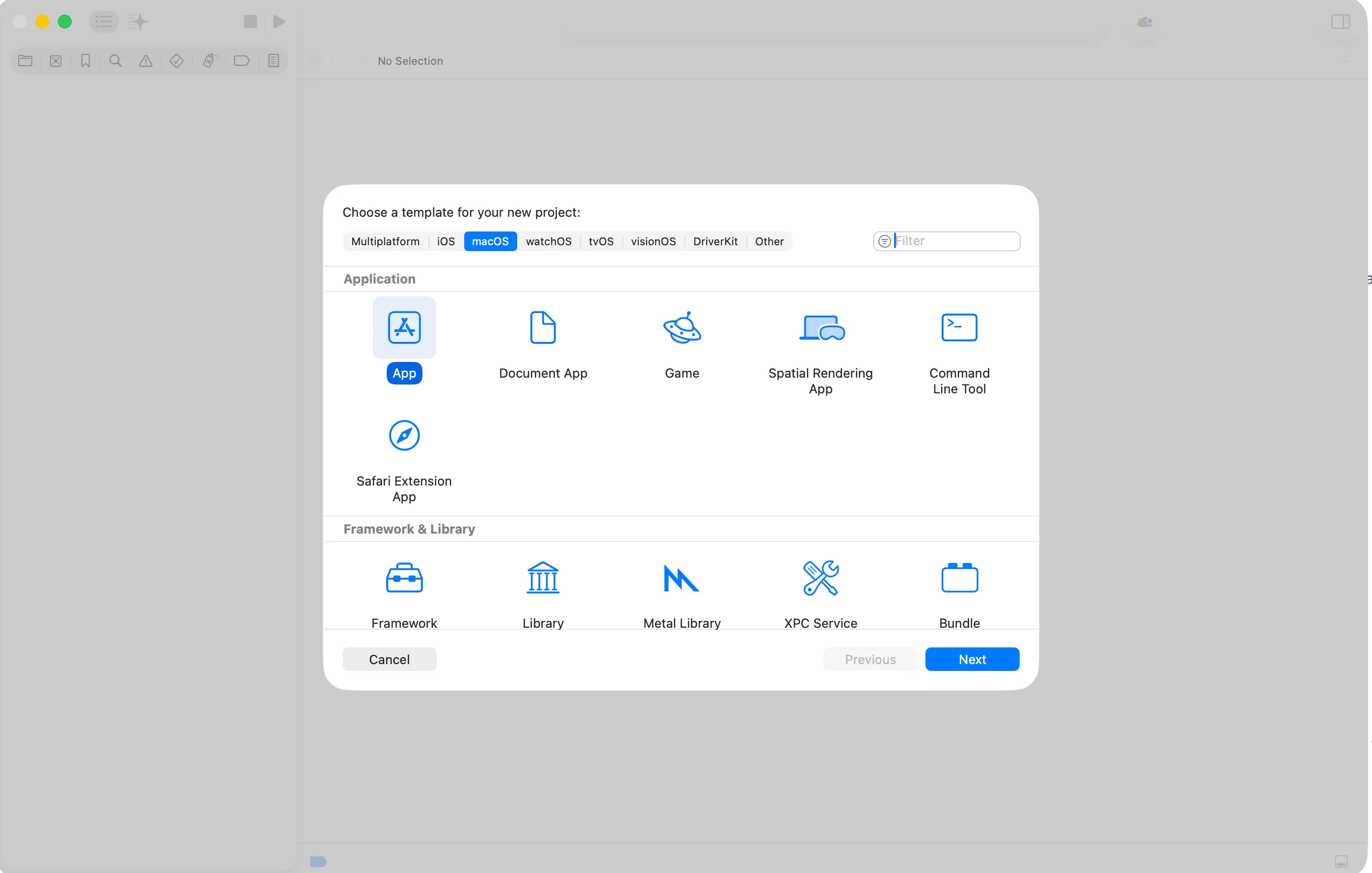
- In Xcode, go to File > New > Project
- Choose macOS > App (or iOS > App if you want to build for iPhone/iPad)
- Give it a name
- Make sure SwiftUI is selected as the interface option
- Click Create
“
You’ll see some boilerplate code. Don’t panic. You don’t need to understand any of it.
Step 4: Start Talking to the AI
This is where the magic happens. Open the AI assistant panel in Xcode and start describing what you want to build. Be specific. Be conversational. Treat it like you’re briefing a developer.
Here’s roughly what I told Claude when building my SERP Analyzer:
“I want to build a macOS app that has a sidebar with input fields for a keyword and a location dropdown. When I click Search, it should call the ValueSERPs API and display the Google search results in the main content area, rendered to look like an actual Google SERP.”
Claude generated the SwiftUI views, the API call logic, the data models, and the layout. I could see the code appearing in real time, and Xcode’s preview showed me what the UI looked like as it was being built.
One of my favourite ways is to explain my idea and provide Claude chat with similar apps, UI interfaces, Sketches, API documentations, etc i want to use and have it build the prompt for me in a structured way.
This helps save a lot of time and back and forth later when you build the app.
“
Step 5: Build, Break, Fix, Repeat
Here’s where I need to be honest. It wasn’t all smooth sailing.
The first build worked.
The basic UI appeared.
But then I started asking for more features and things got messy.
API responses weren’t parsing correctly.
The layout broke on certain screen sizes.
There were Swift compiler errors that meant absolutely nothing to me.
This is the cycle you’ll get into:
- Ask the AI to add or change something
- It writes the code
- You hit Build (⌘B)
- Something breaks
- You paste the error back to the AI
- It fixes it
- Repeat
The good news.
the AI can read Xcode build errors and fix most of them automatically.
In Xcode 26.3 with agentic coding enabled, Claude and Codex can actually build the project themselves, read the errors, and iterate without you having to copy paste anything.
It’s genuinely impressive.
The bad news
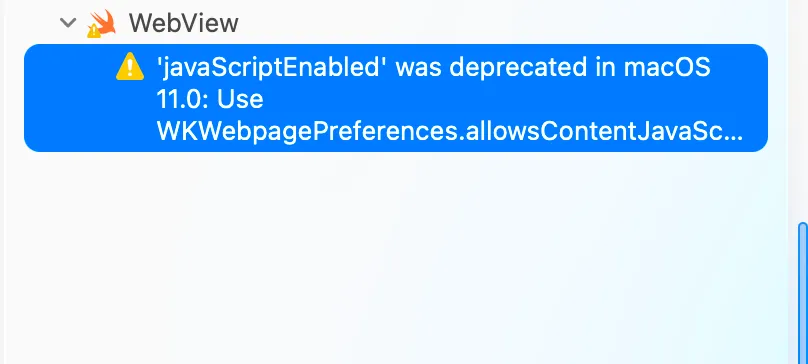
Some errors require multiple back and forth attempts.
The AI sometimes introduces new bugs while fixing old ones and occasionally, you hit a wall where the AI keeps going in circles.
That’s when you need to step back, explain the problem differently, or break it into smaller pieces.
“
The Honest Pros and Cons
I’ve been through this process enough now to give you a straight assessment.

What’s genuinely great
The barrier to entry is gone
If you can describe what you want in English, you can build an app. That sentence would have been absurd two years ago.
No extra cost
Using your existing Claude Pro or ChatGPT Plus subscription means you can experiment freely without watching an API meter tick up.
Native Xcode integration is seamless
The AI understands your project structure, can see your files, and knows the context of what you’re building. It’s not a generic chatbot. It’s an agent that operates inside your development environment.
SwiftUI previews are your best friend
You can see what the UI looks like in real time without running the app. The AI can even capture these previews and use them to iterate on the design.
What’s still rough
Debugging is the hard part
Building the initial version is fast. Getting it to work properly takes much longer. Some errors are cryptic, and the AI doesn’t always get them right on the first try.
You need some Xcode knowledge
Not Swift knowledge, but knowing where things are in Xcode. How to create a project. Where the build button is. What the file navigator does. How to run on the simulator. Xcode is a complex IDE and the AI can’t click buttons for you (yet).
Swift concurrency is a minefield
If your app does anything async (API calls, loading data), you’ll run into Sendable, @MainActor, and async/await issues. These are areas where AI models genuinely struggle because Swift’s concurrency model is newer and has less training data than older patterns.
AI generated Swift has known quirks
Paul Hudson from Hacking with Swift wrote a great piece on the common mistakes: hardcoded font sizes instead of Dynamic Type, deprecated navigation patterns, accessibility issues with buttons. These are the kinds of things a Swift developer would catch immediately but a beginner wouldn’t notice.
Finding time is the real bottleneck
The technology is ready. My calendar is not. Between running two companies and writing blog posts, carving out focused time to learn and iterate is genuinely the hardest part of this whole thing. The app works, but turning it into something polished enough for the App Store requires sustained effort.
Alternative Approaches Worth Knowing
The Xcode 26.3 native integration is the easiest path, but it’s not the only one:
Claude Code CLI + XcodeBuildMCP: If you prefer working in the terminal, Claude Code can be connected to Xcode via XcodeBuildMCP (built by the Sentry team). This gives Claude Code the ability to build your project, run it on the simulator, read errors, and iterate. Power users love this approach.
Cursor IDE + SweetPad: Cursor is a VS Code fork with AI built in. If you find Xcode’s editor limiting, you can edit your Swift code in Cursor and use SweetPad to bridge to Xcode’s build system. You still need Xcode installed, but you don’t have to write code in it.
GitHub Copilot for Xcode: The official extension gives you inline completions and chat. Less autonomous than Claude or Codex but solid for suggestions while you type.
Where I’m At Now
I’m still very much a beginner at this. The SERP Analyzer works, but it’s rough around the edges. There are UI quirks I haven’t fixed. Error handling is minimal. It’s not something I’d put on the App Store tomorrow.
But that’s the point. Five days ago, I had never opened Xcode with the intention of building something real.
Now I have a functioning app that does something useful.
The gap between “I have an idea” and “I have a working prototype” has collapsed from weeks to minutes.
I genuinely hope to get this (or something like it) on the App Store eventually.
That’s the stretch goal.
For now, I’m enjoying the process of learning by building, with an AI that’s patient enough to explain things when I get confused and fast enough to generate code while I’m still thinking about what I want.
If you’ve been curious about building apps but thought you needed to learn Swift first: you don’t.
Not anymore.
Just open Xcode, sign in with your Claude or ChatGPT account, and start describing what you want to build.
The worst that can happen is you learn something.
If you end up building something, Please let me know?
Resources
Here are some links that helped me along the way:
- Using Claude in Xcode (official Anthropic guide)
- Xcode 26.3: Agentic Coding (Apple’s announcement)
- What to Fix in AI Generated Swift Code (Hacking with Swift)
- XcodeBuildMCP (for Claude Code CLI users)
- Claude Code iOS Dev Guide (comprehensive CLI workflow)
- Closing the Loop on iOS with Claude Code (detailed walkthrough)
- Developing in Xcode with AI (comparison of all the tools)
You might also like
Stay in the loop
I'll email you when I publish something new. No spam. No fluff.
Join other readers. Unsubscribe anytime.

Entrepreneur & Search Journey Optimisation Consultant. Co-founder of Keyword Insights and Snippet Digital.