BigQuery MCP Server: 32 SEO Tools for Your GSC + GA4 Data Warehouse
Connect Claude to Google BigQuery with 32 built-in tools. Revenue per keyword via GA4 + GSC blending, ML traffic forecasting, anomaly detection, anonymous query analysis, and more. Free, open source, full setup guide.

Co-founder of Snippet Digital
Updated (posted )
24 min read · 7 views · Some assembly required
Key points
- Roughly 46% of Search Console clicks sit behind anonymised queries. BigQuery cannot un-hide them, but it carries the flag the API strips, so you can see which pages have the most dark traffic.
- Eight of the 33 tools are impossible on the Search Console API: ML forecasting and anomaly detection, year on year seasonality, device split cannibalisation, intent breakdown, n-grams and new keyword discovery.
- The export does not backfill and the API only keeps 16 months. Turn it on a year late and you will never have a full year on year comparison.
On this page 14 sections
- What 33 tools actually look like
- 8 tools you can’t build on the GSC API
- 6 GA4 + GSC blending tools (new in v4.0)
- AI conversation query detection (new in v4.1)
- The other 18 tools
- Why own your data in BigQuery?
- When dedicated GSC tools make more sense
- How BigQuery data differs from the GSC API
- What about Gemini in BigQuery?
- Setup guide
- Safety built in
- Changelog
- The GitHub repo
- License and Attribution
v4.1 Update (August 2026): Now with AI conversation query detection.
gsc_genai_conversation_queriesfinds the AI conversation fragments hiding in your query data, reply artefacts to agent prompts, and sorts them into seven kinds with your anonymised split alongside. Brings the total to 33 tools. Method and findings in “Yes, Go On”. Full changelog below.
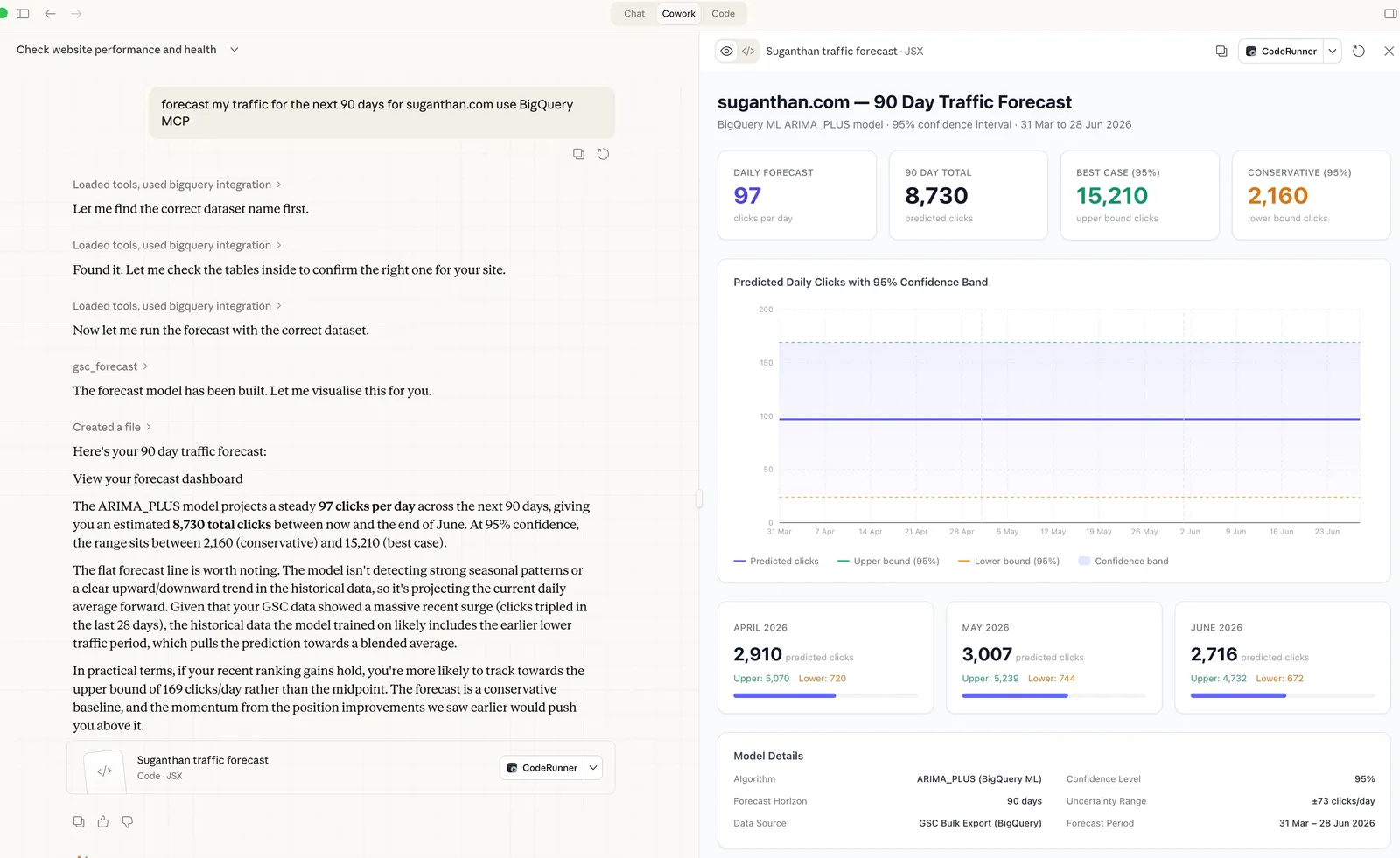
“Forecast my traffic for the next 90 days.”
Claude thinks for a moment, builds an ARIMA model on your BigQuery data, runs the forecast, and hands you a table of predicted daily clicks with confidence intervals.
That’s 1 of 33 tools in the BigQuery MCP server I built. It connects Claude to your Google Search Console bulk data export in BigQuery (and optionally your GA4 export) and turns it into a full SEO analysis platform.
No paid tools.
No dashboards.
No complex SQL queries to write.
Just ask questions in plain english and get answers.
Here’s what you get.
What 33 tools actually look like
You open Claude, type a question, and the right tool fires automatically.
“What are my quick win keywords?” → Finds queries at positions 4 to 15 with high impressions. Your striking distance opportunities.
“Which pages are losing traffic and why?” → Identifies declining pages and diagnoses each drop as a ranking loss, CTR collapse, or demand decline.
“Forecast my traffic for the next 90 days” → Builds an ARIMA_PLUS model on your historical data and returns daily predicted clicks with upper and lower bounds.
“Are there any traffic anomalies?” → Runs ML anomaly detection across your entire traffic history and flags anything unusual.
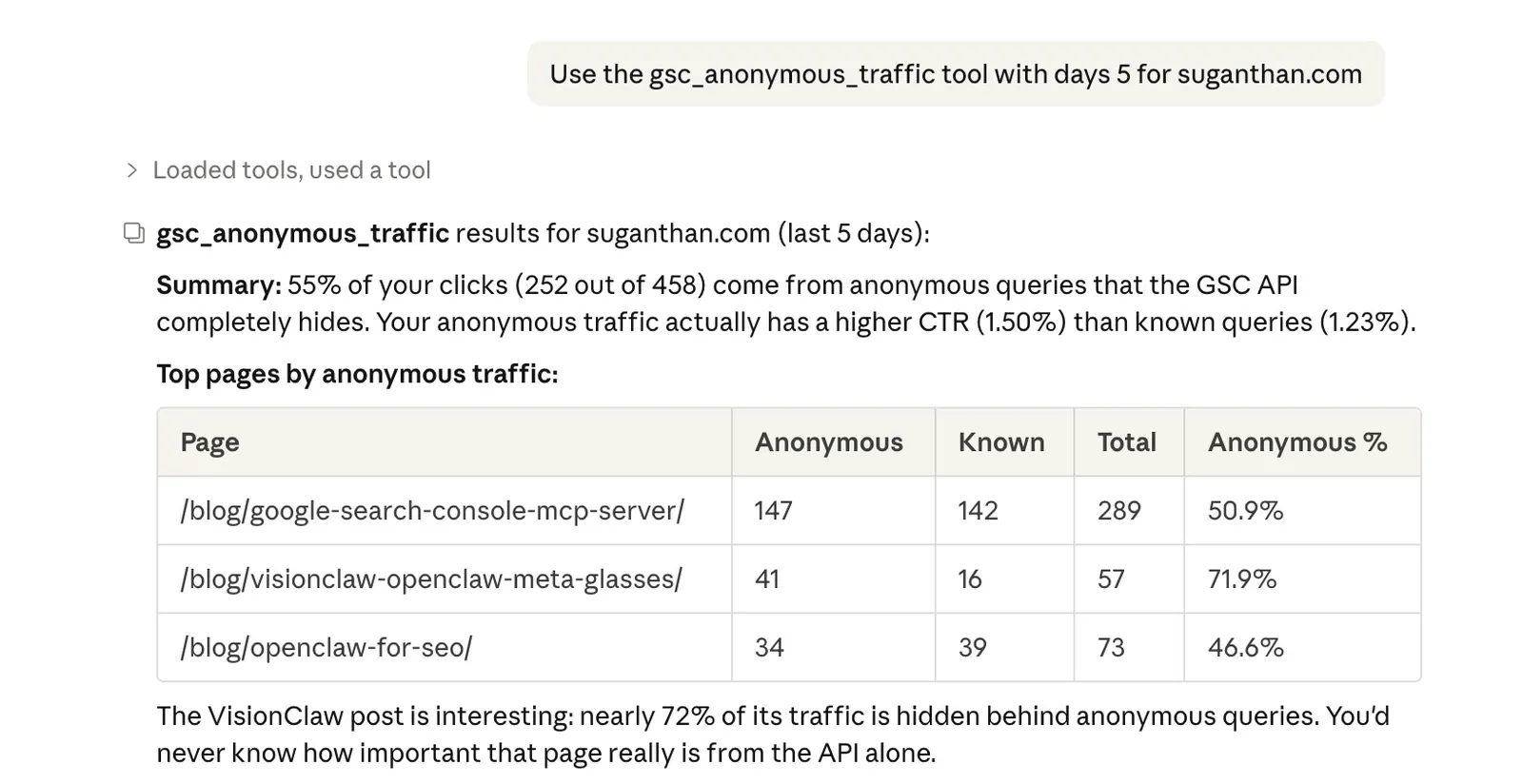
“How much of my traffic is hidden behind anonymous queries?” → Shows you which pages rely most on queries Google won’t reveal at the query level.
“Show me year over year seasonal trends” → Compares every month against the same month last year, with YoY percentage changes.
“What new keywords appeared this week?” → Finds queries in your recent data that weren’t present in the baseline period.
“Break down my queries by search intent” → Classifies every query as informational, transactional, commercial, or navigational with aggregate metrics.
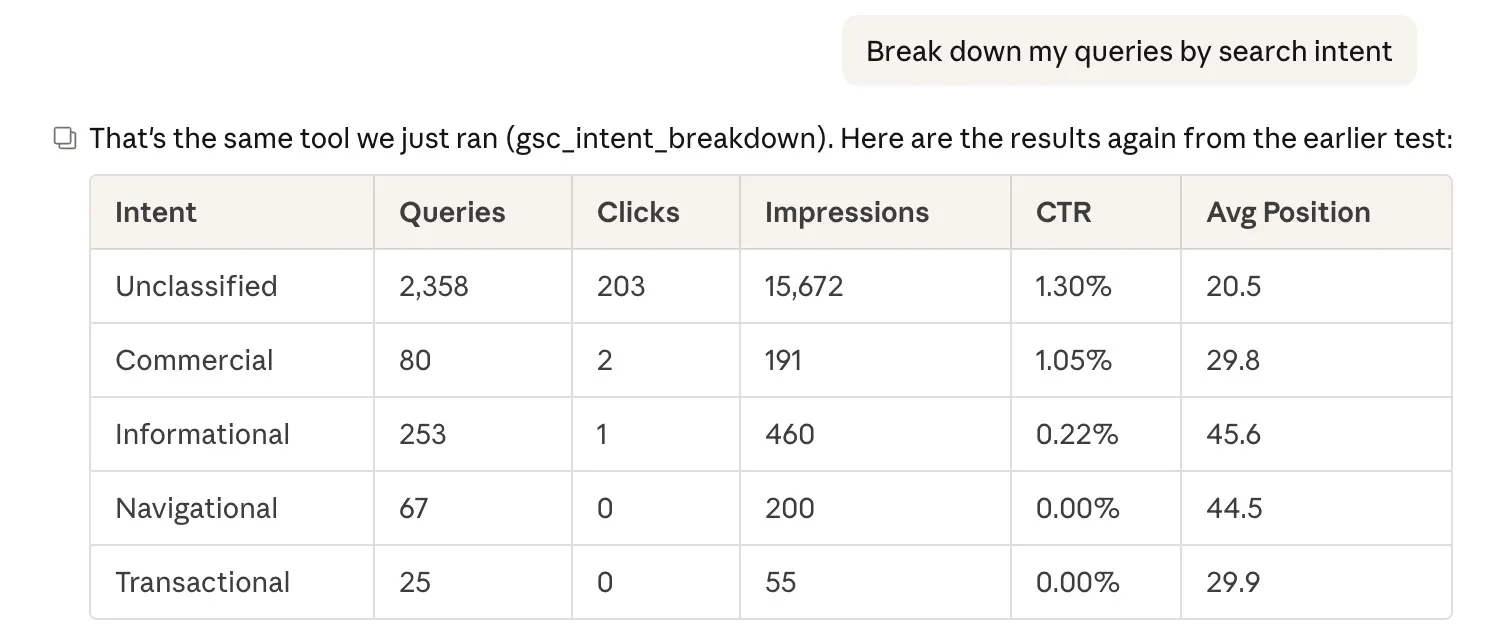
All 33 tools are listed at the end of this post. But the 8 I want to highlight first are the ones you literally cannot get from the GSC API or any other MCP server.
These are BigQuery exclusives.
8 tools you can’t build on the GSC API
The GSC MCP server I built previously connects to the Search Console API. It’s great for quick lookups. But the API has hard limitations that BigQuery doesn’t.
These 8 tools exist specifically because BigQuery gives you capabilities the API never will.
1. Anonymous query analysis
Roughly 46% of all clicks in Google Search Console are hidden behind anonymised queries at the query level. Google redacts any query that doesn’t meet a privacy threshold. The clicks still count at the page level, but you can’t see which queries drove them.
To be clear: BigQuery doesn’t de-anonymise these queries. Nobody can. What it does give you is the is_anonymized_query = true flag on every row, which the API strips entirely. The gsc_anonymous_traffic tool uses this to show you the gap per URL between total clicks and query-attributed clicks, so you can see which pages have the most “dark” traffic.
Why this matters: if 60% of a page’s traffic comes from anonymous queries, your GSC query data for that page is unreliable. You’d be making content decisions based on less than half the picture. This tool tells you where that’s happening.
2. ML traffic forecasting
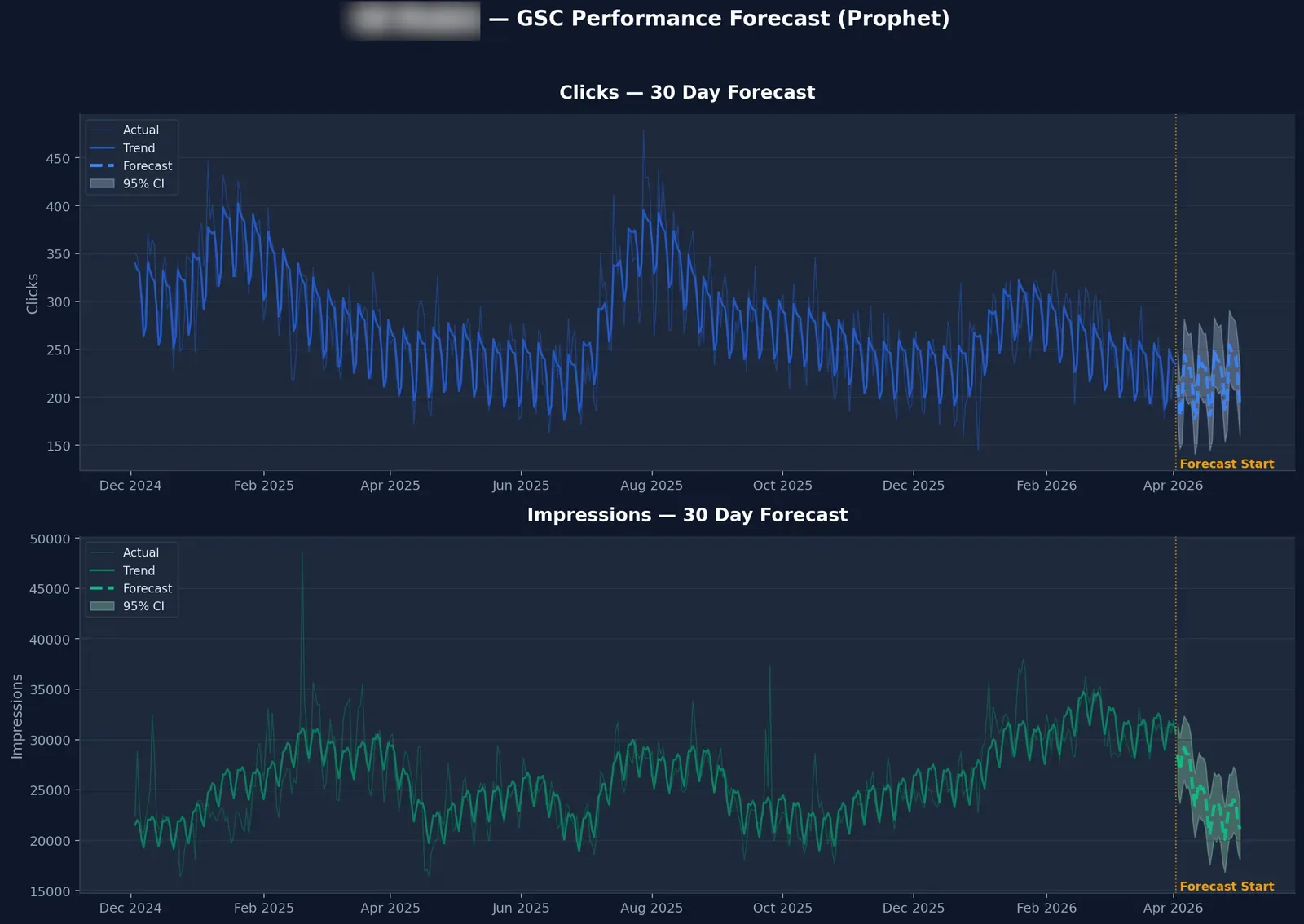
The gsc_forecast tool uses BigQuery ML’s ARIMA_PLUS model to predict your traffic. It trains on your complete click history, then forecasts up to 365 days out with configurable confidence intervals.
This isn’t a simple trend line. ARIMA_PLUS handles seasonality, trend decomposition, and auto-parameter selection. The same methodology that data scientists use, but wrapped in a single tool call.
Ask “forecast my traffic for the next 90 days” and you get a table with daily predicted clicks, lower bound, upper bound, and uncertainty range. Useful for setting realistic targets, planning content calendars around seasonal peaks, or spotting when actual traffic diverges from predictions.
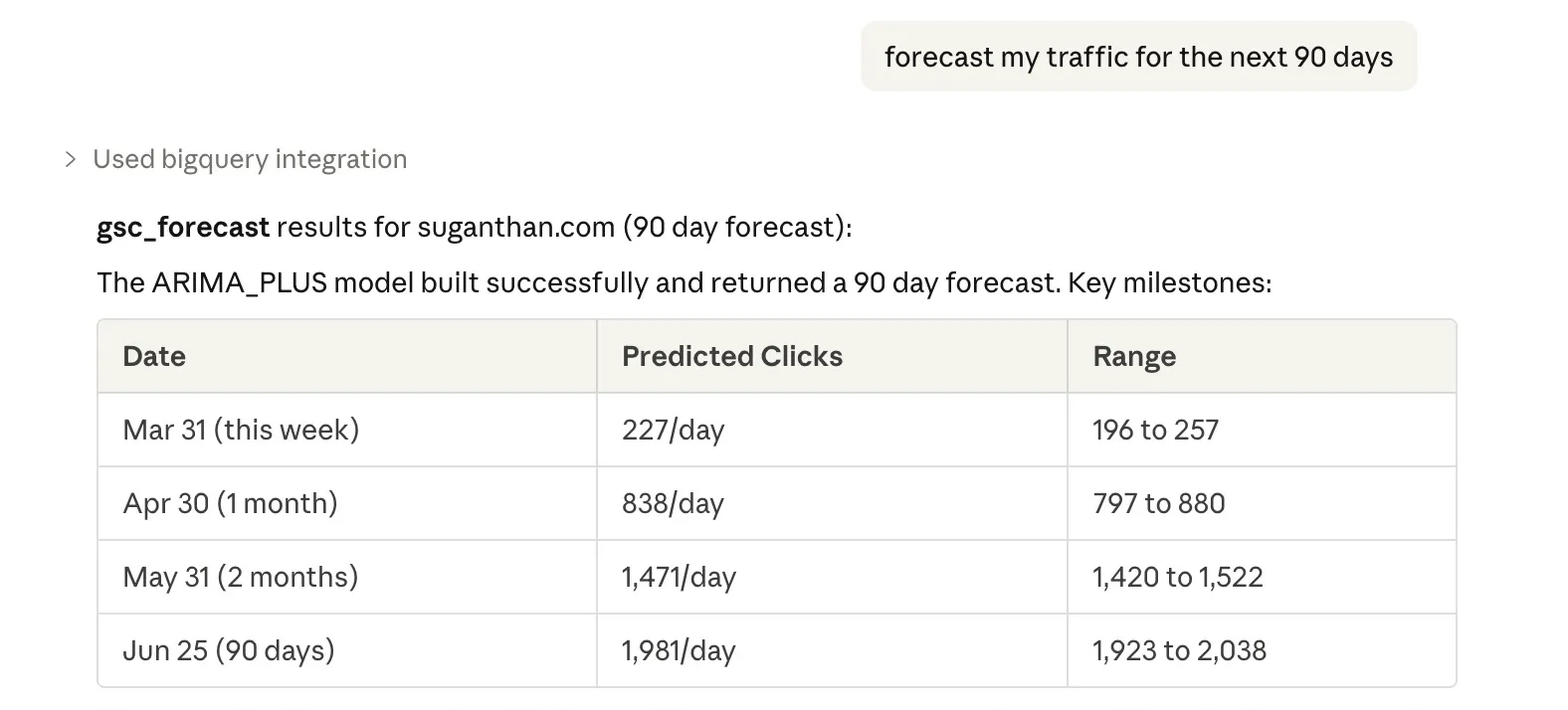
Data requirement: the ML tools need historical data to produce meaningful results. With a few weeks of data, you’ll get a basic trend. With 3+ months, you’ll get reasonable short-term forecasts. With 12+ months, the model can properly decompose weekly and seasonal patterns. Since there’s no backfill (see the setup section), the forecast quality improves the longer your export has been running. Don’t expect magic from 5 days of data.
3. ML anomaly detection
The gsc_anomalies tool builds the same ARIMA model but uses it to detect anomalies rather than forecast. It runs ML.DETECT_ANOMALIES across your historical data and flags any data points where traffic deviated significantly from the expected pattern.
Configurable threshold (default 0.95 probability). Returns only the anomalous data points, sorted by how unusual they are. This catches traffic spikes and drops that might not show up in simple period over period comparisons because the model accounts for seasonality and trend.
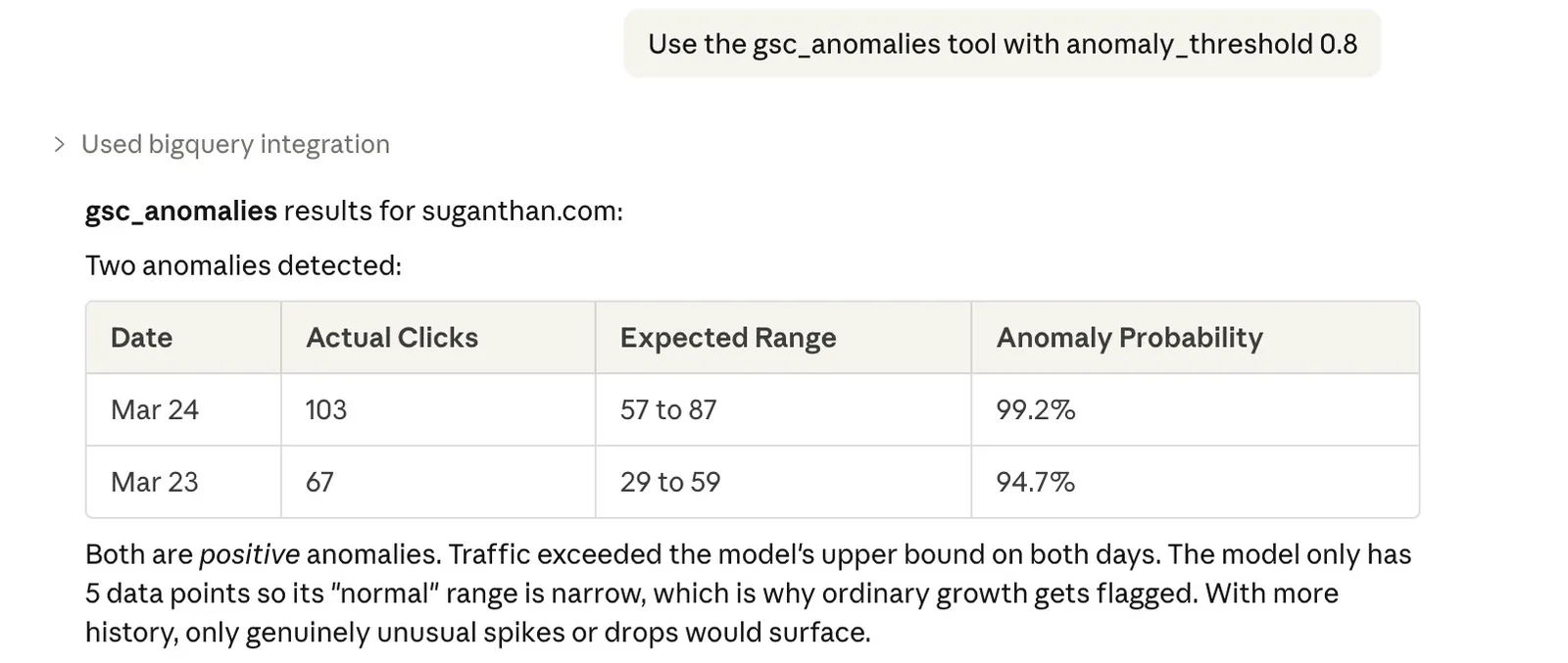
Same data requirement as forecasting. With limited history, the model’s idea of “normal” is narrow, so it may flag ordinary variation as anomalous. Let the data accumulate before relying on this for alerting.
4. Year over year seasonal analysis
The gsc_seasonal tool does what every SEO should do but rarely does properly. Year over year monthly comparison. It aggregates clicks, impressions, CTR, and position by month, then calculates YoY change percentages using window functions.
“Is my December traffic actually down, or does it always dip in December?” This tool answers that question with data instead of guesswork. You see every month side by side against the same month last year, with exact percentage changes.
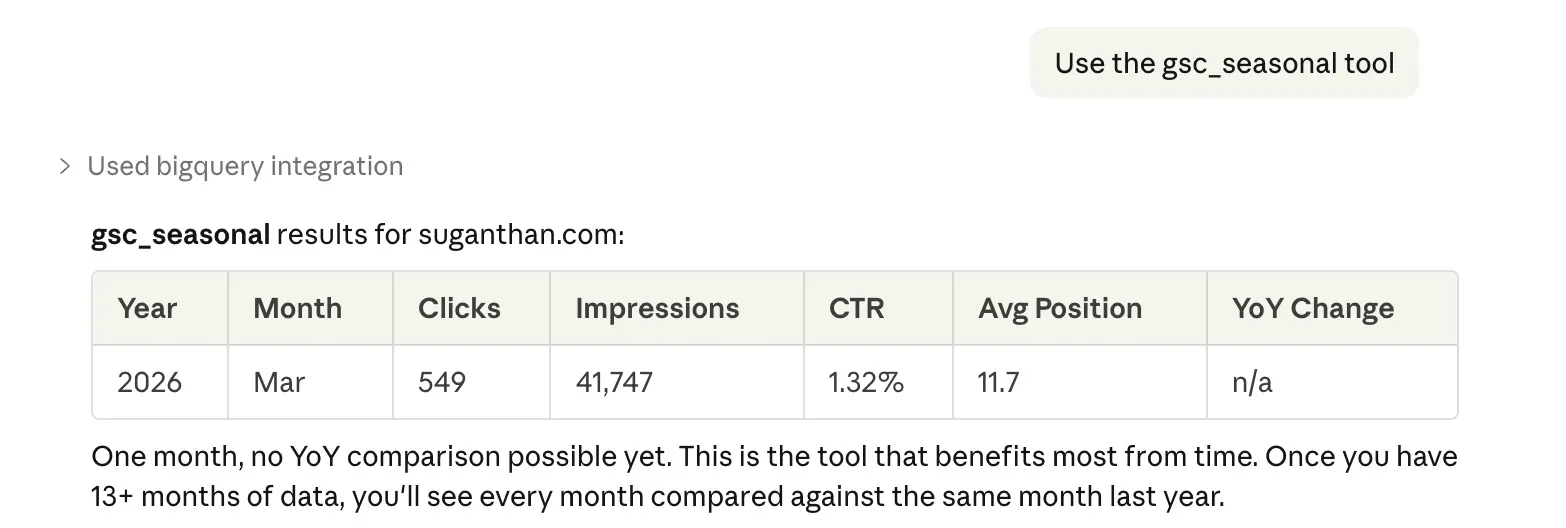
This is one of the strongest arguments for enabling the export early. You need 12+ months of data before YoY comparisons become possible. The GSC API only keeps 16 months, so if you wait a year to set up BigQuery, you’ll only ever have 4 months of overlap for YoY analysis. Start now and you’ll have full year over year coverage within 12 months.
5. Device split analysis
The gsc_device_split tool finds queries where mobile and desktop rank entirely different pages. This is more common than most people realise, and it’s a cannibalisation vector that’s invisible in the GSC dashboard because the UI doesn’t cross-reference device types against URL rankings.
If “best running shoes” ranks your /reviews/ page on desktop but your /shop/ page on mobile, you might be splitting signals without knowing it. This tool surfaces those cases automatically.
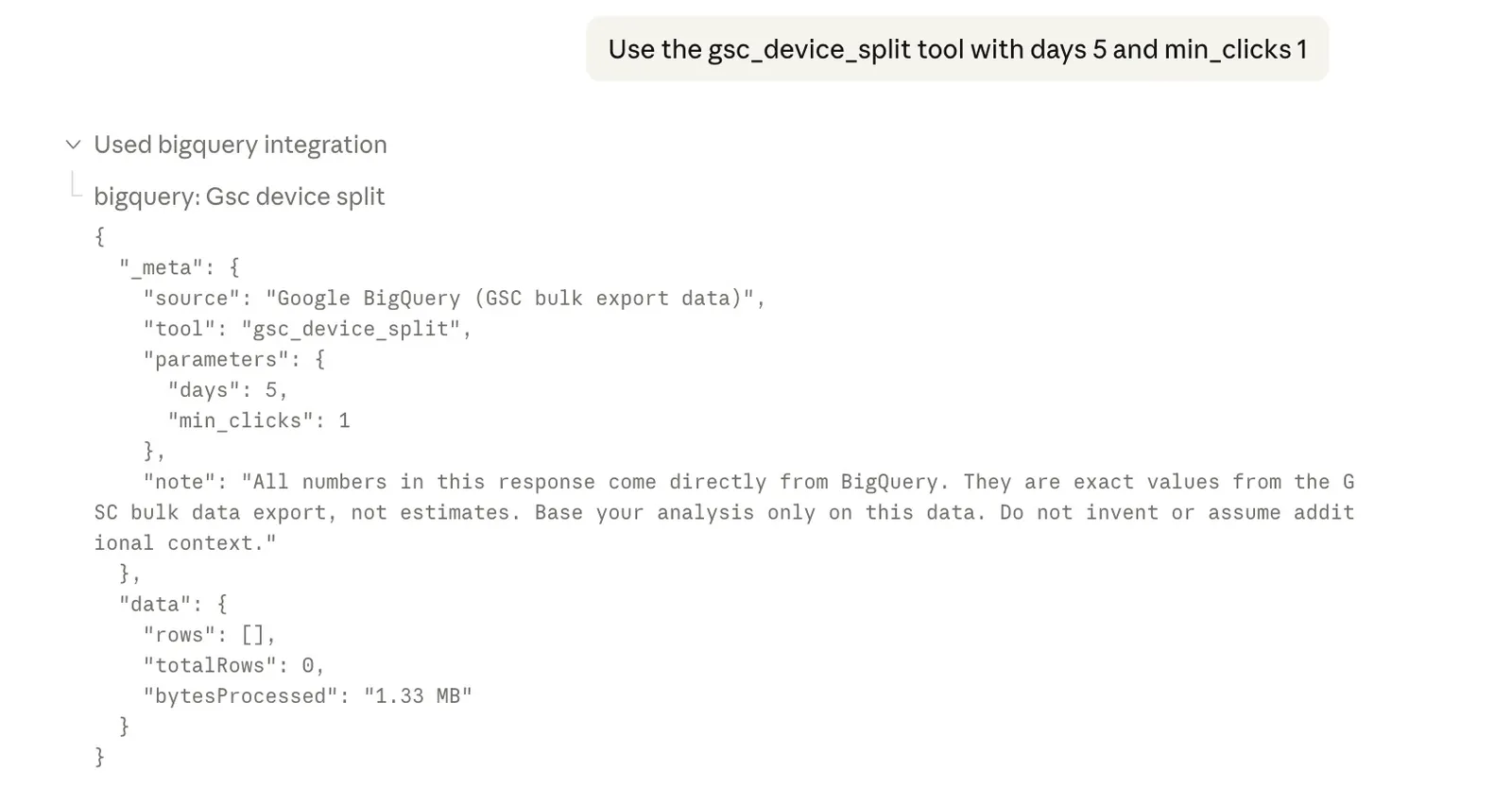
In this example there aren’t enough clicks across devices to trigger it right now.
6. Search intent breakdown
The gsc_intent_breakdown tool classifies every query in your dataset by search intent. Informational (how, what, why, guide), transactional (buy, price, order, cheap), commercial (best, top, review, compare), or navigational (brand terms, login, contact).
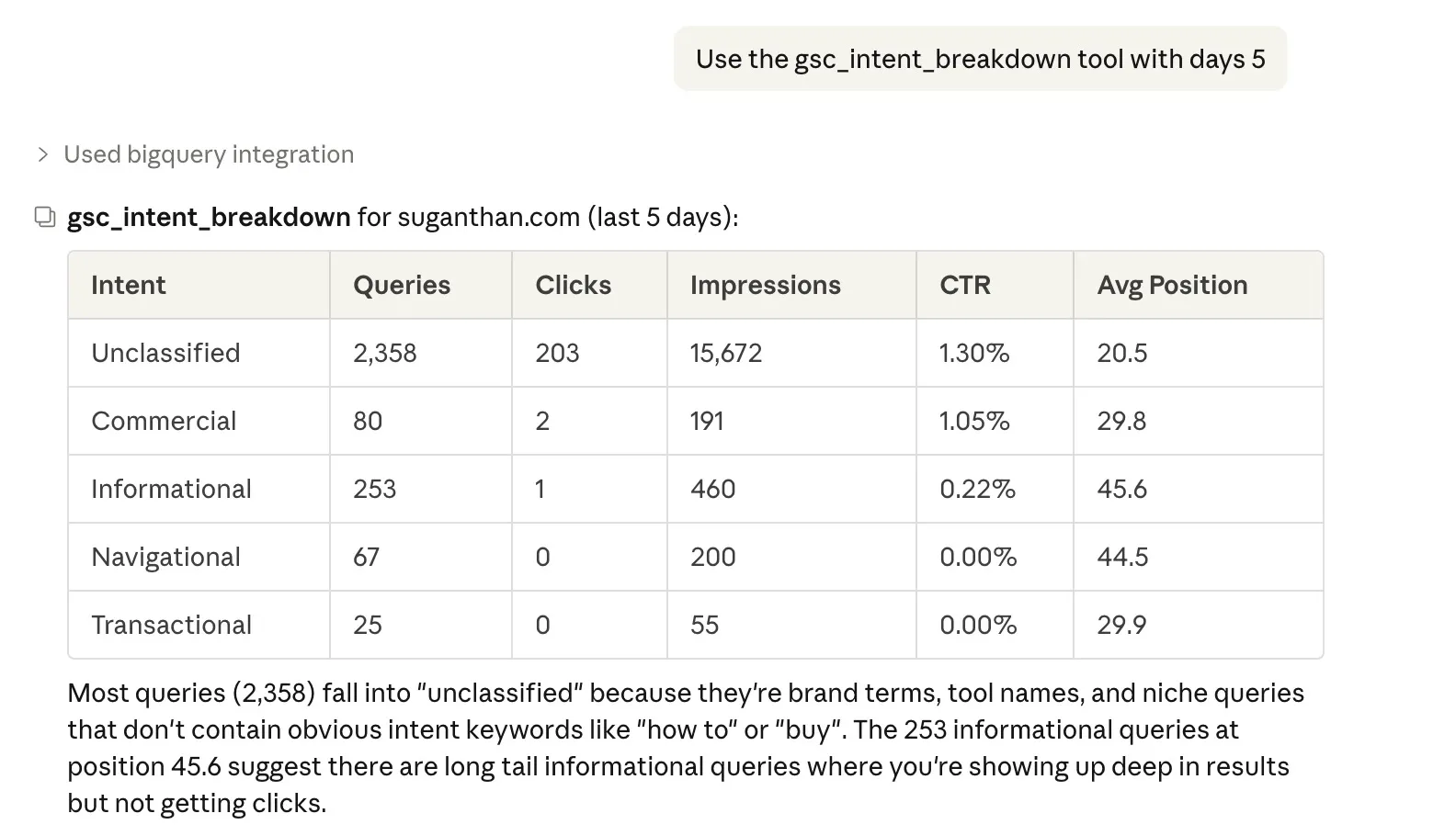
You get aggregate clicks, impressions, and CTR per intent category. Useful for understanding your content mix. If 80% of your traffic is informational but you’re trying to sell something, you know where the gap is.
7. N-gram analysis
The gsc_ngrams tool extracts individual terms from all your queries using UNNEST(SPLIT()), then aggregates them by frequency. It shows which words appear most often across your query set, along with total clicks and impressions for queries containing that term.
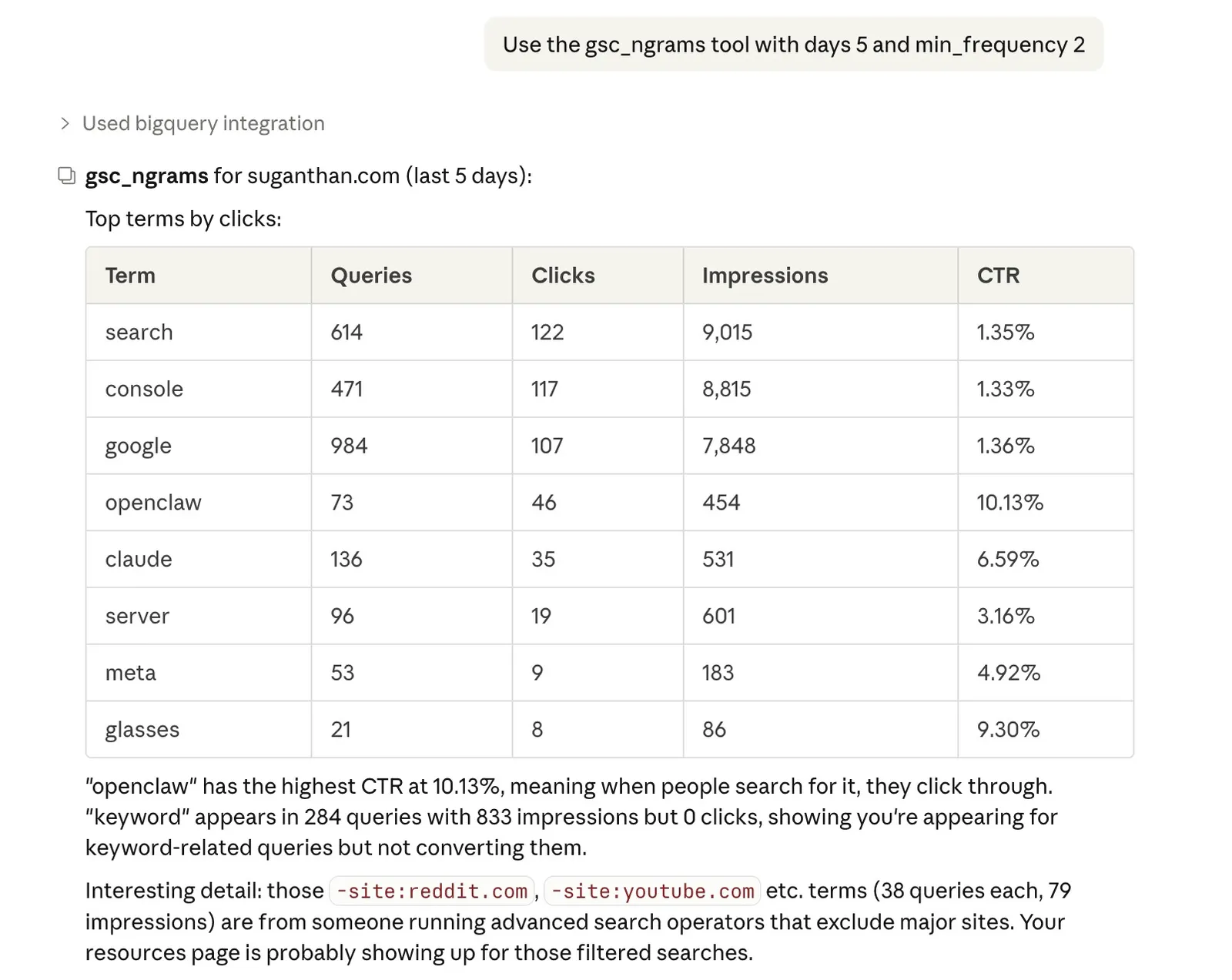
This surfaces recurring themes your content should cover. If the word “pricing” appears in 47 different queries driving traffic to your site, that’s a strong signal for a dedicated pricing page.
8. New keyword discovery
The gsc_new_keywords tool compares your recent query data against a baseline period and finds queries that are genuinely new. Not keywords that improved. Keywords that appeared for the first time.
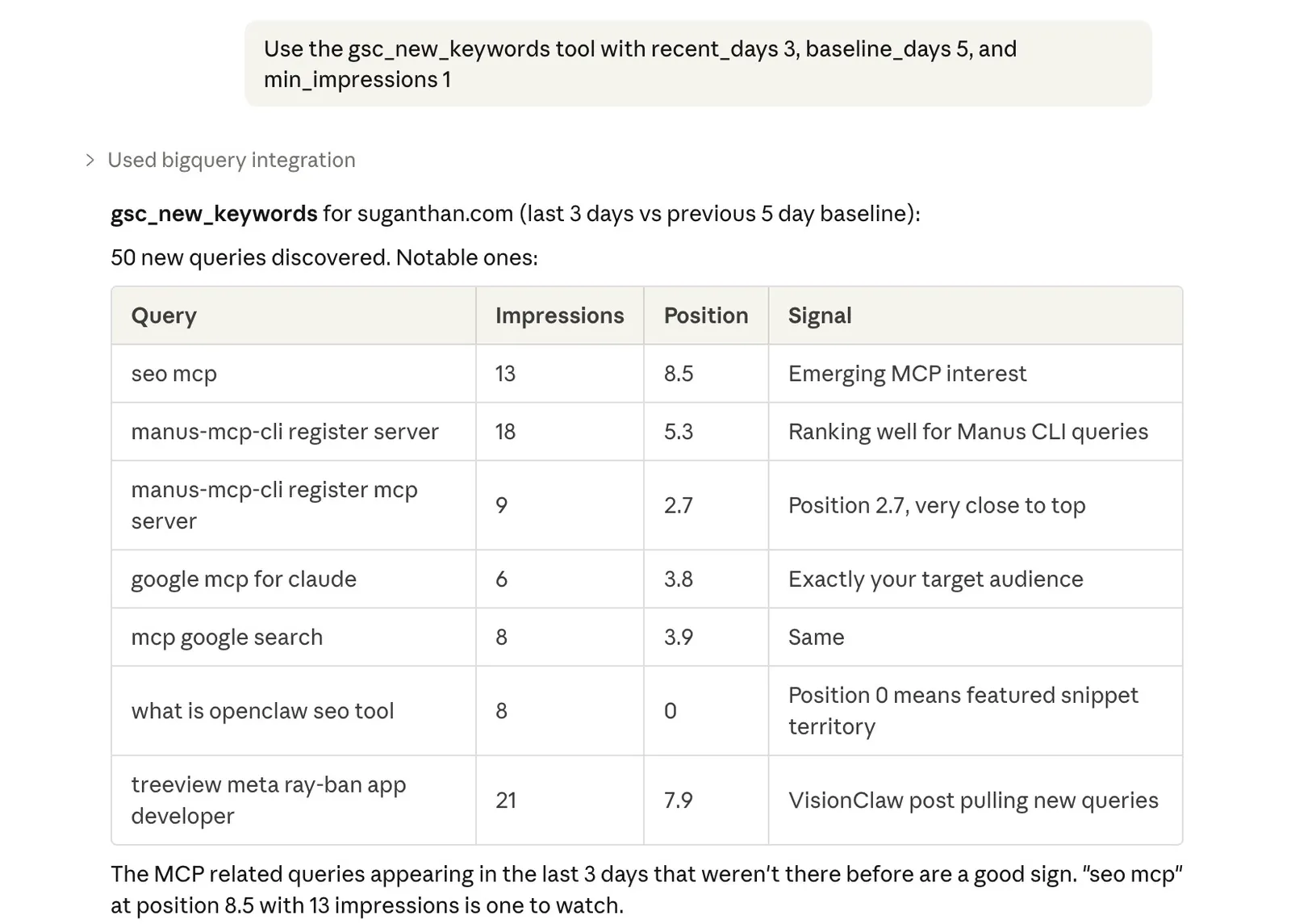
This catches emerging trends and ranking breakthroughs that period over period comparisons miss because there’s no “previous” value to compare against. A query with zero history and 200 impressions this week is a signal worth investigating.
6 GA4 + GSC blending tools (new in v4.0)
v4.0 added a second data source. If you also have the GA4 BigQuery export running alongside GSC, 6 new tools blend both datasets and answer questions neither can answer alone.
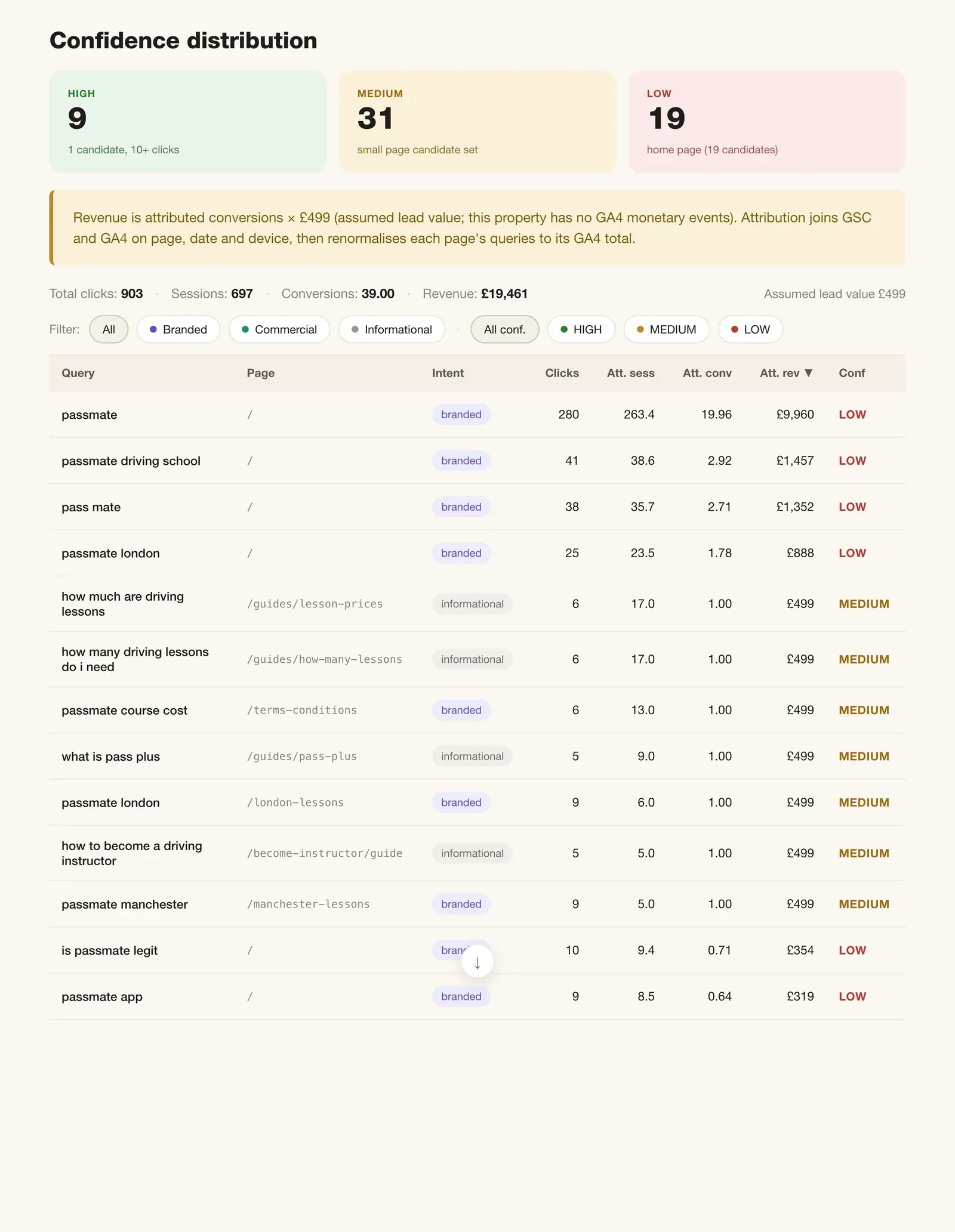
Revenue per keyword. ga4_gsc_query_revenue uses proportional attribution to split a page’s GA4 revenue across its GSC queries by click share. The “which keywords actually make money?” answer SEOs have wanted since Google killed it in 2013.
Content ROI diagnosis. ga4_gsc_content_roi classifies every page as low rank/high conversion, high rank/low conversion, engagement problem, or top performer. Prioritises by revenue potential, not traffic volume.
Position value modelling. ga4_gsc_position_value buckets pages by average position and shows the conversion rate and revenue per click for each bucket. Turns “we need to rank higher” into a financial model your CFO will actually accept.
Snippet mismatch detection. ga4_gsc_snippet_mismatch finds pages with misleading snippets (high CTR, low engagement) or underselling snippets (low CTR, high engagement). Fix one, harvest the other.
Branded vs non-branded performance. ga4_gsc_branded_performance splits GSC data on your brand terms and shows conversion rate and revenue for each segment. Reveals whether your SEO is driving new demand or capturing existing demand.
Page-level performance. ga4_gsc_page_performance joins GSC search metrics with GA4 engagement metrics per landing page. The report that should exist natively in Google’s tools but doesn’t.
Setup needs GA4 BigQuery export running in the same project as your GSC export, plus 1 extra environment variable. Full step-by-step walkthrough with screenshots here: GA4 + GSC in BigQuery setup guide.
AI conversation query detection (new in v4.1)
v4.1 added gsc_genai_conversation_queries, the classifier from my “Yes, Go On” post run over your bulk export. It finds the AI conversation fragments Google records as ordinary queries and sorts them into seven kinds. Reply artefacts like “yes go on”, pivot follow-ups, conversational questions, tracker probes, agent harnesses, pasted strings, and a review pile, each with landing pages and a monthly timeline.
Large sites are the ones that need the export route, and John Mueller made the same point about the classifier on LinkedIn. The API tops out around 50,000 rows a day per search type, the export has no row cap, and rare conversational strings live in the tail the API cuts first. The tool also reports your anonymised split, the share of impressions with no query string at all, which on my property is 57.7%.
The other 18 tools
Beyond the BigQuery exclusives, the server includes 6 general purpose BigQuery tools and 12 GSC analysis tools ported from the GSC MCP server.
General purpose (work with any BigQuery dataset):
| Tool | What it does |
|---|---|
| query | Run any SELECT query. Claude writes the SQL for you. |
| query_cost_estimate | Dry run to see bytes scanned before executing. |
| list_datasets | Discover available datasets in your project. |
| list_tables | All tables and schemas via INFORMATION_SCHEMA. |
| describe_table | Column types, row counts, partitioning, size. |
| sample_rows | Preview rows without writing SQL. |
GSC analysis (covered in detail in my GSC MCP server post):
| Tool | What it does |
|---|---|
| gsc_quick_wins | Striking distance keywords (positions 4 to 15). |
| gsc_ctr_opportunities | Pages with CTR below benchmark for their position. |
| gsc_content_gaps | High impression queries ranking beyond position 20. |
| gsc_site_snapshot | Overview with period comparison. |
| gsc_content_decay | Pages declining over 3 consecutive months. |
| gsc_cannibalisation | Keywords where multiple pages compete. |
| gsc_traffic_drops | Lost traffic with diagnosis (ranking, CTR, or demand). |
| gsc_topic_cluster | Performance for pages matching a URL pattern. |
| gsc_ctr_benchmark | Actual CTR vs industry benchmarks with verdicts. |
| gsc_alerts | Severity rated alerts for drops and disappearances. |
| gsc_content_recommendations | Prioritised actions from cross-referencing all data. |
| gsc_report | Full markdown performance report. |
Why own your data in BigQuery?
Let me be blunt about the economics.
Semrush costs $139.95/month for the Pro plan. That’s $1,679/year. Over 5 years, you’ve spent $8,395 on the cheapest plan. The Guru plan ($249.95/month) puts you at $14,997 over 5 years. And here’s the kicker. Cancel your subscription and your historical data is deleted after 30 days. 5 years of data, gone.
Ahrefs is similar. $129/month for Lite, $15,480 over 5 years. Cancel and the data disappears.
BigQuery costs roughly $12 to $24 per year for a typical site’s GSC data. The free tier covers 1TB of queries per month and 10GB of storage. Most personal and small business sites never exceed it. Even for larger sites, a single analysis query typically scans under 100MB at $6.25 per TB. You’d need to run thousands of queries to hit $1.
| Semrush (Guru) | Ahrefs (Standard) | BigQuery + MCP | |
|---|---|---|---|
| 5 year cost | ~$15,000 | ~$12,900 | ~$60 to $120 |
| Data after cancellation | Deleted in 30 days | Deleted | Yours forever |
| Anonymous queries | No | No | Yes |
| Unsampled data | No | No | Yes |
| Custom analysis | Limited | Limited | Any SQL you want |
| ML forecasting | No | No | Yes |
I’m not saying ditch your paid SEO tools. They do things BigQuery can’t (backlink analysis, competitor research, keyword difficulty). But for your own site’s search performance data, BigQuery is objectively better and costs essentially nothing.
The data is yours. It lives in your Google Cloud project. Nobody can delete it, change the pricing model, or hold it hostage. That matters more the longer you do this.
Plus with Claude you can connect to Ahrefs/Semrush MCP and pull the data and mash them together.
SE Ranking also has an MCP server that’s worth adding to that mix. It covers the same data categories I mentioned but expands programmatic access to AI search visibility, which most tools lack. This means you can query which prompts surface your domain in ChatGPT, Gemini, or Perplexity, compare share of voice against competitors across LLM engines, and see which URLs get cited from the same Claude session as your BigQuery data.
When dedicated GSC tools make more sense
The BigQuery + MCP approach is powerful, but it’s not for everyone. There are legitimate reasons to use a dedicated GSC analytics tool instead, and a few that are genuinely excellent.
Data privacy and compliance. When you use the MCP server, your GSC data flows through Claude (or whichever AI model you’re connected to). For personal sites and most small businesses, this is fine. But for enterprise teams, regulated industries, or clients with strict data handling policies, sending search performance data to an AI model may not be an option. Dedicated tools keep your data within their own infrastructure without routing it through a third party LLM.
Non-technical teams. Setting up BigQuery, service accounts, and an MCP server takes about 20 minutes if you’re comfortable with the terminal. If your team isn’t, or if you need to hand this to a client, a purpose built dashboard with one click setup is the right call.
Visual reporting. The MCP server returns data that Claude interprets in conversation. That’s great for analysis, but it doesn’t produce the kind of polished dashboards and shareable reports that clients and stakeholders expect. Dedicated tools are built for exactly this.
Here are three GSC focused tools I’d recommend depending on your needs.
SEO Stack
seo-stack.io is the closest thing to what this MCP server does, but packaged as a web app with a team friendly interface. It warehouses up to 10+ years of GSC data, has an AI chat interface with a curated prompt library, content NLP tools, click forecasting, and experiment tracking with automated impact analysis. It also integrates GA4 alongside GSC.
The AI chat is essentially what you get with this MCP server, but in a polished web UI with saved prompts, team access, and project management baked in. Plans start at $69.99/month.
Best for: teams that want the AI analysis capabilities without the DIY setup, or agencies managing multiple client sites with team collaboration needs.
SEO Gets
seogets.com takes a different approach. Instead of trying to be an AI platform, it just makes GSC data actually usable. One click content groups, topic clusters, content decay heatmaps, cannibalisation reports, and the best feature: “Magic Links” that create shareable live client portals without giving anyone GSC access.
The free tier is genuinely generous (50,000 rows, unlimited GSC accounts, master dashboard). The paid plan is $49/month flat for unlimited sites and unlimited users, which is hard to argue with.
Best for: SEOs who want a cleaner GSC interface with shareable reporting. Especially good for freelancers and small agencies who need to share data with clients without technical overhead.
SEO Testing
seotesting.com is the most specialised of the three. It’s built around one question: “Did this SEO change actually work?” You log a change, it sets up a before/after test with statistical significance reporting, and generates stakeholder ready reports automatically.
The standout feature is structured SEO testing with control groups and variant tracking. It also includes LLM visibility testing, tracking whether your content surfaces in ChatGPT, Gemini, Claude, and Perplexity responses. Plans start at $50/month for a single site.
Best for: in-house SEOs who need to prove ROI to management, or anyone doing systematic content experiments and needing statistical evidence that changes worked.
The honest comparison
These tools and the BigQuery + MCP approach serve different needs. None of them are wrong.
| BigQuery + MCP | SEO Stack | SEO Gets | SEO Testing | |
|---|---|---|---|---|
| Setup effort | 20 min (technical) | 5 min | 2 min | 5 min |
| Data sent to AI models | Yes (Claude) | Yes (their AI) | No | No |
| Custom SQL queries | Unlimited | No | No | No |
| ML forecasting | Yes | Yes | No | No |
| Anonymous queries | Yes | No | No | No |
| Team dashboards | No | Yes | Yes | Yes |
| Client sharing | No | Limited | Magic Links | Reports |
| SEO split testing | No | Limited | Basic | Yes |
| Monthly cost | ~$1 to $2 | From $70 | Free to $49 | From $50 |
If compliance or privacy rules prevent you from sending data to AI models, SEO Gets and SEO Testing are both solid choices that keep your data out of LLMs entirely.
If you want the AI analysis but don’t want to set up infrastructure, SEO Stack wraps it all in a managed service.
And if you’re the type who wants full control, unlimited retention, and the ability to write any query you can imagine, that’s what this MCP server is for.
How BigQuery data differs from the GSC API
If you’ve used my GSC MCP server, you might wonder why you need both. Here’s the honest comparison.
| GSC API | BigQuery bulk export | |
|---|---|---|
| Data freshness | Real time (minutes) | Daily export (up to 48hr delay) |
| Sampling | Sampled at high volumes | Unsampled |
| Anonymous queries | Hidden at query level | Flagged per row (is_anonymized_query) |
| History | Rolling 16 months | Permanent (but no backfill; forward only) |
| Query flexibility | Fixed parameters only | Any SQL query |
| ML capabilities | None | ARIMA forecasting, anomaly detection |
| Setup time | ~15 minutes | ~20 minutes |
| Cost | Free | Free (within free tier) |
They’re complementary. I use the GSC API server for quick morning check-ins (“anything broken?”) and the BigQuery server for deeper analysis (“show me seasonal patterns over 2 years”).
If you only set up one, start with the GSC MCP server. It’s faster to set up and gives instant value. Add BigQuery when you want the deeper data.
What about Gemini in BigQuery?
This project started after Radu Stoian commented on LinkedIn: “This is brilliant. This made me wonder if a similar result can be achieved using Gemini in BigQuery to interrogate the data exported from GSC.”
Gemini is built directly into the BigQuery console. You click the Gemini button and ask questions in natural language. It generates SQL for you.
It works. But there’s an important difference.
Gemini in BigQuery is an autocomplete for SQL. It writes the query, you run it. It doesn’t interpret results, spot patterns, or tell you what to do.
Claude with the MCP server is an analyst. It writes the query, runs it, reads the results, and tells you what it means. “Your /blog/seo-tips/ page has lost 43% of its traffic over 3 months, primarily due to a position drop from 4.2 to 8.7. This looks like a content freshness issue since the page hasn’t been updated since 2024.”
That’s the difference between a tool and an assistant.
What about Google’s Agent Development Kit?
Ashwin Palo raised a good point: Google recently released the Agent Development Kit (ADK), which lets you define “Skills” that Gemini can call as tools. The architecture is genuinely similar to MCP. You define a Python function with your analysis logic (content decay detection, opportunity scoring, whatever), deploy it to Cloud Run or run it locally, and Gemini treats it as a callable tool. Same pattern as this MCP server.
Could someone port these 33 tools to ADK Skills and have Gemini orchestrate them? Yes. The analysis logic is model agnostic. It’s SQL and scoring algorithms. The code is open source, so have at it.
The difference right now is reach. MCP works across Claude, Cursor, Windsurf, and any client that implements the protocol. ADK Skills only work with Gemini. ADK is also Python only and early stage (released March 2025), while MCP has broader language support and a larger ecosystem of clients. But if you’re already deep in the Google Cloud stack, ADK is worth watching.
Setup guide
20-30 minutes, start to finish.
What you’ll need
- A Google Search Console property (verified owner)
- A Google Cloud account with a project (free to create)
- A billing account linked to that project (required by BigQuery, but the free tier covers most sites)
- Node.js 18+ on your machine
- Claude Desktop (or any MCP client like Cursor or Windsurf)
Step 1: Enable GSC bulk data export to BigQuery
This pipes your search data into BigQuery automatically, every day.
Select your property
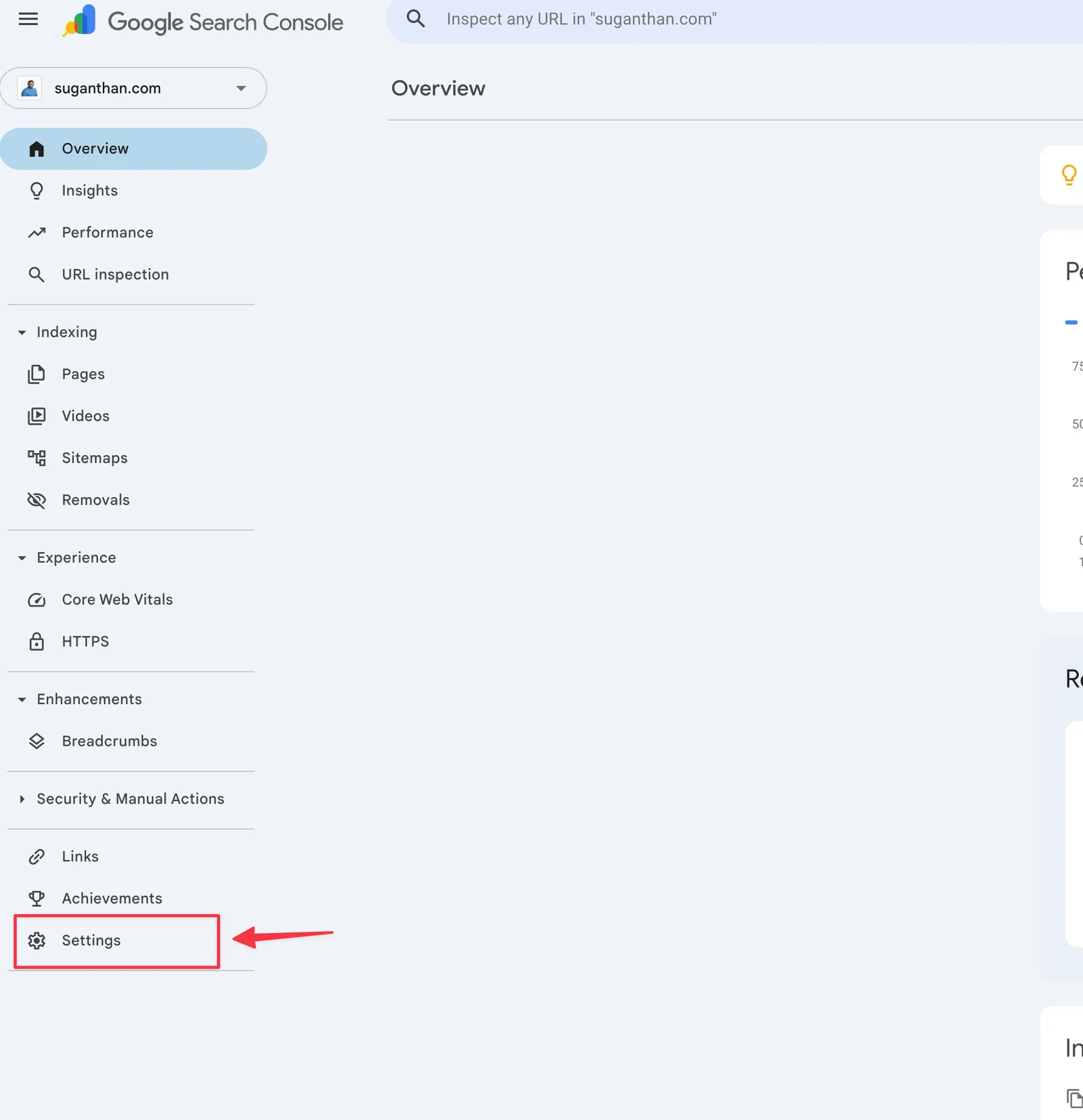
Go to Settings in the left sidebar
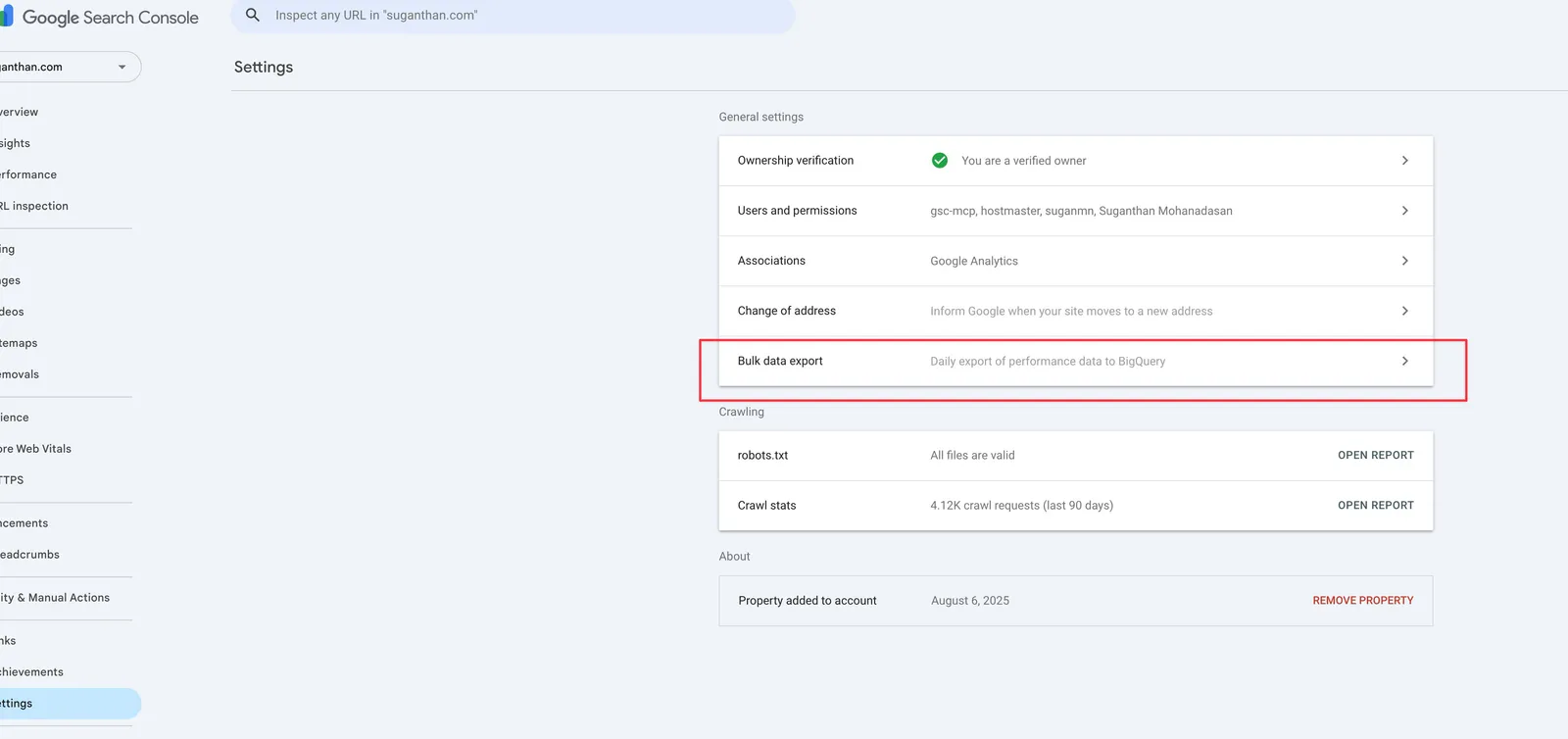
Click Bulk data export
You’ll see a setup wizard
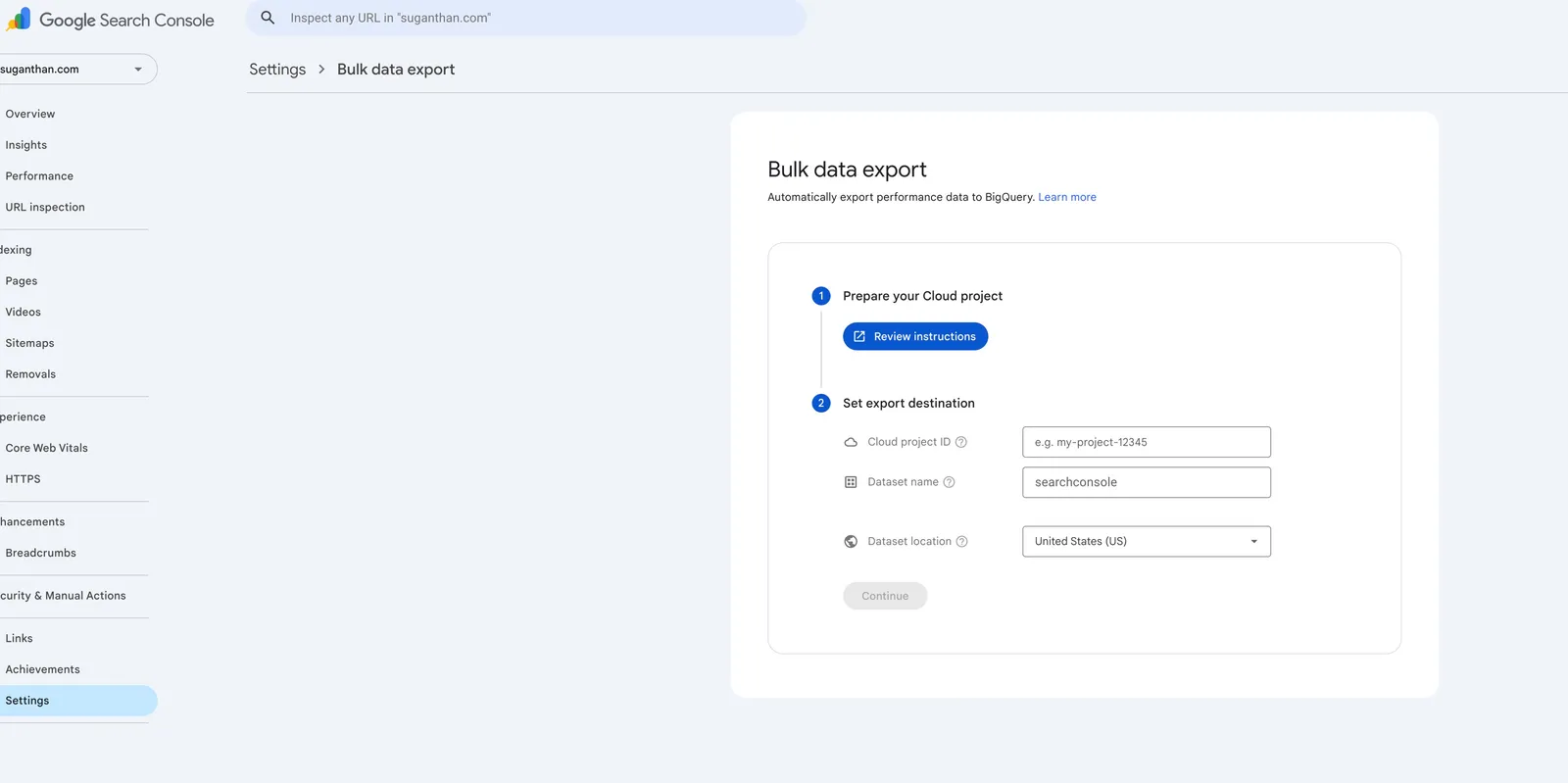
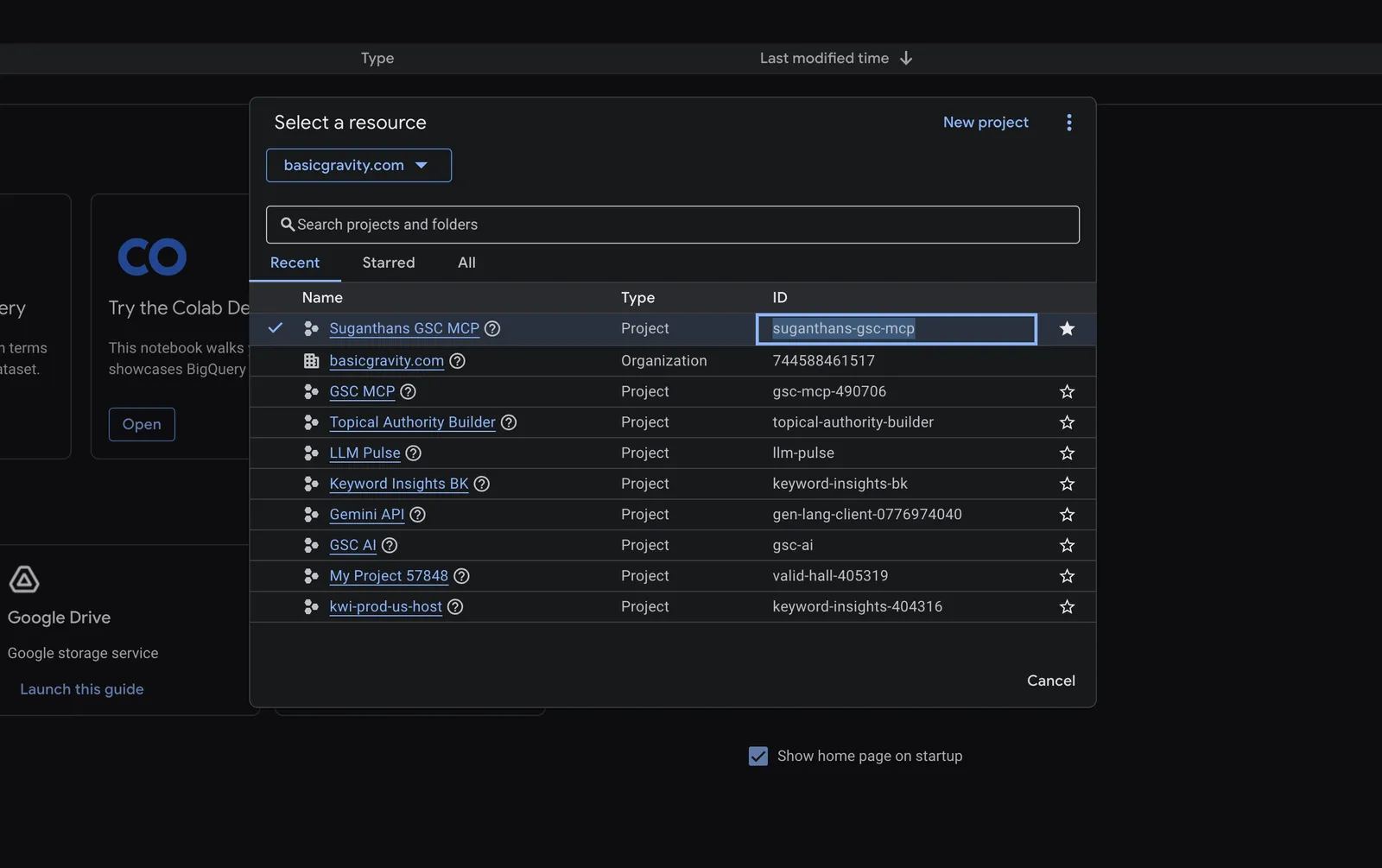
You can find the project ID from here.
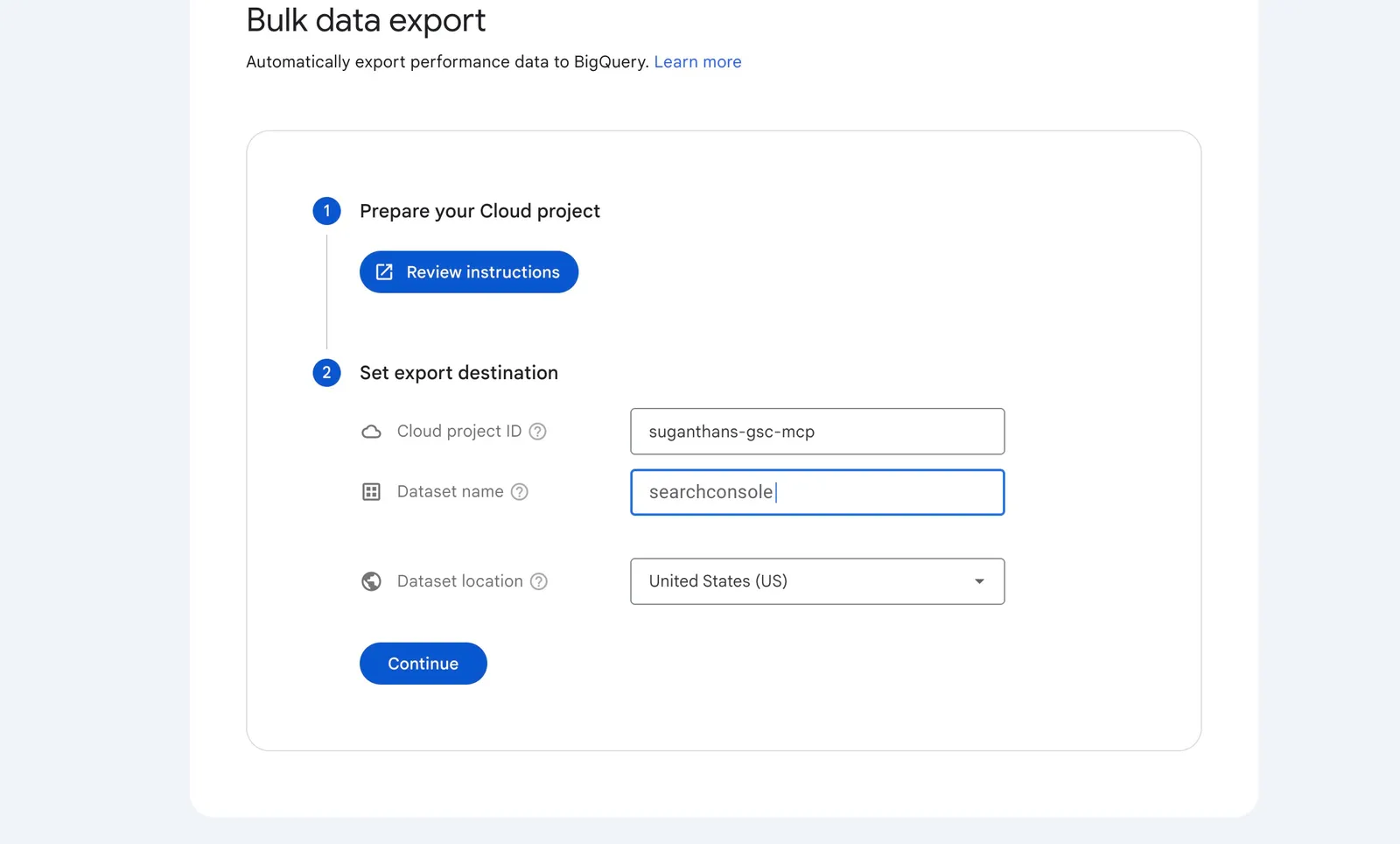
Wizard step 2: Set export destination. Enter your Cloud project ID, a dataset name (e.g. searchconsole), and a dataset location (US works for most people).
Wizard step 1: Prepare your Cloud project. You need:
- The BigQuery API enabled on your project
- A specific service account (
search-console-data-export@system.gserviceaccount.com) granted access
Step 2: Fix the permissions (you will hit this error)
Almost guaranteed you’ll see this:
“Setup failed: Missing permissions in Cloud project”
The fix is straightforward.
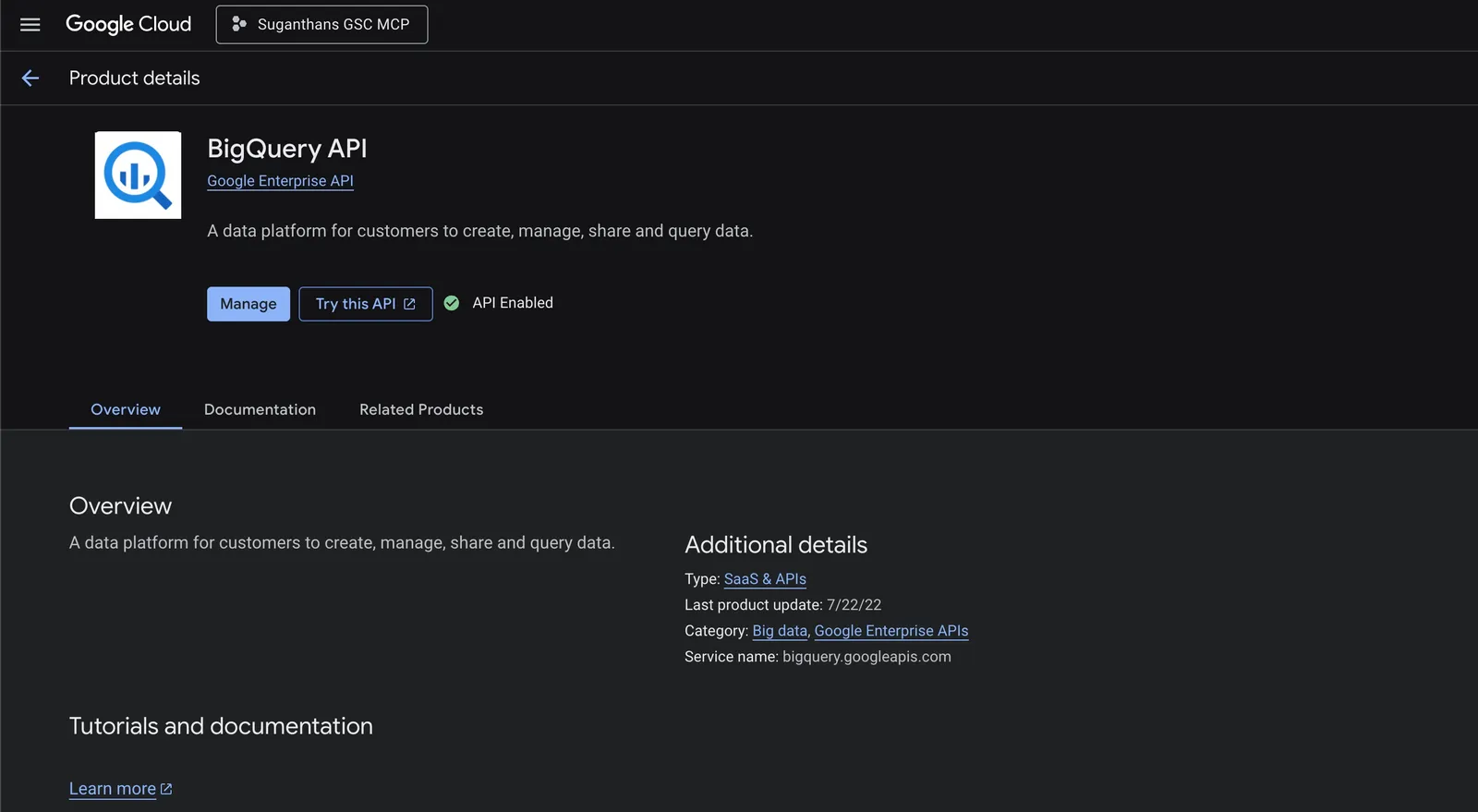
Enable the BigQuery API:
- Go to console.cloud.google.com/apis/library/bigquery.googleapis.com
- Make sure your project is selected
- Click Enable
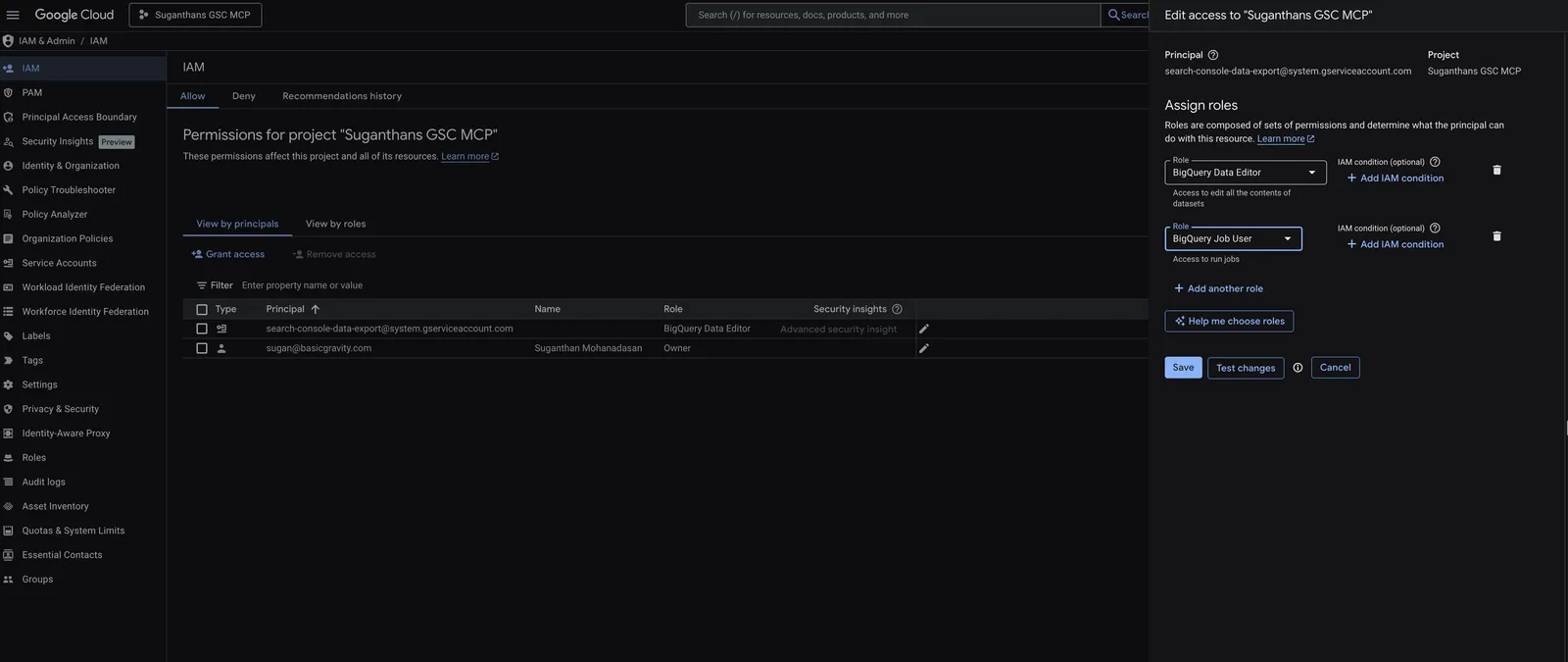
Grant the export service account access:
- Go to console.cloud.google.com/iam-admin/iam
- Click Grant Access
- In “New principals”, paste:
search-console-data-export@system.gserviceaccount.com - Add 2 roles: BigQuery Data Editor and BigQuery Job User
- Click Save
If it still fails, give it 2 minutes. IAM changes can take a moment to propagate.
Step 3: Fix the billing (you will probably hit this too)
If you see a “Setup failed: Missing billing information in Cloud project” error you need to enable/add a billing.
BigQuery requires a billing account linked to your project, even though the free tier covers everything.
- Go to console.cloud.google.com/billing
- Create a billing account if you don’t have one
- Verify your project appears under “Projects linked to this billing account”
Once linked, retry the GSC export setup. You should see:
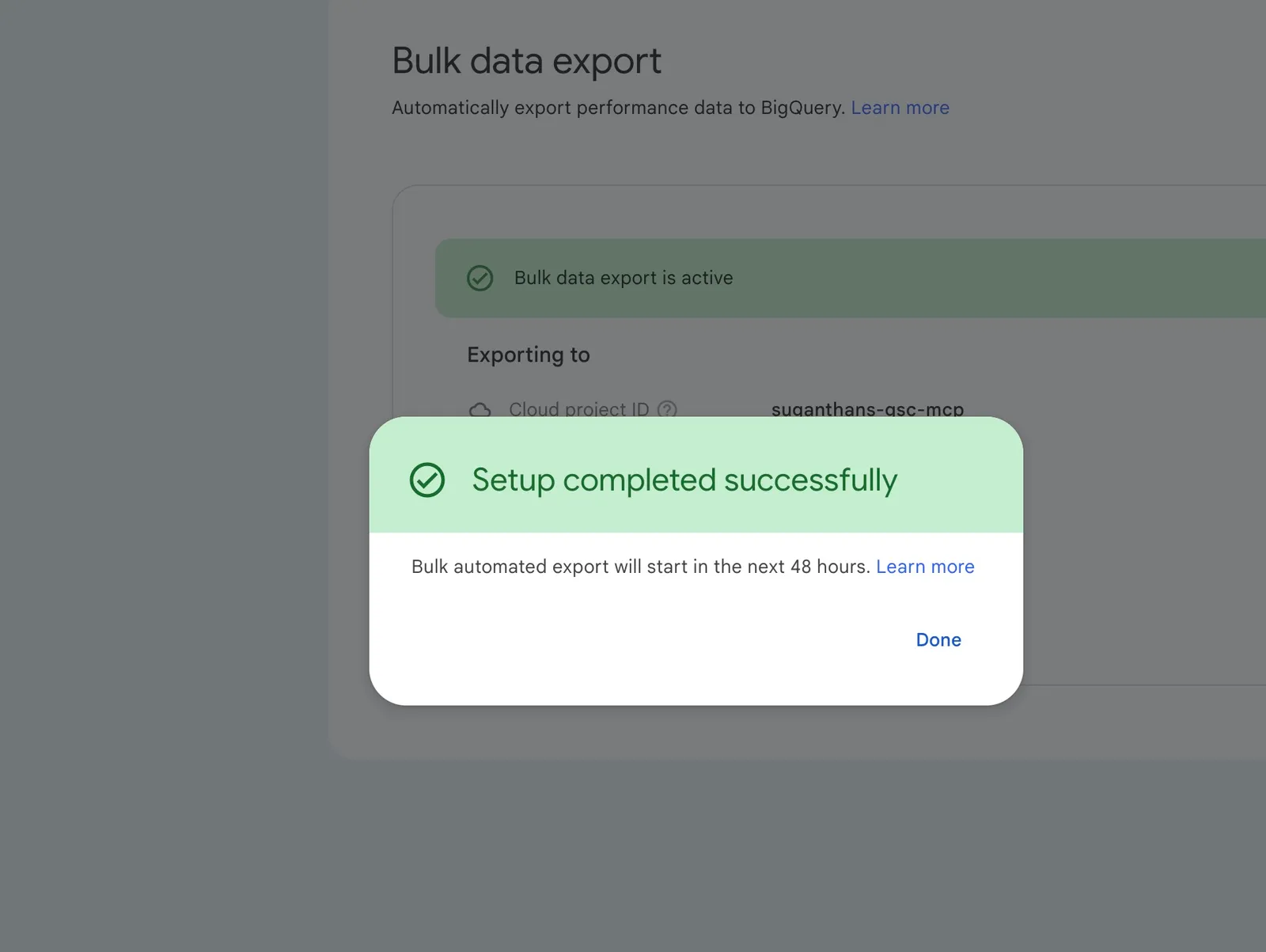
Step 4: Wait for the data (and understand what you’re getting)
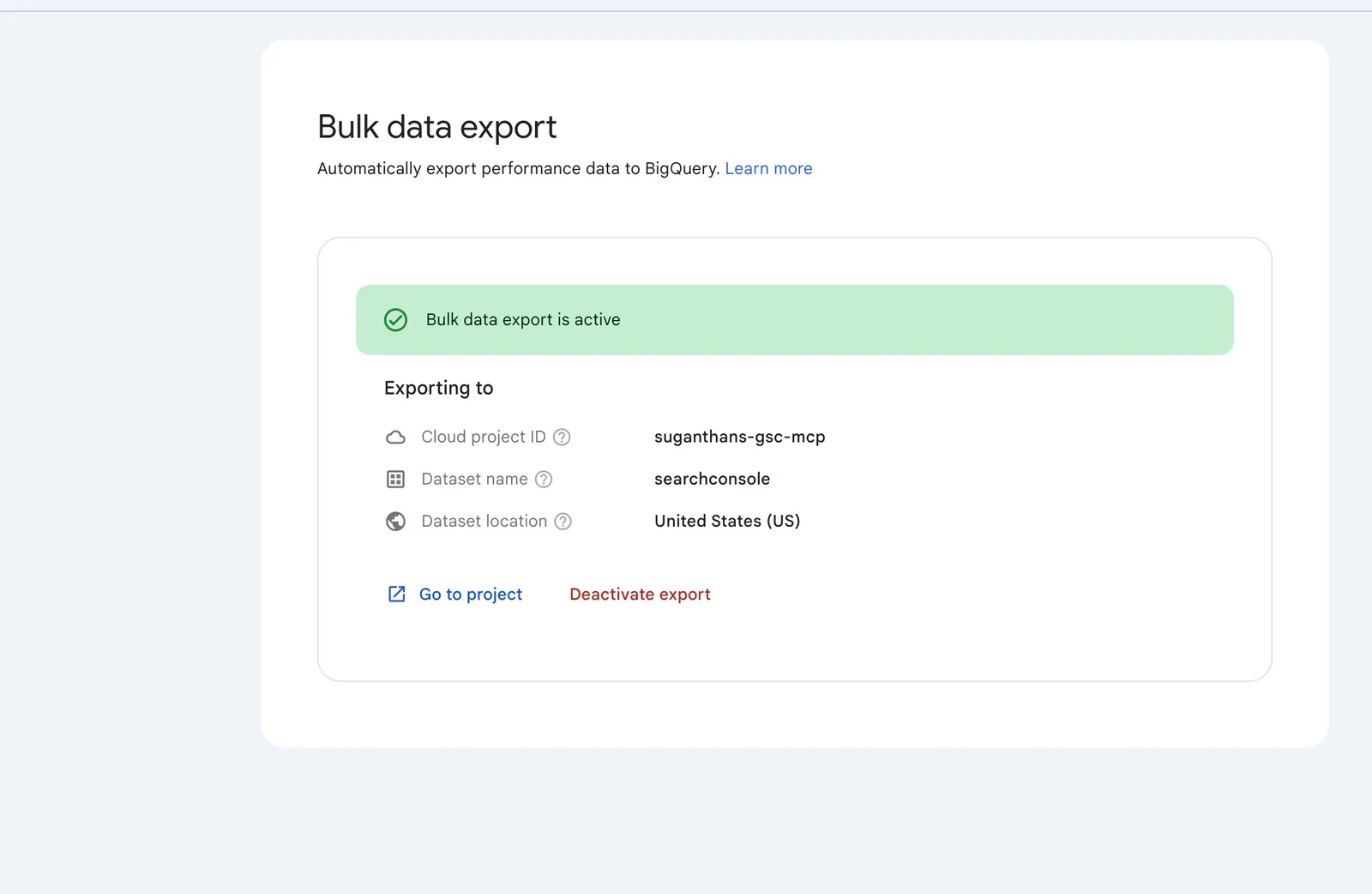
There is no historical backfill. This is the single biggest misconception about GSC bulk export.
Google has been explicit about this since the feature launched in February 2023: “There is no bulk export backfill available for historical data, so if you’re interested in setting up reporting over time, you better start collecting data right now.”
When you enable the export, you get data from that day forward. Not 16 months of history. Not 6 months. Not 1 month. Just today onwards. Every day you wait is a day of full fidelity data you will never get back.
I enabled my export on March 23 and my BigQuery dataset starts on March 22. That’s it. Five days of data, not sixteen months. Working as designed.
If you want historical data in BigQuery, you can backfill from the GSC API (up to 16 months) using a script like benpowis/Google-Search-Console-bulk-query-to-GBQ. But API data is sampled and has row caps, so it won’t match the completeness of the native export. The schemas also differ, so you’ll need to transform the data to query it alongside the bulk export tables.
Bottom line: enable the export now, even if you don’t plan to use it yet. Storage costs essentially nothing. Future you will thank present you.
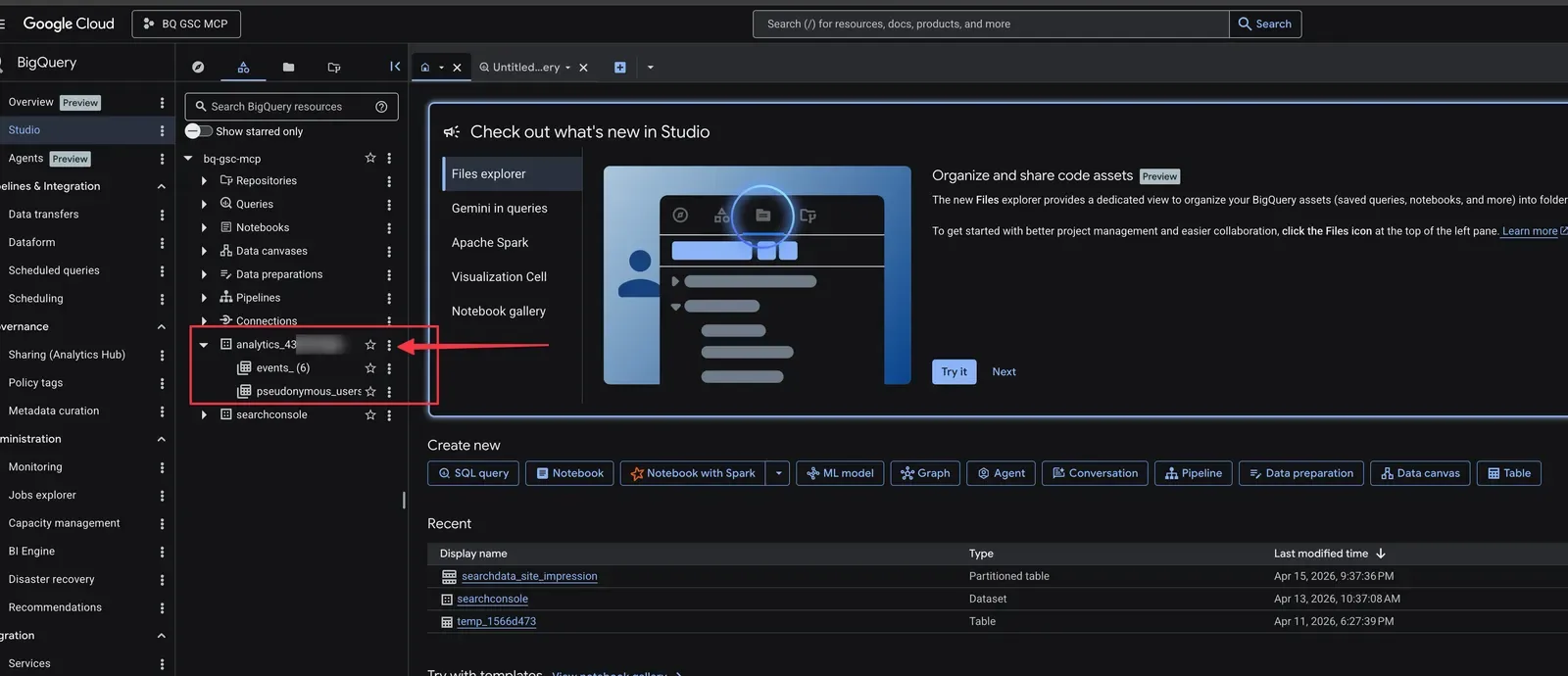
The first export takes a few hours to 48 hours. Check progress in BigQuery:
- Go to console.cloud.google.com/bigquery
- Expand your project in the sidebar
- Look for your dataset (e.g.
searchconsole) - You need 2 tables:
searchdata_site_impressionandsearchdata_url_impression
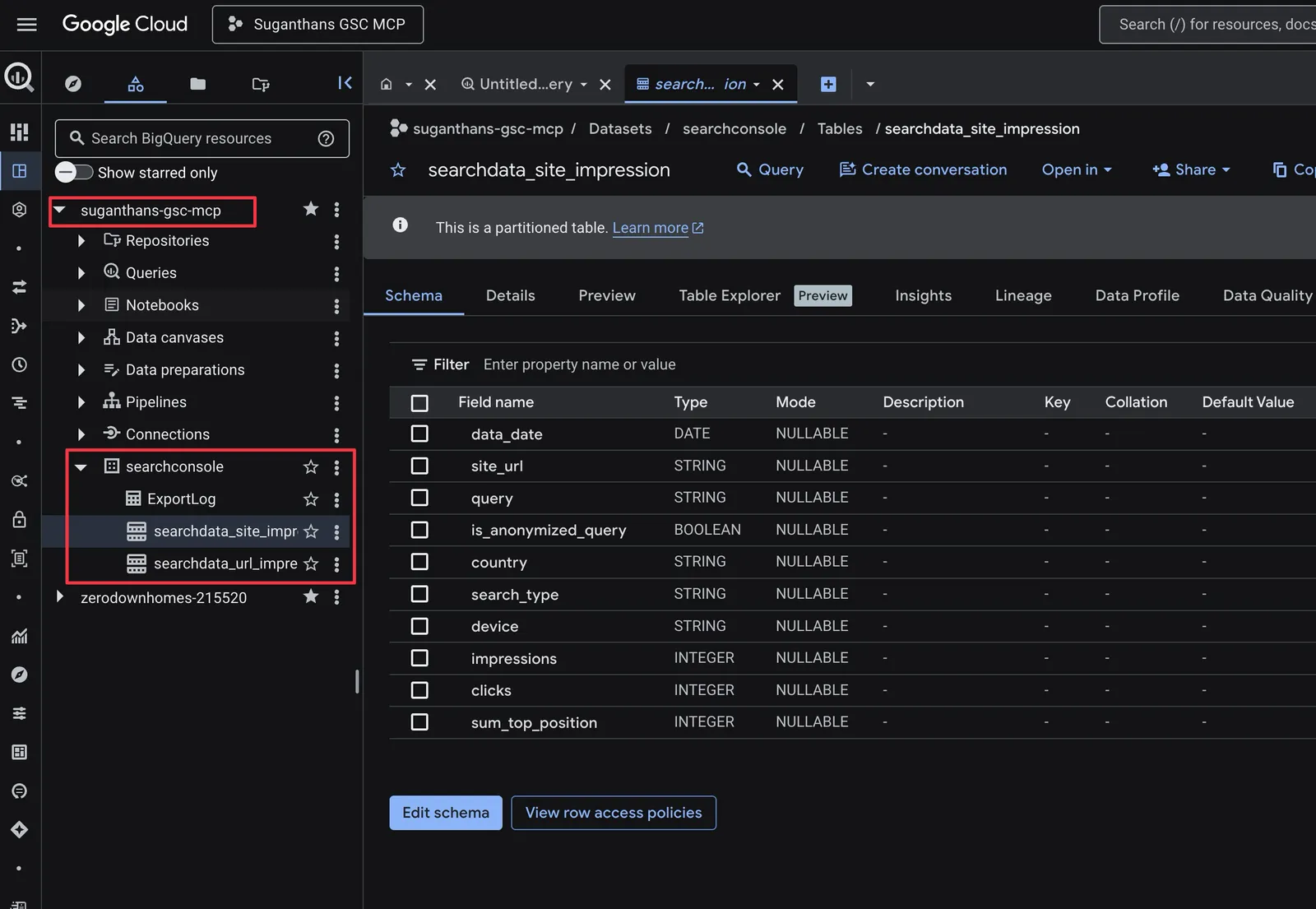
searchdata_site_impression is query level data. searchdata_url_impression is URL level data. Both include anonymous queries marked with is_anonymized_query = true.
Step 5: Install the BigQuery MCP server
git clone https://github.com/Suganthan-Mohanadasan/Suganthans-BigQuery-MCP-Server.git
cd Suganthans-BigQuery-MCP-Server
npm install
npm run build
Create a separate service account for the MCP server:
This is not the same service account from earlier. The export service account (search-console-data-export@system.gserviceaccount.com) is owned by Google and writes data into BigQuery. This new one is yours. Different account, different permissions, different purpose.
Go to console.cloud.google.com/iam-admin/service-accounts
Click Create Service Account
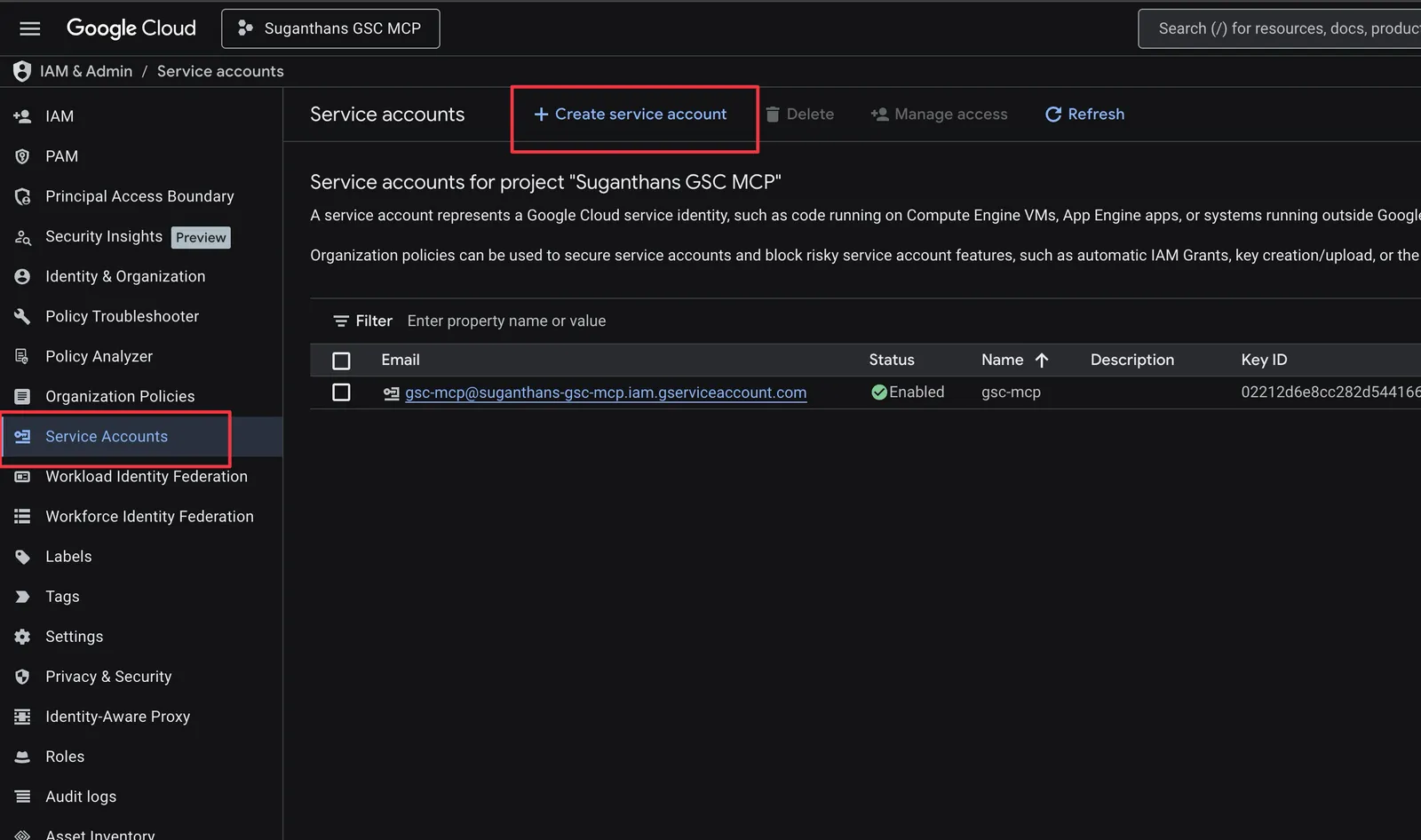
Name it bigquery-mcp-reader
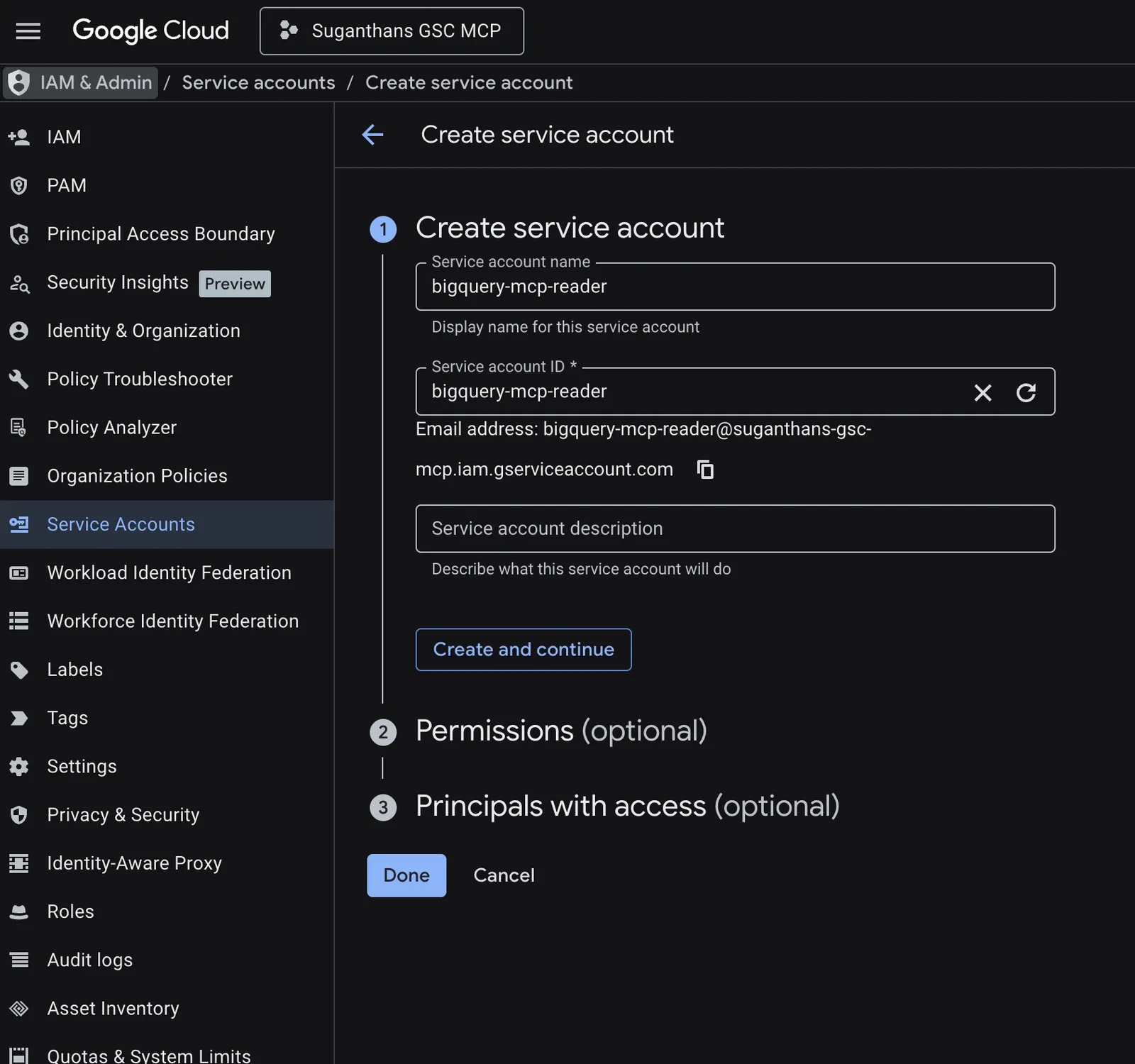
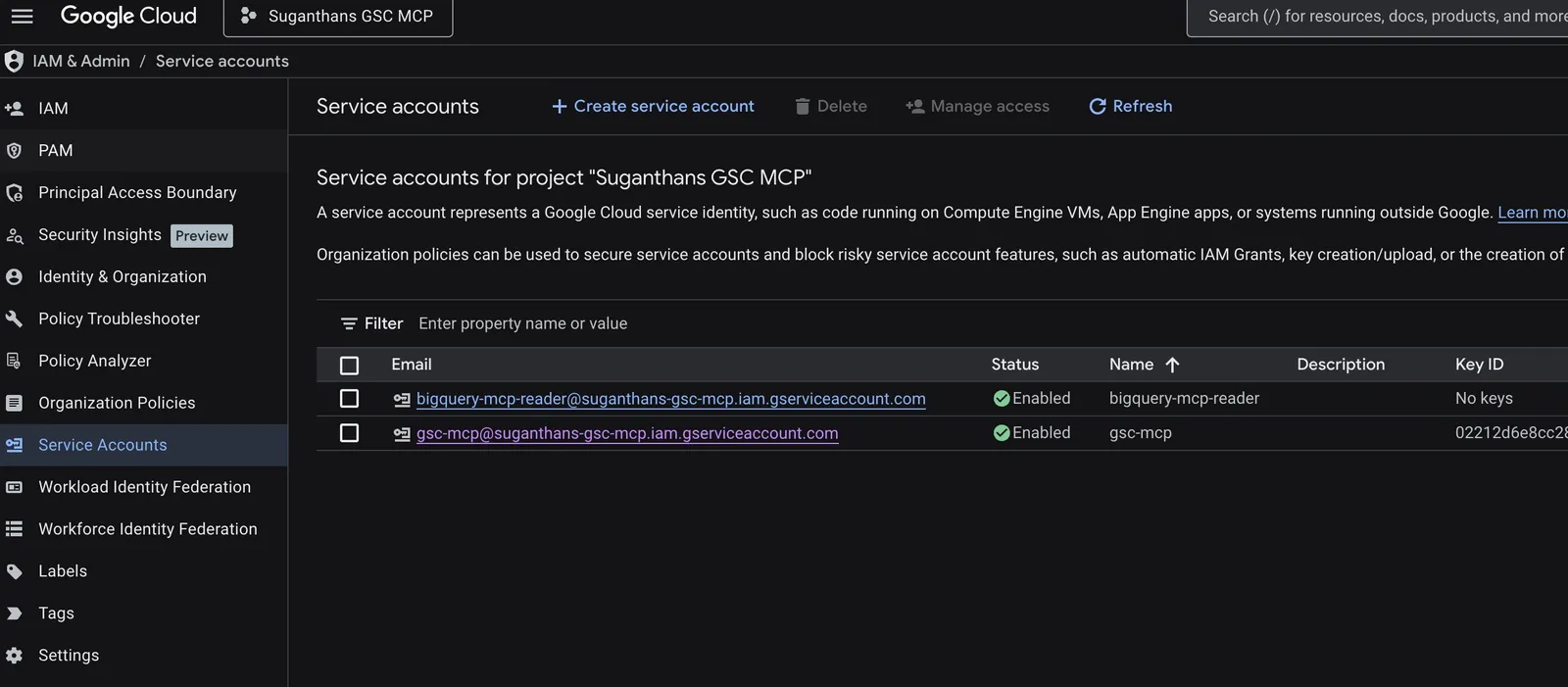
Once it’s created select the service account.
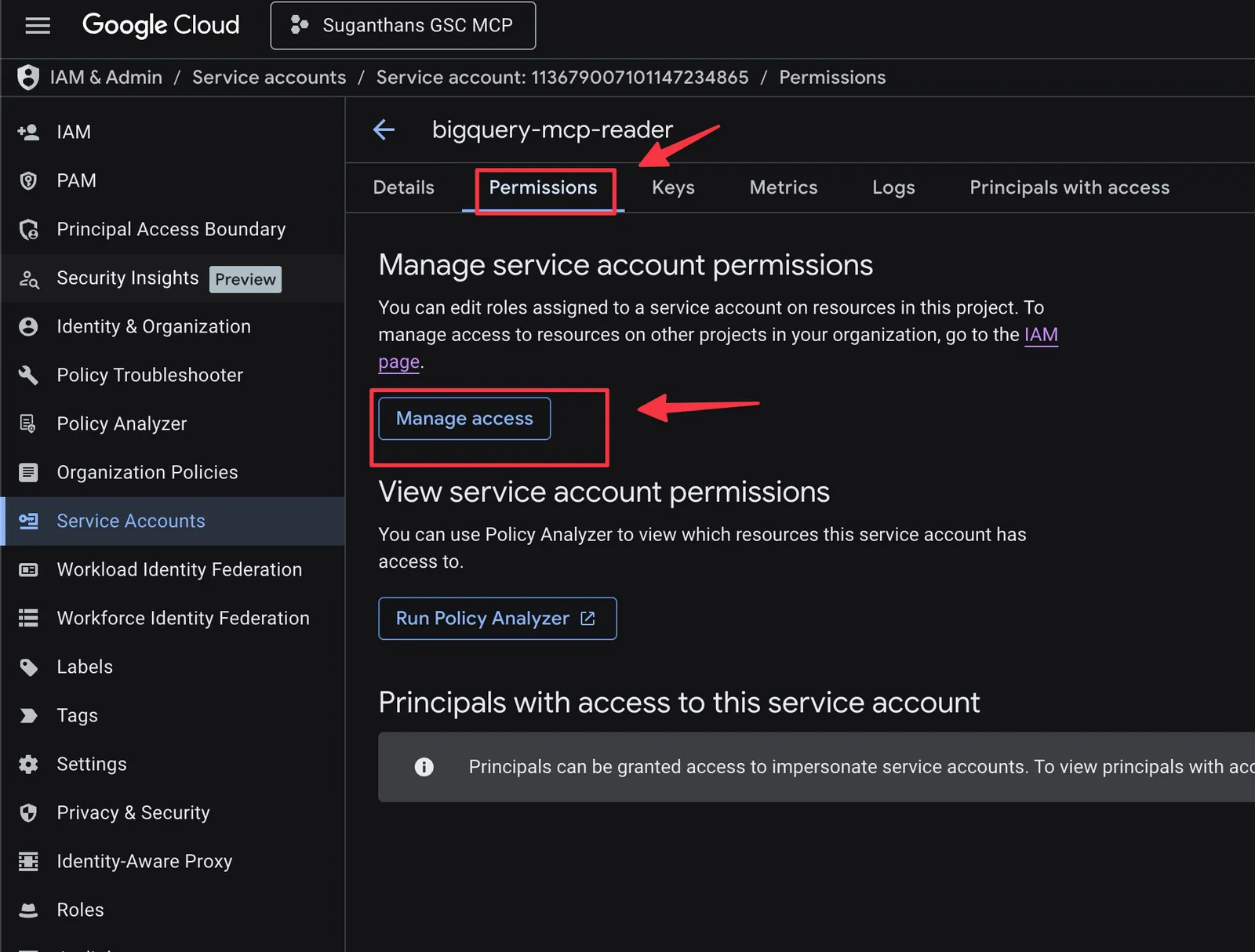
Open the service account, select the permissions tab and click manage access.
Grant 3 roles: BigQuery Data Editor, BigQuery Data Viewer, and BigQuery Job User
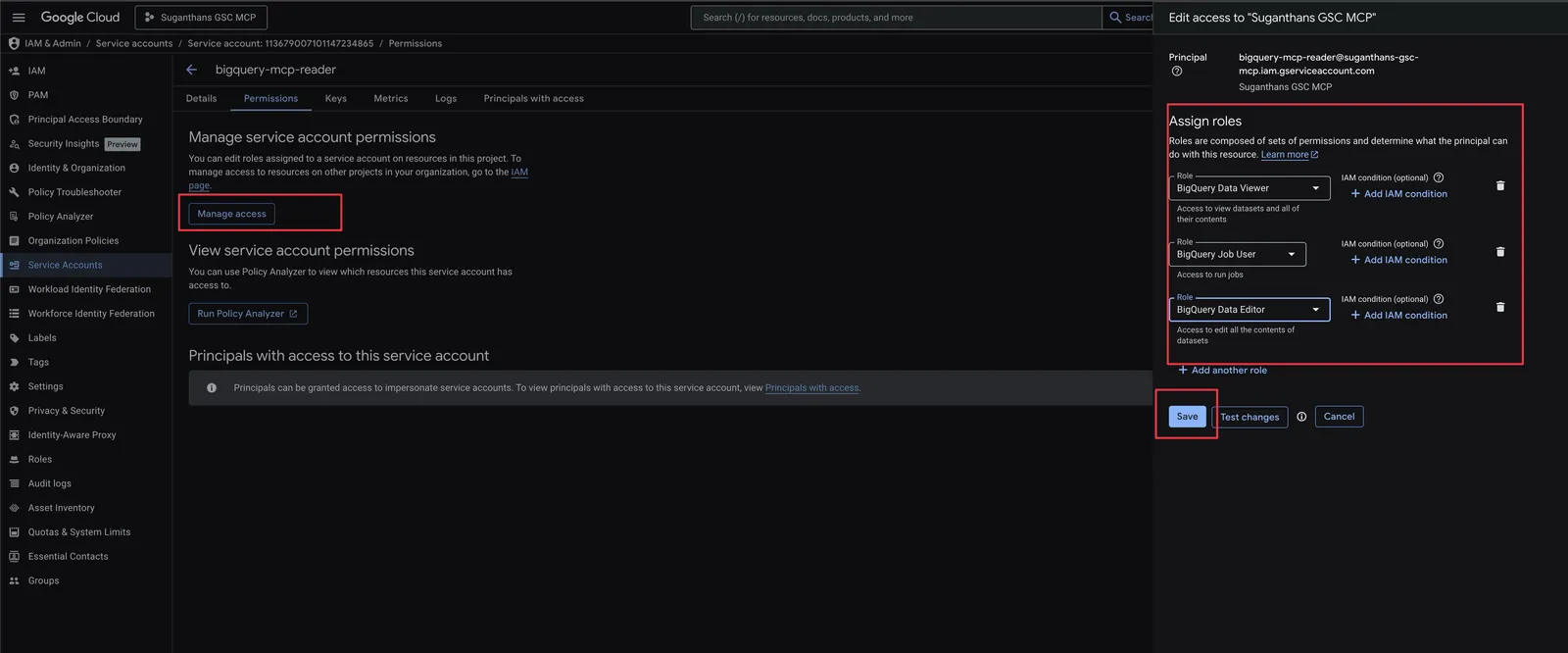
Why Data Editor? The ML tools (traffic forecasting and anomaly detection) need to create temporary models in BigQuery. Data Viewer alone won’t work. The MCP server blocks all writes except ML model creation and SELECT queries, so your data is safe.
Click Done
Click into it → Keys → Add Key → Create new key → JSON
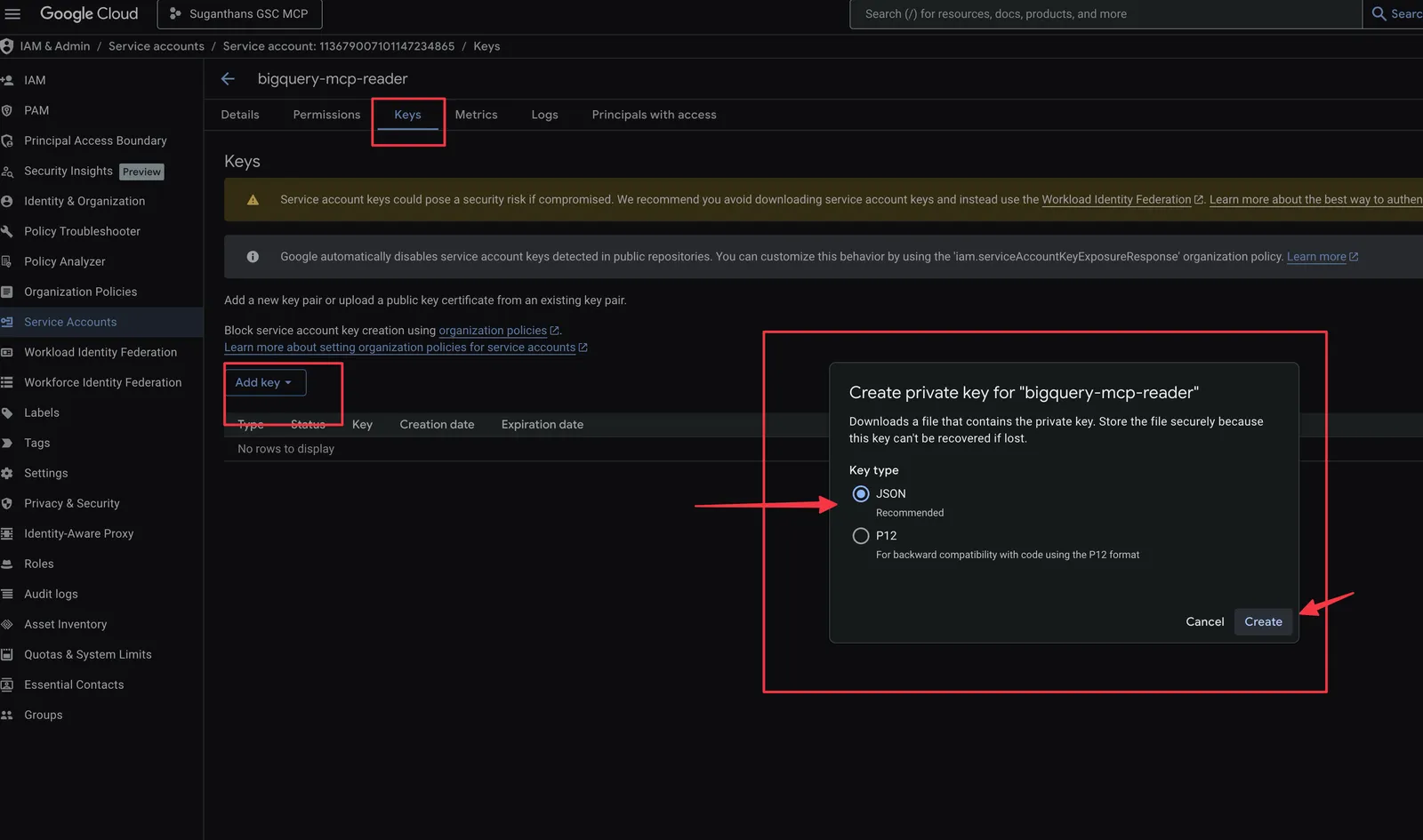
Save the JSON file (e.g. ~/Downloads/bigquery-mcp.json)
Step 6: Connect to Claude Desktop
Edit your Claude Desktop config:
Mac: ~/Library/Application Support/Claude/claude_desktop_config.json
Windows: %APPDATA%\Claude\claude_desktop_config.json
{
  "mcpServers": {
    "bigquery": {
      "command": "node",
      "args": ["/full/path/to/Suganthans-BigQuery-MCP-Server/dist/index.js"],
      "env": {
        "BIGQUERY_PROJECT_ID": "your-project-id",
        "BIGQUERY_KEY_FILE": "/full/path/to/bigquery-mcp.json",
        "BIGQUERY_DEFAULT_DATASET": "searchconsole",
        "BIGQUERY_LOCATION": "US"
      }
    }
  }
}
Replace the paths and project ID with your values.
The key file is the same one we downloaded above. It will be the path where its stored in your computer. (e.g. ~/Downloads/bigquery-mcp.json)
Restart Claude Desktop.
The 27 GSC and general purpose tools should appear. If you also want the 6 GA4 + GSC blending tools, follow the GA4 setup guide to link your GA4 BigQuery export and add the BIGQUERY_GA4_DATASET environment variable. All 33 tools will then be available.
Safety built in
The server is locked down by default:
- Read only. Only SELECT queries are allowed. INSERT, UPDATE, DELETE, DROP, and all mutation statements are blocked. SQL comments and multi-statement queries are caught. BigQuery ML is limited to CREATE OR REPLACE MODEL and SELECT.
- Auto-LIMIT. Queries without a LIMIT clause get one injected automatically.
- Input validation. All identifiers (dataset, table, project names) are validated against a strict regex to prevent SQL injection.
- Row limits. Default 100 rows, configurable up to 10,000.
- Cost cap. Queries are limited to 10GB bytes billed. Sample queries are capped at 1GB.
- Cost preview. Use
query_cost_estimateto dry run any query before committing. - Hallucination guardrails. All GSC tools include instructions that force Claude to report exact numbers, avoid speculation, and declare when data is insufficient. Every response includes a
_metaprovenance field confirming the data source.
Changelog
v4.1.0 AI conversation query detection. gsc_genai_conversation_queries runs the same classifier as the GSC MCP version over your bulk export. Seven kinds, from reply artefacts (“yes go on”) to tracker probes and agent harnesses, each with landing pages and a monthly artefact timeline. The export has no API row limits, so large sites find fragments here the API can’t return, and John Mueller made the same point on LinkedIn. It also reports the anonymised split, 57.7% of impressions on my property. Total tools now 33. Launch post with method and findings: “Yes, Go On”.
v4.0.0 GA4 integration. 6 new tools that blend GA4 conversion and revenue data with GSC search data: ga4_gsc_query_revenue, ga4_gsc_content_roi, ga4_gsc_position_value, ga4_gsc_snippet_mismatch, ga4_gsc_branded_performance, and ga4_gsc_page_performance. Requires the GA4 BigQuery export running alongside GSC and one extra environment variable (BIGQUERY_GA4_DATASET). Total tools now 32. Full setup guide: GA4 + GSC in BigQuery.
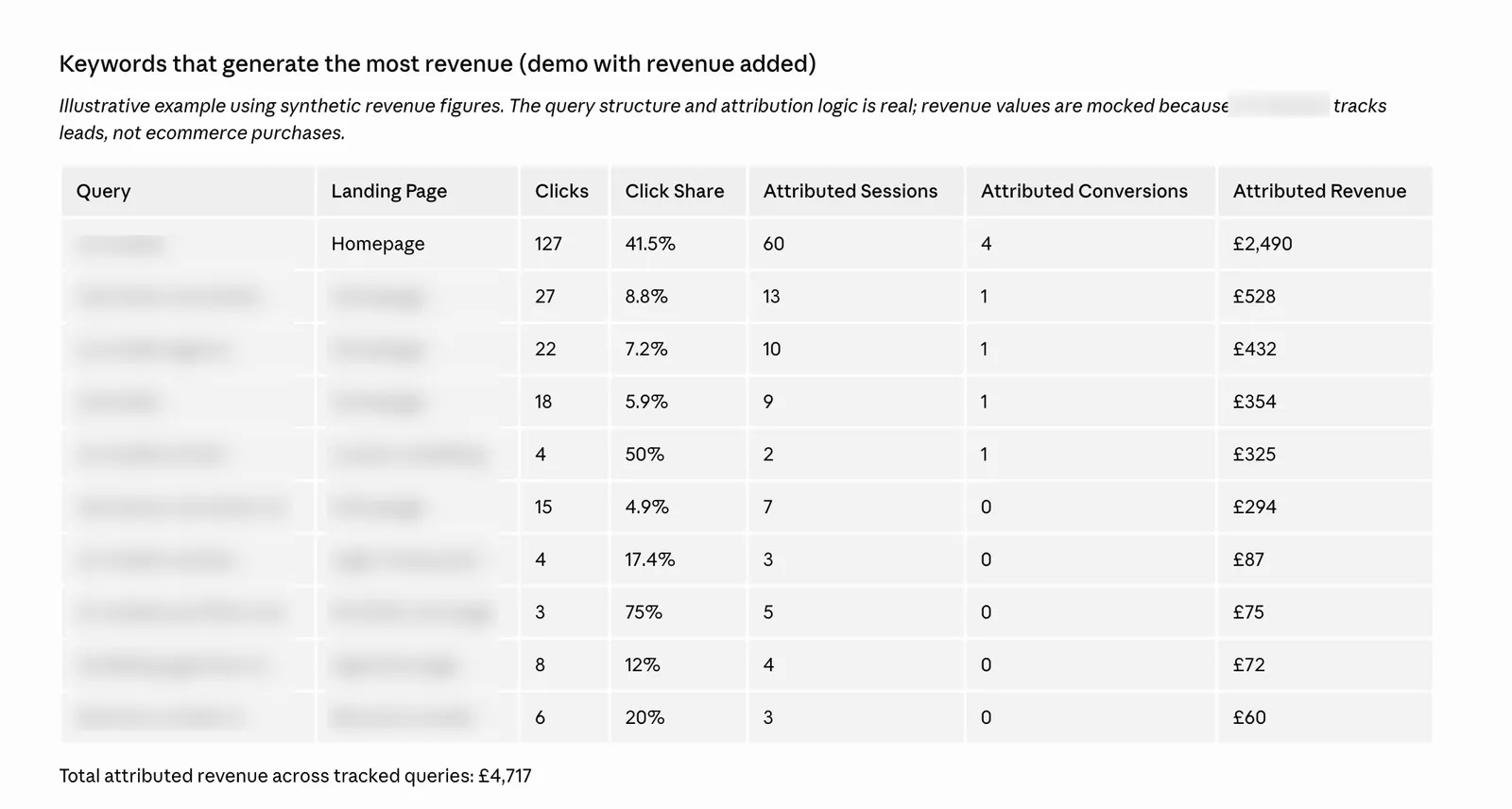
v3.1.0 Visual artifact rendering. All GSC analysis tools now produce rich, interactive dashboards in Claude Desktop with summary cards, colour coded indicators, bar charts, and tabbed sections instead of plain text output. No reinstall needed, just restart Claude Desktop.
v3.0.0 Initial release with 26 tools: 8 BigQuery exclusives (anonymous traffic, ML forecasting, anomaly detection, seasonal analysis, device split, intent breakdown, N-grams, new keywords), 12 GSC analysis tools, and 6 general purpose BigQuery tools.
The GitHub repo
Everything is open source and free.
BigQuery MCP Server: github.com/Suganthan-Mohanadasan/Suganthans-BigQuery-MCP-Server
GSC API MCP Server: github.com/Suganthan-Mohanadasan/Suganthans-GSC-MCP
License and Attribution
Apache 2.0. See LICENSE and NOTICE for details. Use it, fork it, build on it. Make sure to provide clear attribution and credit.
If you improve either of them, send a PR. If something breaks, open an issue. And if you build something interesting with the data, I’d genuinely love to hear about it.