Google Search Console MCP: Talk to Your GSC Data Using Claude AI (For Free)
Set up a free, open source MCP server that connects Claude to your Google Search Console. Ask questions about your traffic, rankings, and content performance in plain English.
You know that feeling when you open Google Search Console, stare at the dashboard, and think “I know the data I need is in here somewhere”?
You click Performance. You add a filter. Then another filter. You compare date ranges. You export to a spreadsheet. You pivot. You squint. And thirty minutes later, you’ve answered one question that should have taken ten seconds.
What if you could just ask?
“Which pages lost traffic this month and why?” “What keywords am I close to ranking for on page one?” “Are any of my pages cannibalising each other?”
No clicking. No exporting. No spreadsheets. Just a question, and an answer.
That’s exactly what this does. And it’s completely free.
What is a Google Search Console MCP server?
Let’s get the jargon out of the way.
MCP stands for Model Context Protocol. It’s just a way for AI tools like Claude to connect to external data sources. Think of it like a translator that sits between Claude and your Search Console account, so Claude can read your data and answer questions about it.
You don’t need to understand how it works any more than you need to understand how your car engine works to drive to the shops. You just need to set it up once, and then forget it exists.
A Google Search Console MCP server is a small programme that runs on your computer. When you ask Claude a question about your website’s search performance, Claude talks to this programme, which talks to Google, which sends back the data, and Claude turns it into a human answer.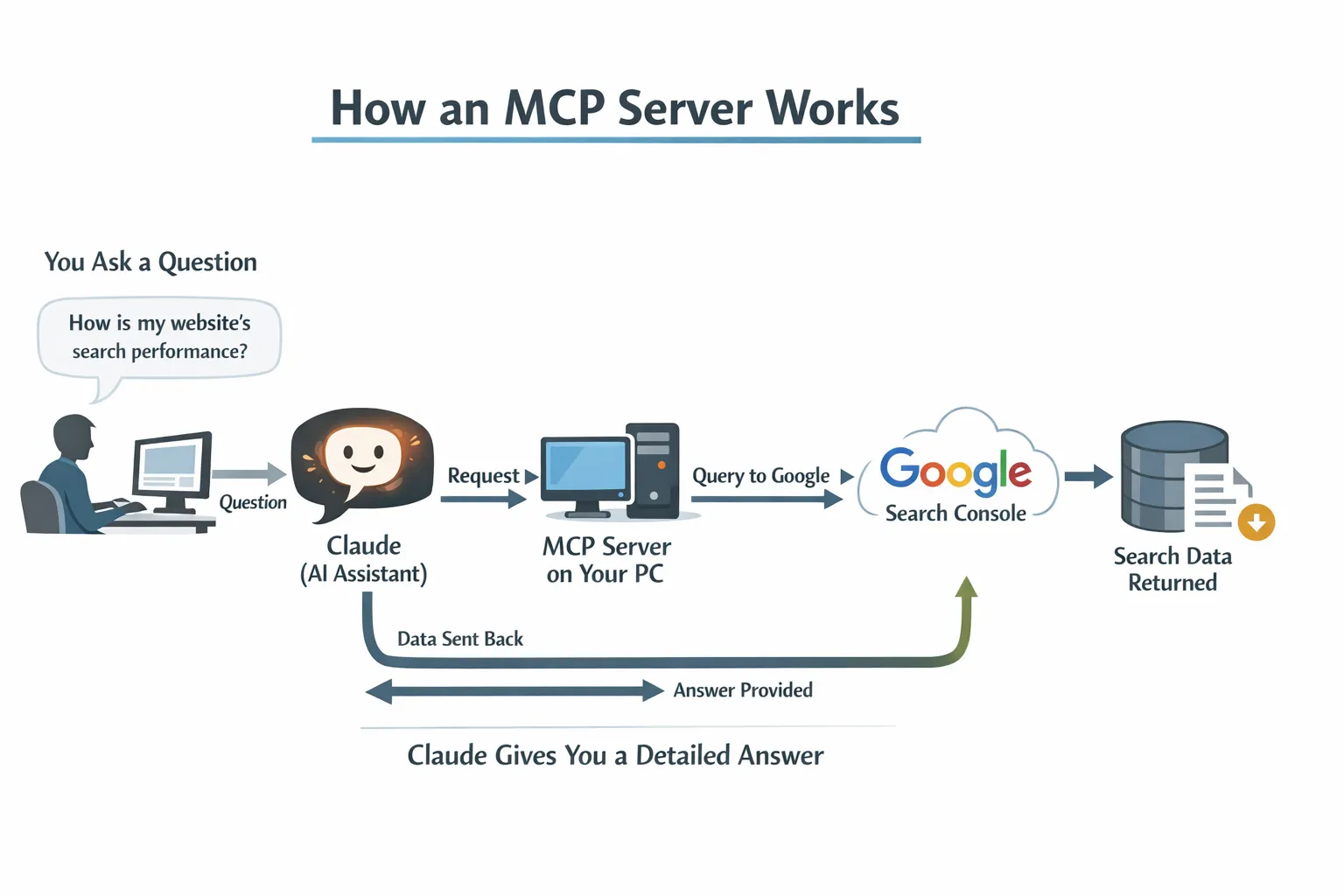
The whole thing runs locally on your machine. Your data never touches a third party server. No subscriptions. No “free tier with limits”. No credit card on file “just in case”.
Why would you want this?
Because you’re paying for tools that do less.
Let me be direct: most SEOs are spending $100 to $300 per month on tools that essentially repackage your own Google Search Console data with a prettier interface. Some of those tools are genuinely excellent and worth every penny for their backlink databases, keyword research, and competitive analysis.
But for analysing your own search performance? The data comes from the same place. Google Search Console.
This MCP server gives you 10 built in analyses that cover the things SEOs actually check regularly:
| What you can ask | What it does |
|---|---|
| Site snapshot | Overall performance vs previous period, with percentage changes |
| Quick wins | Keywords at positions 4 to 15 with high impressions you could push to page one |
| Content gaps | Topics where you get impressions but rank beyond position 20 |
| Traffic drops | Pages that lost traffic, with diagnosis: ranking loss, CTR collapse, or demand decline |
| CTR opportunities | Pages with CTR below benchmark for their position (title tag candidates) |
| Cannibalisation check | Keywords where multiple pages compete against each other |
| Content decay | Pages with three consecutive months of traffic decline |
| URL inspection | Indexing status, crawl info, canonical issues, mobile usability |
| Topic clusters | Performance of all pages under a URL path (like /blog/seo/) |
| CTR vs benchmarks | Your actual CTR compared to industry averages by position |
And because it’s Claude, you’re not limited to these ten. You can ask follow up questions. “Show me only the quick wins with more than 1,000 impressions.” “Which of those decaying pages are blog posts?” Claude understands context.
What you need (and what it costs)
Here’s the full shopping list:
| Item | Cost |
|---|---|
| Google Cloud account | Free |
| Google Search Console API | Free |
| The MCP server | Free (open source) |
| Claude Desktop app | Free plan works |
| A cup of tea while you set it up | Roughly £2? |
Total ongoing cost: nothing.
The only “price” is about 15 minutes of setup time. And you only do it once.
The setup: step by step
I’m not going to pretend this is “one click and you’re done”. It’s not. There are a few steps, and one of them involves Google Cloud, which sounds intimidating but genuinely isn’t.
I’ve broken it into six steps. Each one takes about two minutes.
Step 1: Create a Google Cloud project
Google Cloud is where you get permission to access the Search Console API. You don’t need to pay for anything or enter a credit card.
Go to console.cloud.google.com
Click the project dropdown at the top of the page
Click New Project
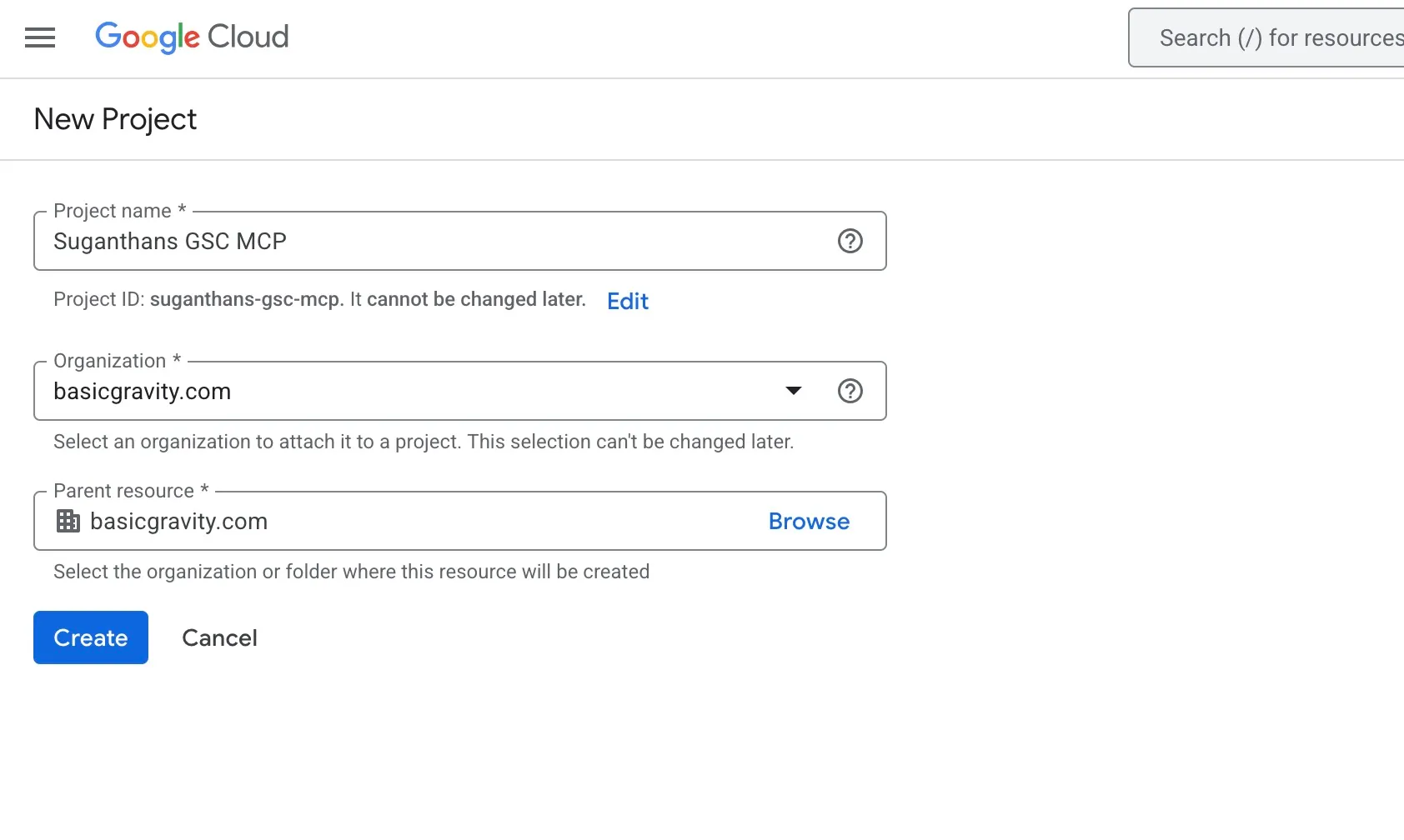
Name it something like GSC MCP
Click Create
That’s it. You now have a Google Cloud project.
Step 2: Enable the Search Console API
Still in Google Cloud:
Use the search bar at the top and type Google Search Console API
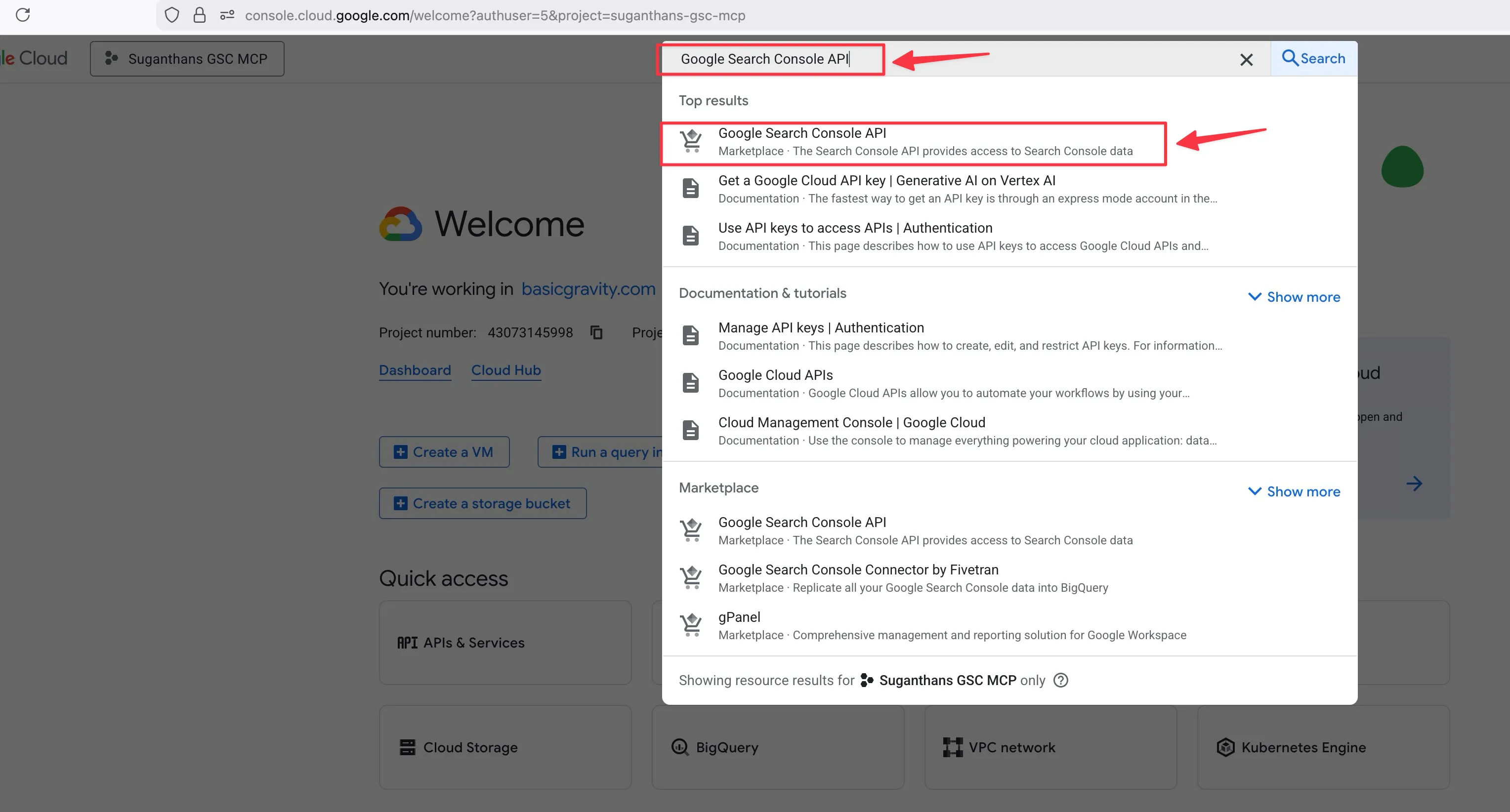
Click it when it appears in the results
Click the Enable button
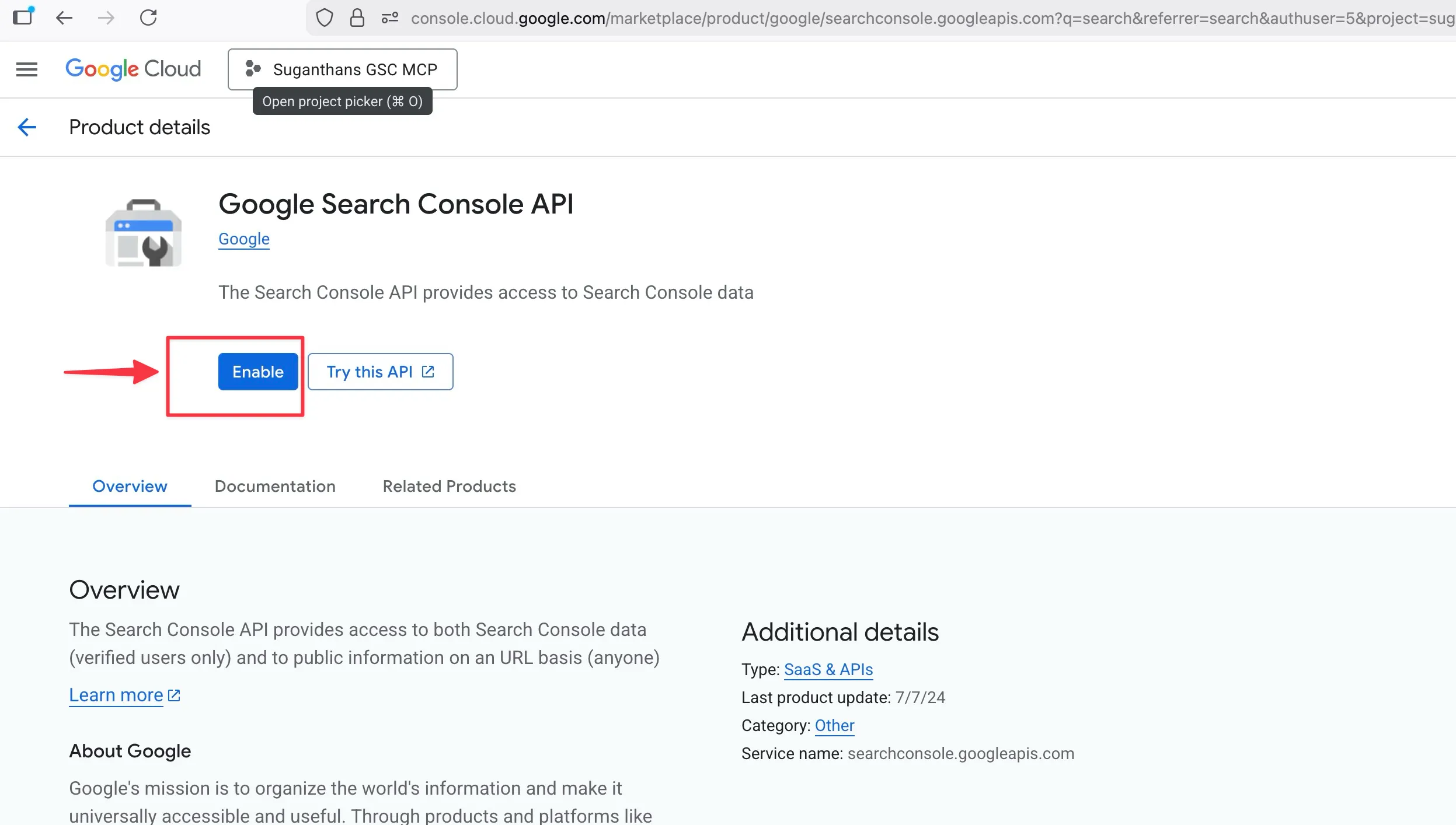
You’re telling Google “this project is allowed to access Search Console data.”
Step 3: Create a service account
A service account is like a robot user that the MCP server uses to log in to your Search Console. It’s not your personal Google account; it’s a separate identity just for this purpose.
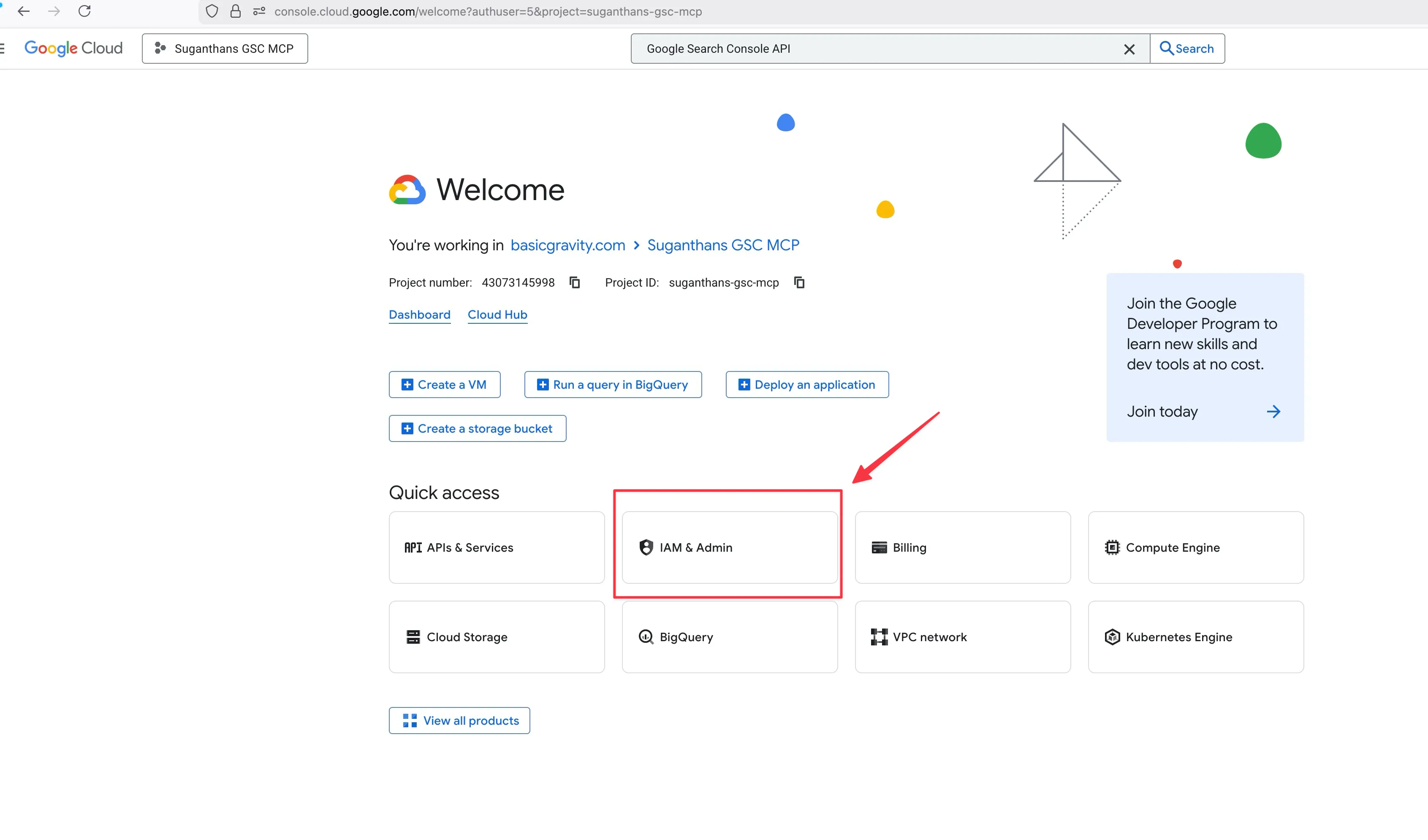
In the left sidebar, click IAM & Admin, then Service Accounts
Click Create Service Account
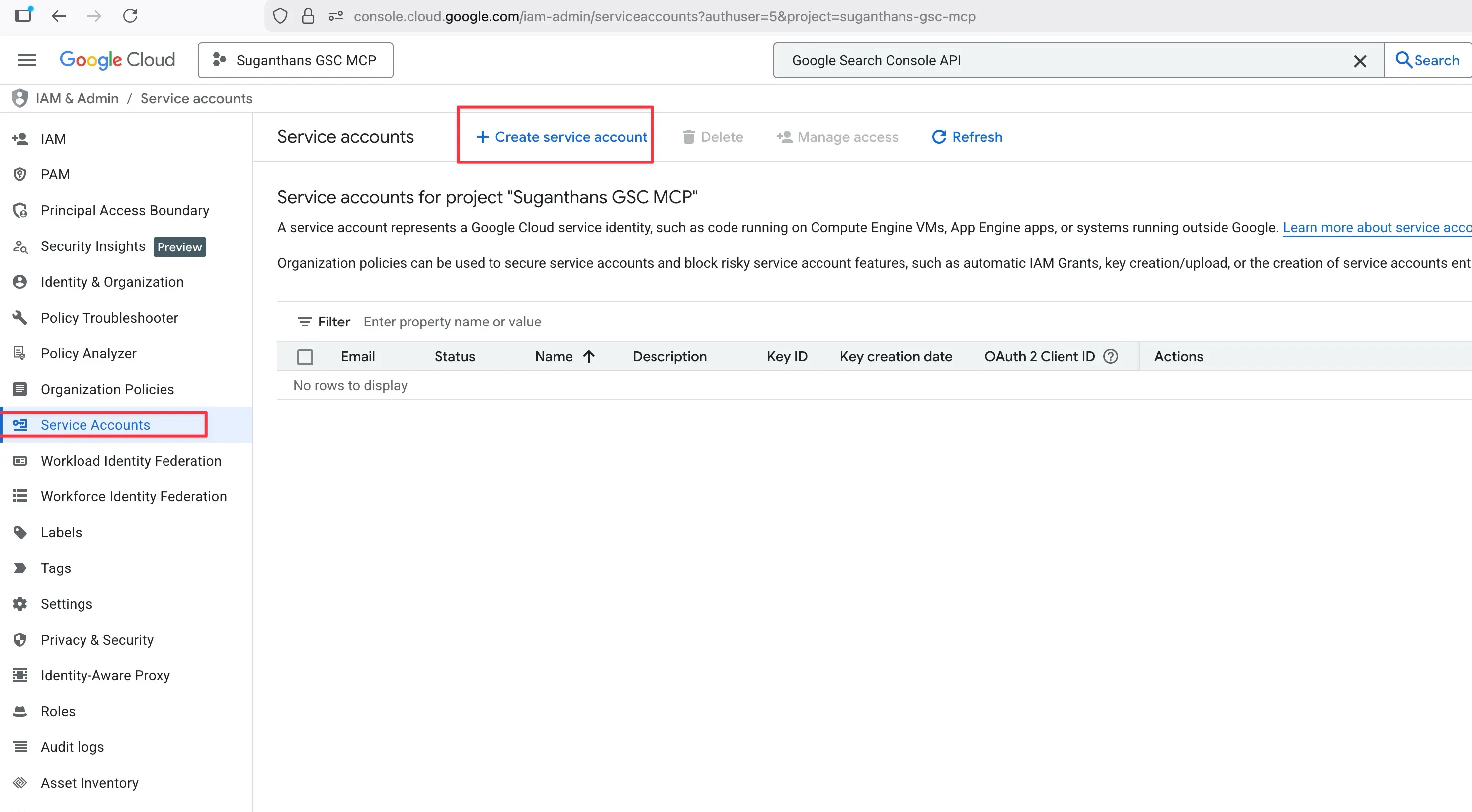
Name it gsc-mcp
Click Create and continue
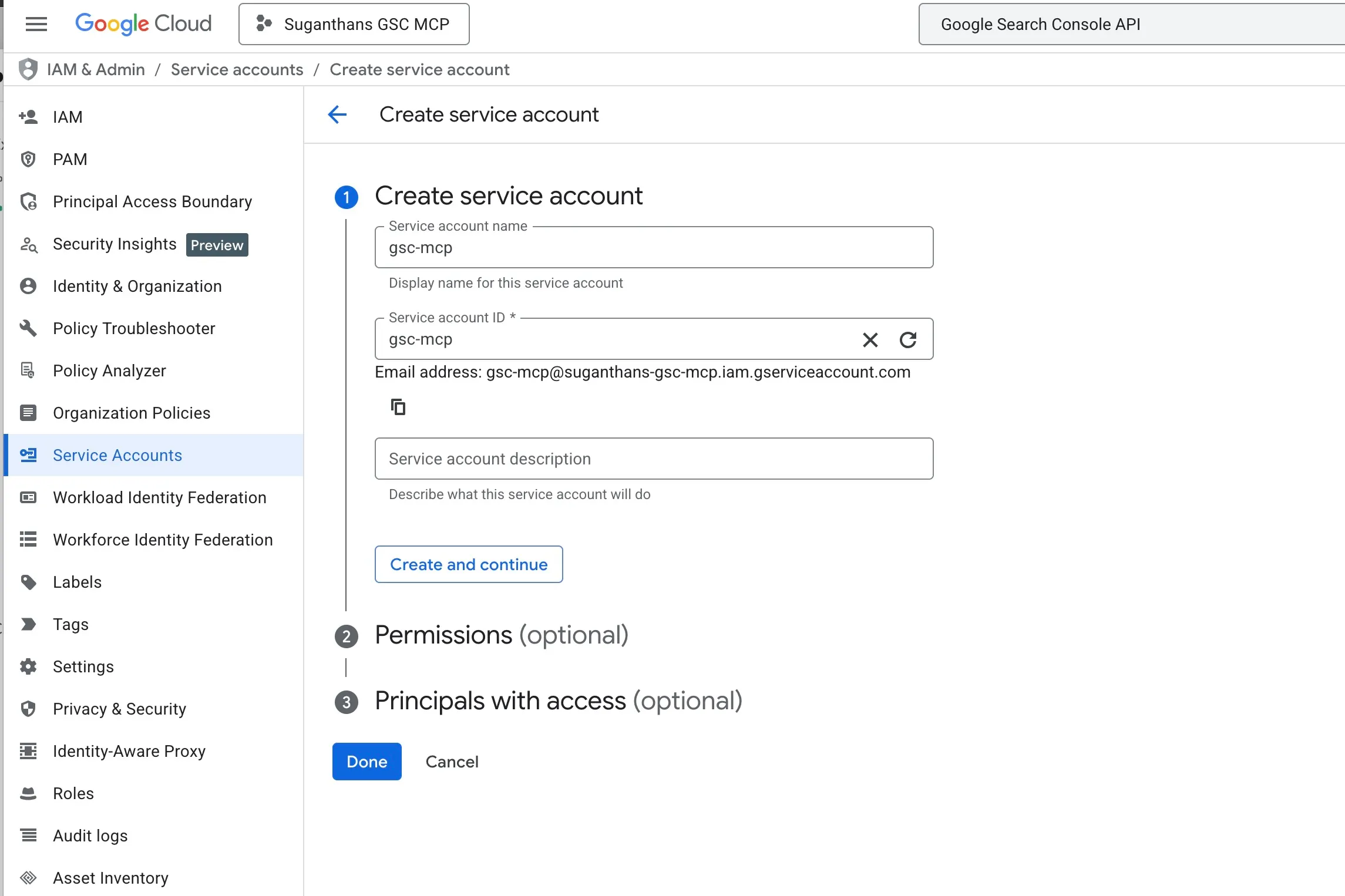
Skip the permissions step (click Continue)
Skip the grant users step (click Done)
Step 4: Download the key file
Now you need a key file that the MCP server uses to prove it’s allowed to access your data.
Click on the service account you just created
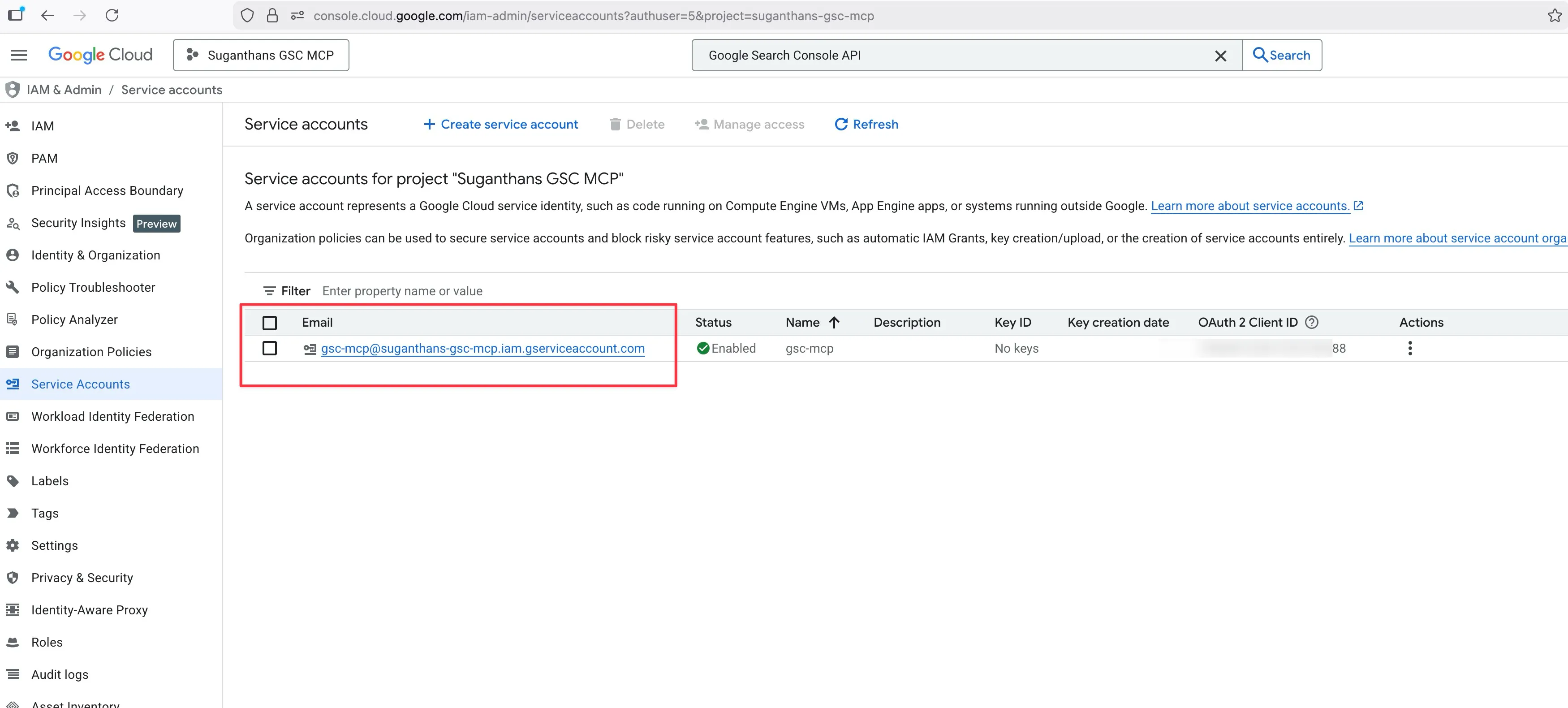
Go to the Keys tab
Click Add Key, then Create new key
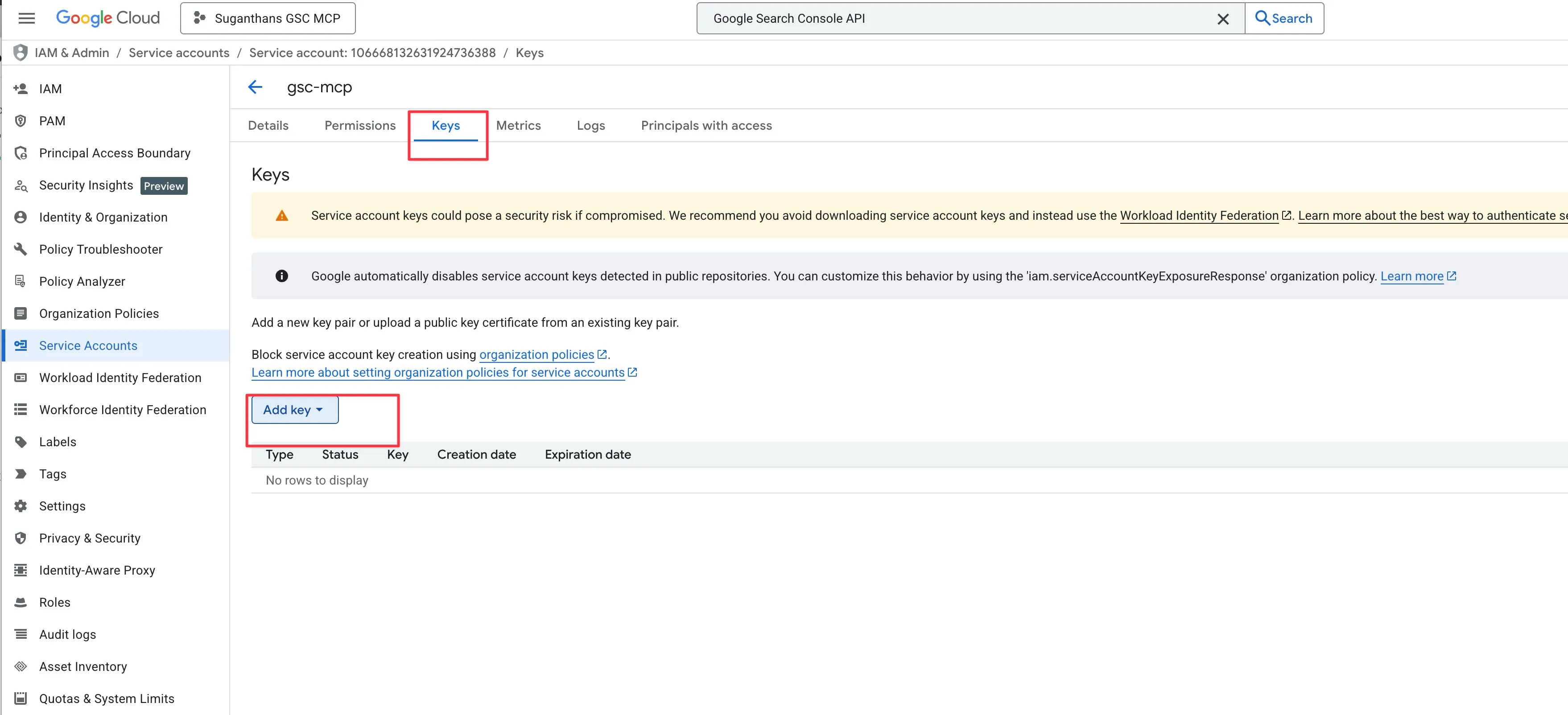
Select JSON and click Create
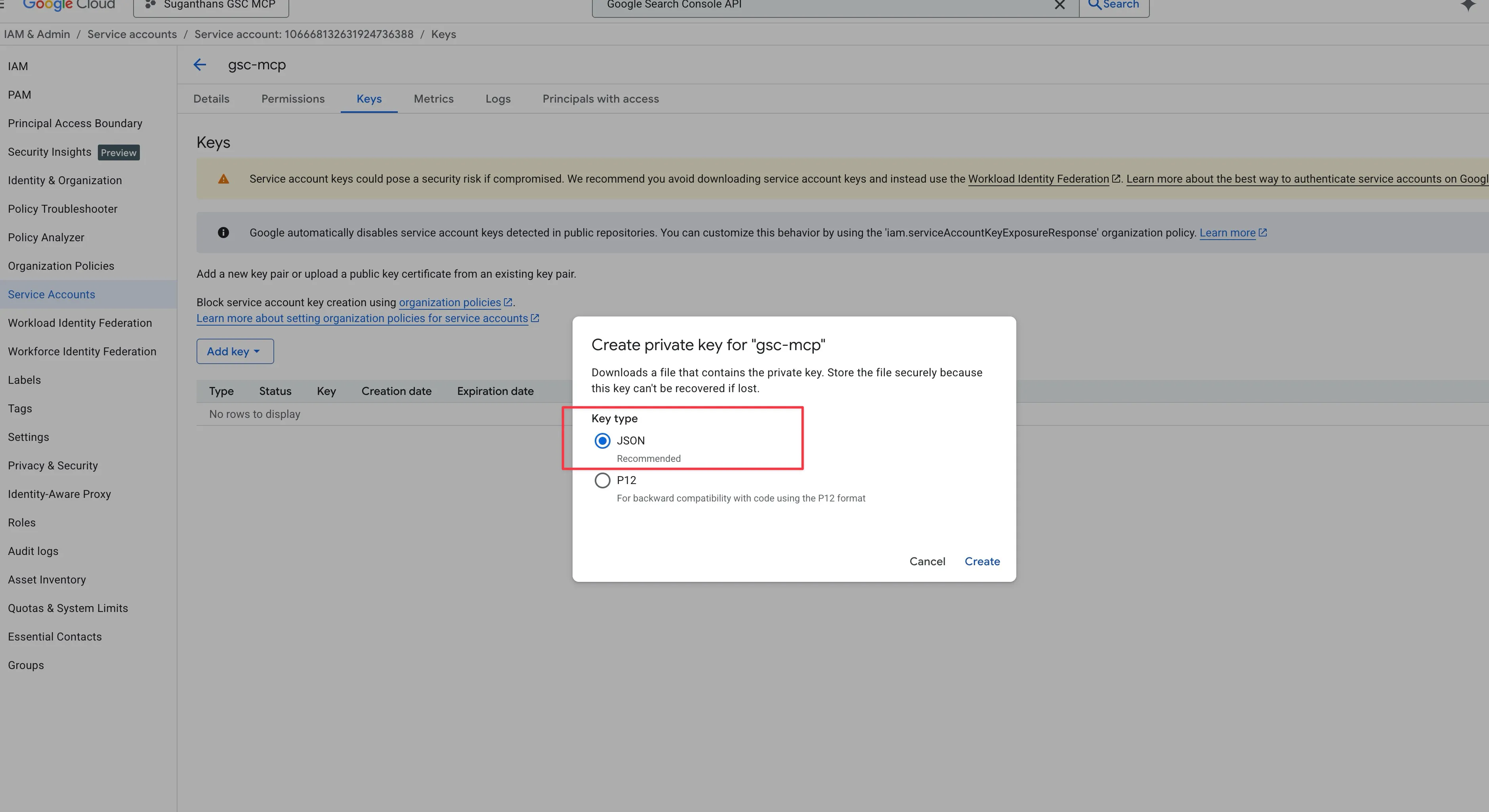
A file downloads to your computer. Keep it somewhere safe.
This JSON file is your credentials. Treat it like a password. Don’t share it, don’t commit it to GitHub, don’t post it on X asking “why isn’t this working”.
Step 5: Add the service account to Google Search Console
This is the step that connects everything together. You’re giving your robot user permission to read your Search Console data.
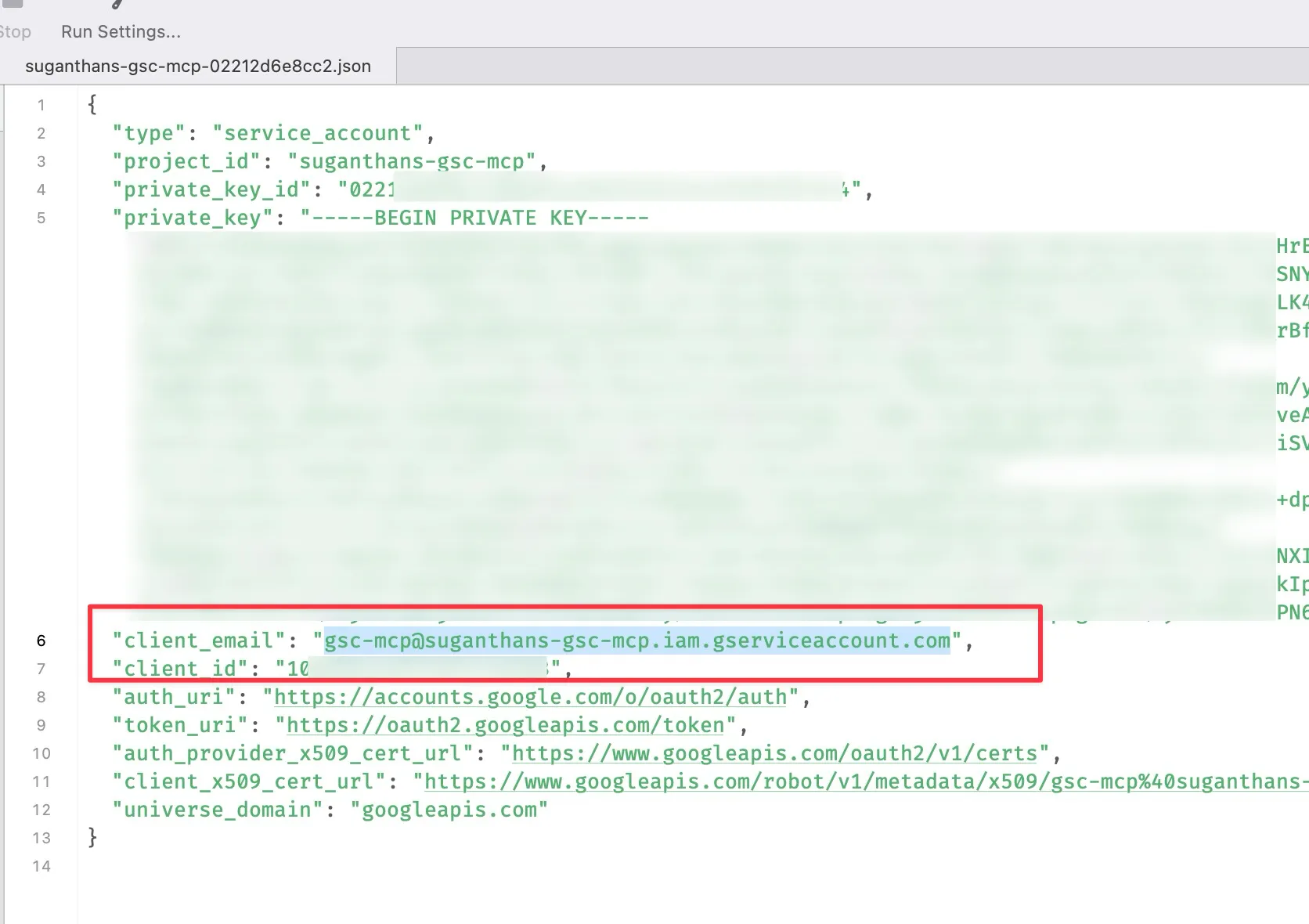
Open the JSON file you just downloaded in any text editor
Find the line that says "client_email" and copy that email address
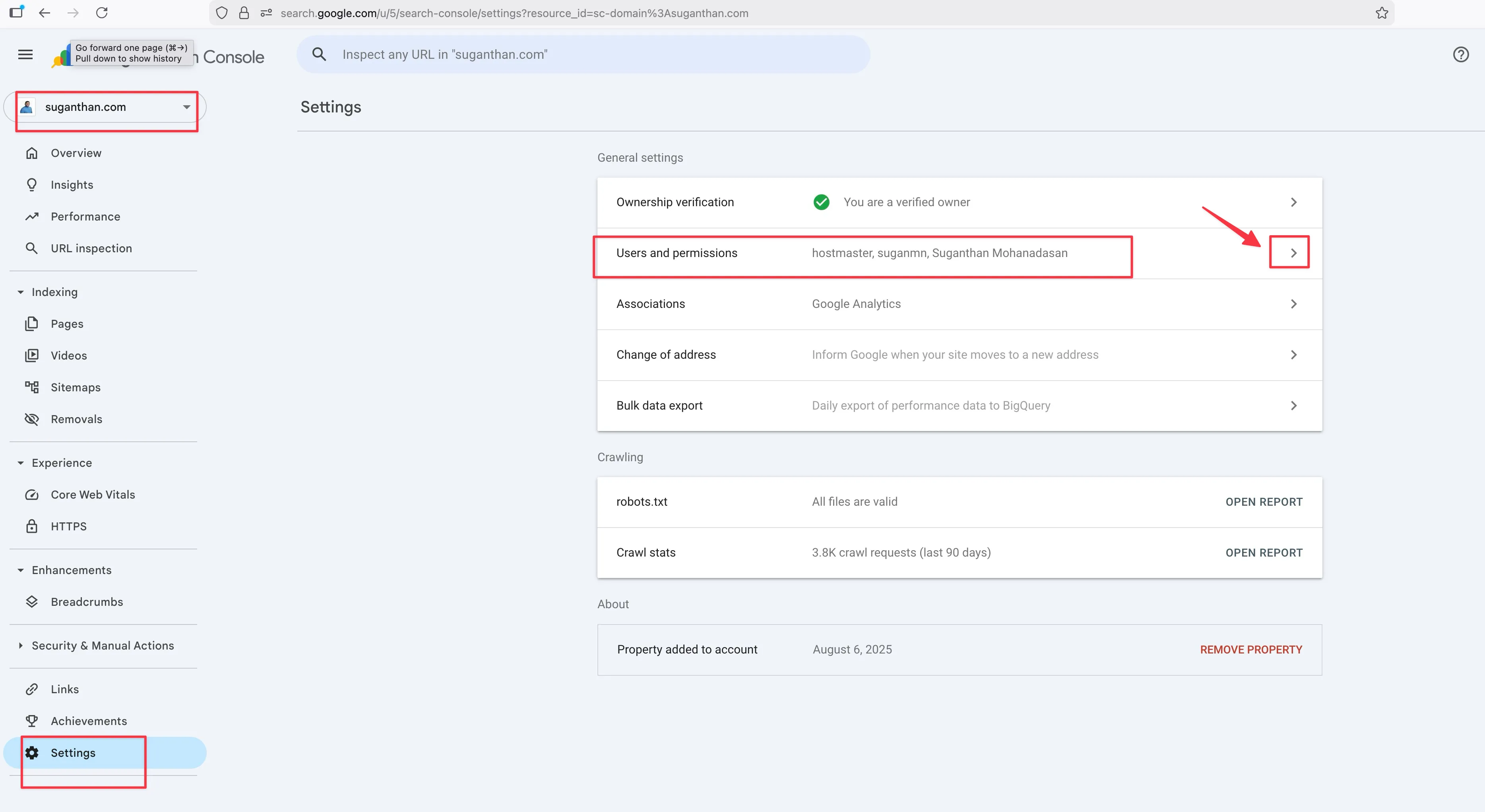
Go to Google Search Console
Select your property
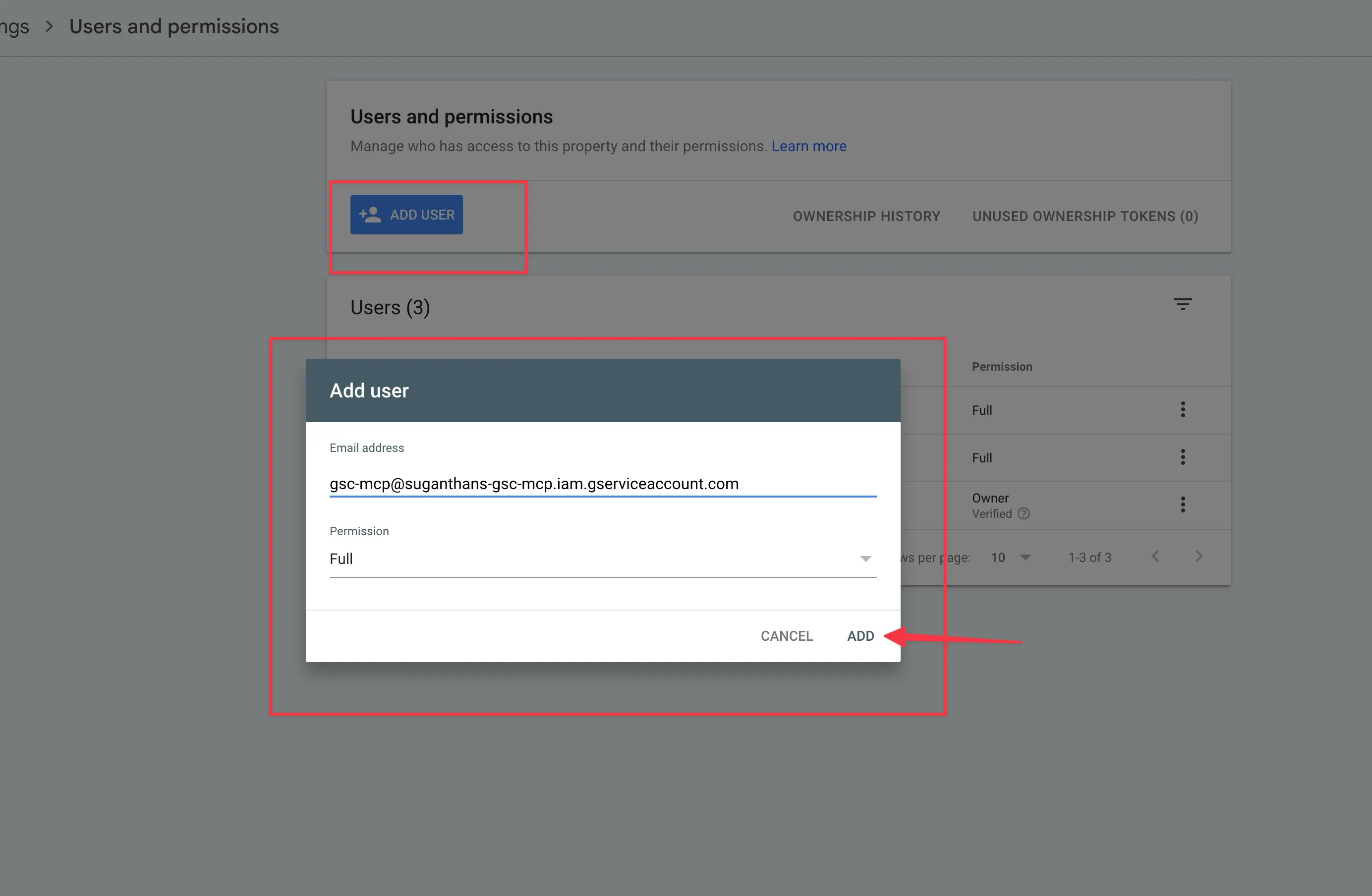
Go to Settings in the left sidebar, then Users and permissions
Click Add user
Paste the service account email address
Set permission to Full
Click Add
****
Step 6: Configure Claude Desktop
Nearly there. Now you tell Claude Desktop where to find the MCP server and your credentials.
If you’re using the Claude Desktop app:
Open Claude Desktop
Press Cmd + comma (Mac) or go to Settings
Click the Developer tab
Click Edit Config
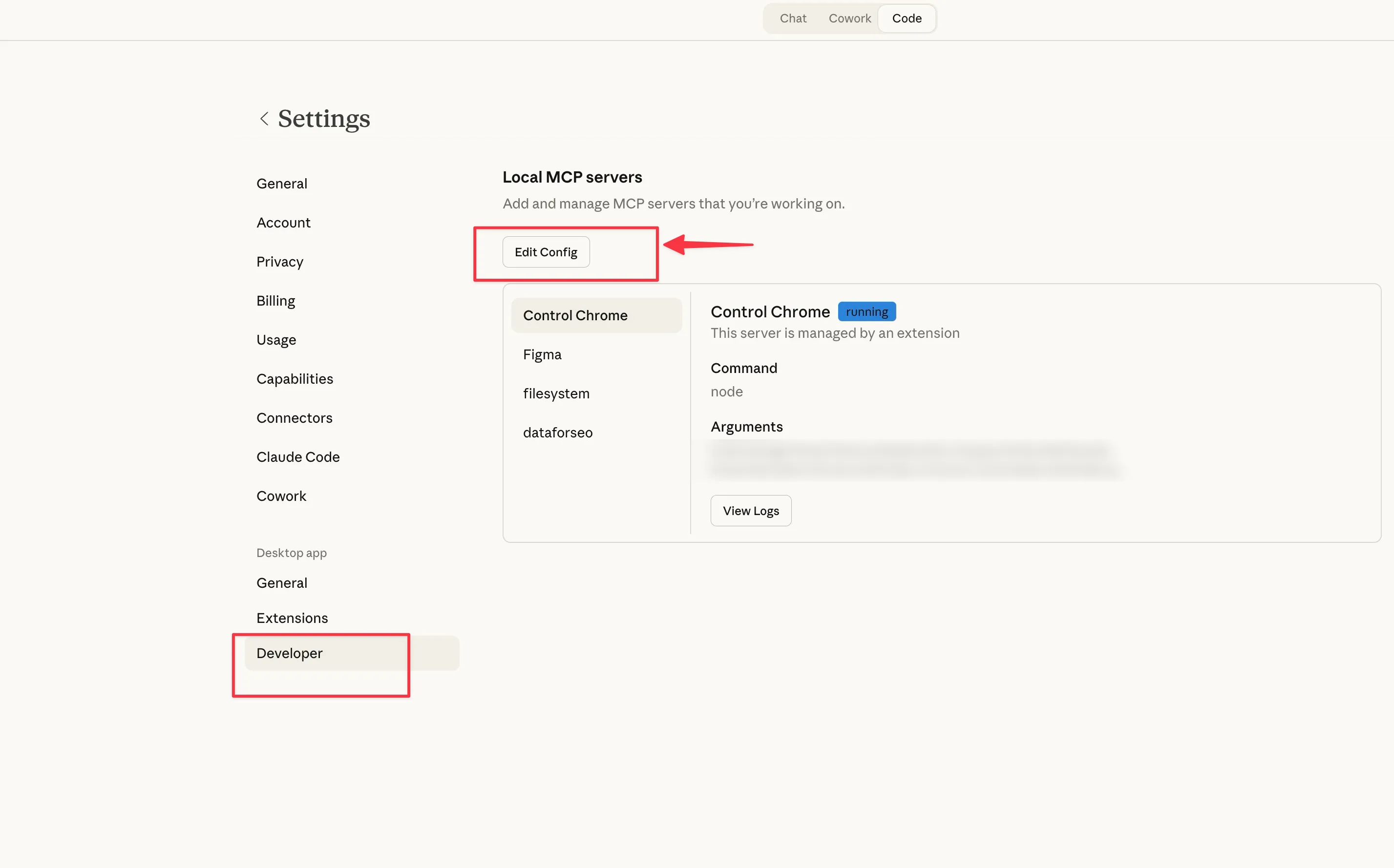
This will open the config JSON file in your local machine.
Open it with your favourite editor
Add the GSC server to your config:
{
  "mcpServers": {
    "gsc": {
      "command": "npx",
      "args": ["-y", "gsc-mcp-server"],
      "env": {
        "GSC_KEY_FILE": "/path/to/your/gsc-key.json",
        "GSC_SITE_URL": "sc-domain:yourdomain.com"
      }
    }
  }
}
Replace /path/to/your/gsc-key.json with the actual path to the JSON file you downloaded. Replace yourdomain.com with your actual domain.
Save the file
Restart Claude Desktop
Note: If you already have other MCP servers configured in your config file please make sure not to delete them and add this on top of it. You’d need to understand the format a little. You can paste your current config to ChatGPT or Claude and ask it to combine it without breaking.
If you’re using Claude Code (terminal):
One command:
claude mcp add gsc -- npx -y gsc-mcp-serverThen set the environment variables in your config.
Keep an eye out for this
I guarantee this will trip someone up, so I’m putting it in bold.
If your Search Console property is a Domain property (which most are), your GSC_SITE_URL must be formatted as sc-domain:yourdomain.com, not https://yourdomain.com/.
You can check which type you have by looking at your property selector in Search Console. If it shows just the domain name without https://, it’s a Domain property.
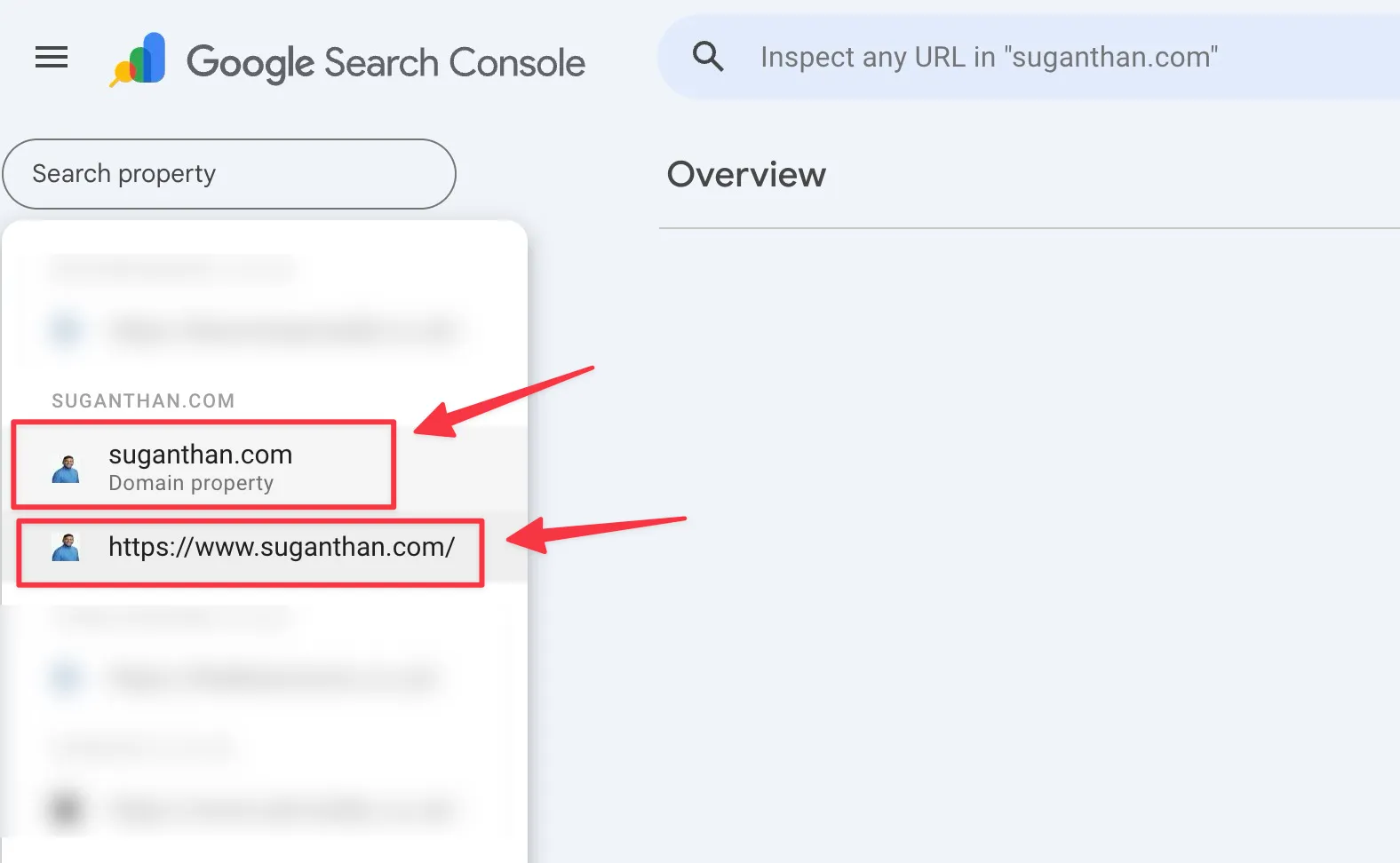
I made this exact mistake during setup. Everything looked correct but nothing worked until I changed the URL format. Save yourself fifteen minutes of confused troubleshooting.
Taking it for a spin
Once you’ve restarted Claude Desktop, open a new conversation and just ask a question. Here are some to try:
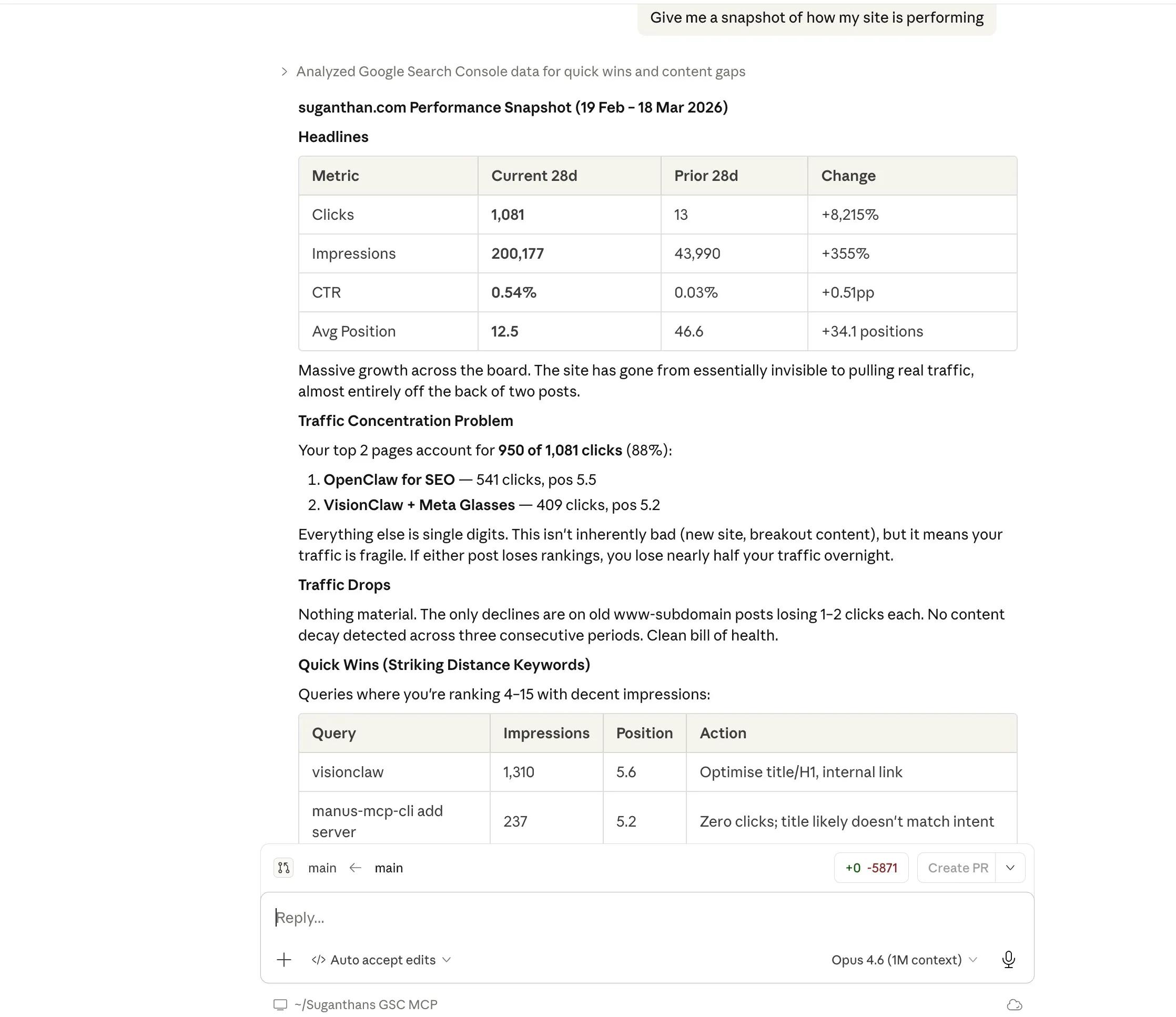
“Give me a snapshot of how my site is performing”
This returns your total clicks, impressions, average CTR, and average position compared to the previous period. The kind of overview you’d normally get by squinting at the GSC dashboard.
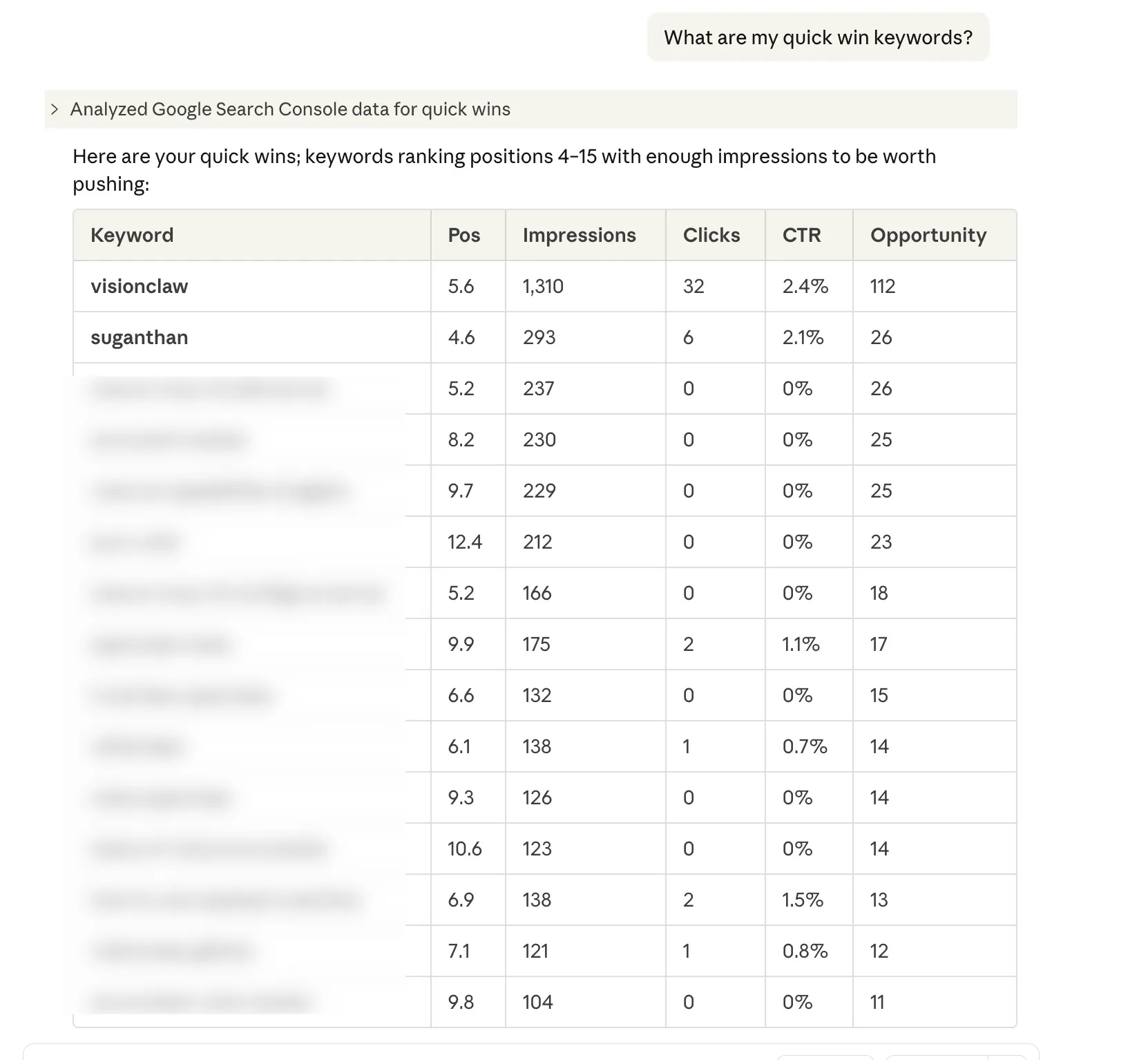
“What are my quick win keywords?”
These are keywords where you’re ranking between positions 4 and 15 with decent impressions. The ones where a bit of optimisation could push you onto page one. Every SEO checks for these. Now you can just ask.
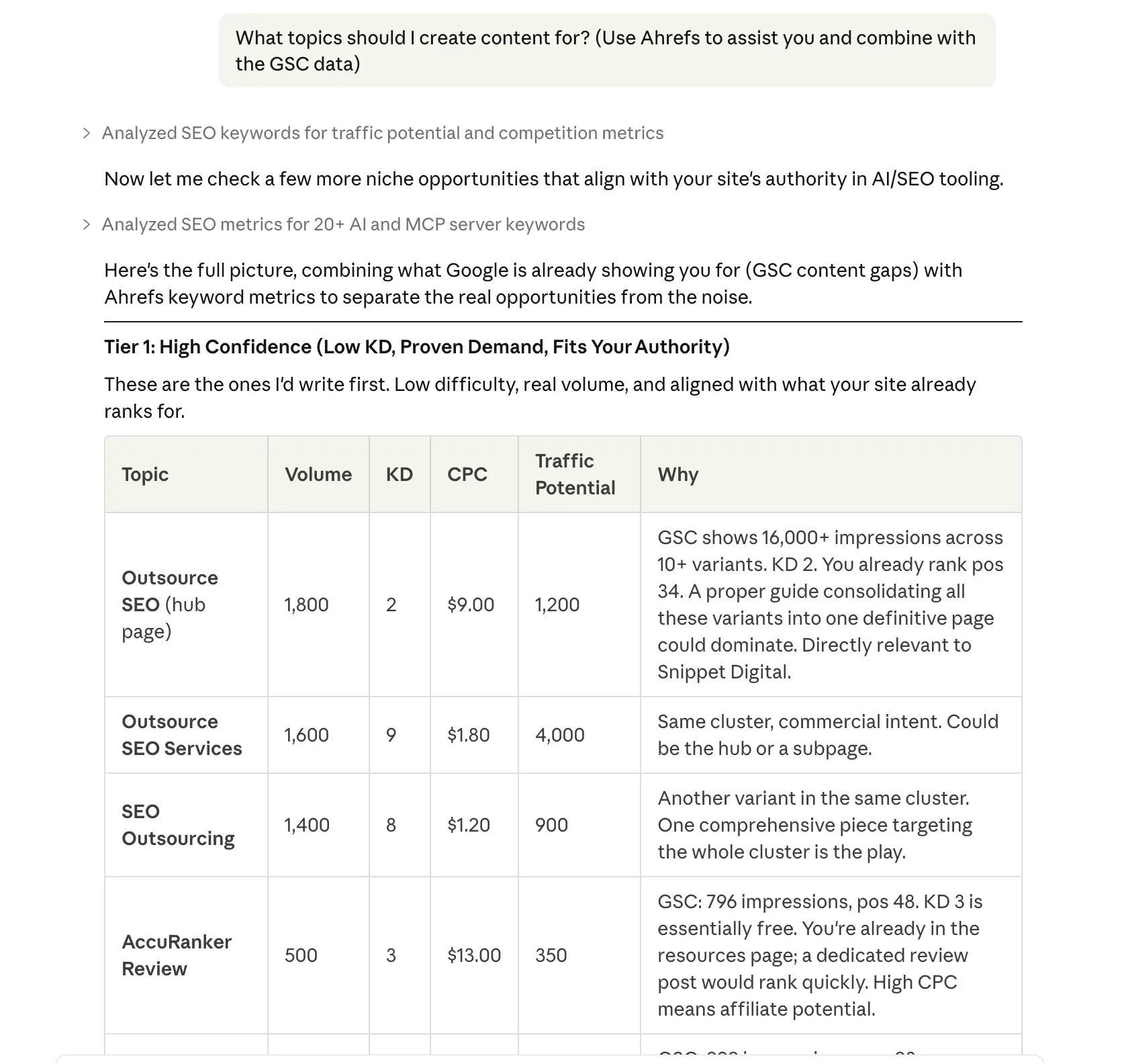
“What topics should I create content for?”
Content gap analysis. It finds queries where Google is already showing your site (you’re getting impressions) but you’re ranking beyond position 20. Translation: there’s search demand, but you haven’t written anything properly targeting it yet.
The beauty of this is you can also combine data with other tools. In this example I have asked Claude to pull the GSC data and then combine it with Ahrefs
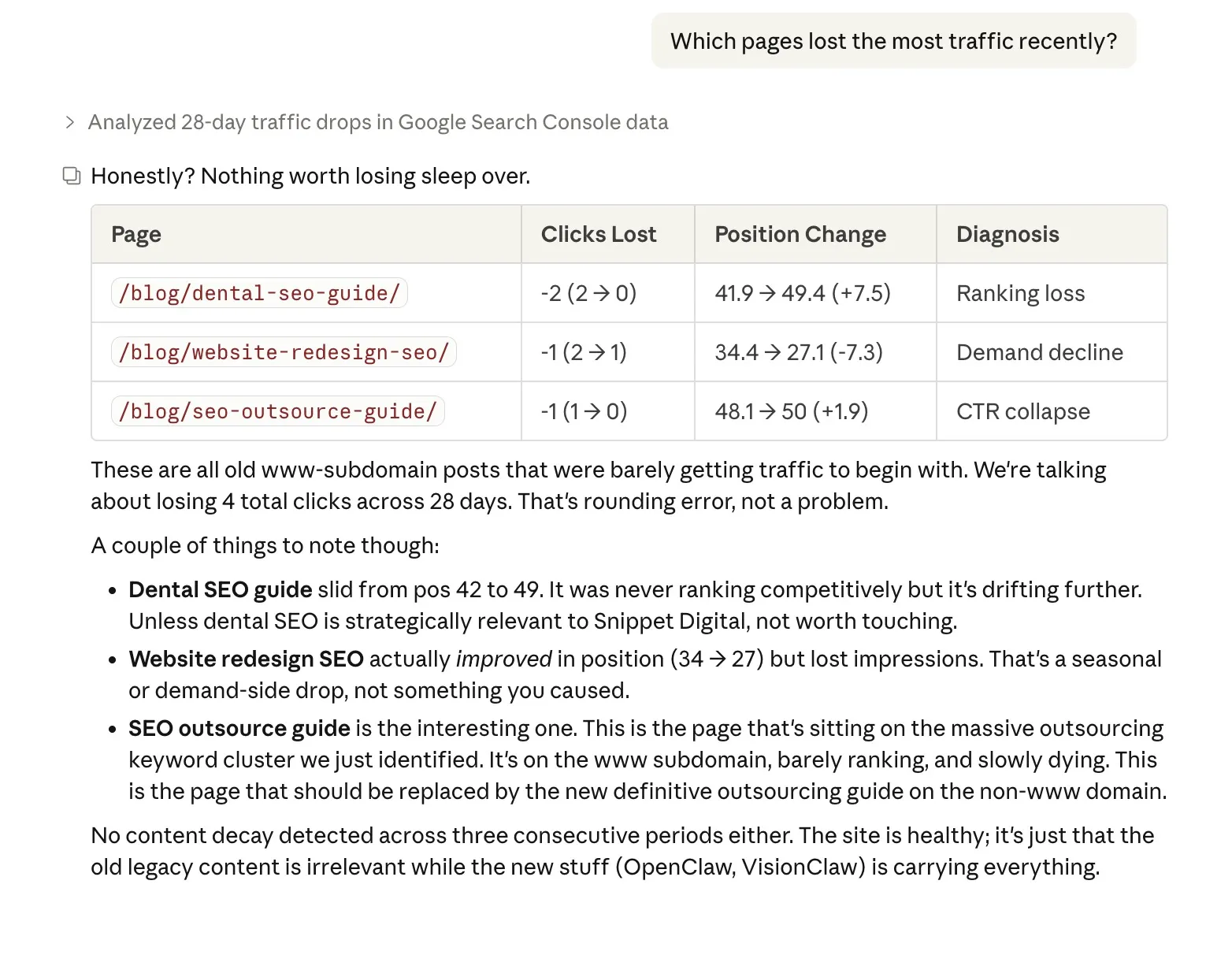
“Which pages lost the most traffic recently?”
This doesn’t just show you the drops. It diagnoses why: did you lose rankings? Did your CTR collapse (maybe a competitor got a featured snippet)? Or did search demand decline for that topic? Knowing the cause changes what you do about it.
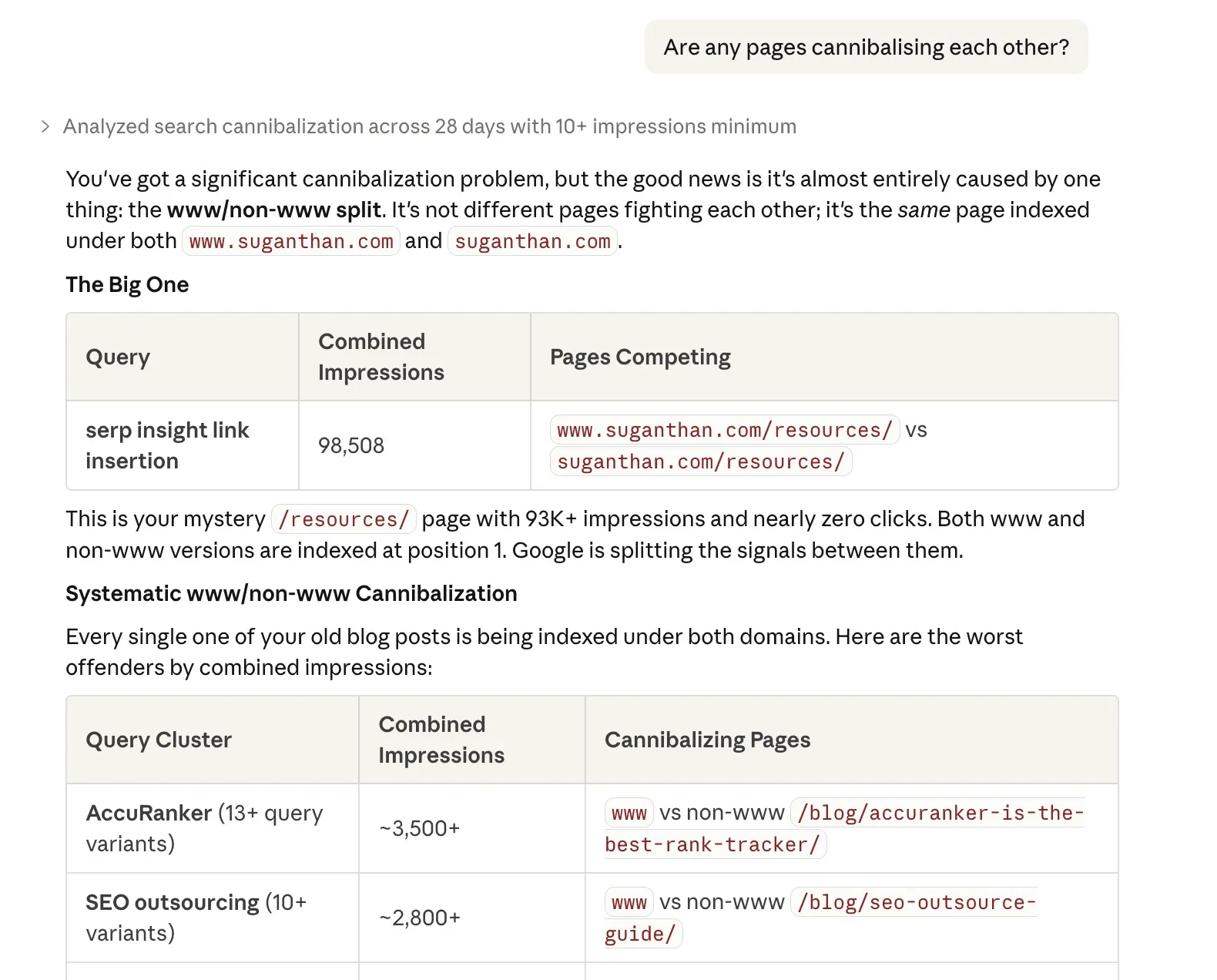
“Are any pages cannibalising each other?”
Keyword cannibalisation is when two of your own pages compete for the same keyword, splitting your ranking potential. This finds those conflicts so you can consolidate or differentiate.
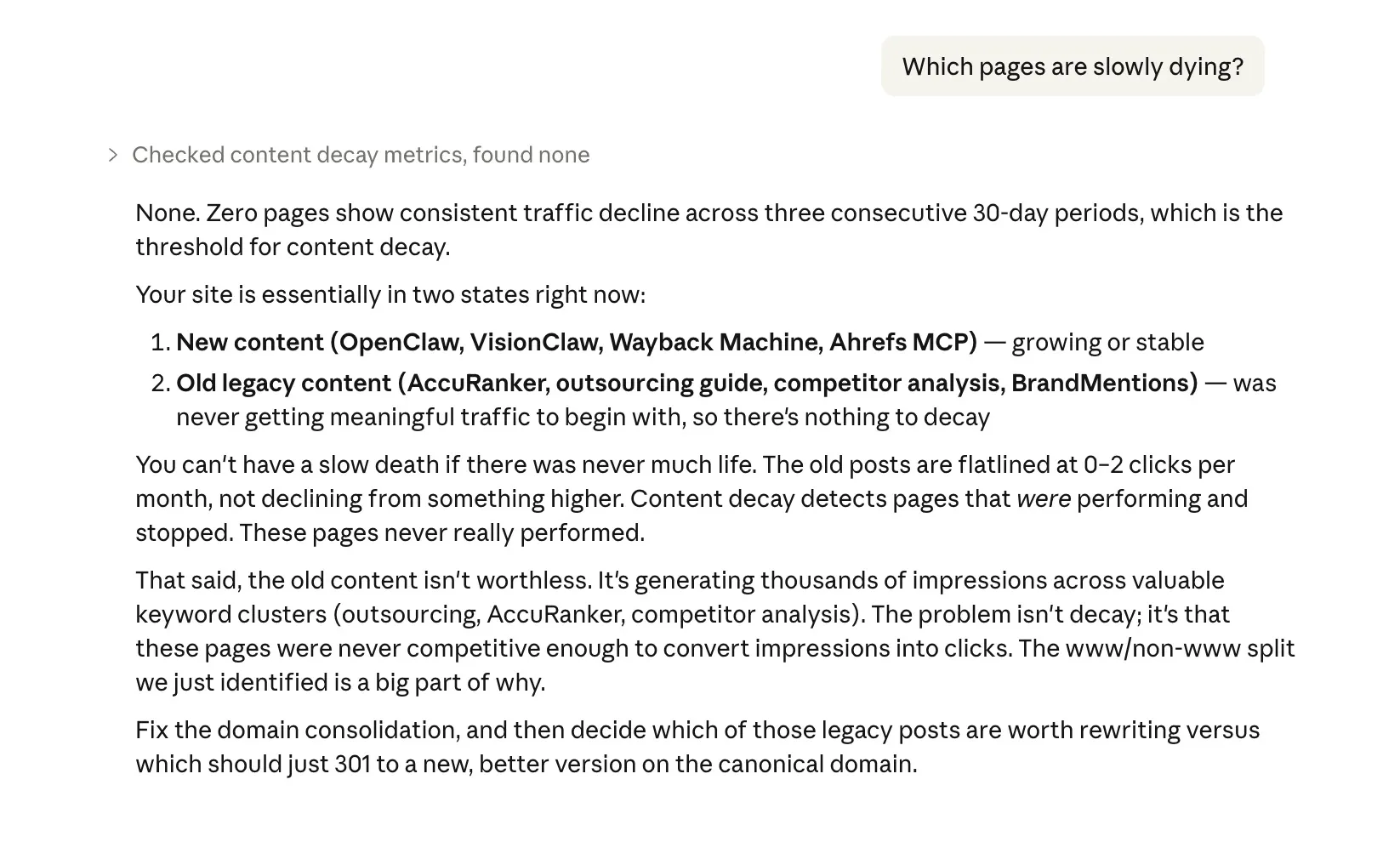
“Which pages are slowly dying?”
Content decay detection. One bad month is noise. Three consecutive months of decline is a pattern. This surfaces the pages that need updating before they disappear from the SERPs entirely.
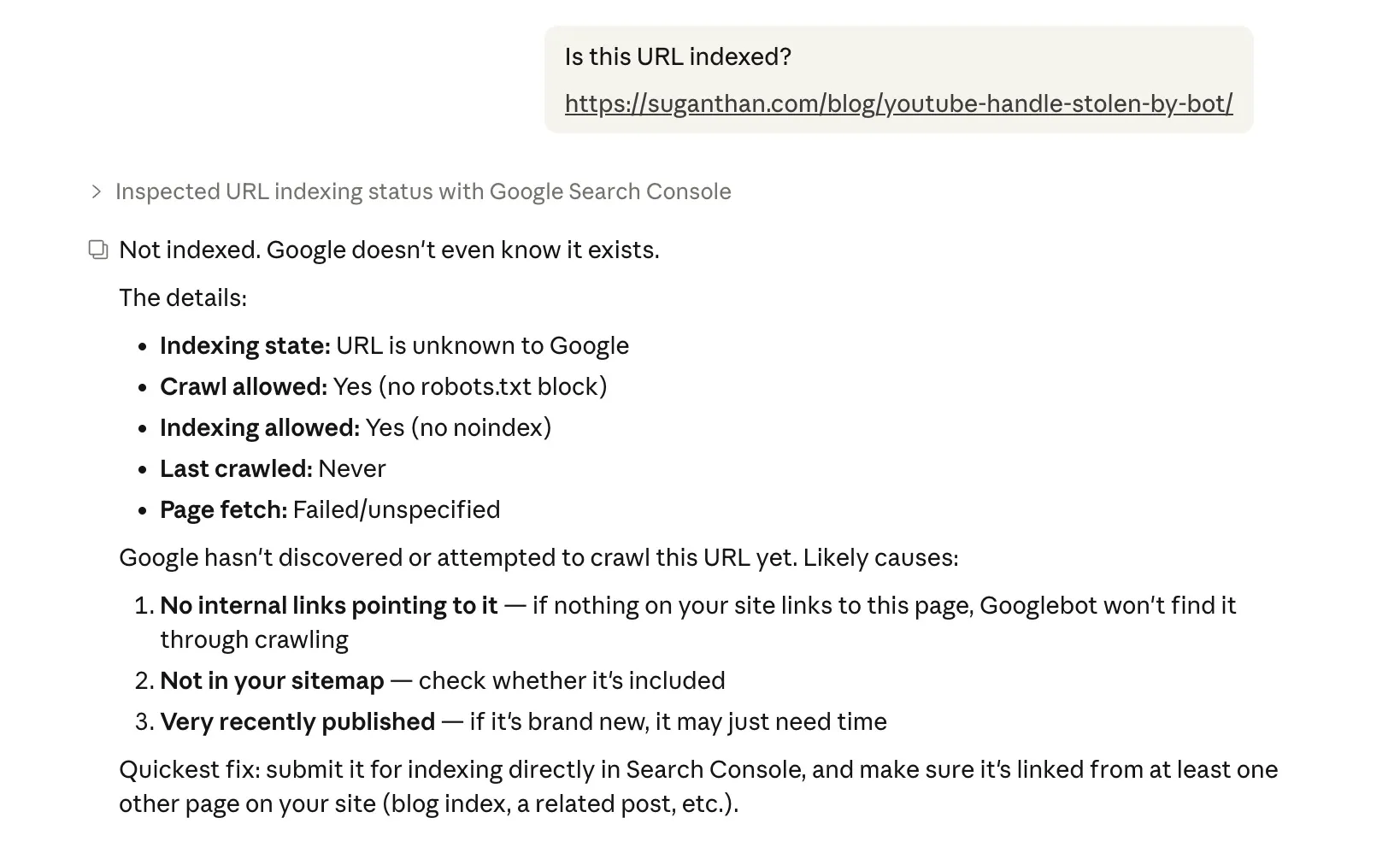
“Is this URL indexed?”
Checks a specific URL’s indexing status, including when Google last crawled it, any canonical issues, robots.txt blocks, noindex tags, and mobile usability. The kind of thing you’d use the URL Inspection tool for, but without leaving your conversation.
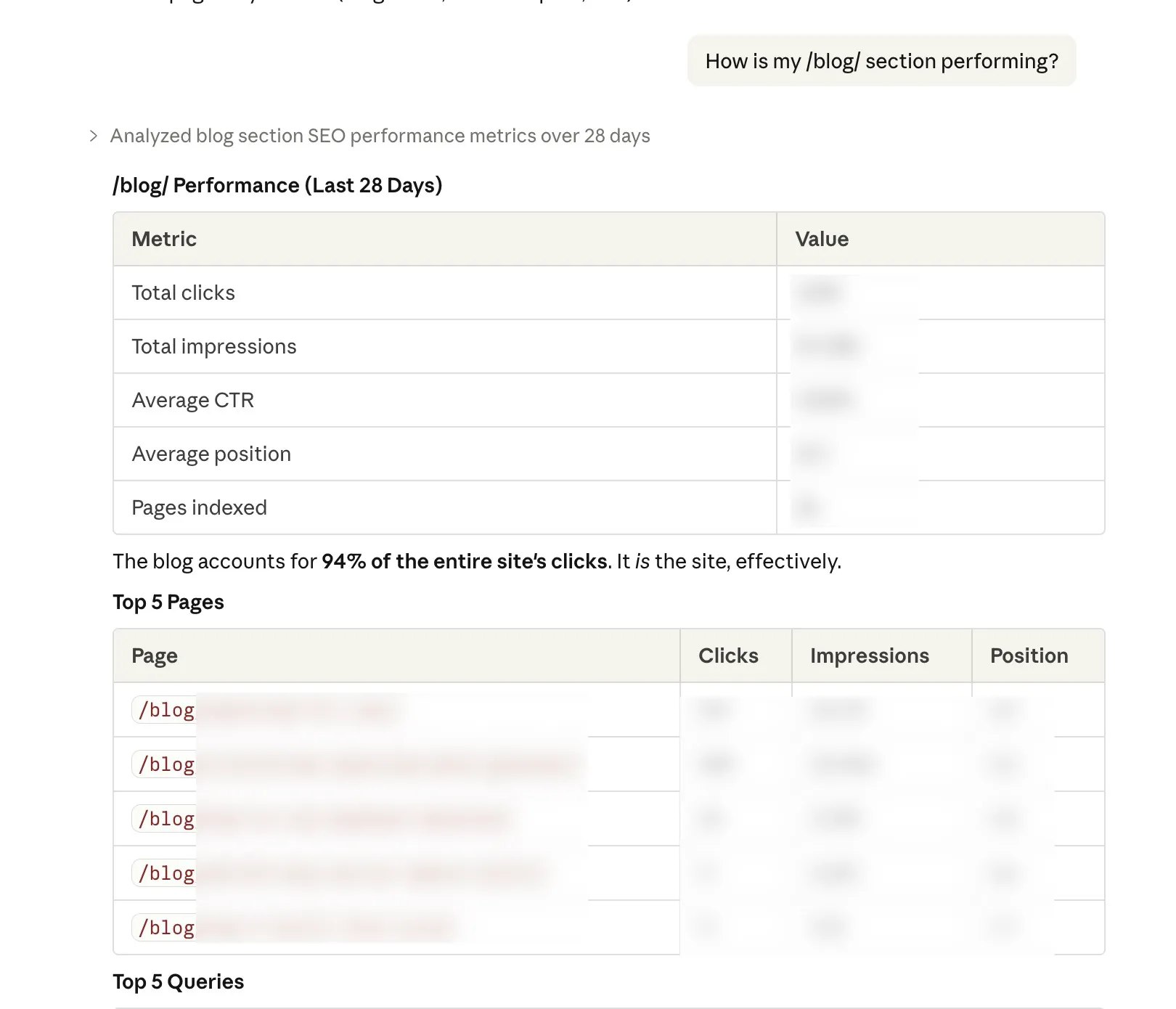
“How is my /blog/ section performing?”
Groups all pages under a URL path and shows aggregate performance. Useful for understanding how entire sections of your site are doing rather than checking pages one by one.
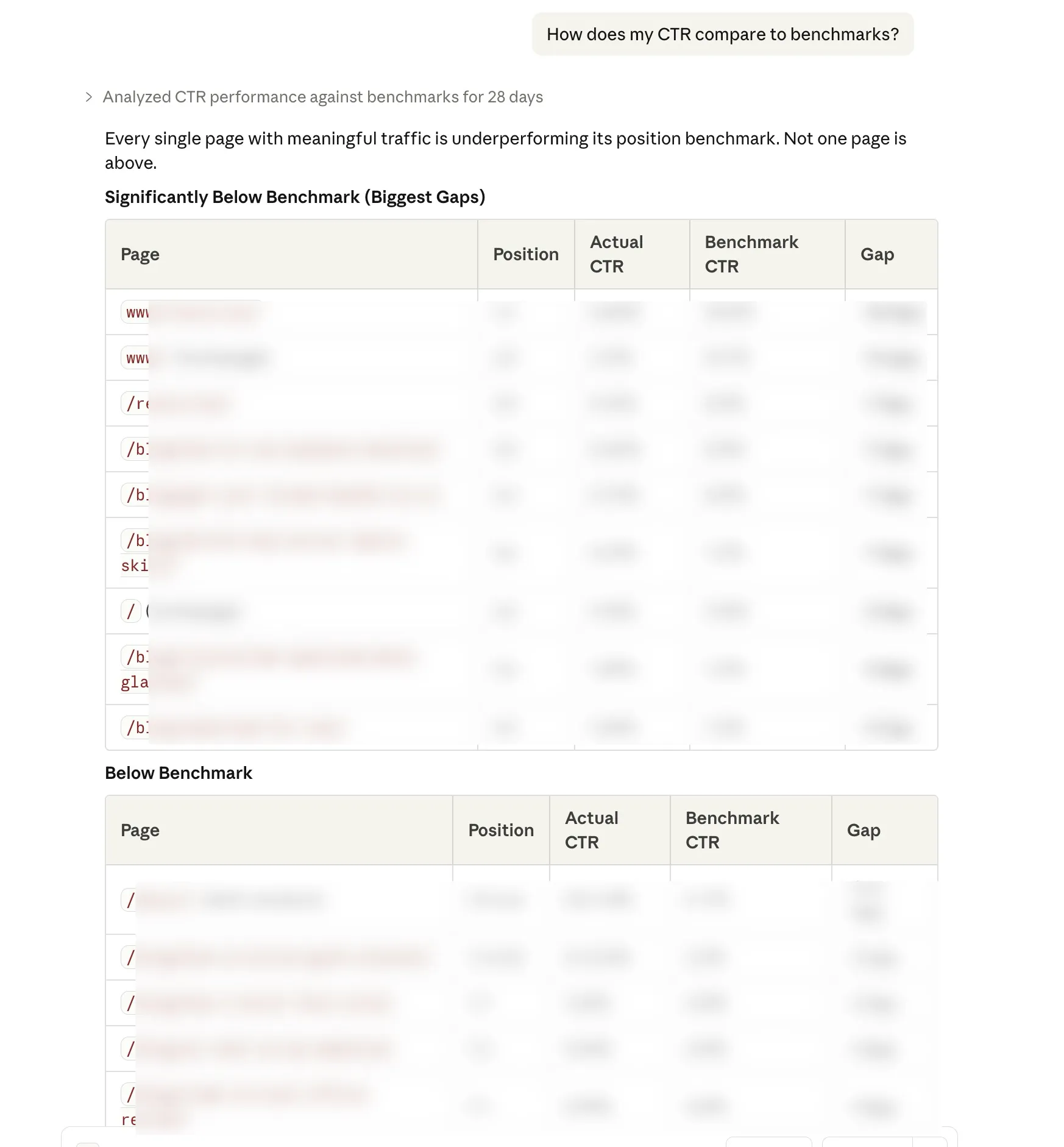
“How does my CTR compare to benchmarks?”
Compares your actual CTR at each position against industry averages. If you’re ranking 3rd but getting half the expected click through rate, your title tag and meta description probably need work.
“But I already have a paid SEO tool”
Good. Keep it.
This isn’t a replacement for Ahrefs, Semrush, Keyword insights or whatever you’re currently using for keyword research, clustering, backlink analysis, and competitive intelligence. Those tools have massive proprietary databases that this doesn’t replicate.
What this does replace is the fifteen browser tabs, three spreadsheet exports, and forty five minutes of clicking you spend every week just trying to understand your own performance data.
Think of it as the difference between asking your accountant a question and manually going through your own filing cabinet. The information is yours either way. The question is how much time you want to spend finding it.
Who built this and is it safe?
The MCP server is open source. The code is on GitHub. Anyone can read every line of it and verify that it does exactly what it says: reads your Search Console data and nothing else.
Your data stays on your machine. The server runs locally. It connects directly to Google’s API using credentials that only you control. No data is sent to any third party service. No analytics. No tracking. No “we may share anonymised data with partners”.
If you’re the kind of person who reads privacy policies (and as someone who works in SEO, you probably should be), you’ll appreciate that the only privacy policy that applies here is Google’s own Search Console API terms.
Final thoughts
The Google Search Console MCP server lets you do in seconds what currently takes you minutes (or honestly, what you sometimes just don’t bother doing because the GSC interface makes it tedious enough to skip).
Setup takes 15 minutes. It costs nothing. Your data stays private. And once it’s running, you just talk to Claude like you’d talk to a colleague who happens to have your Search Console open on their screen.
No subscriptions to cancel. No free trials to remember. No “upgrade to Pro for the feature you actually need”.
Just your data, answering your questions, in plain English.
The GSC MCP server is open source and available on GitHub. If you find it useful, give it a star. If something breaks, open an issue.
Over and out!
You might also like
Stay in the loop
I'll email you when I publish something new. No spam. No fluff.
Join other readers. Unsubscribe anytime.

Entrepreneur & Search Journey Optimisation Consultant. Co-founder of Keyword Insights and Snippet Digital.