Your Google Search Console queries need context
A free tool that sorts a Google Search Console query export against a short business brief, how Jev labels each query, and what to do with the queries it rejects.

Co-founder of Snippet Digital
7 min read · Quick setup
Key points
- Upload the Queries CSV, describe what you offer, check a 20 query sample, then label the rest. Every query comes back Relevant, Outside scope or Needs review, with Jev's reason next to it.
- The Outside scope view groups the rejected queries by reason and by the words they share, because that pile holds the demand your brief left out.
- In one reader's test, 39 of 66 rejected queries were relevant. Refine the brief and re-run for now; a re-check of only the excluded queries against a refined brief is the next build.
On this page 7 sections
Filter a Google Search Console export for “clustering” and you’ll find “keyword clustering tool” alongside “k means clustering python”.
Both contain the same word. Only one is looking for a keyword tool. Filtering by text won’t tell you which is which, and sorting by impressions won’t help either.
If you’ve worked through a query export by hand, you’ll know how much time this takes. I built the Keyword Relevance Filter to make that job easier.
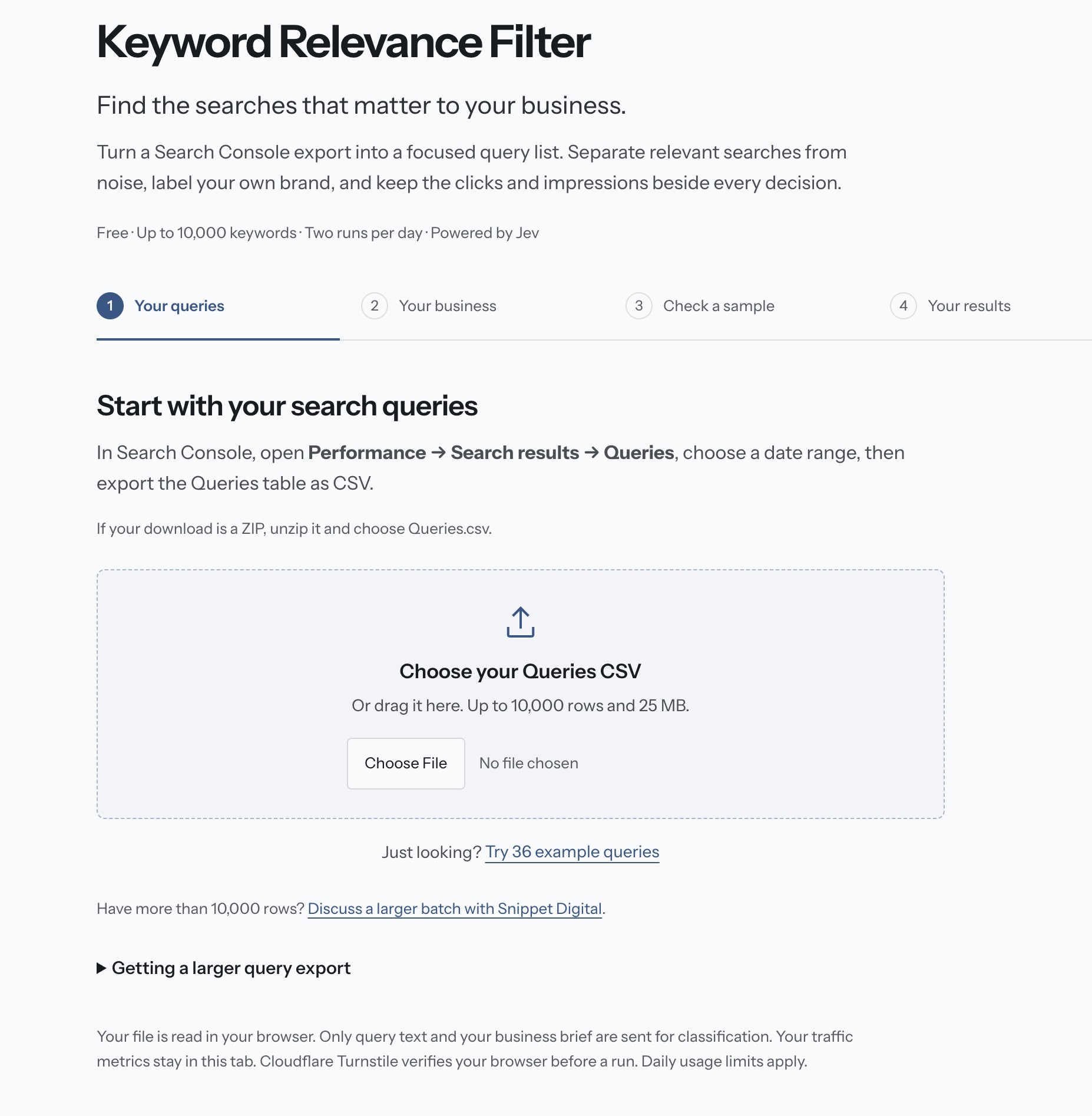
Upload your CSV and describe the business
Upload the Queries CSV straight from Search Console’s Performance report. Then give the tool a short business brief:
- What you offer.
- Who it’s for.
- What you want to exclude.
- Where you operate, if location matters.
- Your brand name and any alternative names people use.
The tool labels a sample of 20 queries first. This gives you a chance to check the results and adjust the brief before running the rest of the file.
Each query gets one of three labels: Relevant, Outside scope or Needs review, with a reason alongside it.
Brand classification is separate. Queries are labelled Branded or Non-branded, so you can isolate relevant searches from people who haven’t mentioned your brand.
If a label is wrong, you can change it. The totals and exports reflect your changes, while Jev’s original decision stays on the row for reference.
You get two runs a day, with up to 10,000 queries per run. There’s no signup.
The CSV is read in your browser. Only the query text and your business brief are sent to my server and then to TypeSafe. Your clicks and impressions stay in the browser.
Why I used Jev
The classification runs on Jev, TypeSafe’s text classifier. You give it criteria and a question about a piece of text. It answers yes, no or unsure.
That suits this job. I want each query assessed against the same criteria, with results I can turn into consistent labels and reasons.
Every query goes through the same set of questions, word for word. The tool maps the answers to fixed explanations, which makes it possible to group and count the reasons queries were rejected.
The rest is ordinary code: reading the CSV, checking exact brand matches, adding up the metrics and creating the exports.
How the tool decides whether a query is relevant
Jev checks each query against your brief using these questions:
- Does it relate to what you offer? This includes the product, its uses and its wider category. Competitors in the same category count, as do searches about buying, pricing, logging in or cancelling.
- Is there a clear subject or task? There needs to be enough meaning in the query to assess it.
- Does it explicitly target an audience or use case outside your brief?
- Does it match an exclusion? Each exclusion gets its own question.
- Does it show buying intent? This check applies when you’ve turned educational searches off.
- Does it ask for a location you don’t serve? This applies when you’ve specified locations.
- Does it refer to your brand without using an exact name match? This supports the separate brand label.
A query with no clear subject goes to Needs review, regardless of the other answers.
Otherwise, a clear mismatch with your offering makes it Outside scope. So does an explicit audience mismatch, an exclusion match or a location you don’t serve. If you’ve turned educational searches off, a clear lack of buying intent also puts it outside scope.
If nothing rules the query out but an answer remains unsure, it goes to Needs review. Everything else is Relevant.
Each outcome has a fixed explanation, such as “Matches your exclusion: Clustering in machine learning”.
Spend time on the brief
If the labels look wrong, start by checking the brief. It defines what the tool considers relevant.
In the offering field, name your products, their uses and the terms people use for your category. Jev uses that description to judge whether a query matches what you sell.
The example brief says “keyword research and keyword clustering software”. With that description, “content calendar template” comes back Outside scope.
If your product also helps with content planning, say so. The classifier can’t account for an offering you haven’t described.
Keep exclusions specific, too. “Jobs” can exclude recruitment searches. “SEO” could exclude the market you’re trying to reach.
Check the sample before running the whole file. Three wrong labels out of 20 is a 15% error rate in that sample. It doesn’t establish the error rate for the full export, but it’s a good reason to revise the brief before continuing.
Edit the brief and check again. The sample step reuses queries it has already labelled.
When you’re ready to hand the results to someone, export the filtered view they need. Both export formats include the labels, reasons and original columns.
Look closely at the rejected queries
The rejected queries can tell you as much as the relevant ones. Some will be outside your market. Others may reveal a gap in the brief.
The Outside scope view helps you investigate both.
First, it groups queries by Jev’s rejection reasons, showing the query count and impressions for each reason. Click a reason to see the queries behind it.
It also shows words and word pairs shared by at least two rejected queries, ranked by how many queries contain them. Click a term to search the list.
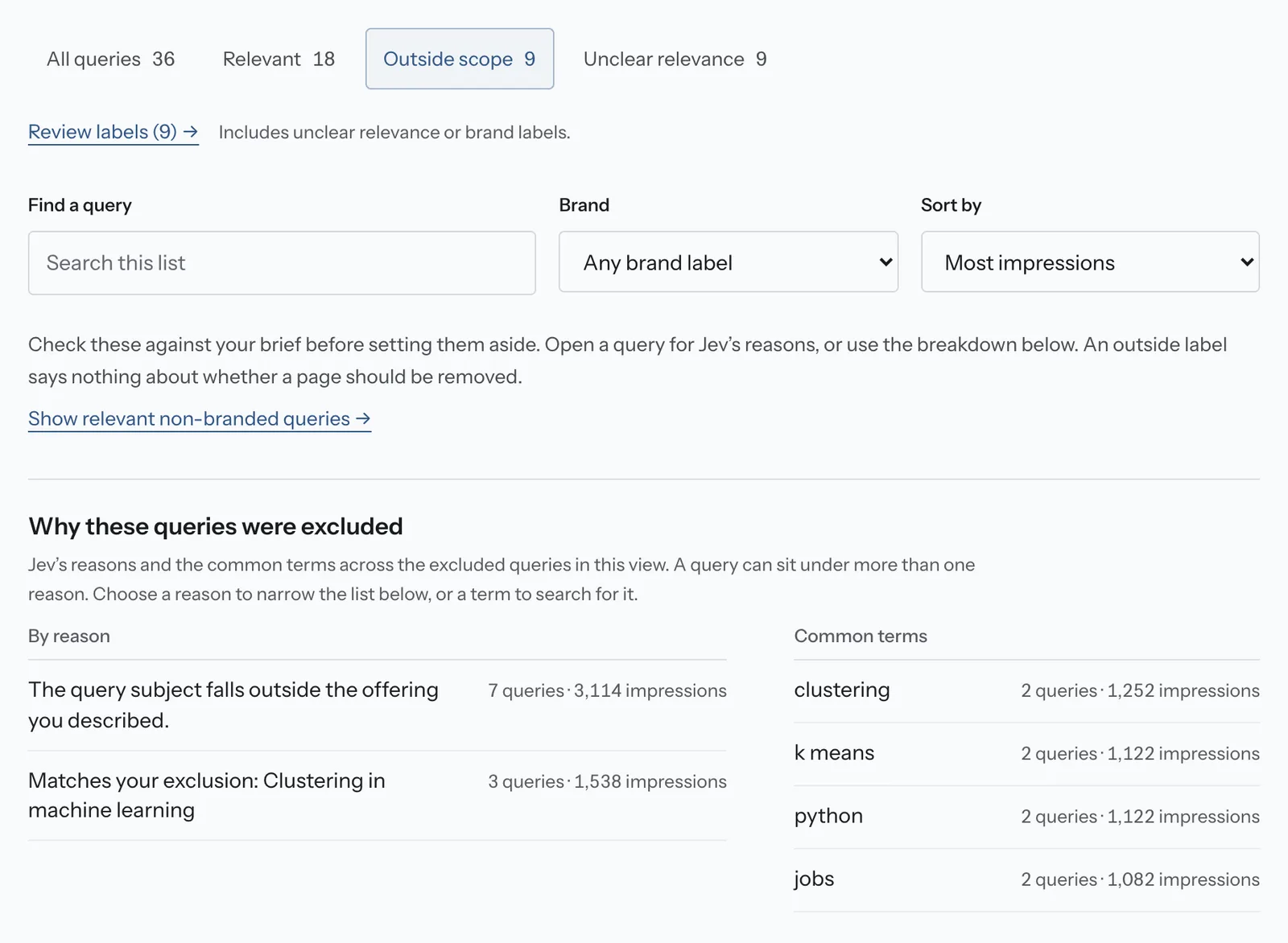
In the example file, 9 of 36 queries are labelled Outside scope:
- Seven fail the offering check.
- Three match the exclusion for machine learning clustering.
- One query matches both reasons, so the counts overlap.
The shared terms are “clustering”, “k means”, “python” and “jobs”, each appearing in two rejected queries.
“Jobs” points to recruitment searches, an audience the brief didn’t include. The other terms appear in the machine learning searches the exclusion was intended to catch.
The example’s traffic figures are made up. They show how the tool works, not how much demand those queries represent.
With your own export, look for products you sell but forgot to mention, use cases you support and competitors in your category. Also check terms such as “free”, “template”, “jobs” and “salary”, along with locations you don’t serve.
These patterns need different responses. Some mean the brief needs fixing. Some may suggest useful content. Others belong outside scope. A recurring term is a reason to investigate, not an automatic instruction to create a page.
What an SEO’s test showed
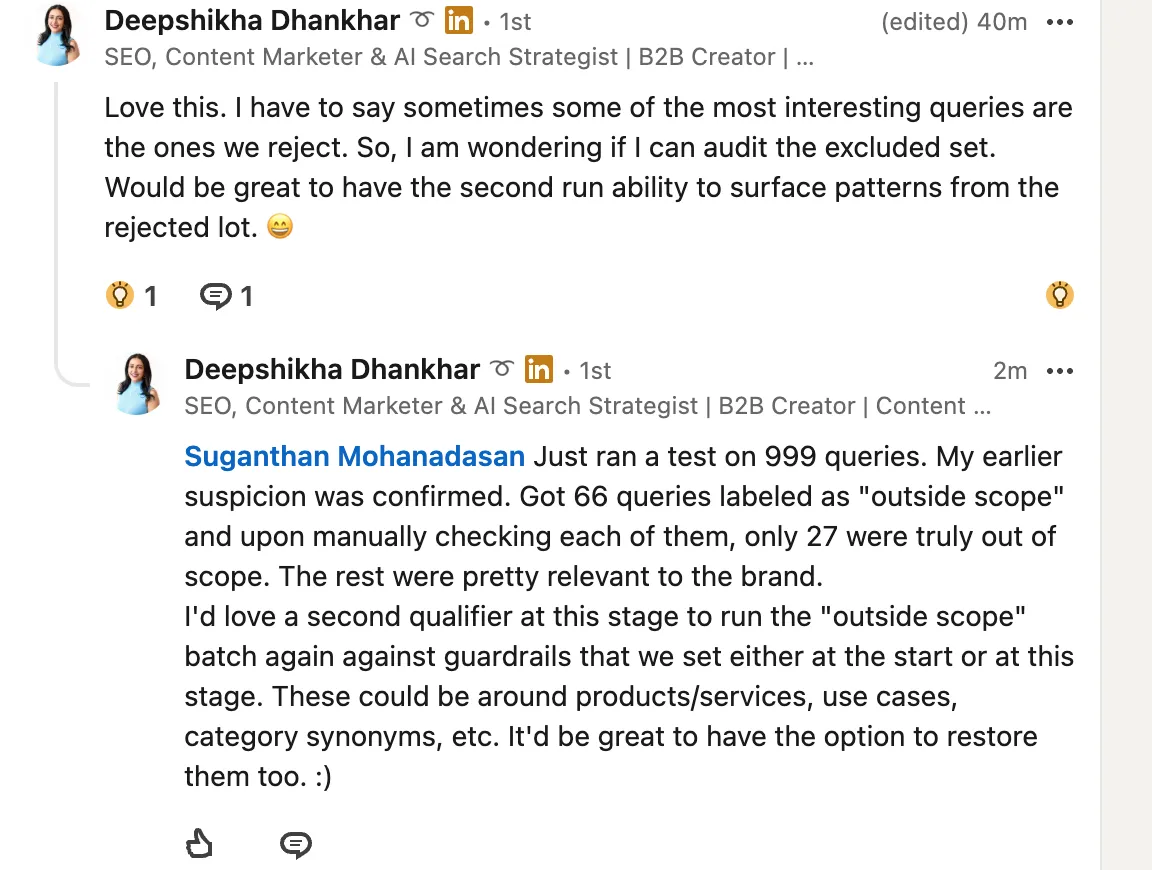
Deepshikha Dhankhar left two comments on my LinkedIn launch post.
First, she asked whether she could audit the excluded queries. Her point was that the most interesting searches are often the ones we reject.
Then she tested the tool on 999 of her own queries. It labelled 66 as Outside scope. She checked all 66 manually and found that only 27 were genuinely outside scope.
The remaining 39 were relevant to the brand.
I haven’t seen her file, so I can’t say what caused those mistakes.
My first suspicion is the offering description. If a business sells across several categories but the brief names only one, queries about the others can fail the offering check. An overly broad exclusion can also reject relevant searches.
Those are possible explanations based on how the checks work. They aren’t a diagnosis of her results.
What I changed, and what still needs work
I added the rejection breakdown to solve this problem.
It addresses Deepshikha’s first point: you can now see why queries were rejected, filter by each reason and correct individual labels.
It doesn’t resolve the misclassification problem she found.
For now, you need to add any missing products, use cases or category terms to the brief and run the file again. That relabels the entire file and uses one of your two daily runs.
The next build will let you re-check only the excluded queries against a revised brief, keeping the remaining results as they are.
Deepshikha also suggested being able to set the boundaries at the start or refine them during the review. That’s the approach I’ll use.
These labels assess queries against your business brief. An Outside scope label isn’t a recommendation to remove a page. A Relevant label doesn’t prove that a page ranks for the right reasons.
Use the results to focus your review, and check the rejected queries before accepting the tool’s decisions.
You can try the Keyword Relevance Filter here.