Google Search Console MCP: Step by Step Setup Guide (OAuth + 20 Free Tools)
Connect Claude to your Google Search Console in 5 minutes with OAuth. 20 free analysis tools: quick wins, content decay, cannibalisation, CTR benchmarks, alerting, and Indexing API. Full guide with screenshots.
v2.2.2 Update (April 2026): The npm package is now
suganthan-gsc-mcp. If your config still points at the oldgsc-mcp-servername, update it to get my actual 20 tools (see Step 5). Thanks to the reader who flagged this. Full changelog below.
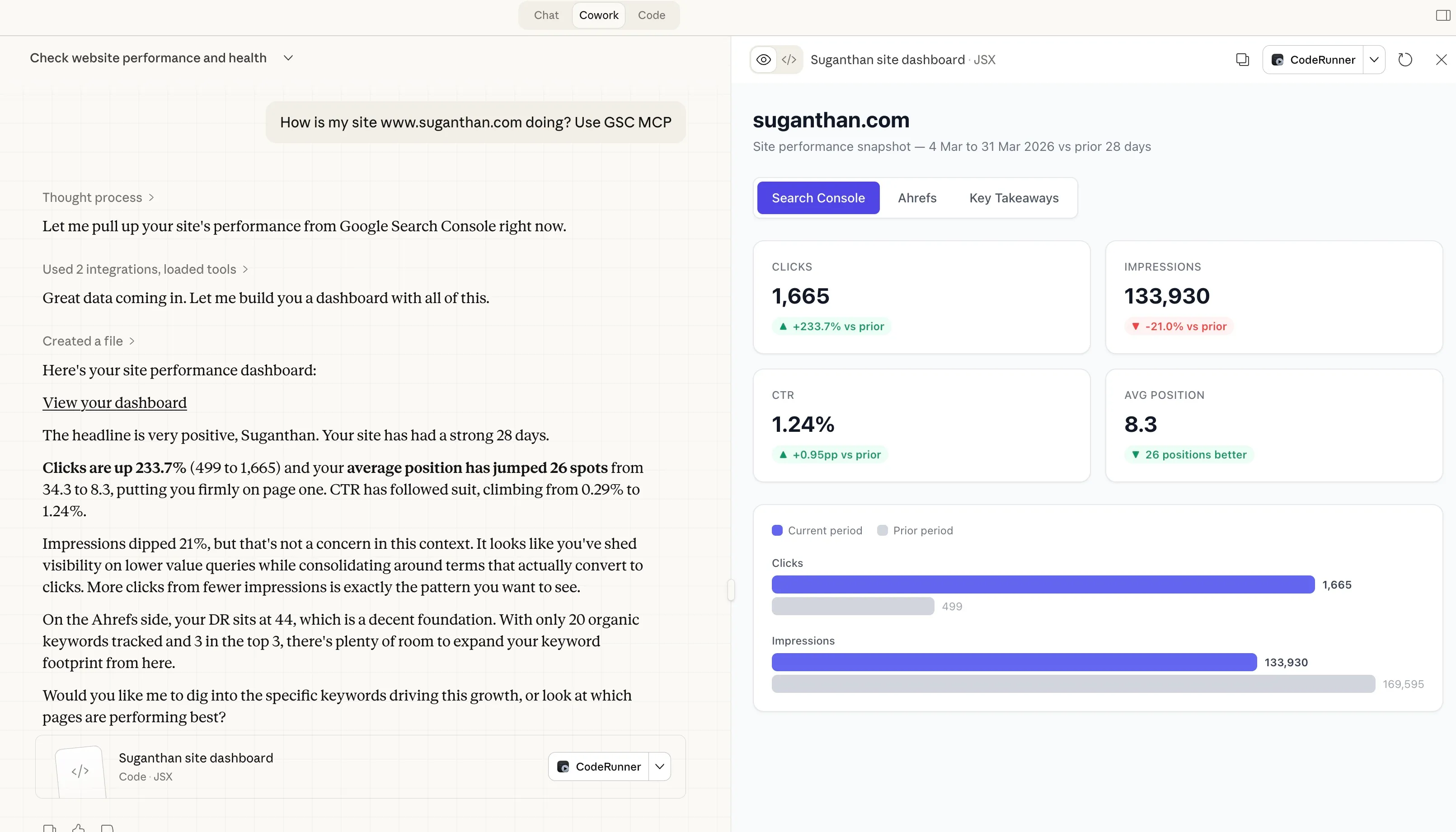
You know that feeling when you open Google Search Console, stare at the dashboard, and think “I know the data I need is in here somewhere”?
You click Performance. You add a filter. Then another filter. You compare date ranges. You export to a spreadsheet. You pivot. You squint. And thirty minutes later, you’ve answered one question that should have taken ten seconds.
What if you could just ask?
“Which pages lost traffic this month and why?” “What keywords am I close to ranking for on page one?” “Are any of my pages cannibalising each other?” “Submit this URL for indexing.”
No clicking. No exporting. No spreadsheets. Just a question, and an answer.
That’s exactly what this does. And it’s completely free.
What is a Google Search Console MCP server?
Let’s get the jargon out of the way.
MCP stands for Model Context Protocol. It’s just a way for AI tools like Claude to connect to external data sources. Think of it like a translator that sits between Claude and your Search Console account, so Claude can read your data and answer questions about it.
You don’t need to understand how it works any more than you need to understand how your car engine works to drive to the shops. You just need to set it up once, and then forget it exists.
A Google Search Console MCP server is a small programme that runs on your computer. When you ask Claude a question about your website’s search performance, Claude talks to this programme, which talks to Google, which sends back the data, and Claude turns it into a human answer.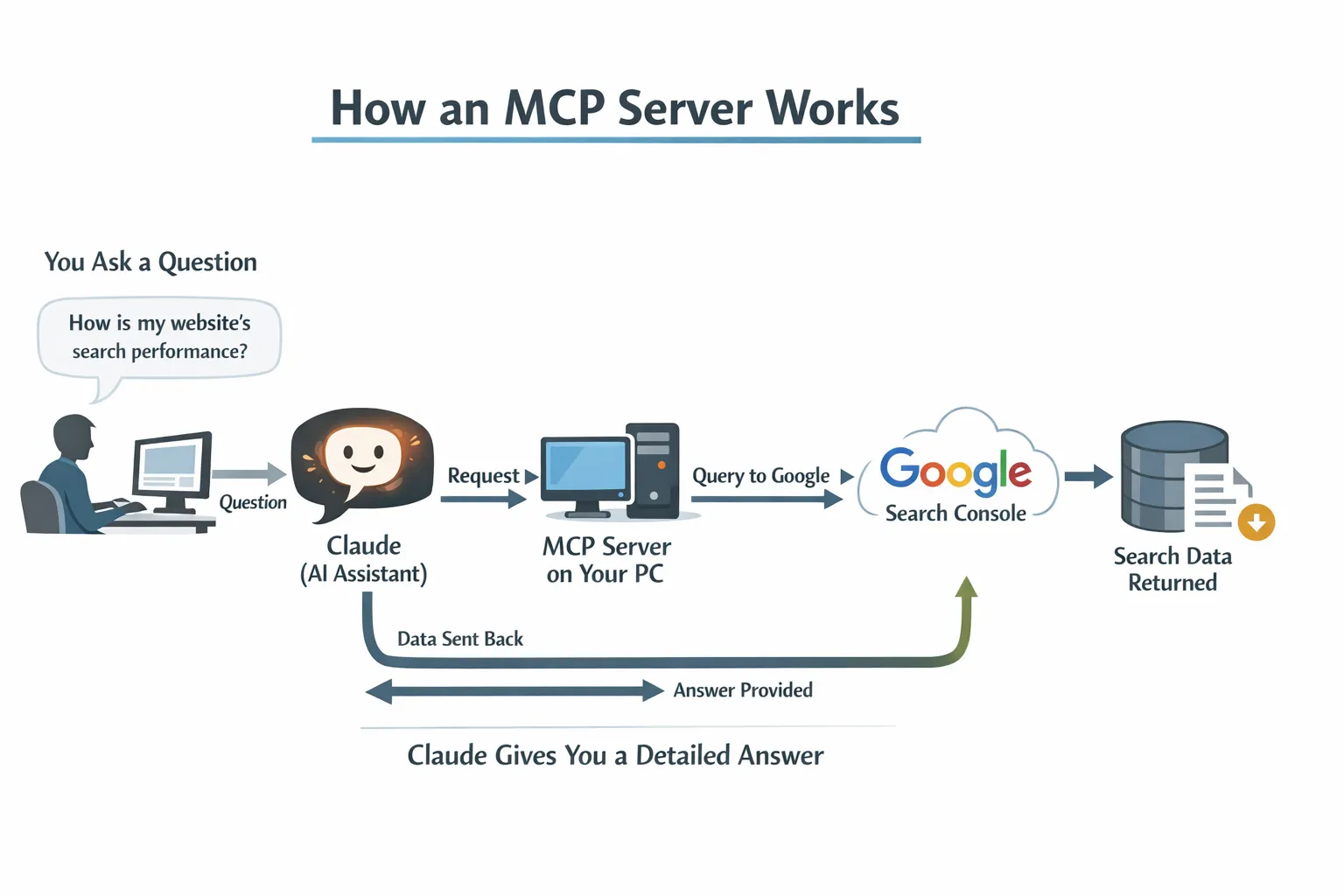
The whole thing runs locally on your machine. Your data never touches a third party server. No subscriptions. No “free tier with limits”. No credit card on file “just in case”.
Why would you want this?
Because you’re paying for tools that do less.
Let me be direct: most SEOs are spending $100 to $300 per month on tools that essentially repackage your own Google Search Console data with a prettier interface. Some of those tools are genuinely excellent and worth every penny for their backlink databases, keyword research, and competitive analysis. Like, for instance, SE Ranking. It covers all those things and adds an AI search layer to give a cross channel view. And it ships with its own MCP server, which connects to Claude the same way. Set up both, and you can pull competitive data alongside your own GSC performance in the same conversation.
But for analysing your own search performance? The data comes from the same place. Google Search Console.
This MCP server ships with 20 built in tools across four categories: analysis, monitoring, reporting, and indexing. Here’s everything it can do.
Analysis tools
| Tool | What it does | Example question |
|---|---|---|
| Site snapshot | Overall performance vs previous period, with percentage changes | ”How is my site doing?” |
| Quick wins | Keywords at positions 4 to 15 with high impressions you could push to page one | ”What are my quick win keywords?” |
| Content gaps | Topics where you get impressions but rank beyond position 20 | ”What topics should I create content for?” |
| Traffic drops | Pages that lost traffic, with diagnosis: ranking loss, CTR collapse, or demand decline | ”Which pages lost the most traffic?” |
| CTR opportunities | Pages with CTR below benchmark for their position (title tag candidates) | “Where is my CTR underperforming?” |
| Cannibalisation check | Keywords where multiple pages compete against each other | ”Are any pages cannibalising each other?” |
| Content decay | Pages with three consecutive months of traffic decline | ”Which pages are slowly dying?” |
| URL inspection | Indexing status, crawl info, canonical issues, mobile usability | ”Is this URL indexed?” |
| Topic clusters | Performance of all pages under a URL path (like /blog/seo/) | “How is my /blog/ section performing?” |
| CTR vs benchmarks | Your actual CTR compared to industry averages by position | ”How does my CTR compare to benchmarks?” |
| Advanced search analytics | Custom queries with flexible dimensions, filters (country, device, query, page), and sorting | ”Top 20 queries from the US on mobile in the last 90 days” |
Monitoring and alerting
| Tool | What it does | Example question |
|---|---|---|
| Check alerts | Flags position drops, CTR collapses, click losses, and pages that disappeared. Severity rated | ”Check for any SEO alerts” |
| Verify claim | Claude re-queries the API to confirm its own numbers before presenting them | ”Verify that my homepage gets 500 clicks” |
Reporting and recommendations
| Tool | What it does | Example question |
|---|---|---|
| Content recommendations | Cross-references quick wins, content gaps, and cannibalisation to suggest actions | ”Give me content recommendations” |
| Generate report | Produces a full markdown performance report. Saves to disk for weekly reviews | ”Generate a performance report” |
| Multi-site dashboard | Health check across all your properties in one command. Built for agencies | ”Show me a dashboard across all my sites” |
Indexing API
| Tool | What it does | Example question |
|---|---|---|
| Submit URL | Send a single URL to Google’s Indexing API for crawling | ”Submit this URL for indexing” |
| Batch submit | Submit up to 200 URLs at once (daily quota) | “Index all my new blog posts” |
| Submit sitemap | Notify Google of sitemap updates | ”Submit my sitemap for reindexing” |
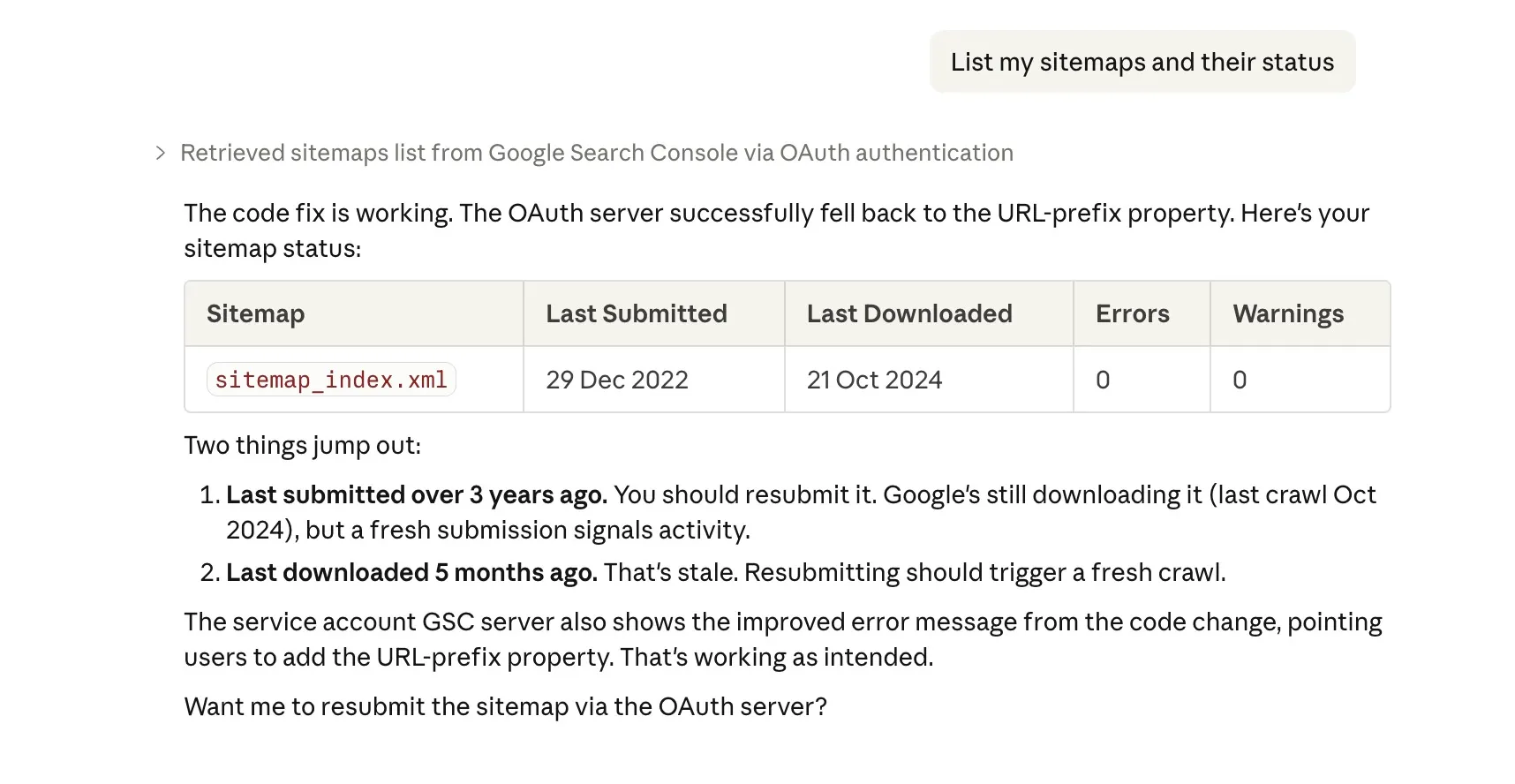
| List sitemaps | See all submitted sitemaps with error counts, warnings, and indexed page stats | ”List my sitemaps and their status” |
And because it’s Claude, you’re not limited to these twenty. You can ask follow up questions. “Show me only the quick wins with more than 1,000 impressions.” “Which of those decaying pages are blog posts?” Claude understands context.
What you need (and what it costs)
Here’s the full shopping list:
| Item | Cost |
|---|---|
| Google Cloud account | Free |
| Google Search Console API | Free |
| The MCP server | Free (open source) |
| Claude Desktop app | Free plan works |
| A cup of tea while you set it up | Roughly £2? |
Total ongoing cost: nothing.
The only “price” is about 15 minutes of setup time. And you only do it once.
The setup: step by step
There are two ways to authenticate: OAuth (easier, recommended for personal use) or service account (better for automation and agencies). Pick whichever suits you.
Option A: OAuth setup (recommended)
OAuth is the simplest path. You sign in with your Google account, approve access, and you’re done. No service accounts, no JSON key files, no adding robot users to your Search Console.
Step 1: Create a Google Cloud project
Go to console.cloud.google.com
Click the project dropdown at the top of the page
Click New Project
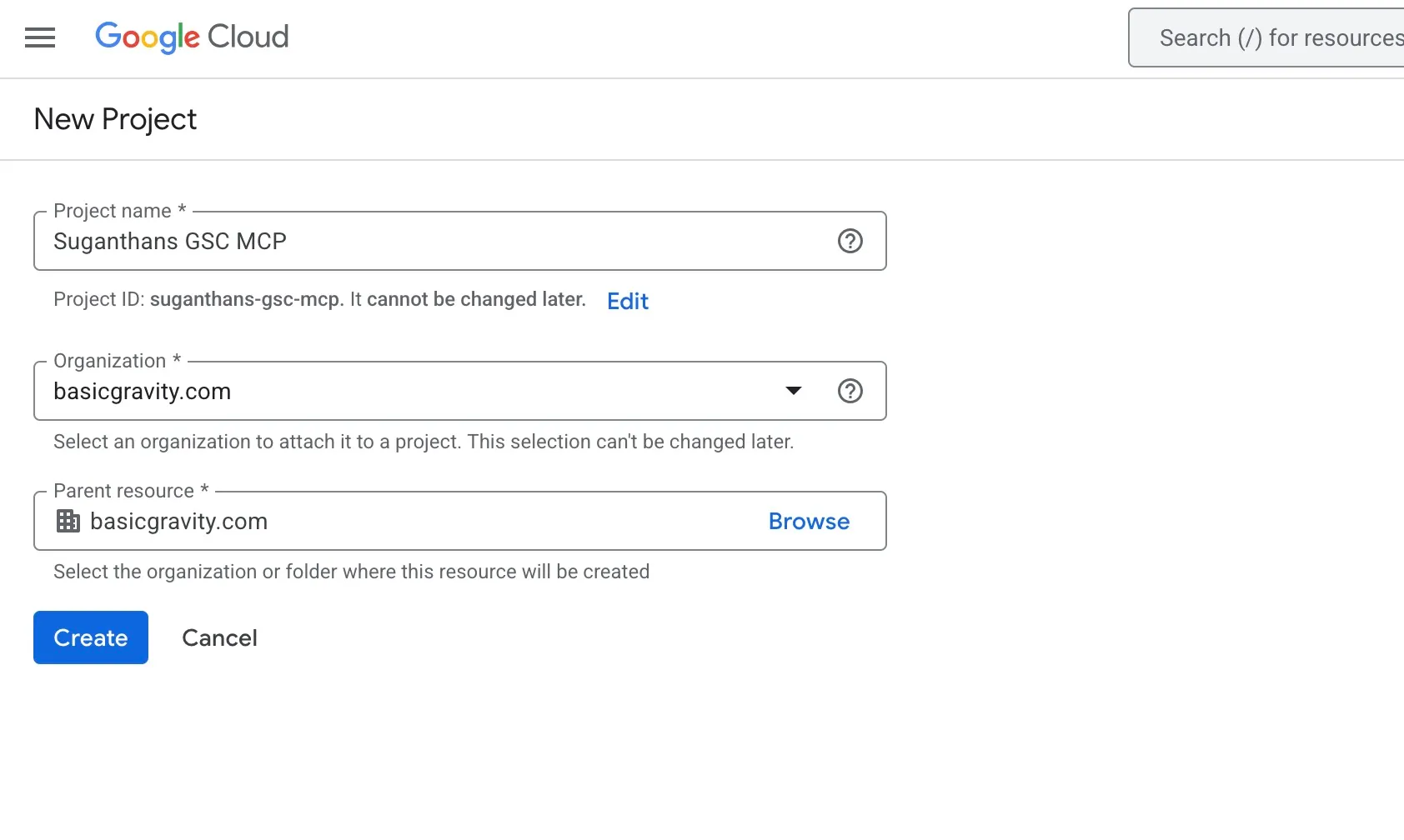
Name it something like GSC MCP
Click Create
Step 2: Enable the Search Console API
Use the search bar at the top and type Google Search Console API
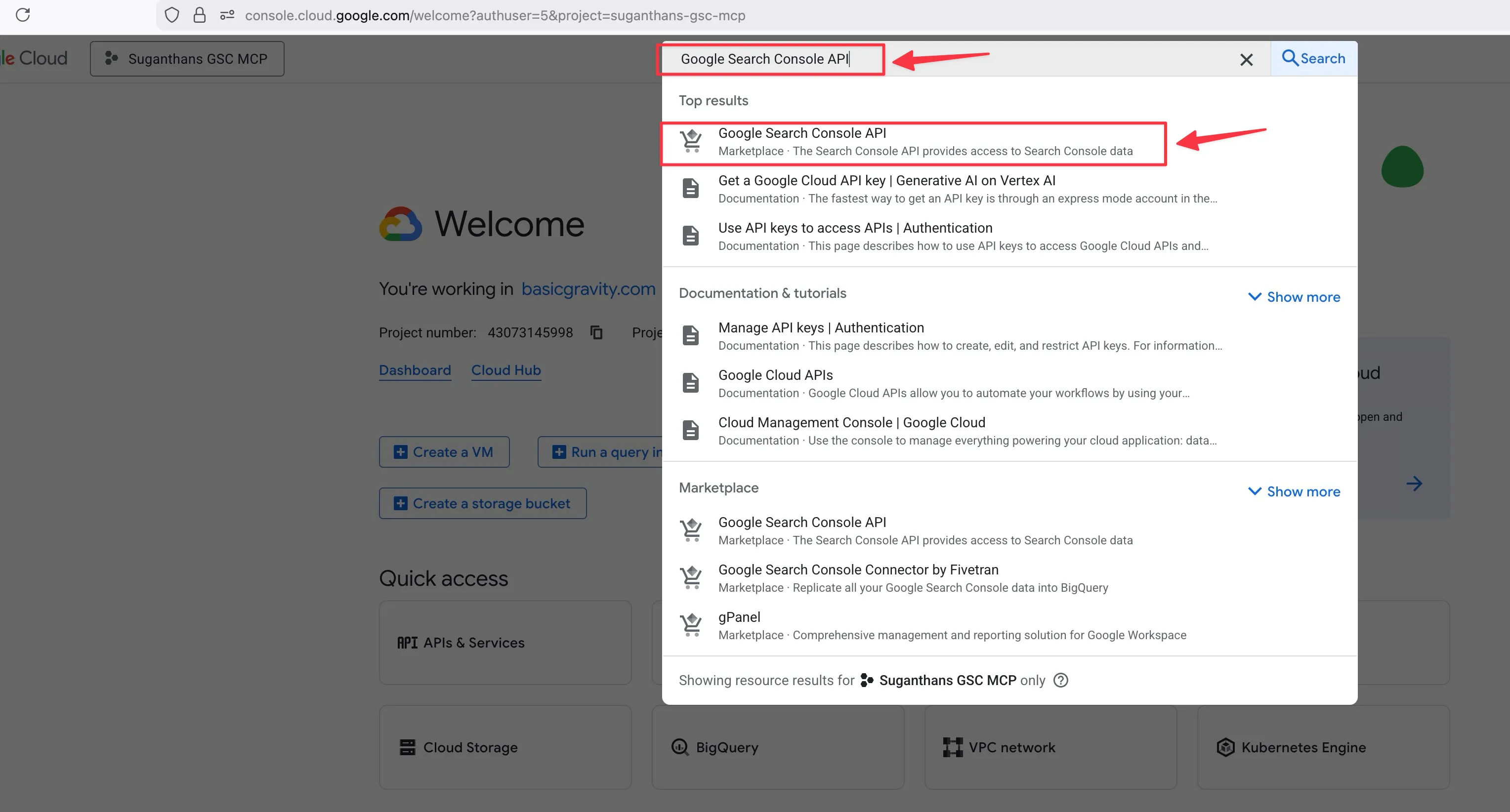
Click it when it appears in the results
Click the Enable button
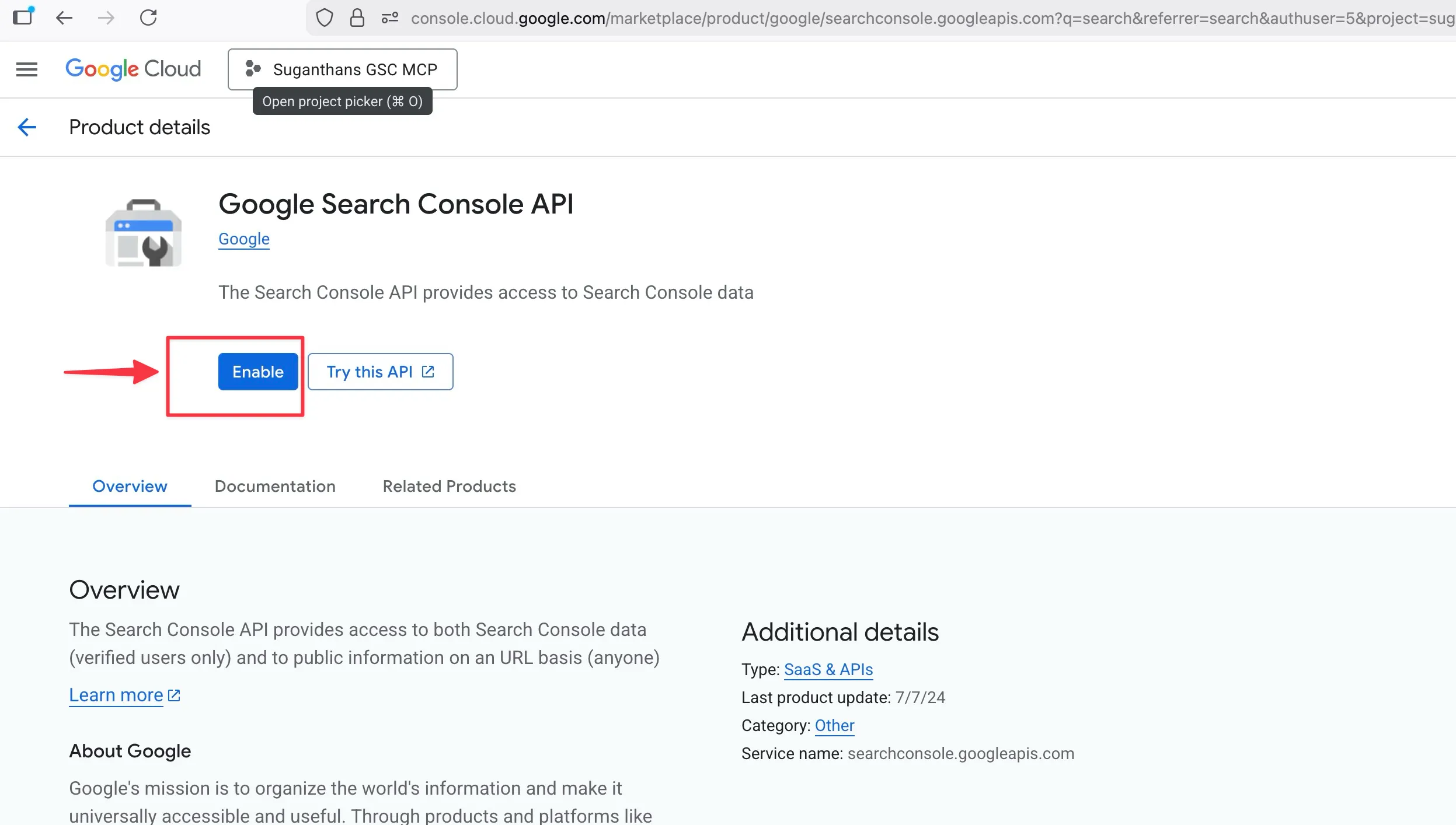
If you want to use the indexing tools too, also enable the Web Search Indexing API from the same API Library.
Step 3: Create OAuth credentials
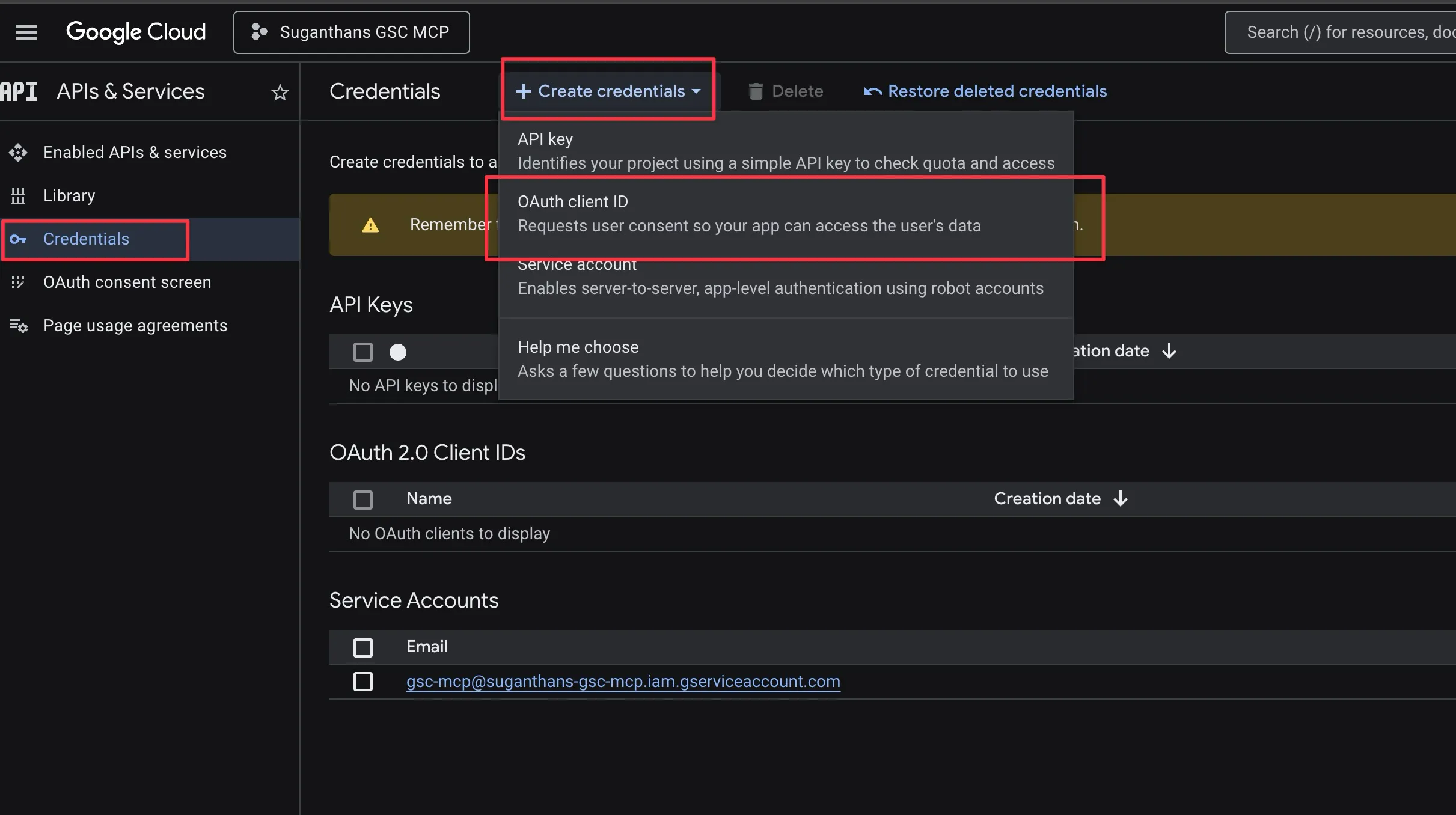
In the left sidebar, click APIs & Services, then Credentials
Click Create Credentials, then OAuth client ID
****
You will be asked to configure the consent screen
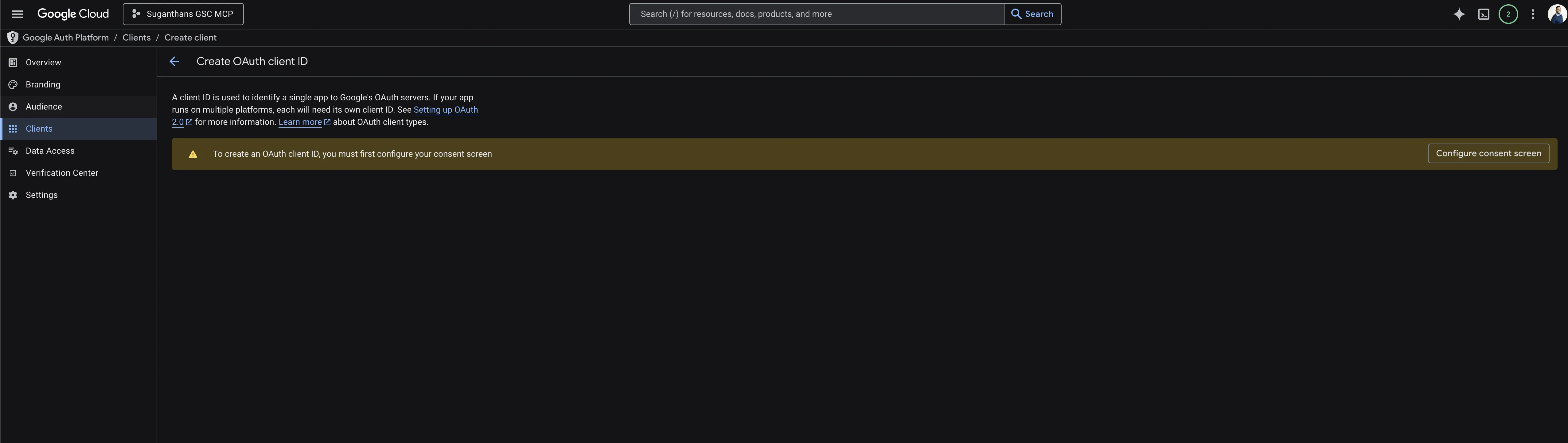
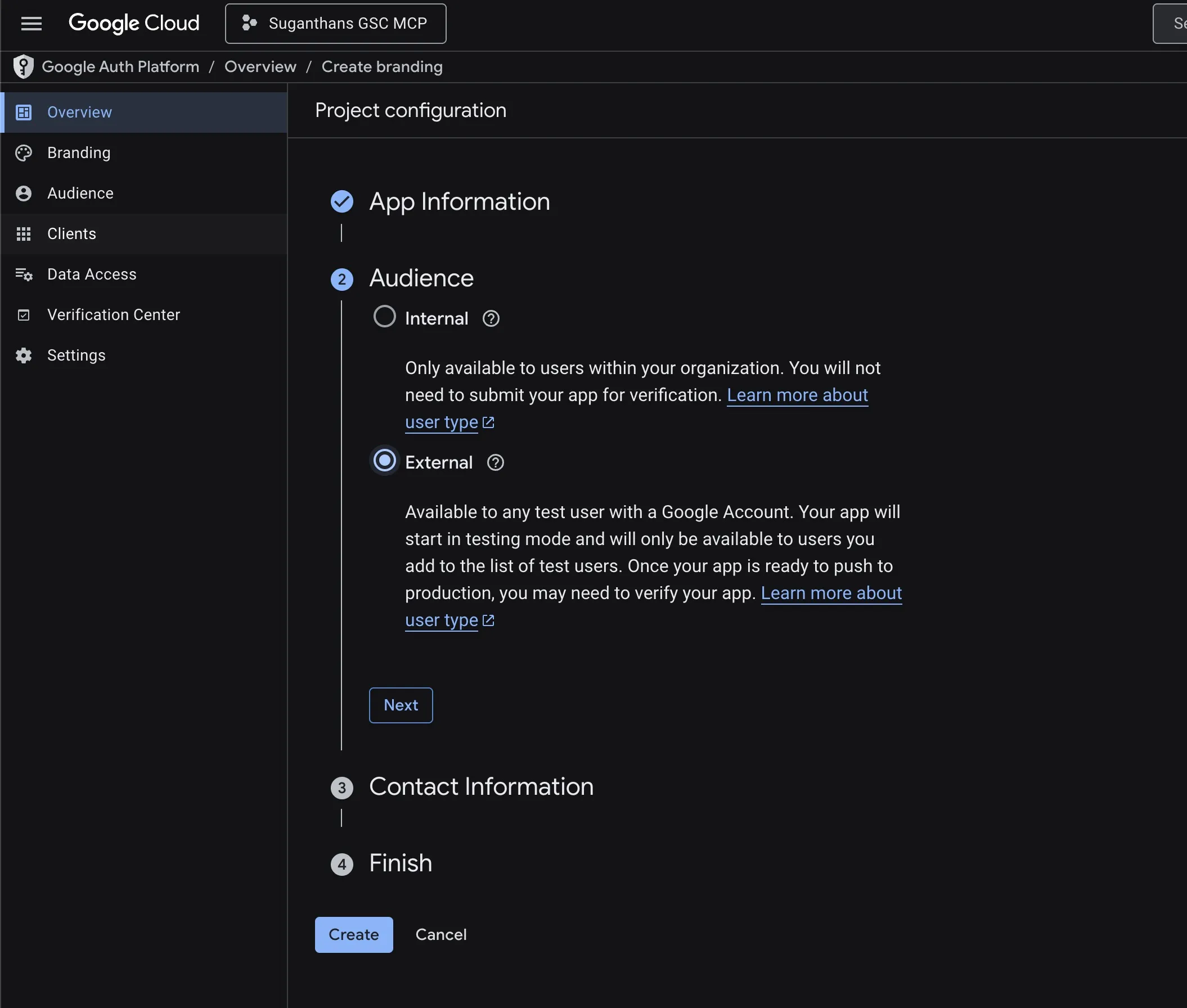
If prompted to configure a consent screen first, click Configure, choose External, fill in the app name (e.g. “GSC MCP”) and your email, then save.
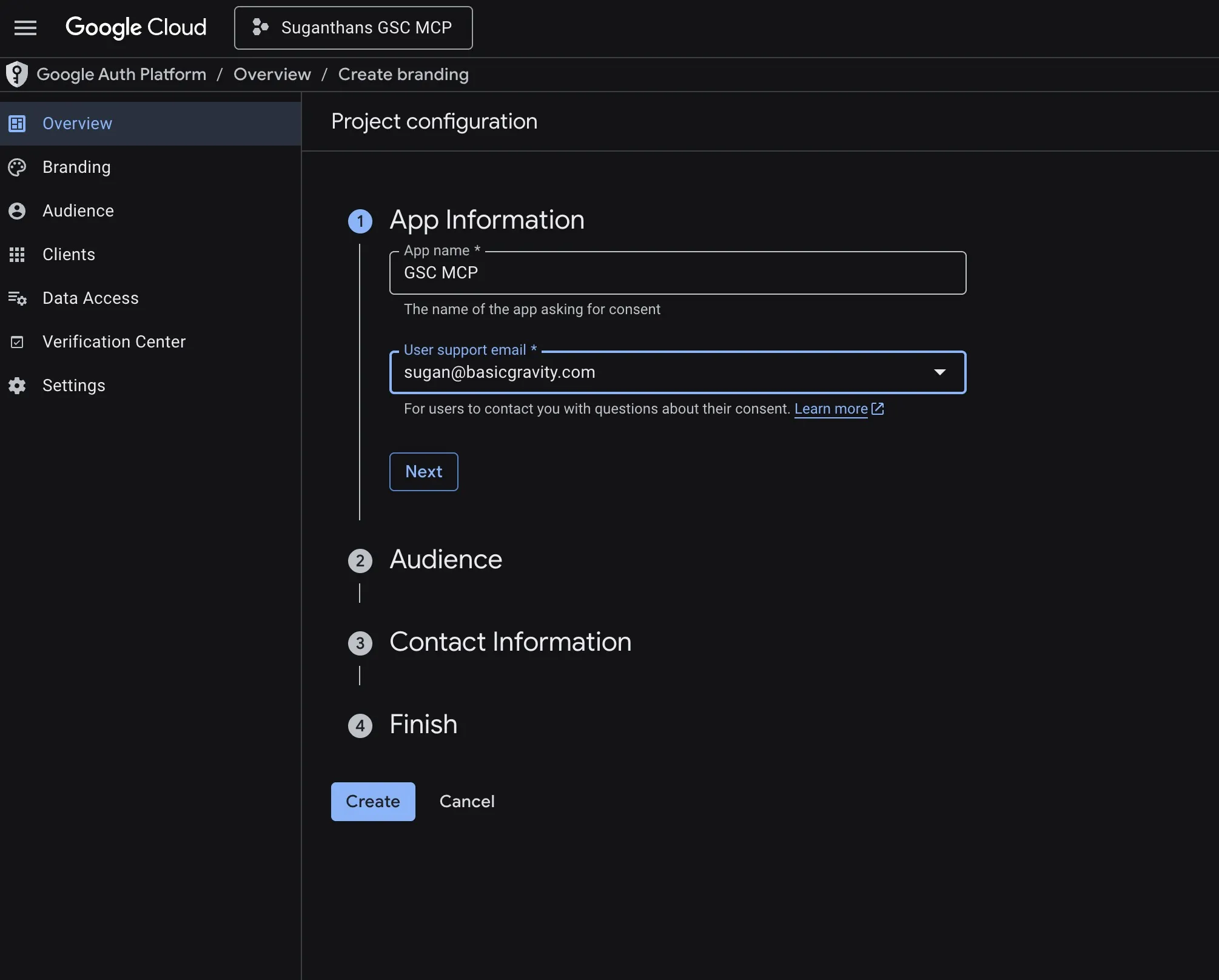
Back on the credentials page, select Desktop app as the application type
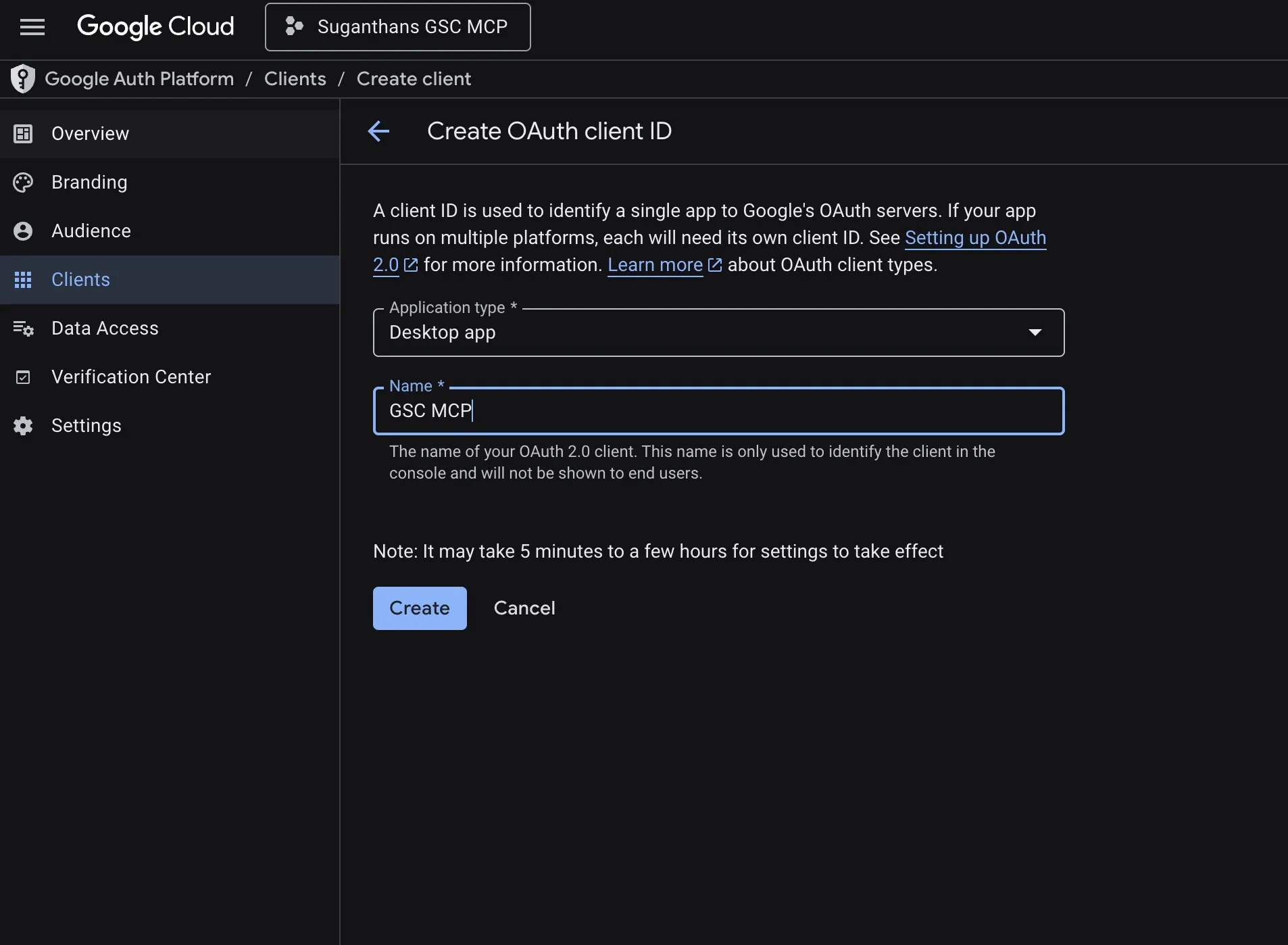
Name it GSC MCP OAuth
Click Create
On the popup, click Download JSON
****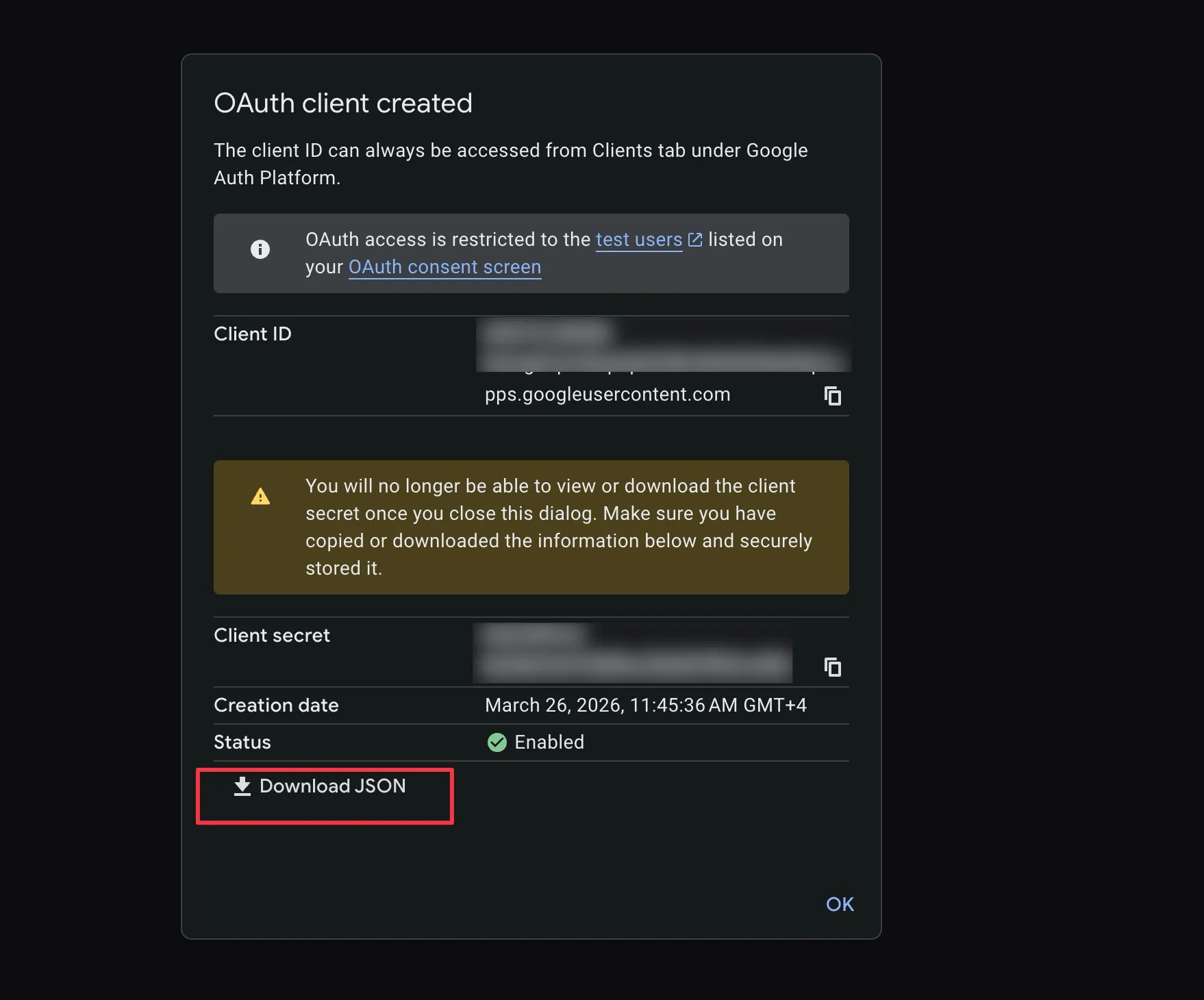
Save the file somewhere safe (e.g. ~/gsc-oauth-secrets.json)
Step 4: Install the MCP server
The server is published on npm as suganthan-gsc-mcp. The npx command in the next step downloads and runs it automatically, so there’s nothing to install manually.
If you prefer to run from source instead, clone the repo and build it:
git clone https://github.com/Suganthan-Mohanadasan/Suganthans-GSC-MCP.git
cd Suganthans-GSC-MCP
npm install
npm run build
This creates a dist/index.js file you can point to in your config.
If you set this up before April 2026, your config probably says
gsc-mcp-server. That pointed at a different maintainer’s package, not mine. Update your config to usesuganthan-gsc-mcp(see the config block in Step 5) to get my 20 tools with OAuth, multi-site, and the latest fixes.
Step 5: Configure Claude Desktop
Open Claude Desktop
Press Cmd + comma (Mac) or go to Settings
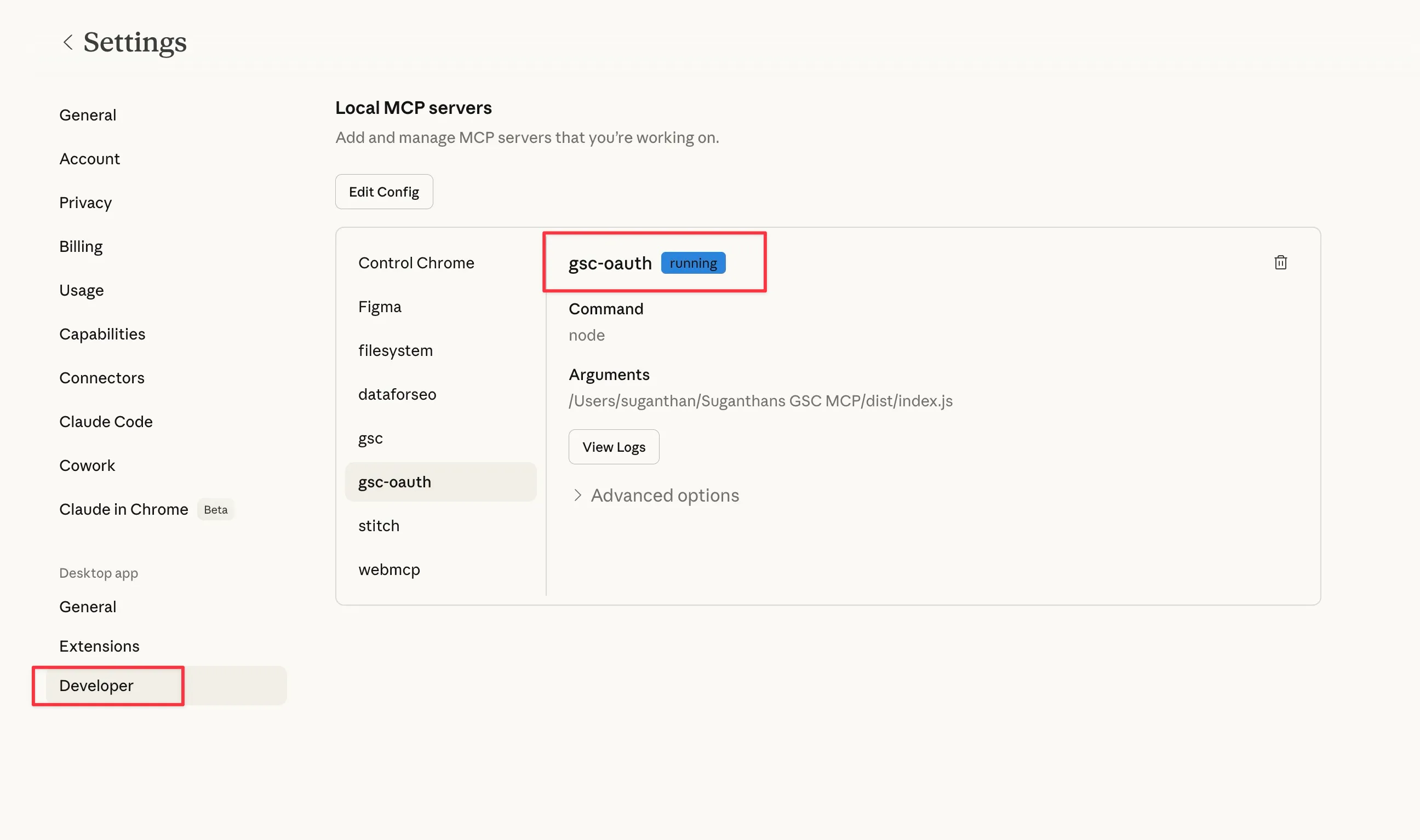
Click the Developer tab, then Edit Config
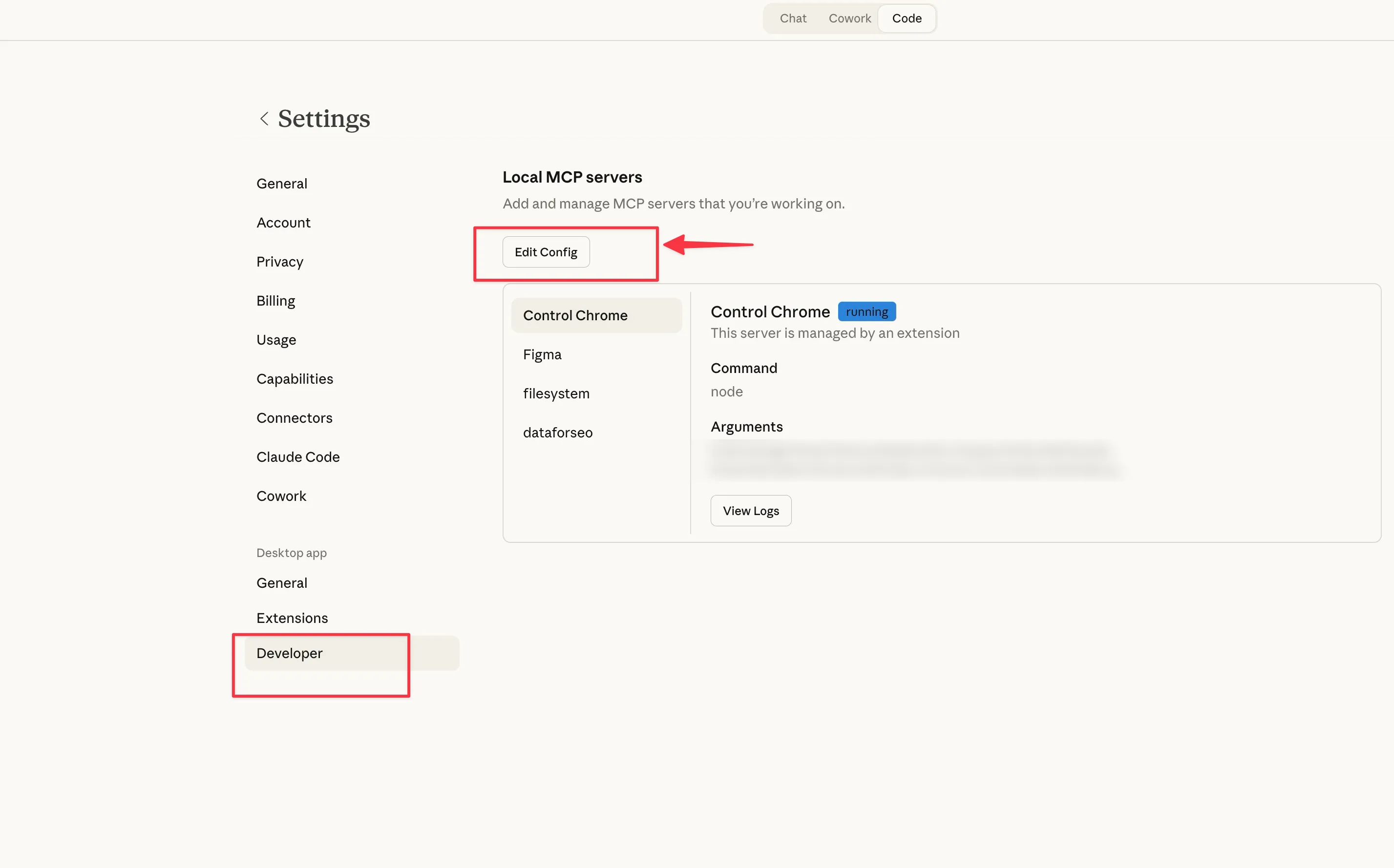
Add the GSC server to your config:
{
  "mcpServers": {
    "gsc": {
      "command": "npx",
      "args": ["-y", "suganthan-gsc-mcp"],
      "env": {
        "GSC_AUTH_MODE": "oauth",
        "GSC_OAUTH_SECRETS_FILE": "/path/to/gsc-oauth-secrets.json",
        "GSC_SITE_URL": "sc-domain:yourdomain.com"
      }
    }
  }
}
Replace /path/to/gsc-oauth-secrets.json with the actual path to the JSON file you downloaded in Step 3, and yourdomain.com with your domain.
Save the file and restart Claude Desktop.
The first time you ask a question, a browser window opens for Google sign in. Approve the permissions, and the token caches after that. You won’t need to sign in again.
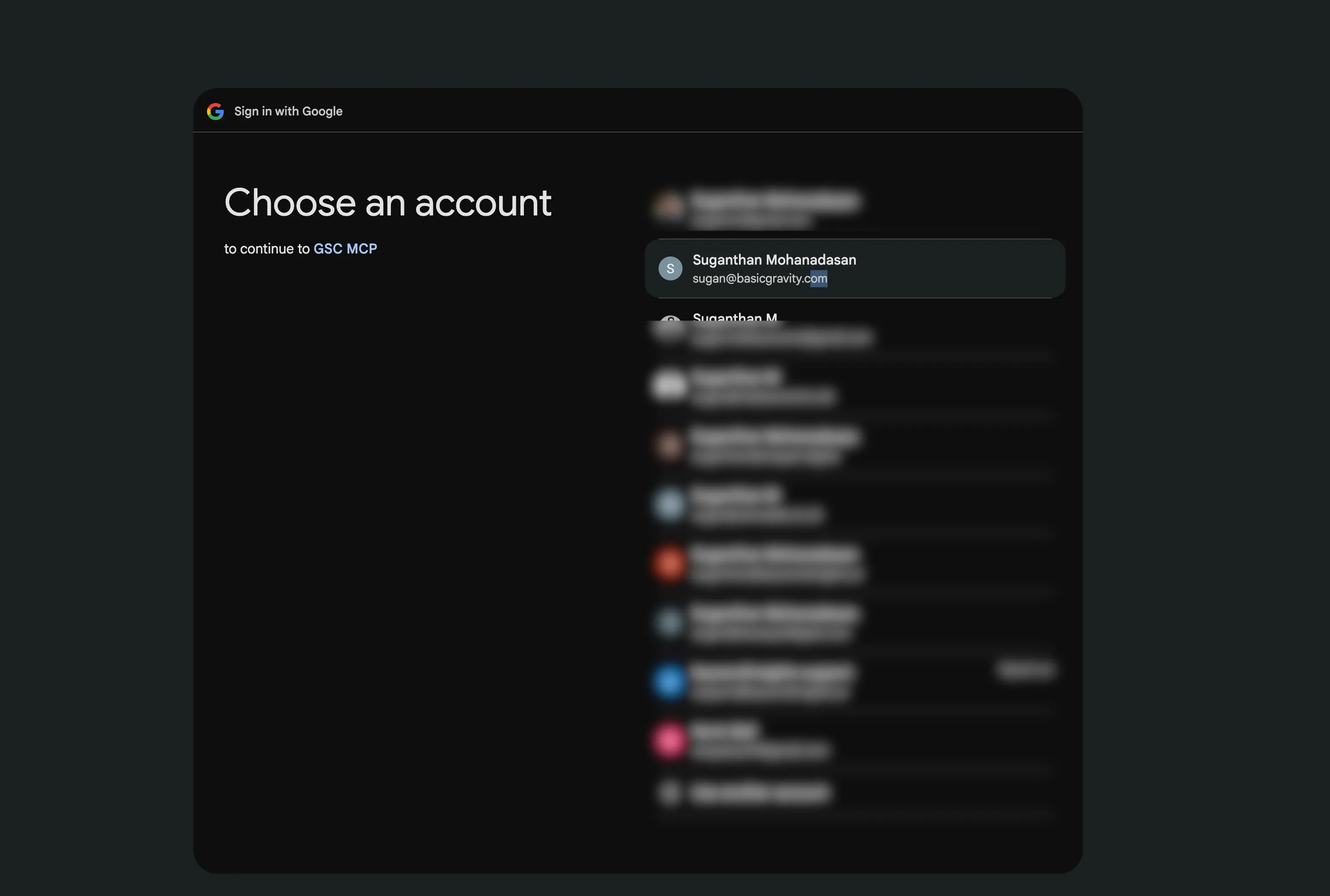
Select your email.
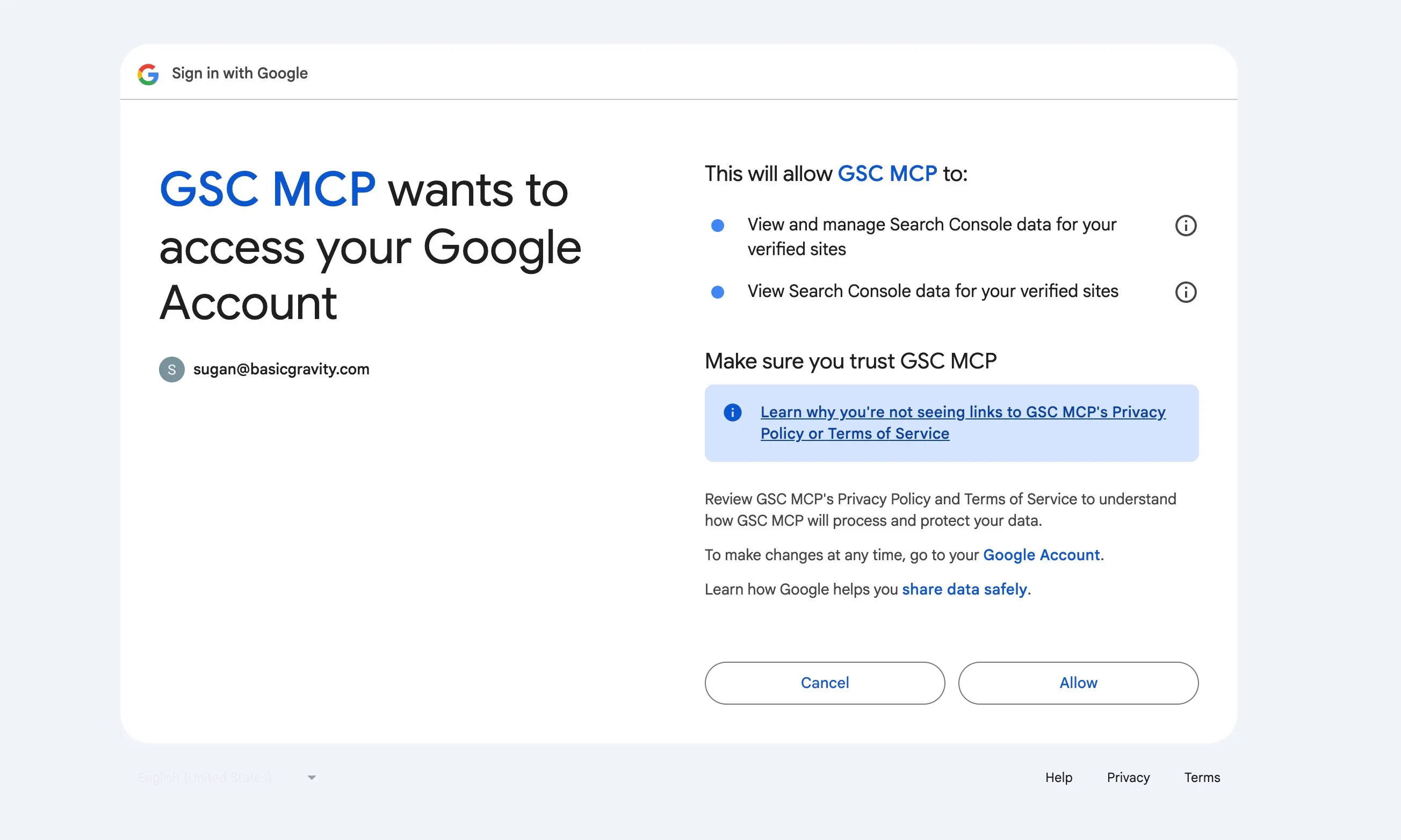
Approve this and you will get this message. That’s all. You don’t have to do it again.

If its successful you will see the oauth in Claude settings (Running)
Option B: Service account setup
Service accounts are better if you’re setting this up for automation, running it on a server, or managing multiple client properties. The setup has a few more steps but gives you more control.
Step 1: Create a Google Cloud project
Same as Option A. Go to console.cloud.google.com, create a new project called GSC MCP.
Step 2: Enable the Search Console API
Same as Option A. Search for and enable the Google Search Console API. Optionally enable the Web Search Indexing API too.
Step 3: Create a service account
A service account is like a robot user that the MCP server uses to log in to your Search Console. It’s not your personal Google account; it’s a separate identity just for this purpose.
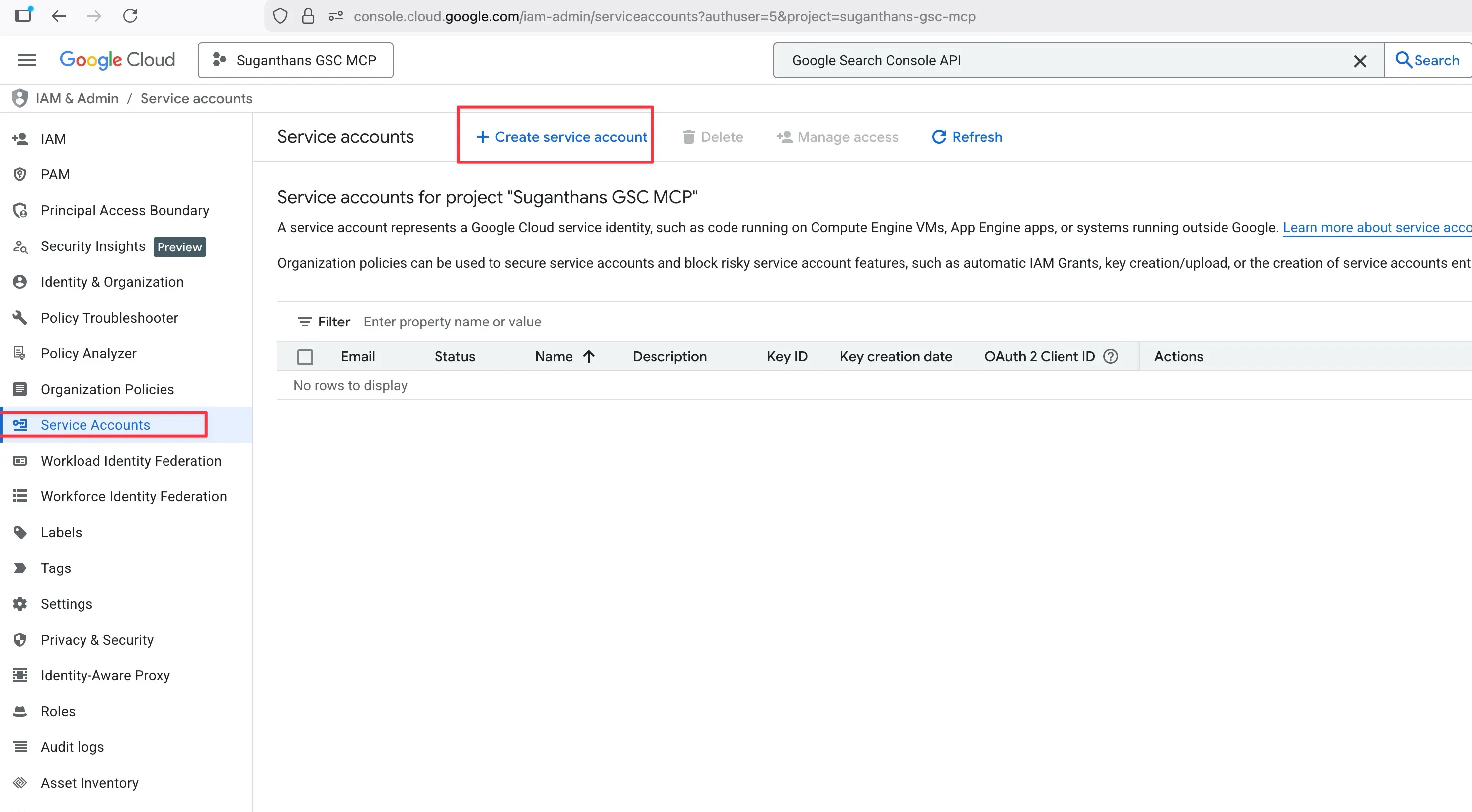
In the left sidebar, click IAM & Admin, then Service Accounts
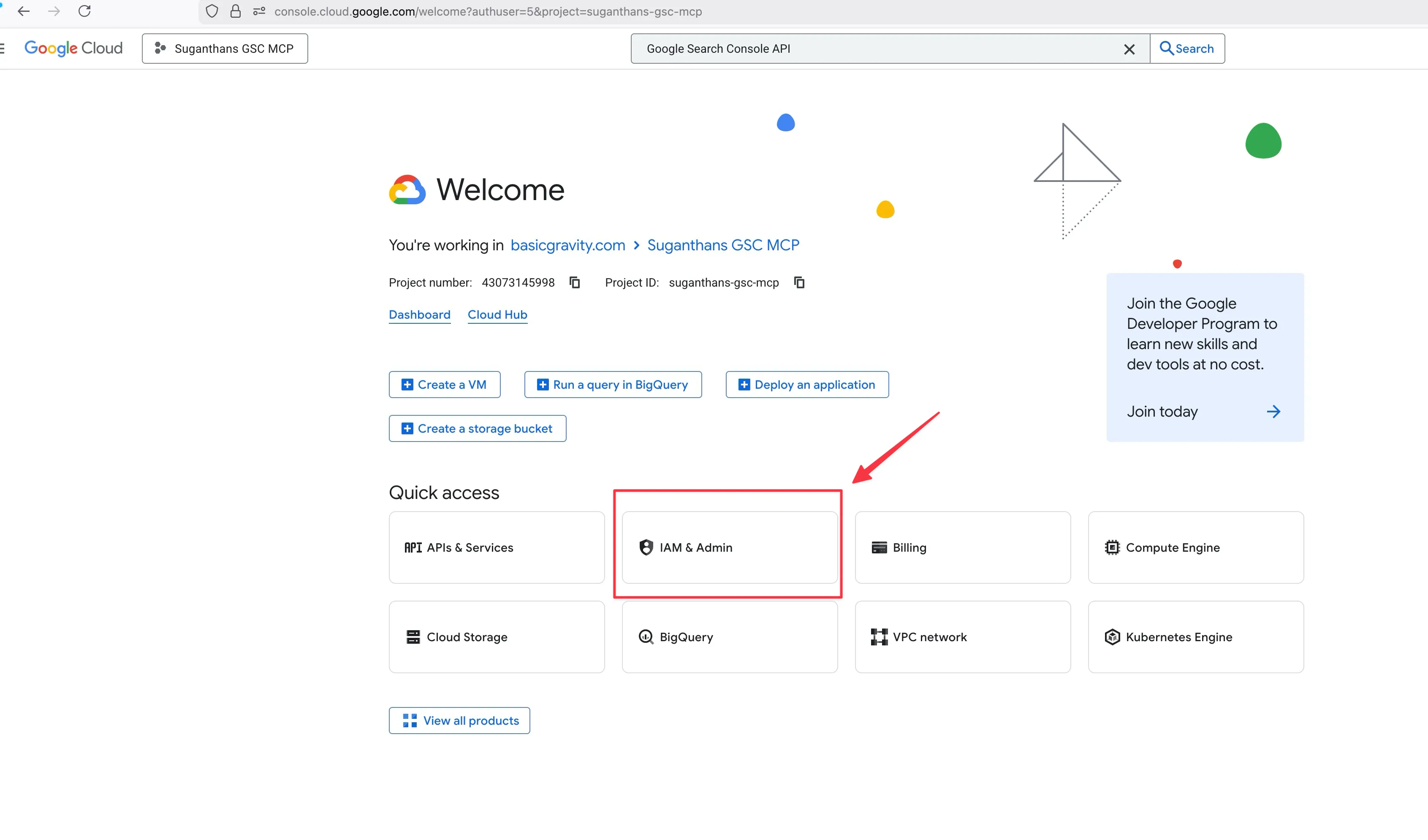
Click Create Service Account
Name it gsc-mcp
Click Create and continue
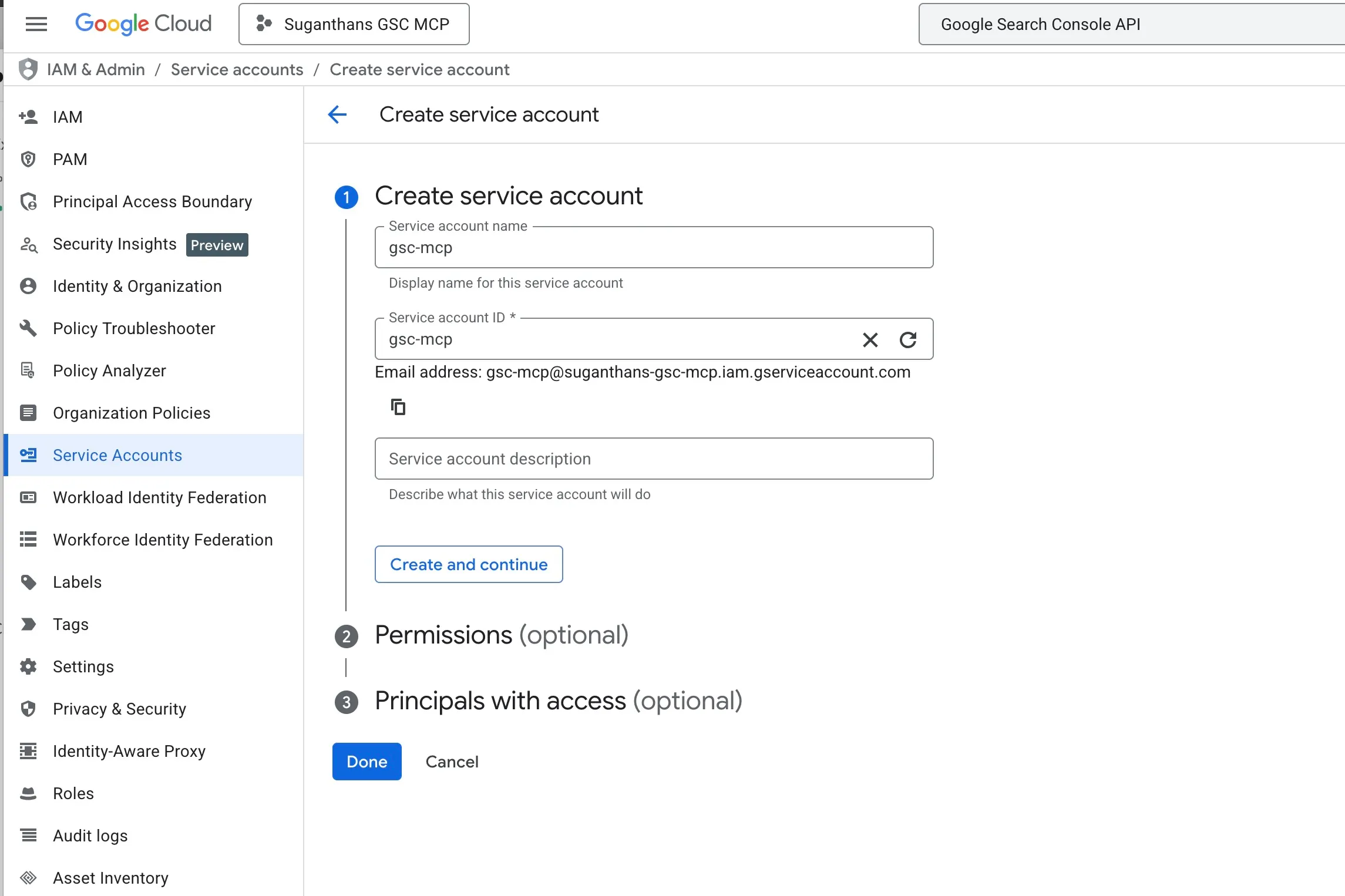
Skip the permissions step (click Continue)
Skip the grant users step (click Done)
Step 4: Download the key file
Now you need a key file that the MCP server uses to prove it’s allowed to access your data.
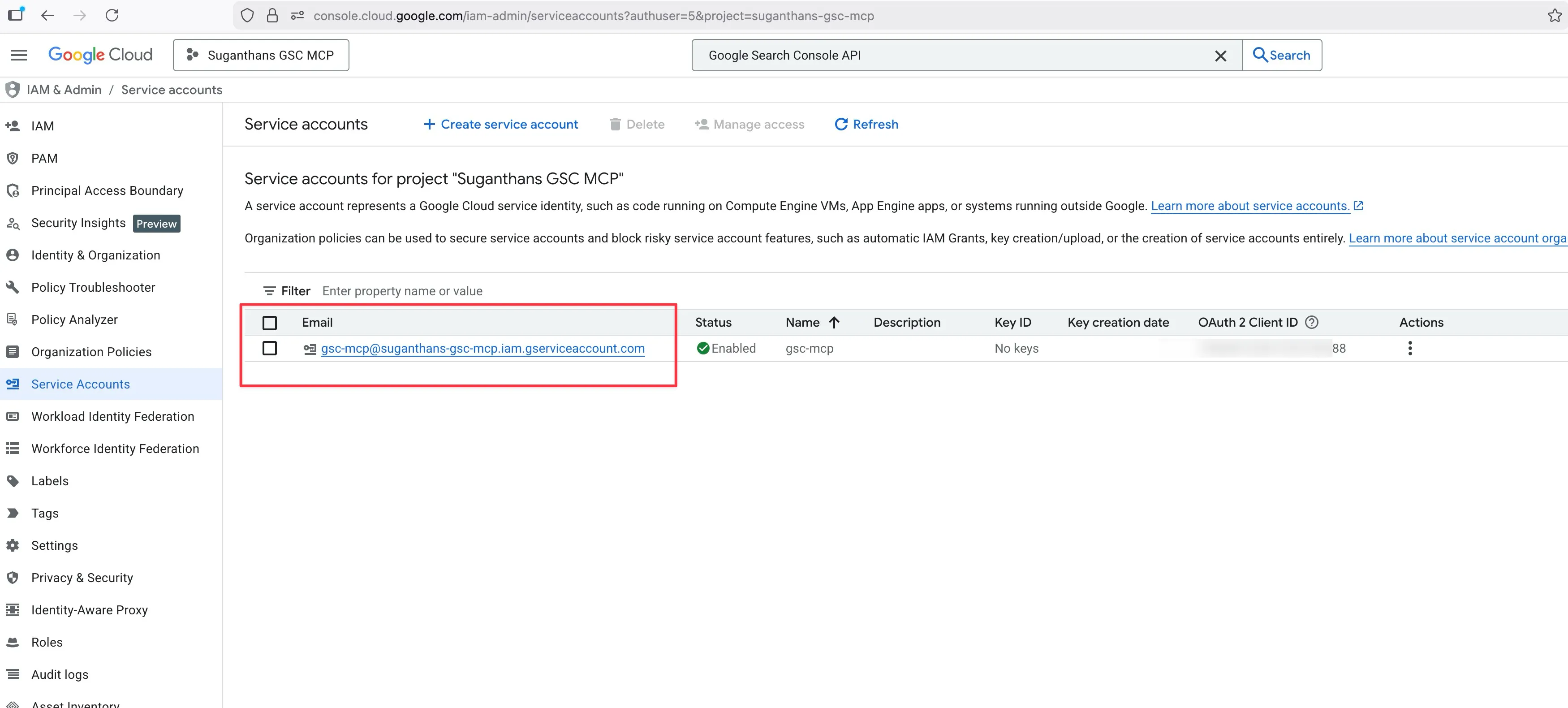
Click on the service account you just created
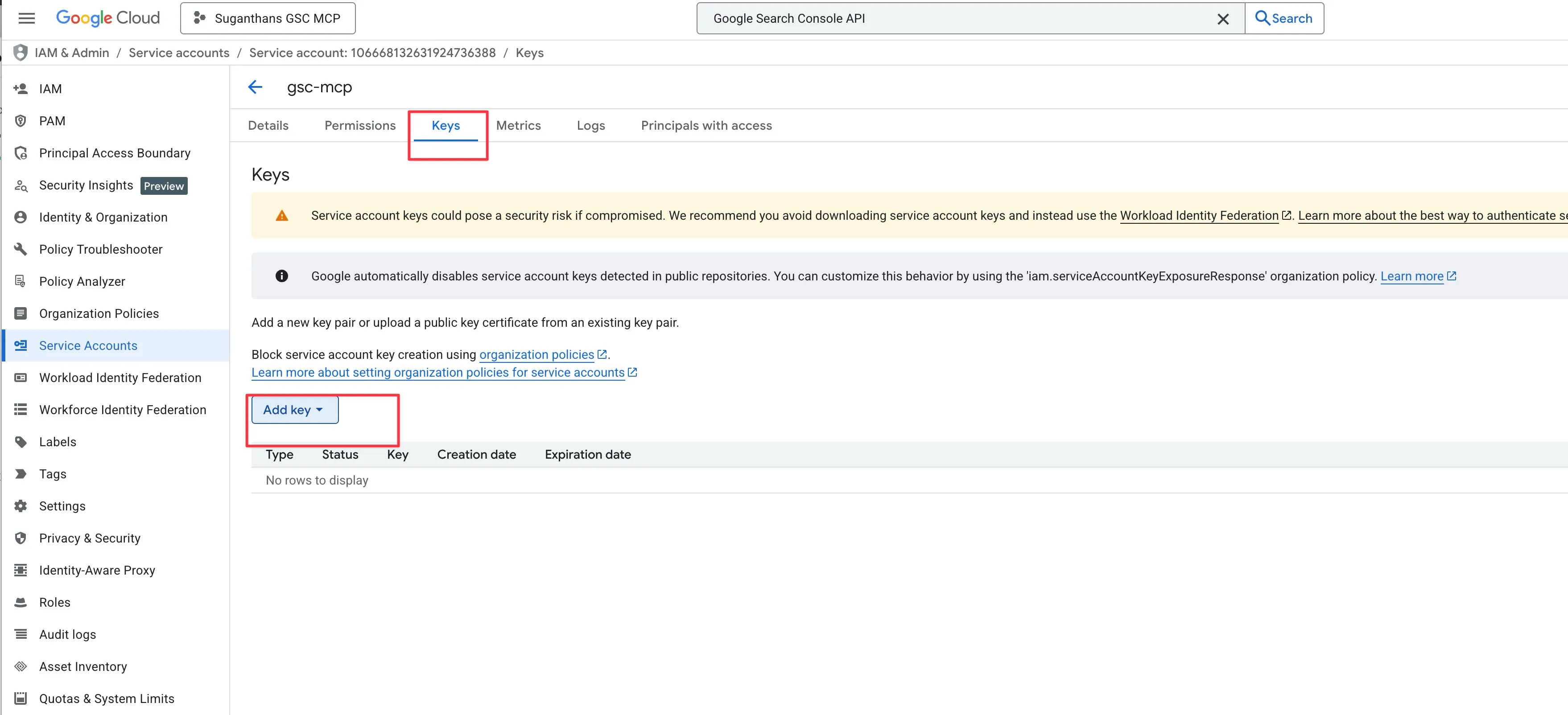
Go to the Keys tab
Click Add Key, then Create new key
Select JSON and click Create
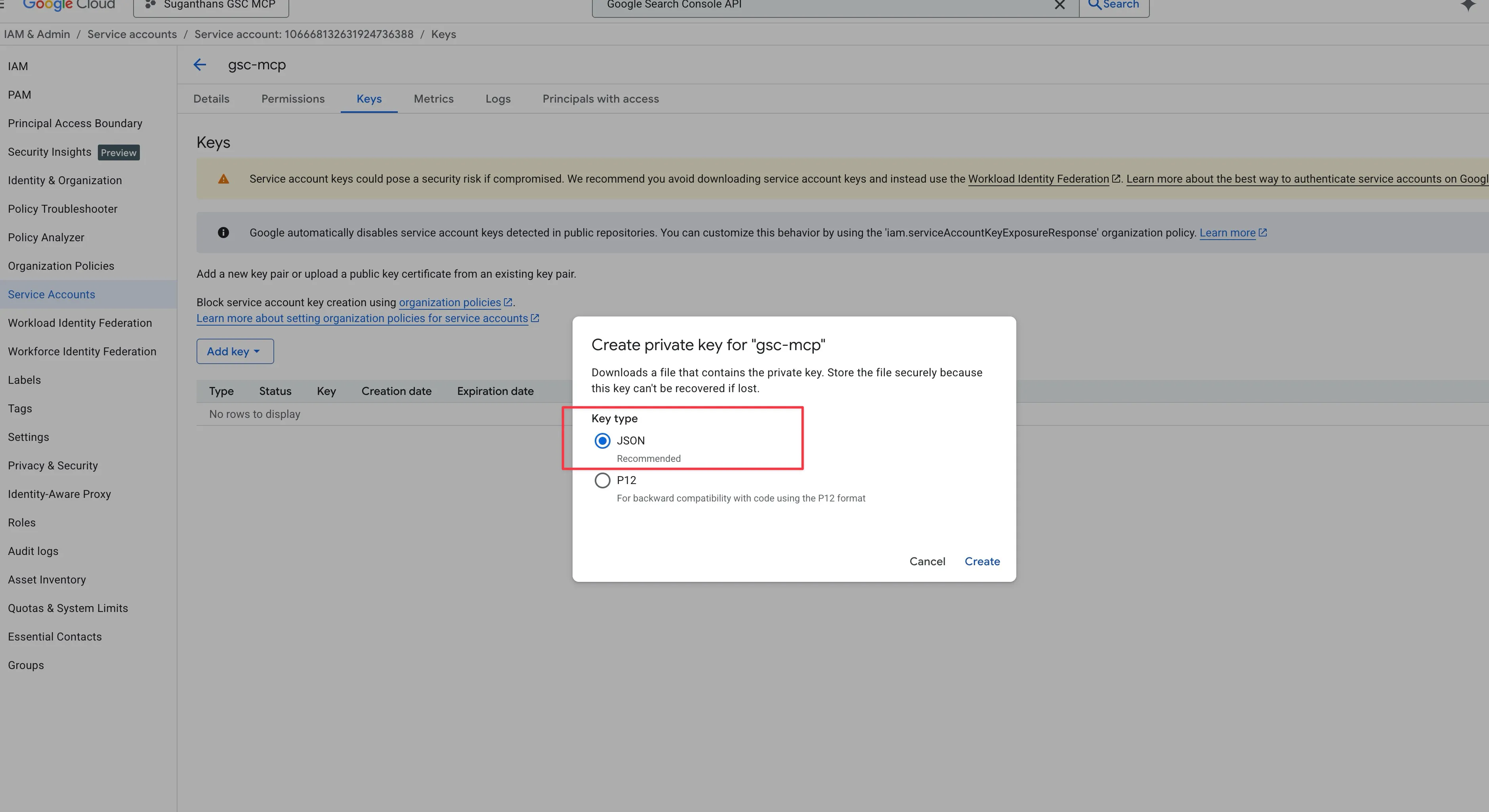
A file downloads to your computer. Keep it somewhere safe.
This JSON file is your credentials. Treat it like a password. Don’t share it, don’t commit it to GitHub, don’t post it on X asking “why isn’t this working”.
Step 5: Add the service account to Google Search Console
This is the step that connects everything together. You’re giving your robot user permission to read your Search Console data.
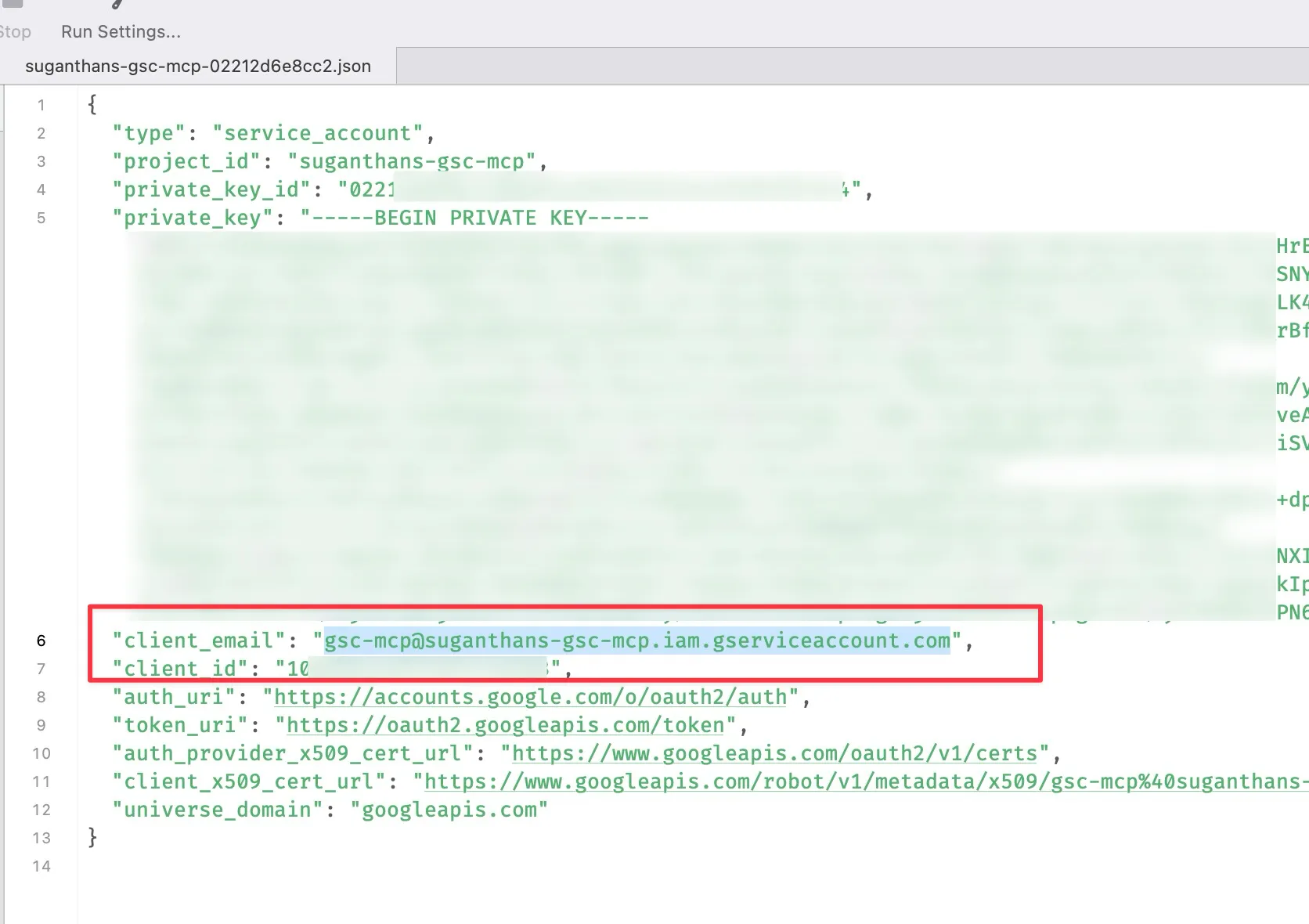
Open the JSON file you just downloaded in any text editor
Find the line that says "client_email" and copy that email address
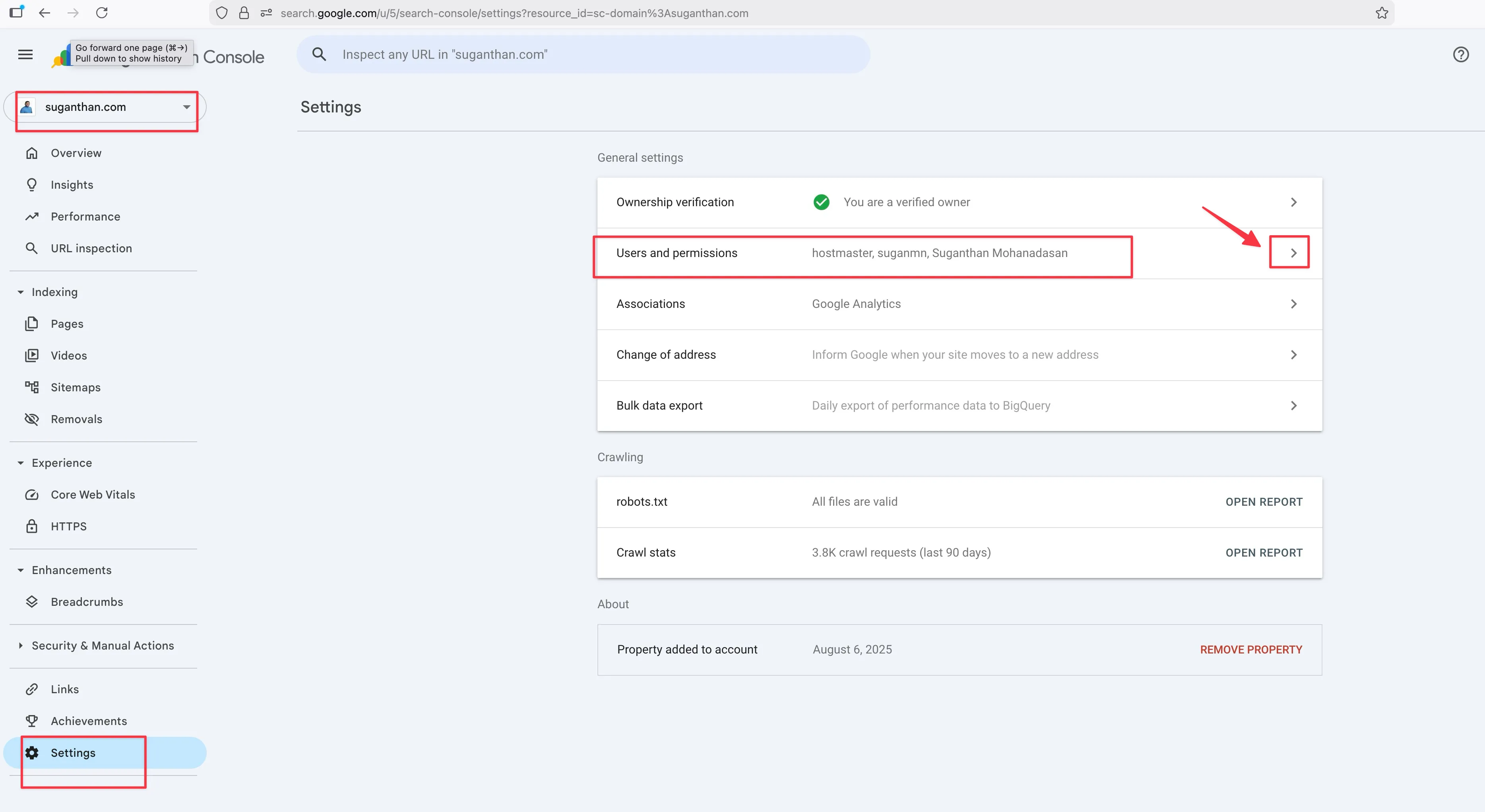
Go to Google Search Console
Select your property
Go to Settings in the left sidebar, then Users and permissions
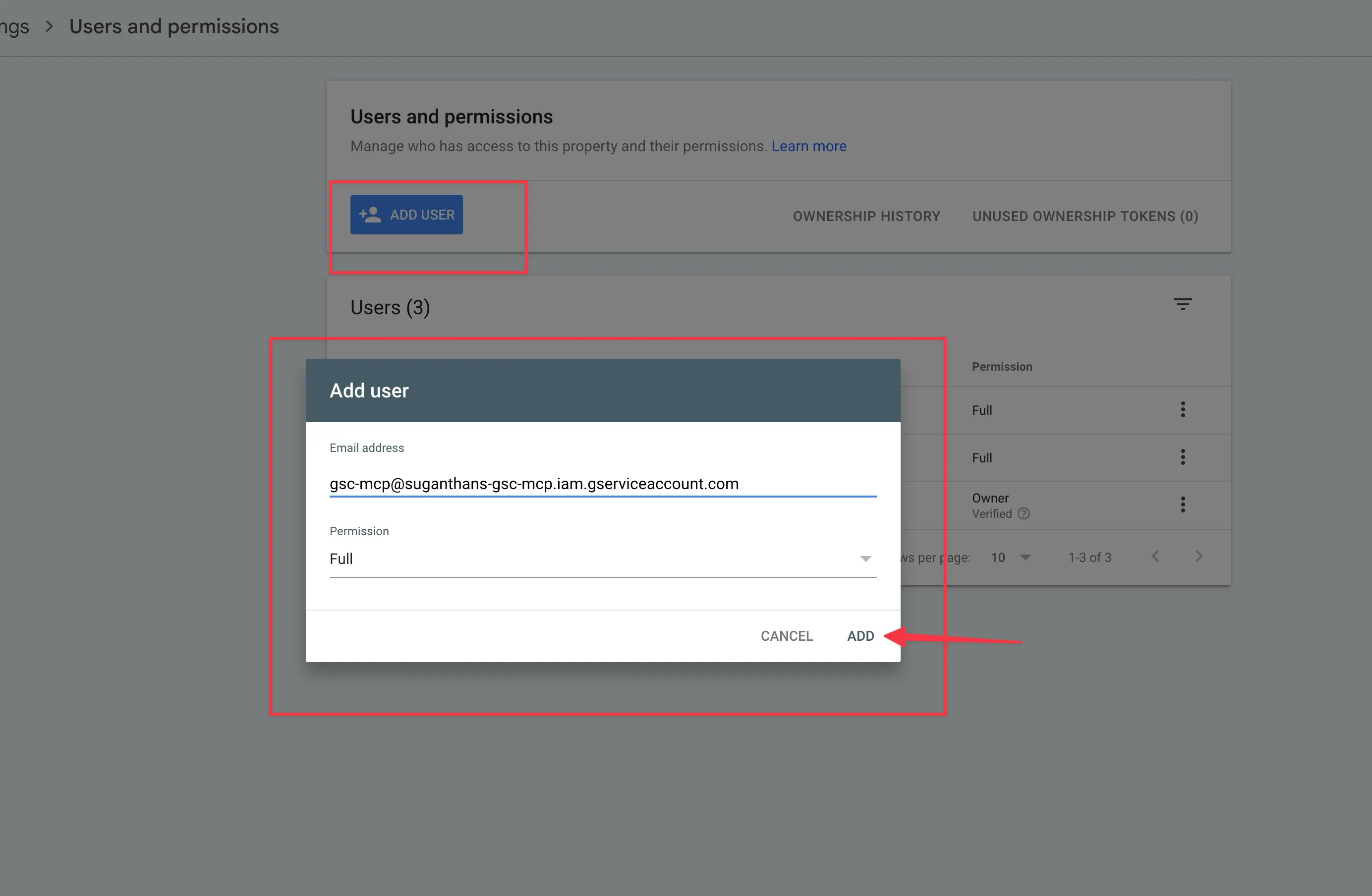
Click Add user
Paste the service account email address
Set permission to Full
Click **Add
**
Step 6: Configure Claude Desktop
Open Claude Desktop
Press Cmd + comma (Mac) or go to Settings
Click the Developer tab, then Edit Config
Add the GSC server to your config:
{
  "mcpServers": {
    "gsc": {
      "command": "npx",
      "args": ["-y", "suganthan-gsc-mcp"],
      "env": {
        "GSC_KEY_FILE": "/path/to/your/gsc-key.json",
        "GSC_SITE_URL": "sc-domain:yourdomain.com"
      }
    }
  }
}
Replace /path/to/your/gsc-key.json with the actual path to the JSON file you downloaded. Replace yourdomain.com with your actual domain.
Save the file
Restart Claude Desktop
Note: If you already have other MCP servers configured in your config file please make sure not to delete them and add this on top of it. You’d need to understand the format a little. You can paste your current config to ChatGPT or Claude and ask it to combine it without breaking.
If you’re using Claude Code (terminal):
One command:
claude mcp add gsc -- npx -y suganthan-gsc-mcpThen set the environment variables in your config.
Keep an eye out for this
I guarantee this will trip someone up, so I’m putting it in bold.
If your Search Console property is a Domain property (which most are), your GSC_SITE_URL must be formatted as sc-domain:yourdomain.com, not https://yourdomain.com/.
You can check which type you have by looking at your property selector in Search Console. If it shows just the domain name without https://, it’s a Domain property.
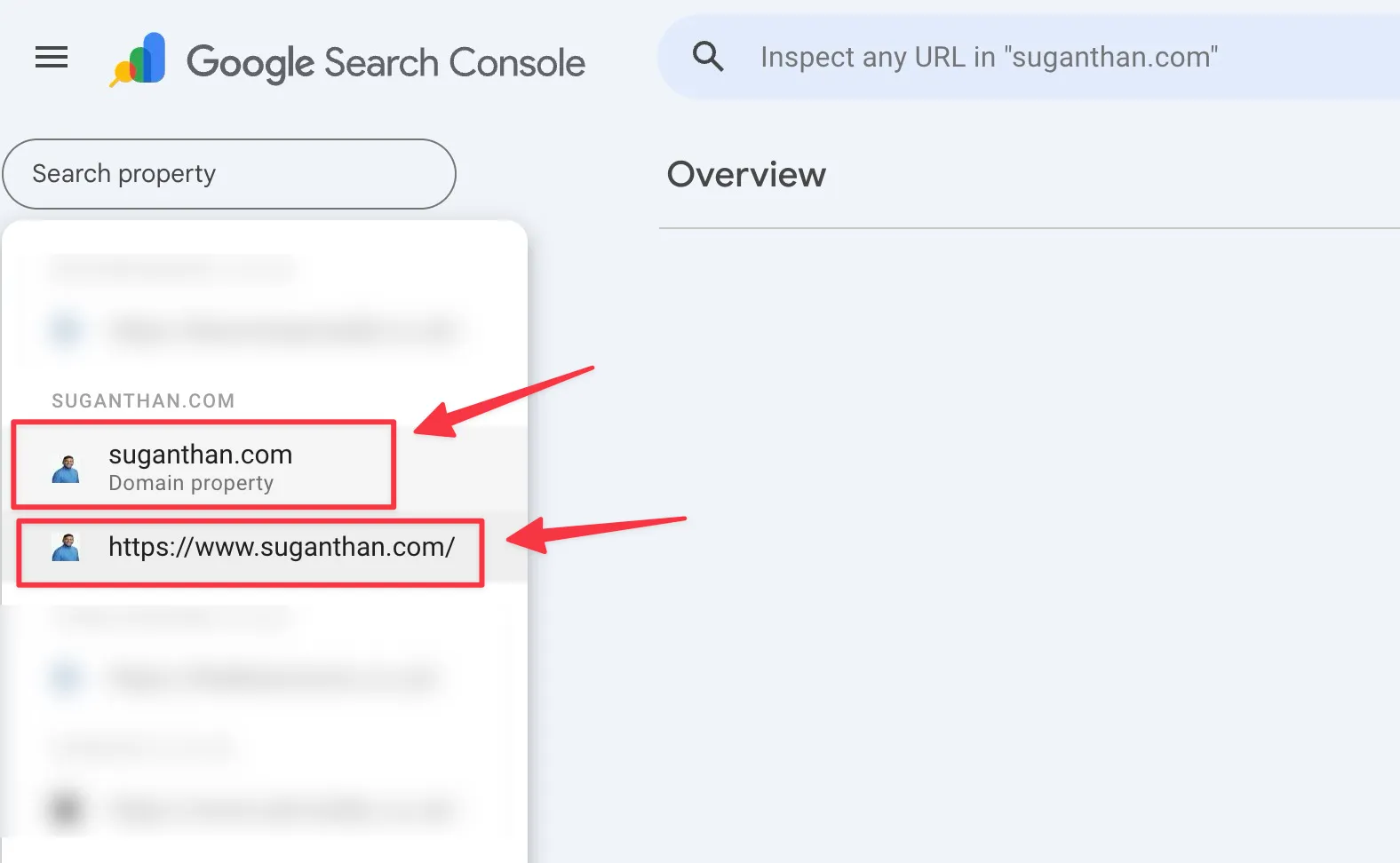
I made this exact mistake during setup. Everything looked correct but nothing worked until I changed the URL format. Save yourself fifteen minutes of confused troubleshooting.
Multi-site setup (for agencies)
If you manage multiple properties, add GSC_SITE_URLS to your config:
"env": {
  "GSC_KEY_FILE": "/path/to/service-account.json",
  "GSC_SITE_URL": "sc-domain:primarysite.com",
  "GSC_SITE_URLS": "sc-domain:site1.com,sc-domain:site2.com,https://site3.com/"
}
Then ask Claude: “Give me a dashboard across all my sites.” One command, every property.
Enabling the Indexing API
To use the URL submission and sitemap tools, you need to enable one more API in your Google Cloud project.
Go to APIs & Services > Library
Search for Web Search Indexing API
Click Enable
Your existing credentials (OAuth or service account) work for indexing too. No extra setup needed.
A note: Google officially says the Indexing API is for JobPosting and BroadcastEvent schema types only. In practice, it processes requests for all page types. Priority isn’t guaranteed for non-job pages, but the notification goes through. Many SEOs use it this way.
Taking it for a spin
Once you’ve restarted Claude Desktop, open a new conversation and just ask a question. Here are some to try:
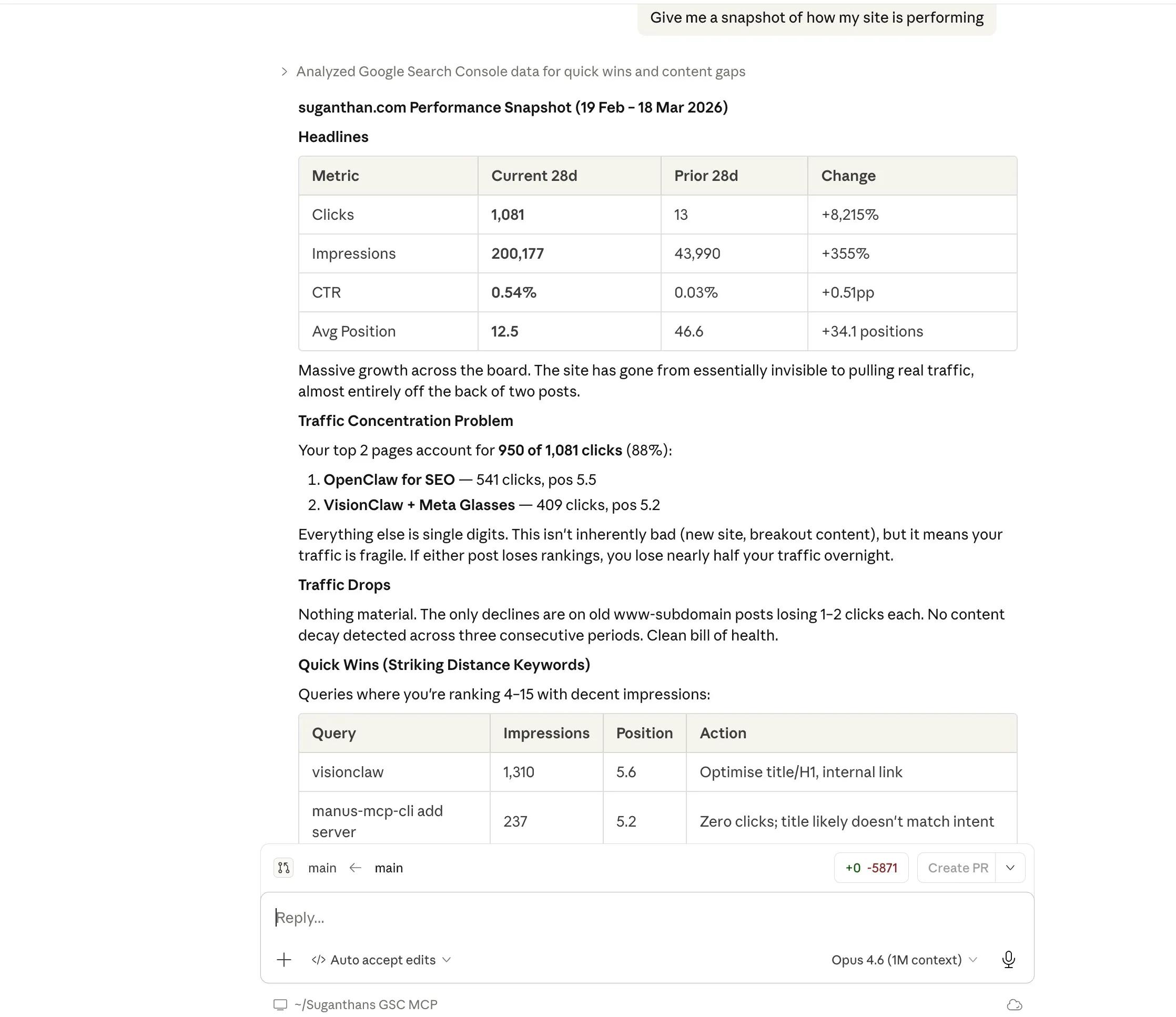
“Give me a snapshot of how my site is performing”
This returns your total clicks, impressions, average CTR, and average position compared to the previous period. The kind of overview you’d normally get by squinting at the GSC dashboard.
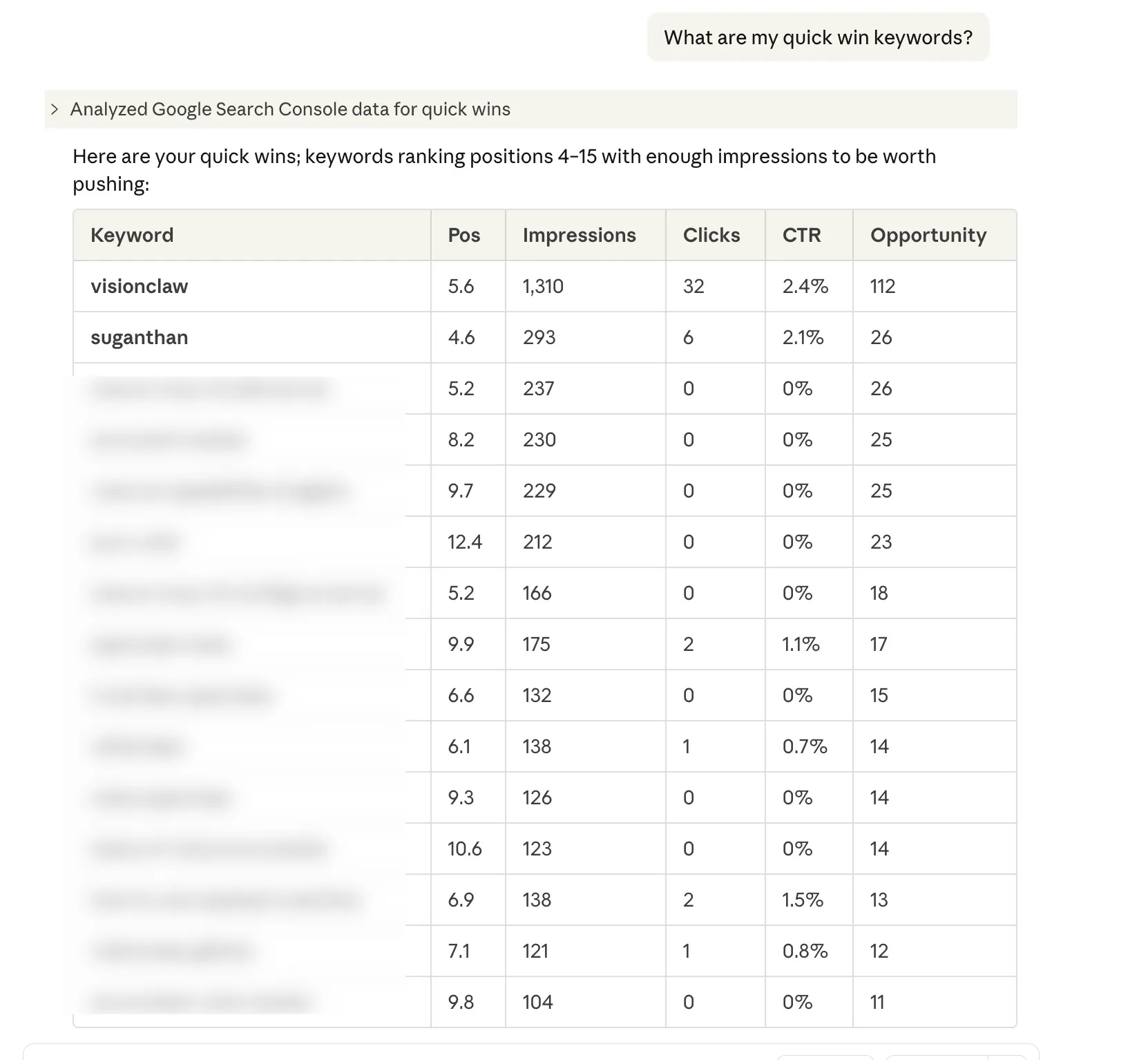
“What are my quick win keywords?”
These are keywords where you’re ranking between positions 4 and 15 with decent impressions. The ones where a bit of optimisation could push you onto page one. Every SEO checks for these. Now you can just ask.
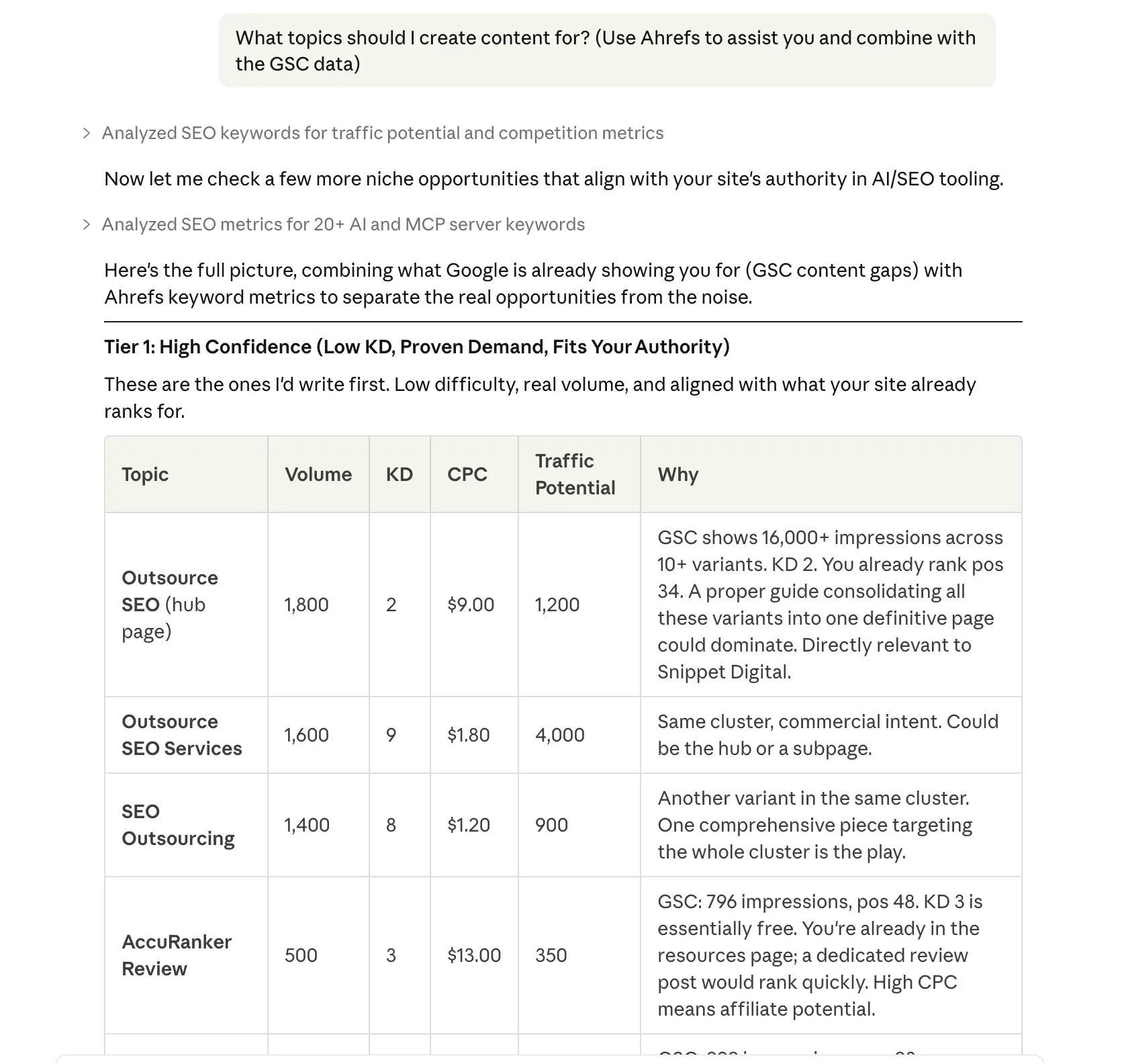
“What topics should I create content for?”
Content gap analysis. It finds queries where Google is already showing your site (you’re getting impressions) but you’re ranking beyond position 20. Translation: there’s search demand, but you haven’t written anything properly targeting it yet.
The beauty of this is you can also combine data with other tools. In this example I have asked Claude to pull the GSC data and then combine it with Ahrefs
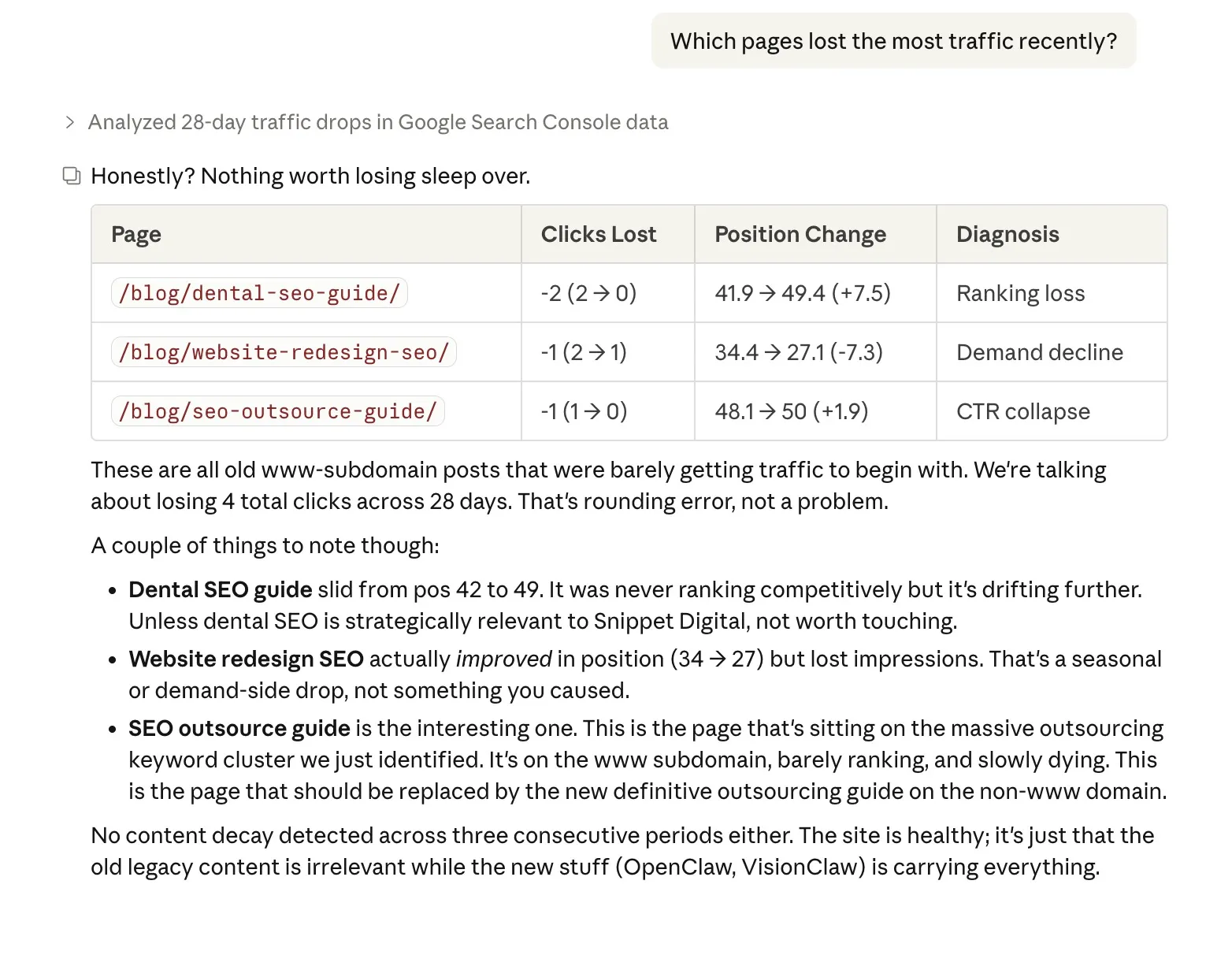
“Which pages lost the most traffic recently?”
This doesn’t just show you the drops. It diagnoses why: did you lose rankings? Did your CTR collapse (maybe a competitor got a featured snippet)? Or did search demand decline for that topic? Knowing the cause changes what you do about it.
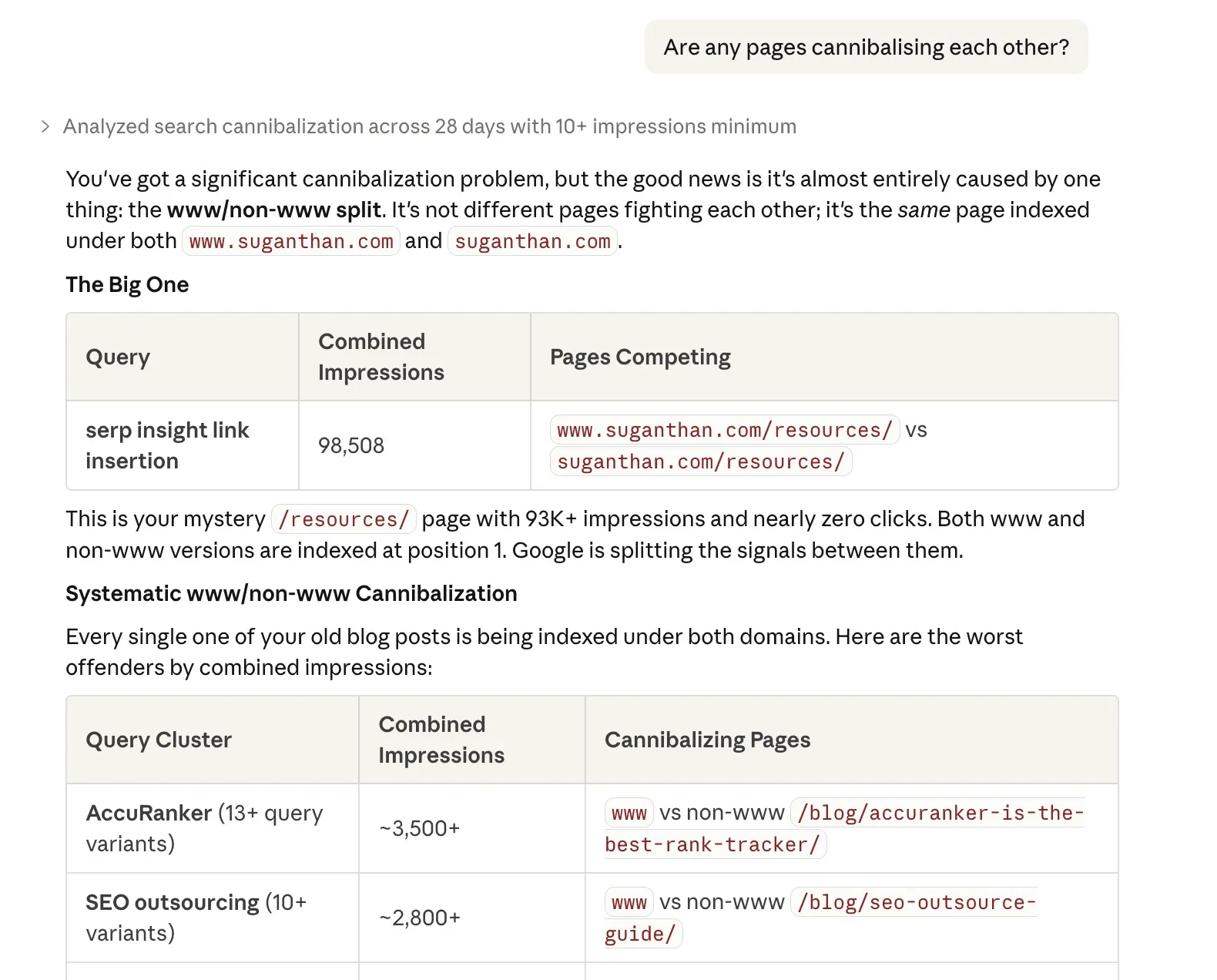
“Are any pages cannibalising each other?”
Keyword cannibalisation is when two of your own pages compete for the same keyword, splitting your ranking potential. This finds those conflicts so you can consolidate or differentiate.
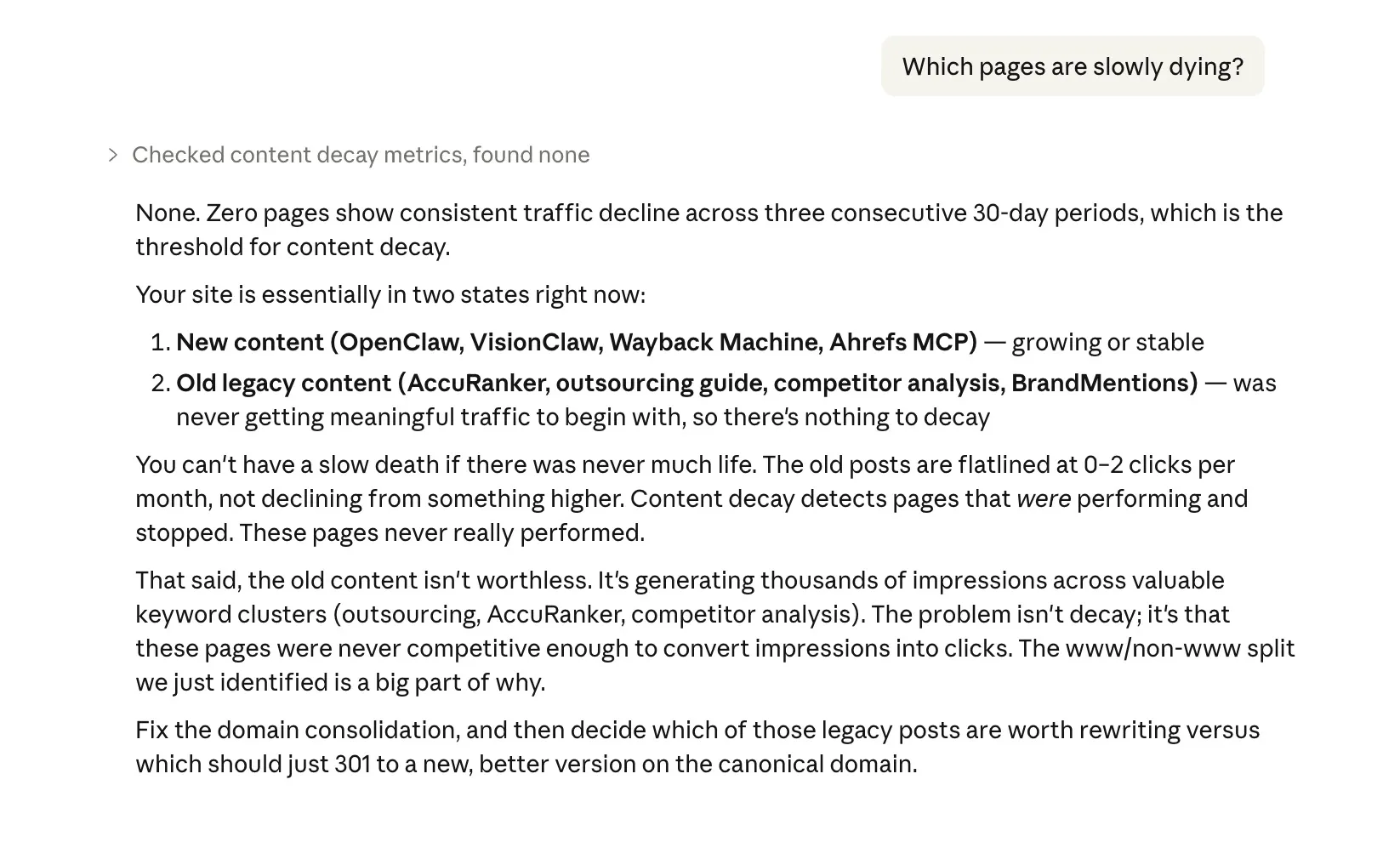
“Which pages are slowly dying?”
Content decay detection. One bad month is noise. Three consecutive months of decline is a pattern. This surfaces the pages that need updating before they disappear from the SERPs entirely.
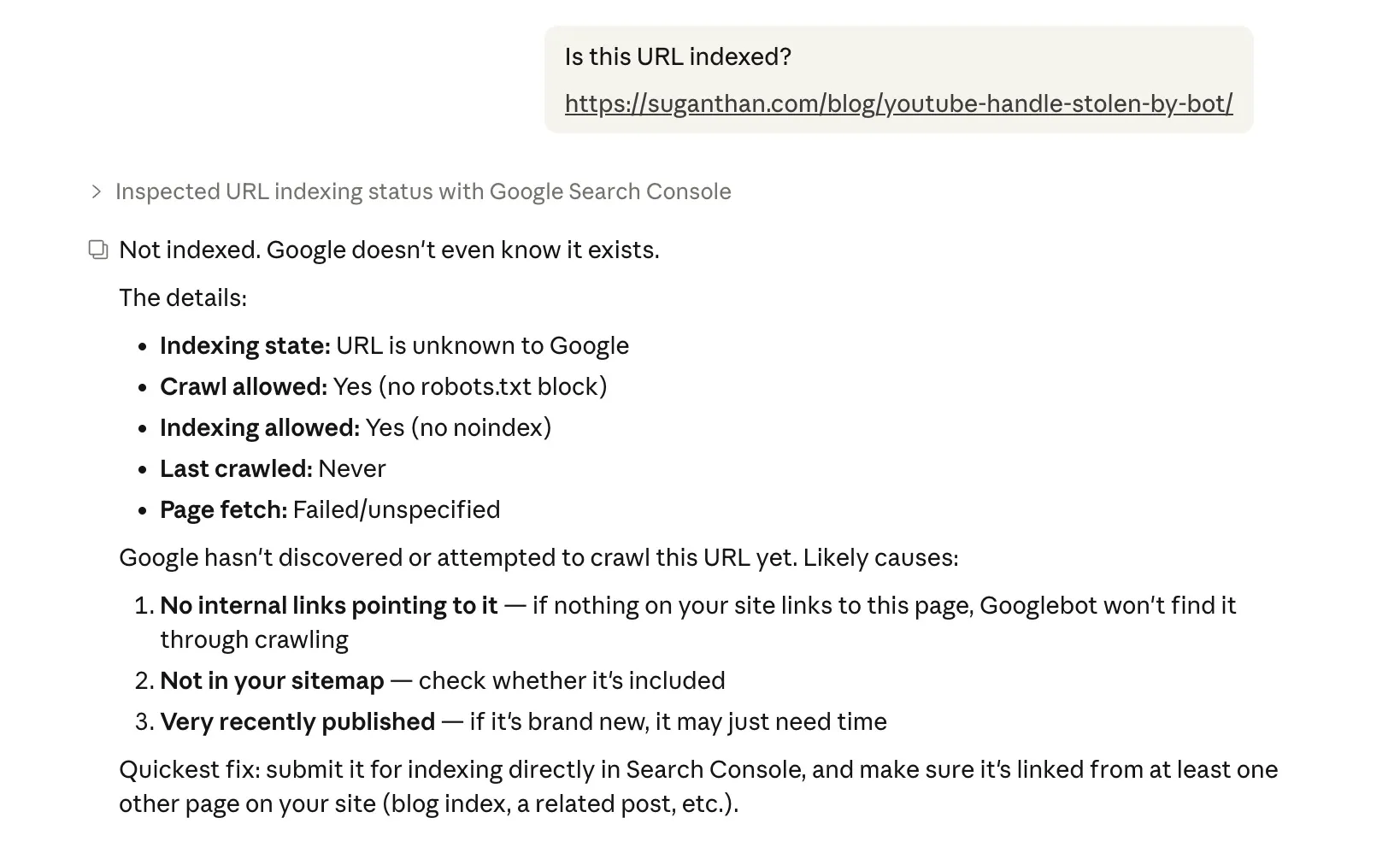
“Is this URL indexed?”
Checks a specific URL’s indexing status, including when Google last crawled it, any canonical issues, robots.txt blocks, noindex tags, and mobile usability. The kind of thing you’d use the URL Inspection tool for, but without leaving your conversation.
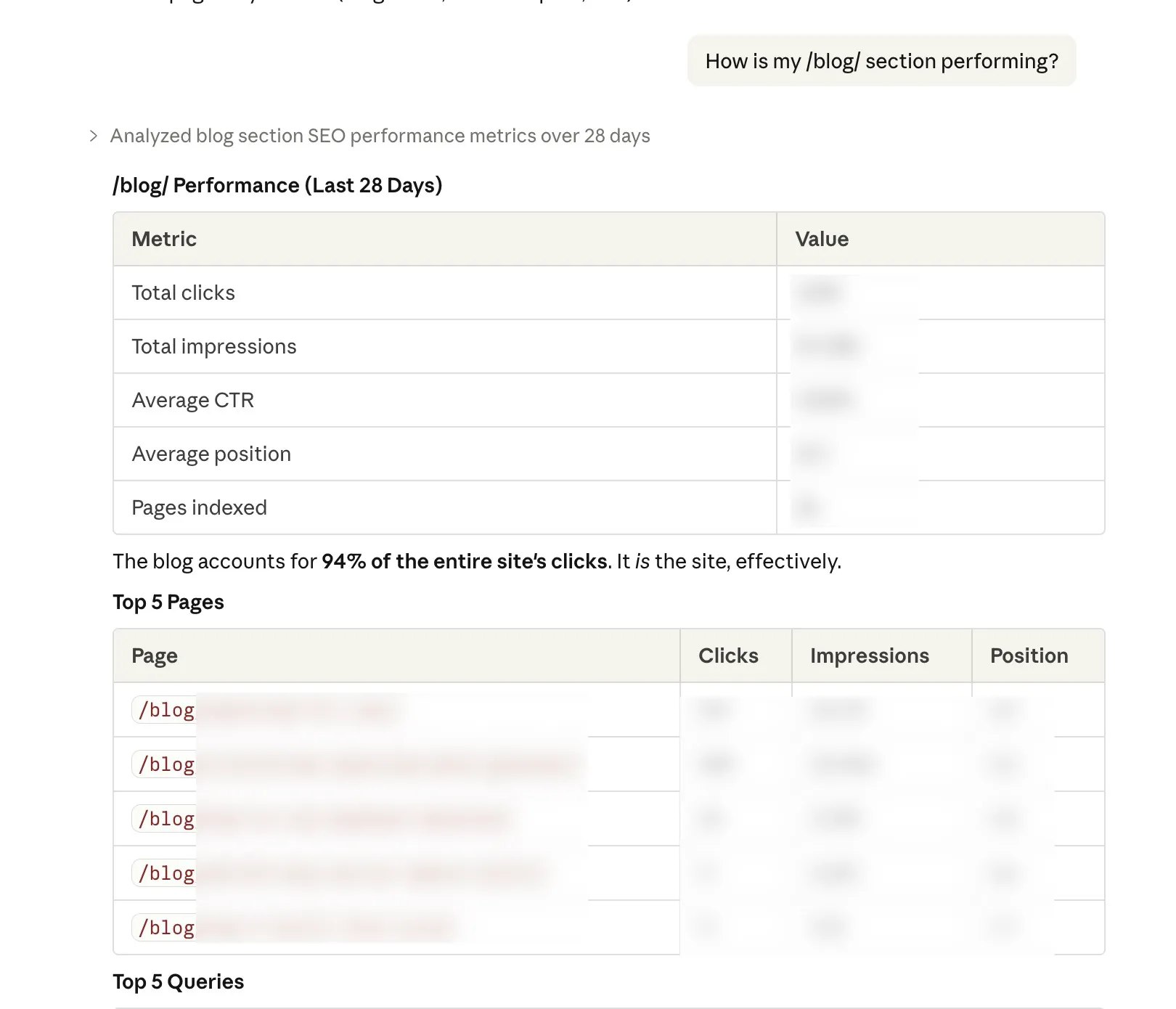
“How is my /blog/ section performing?”
Groups all pages under a URL path and shows aggregate performance. Useful for understanding how entire sections of your site are doing rather than checking pages one by one.
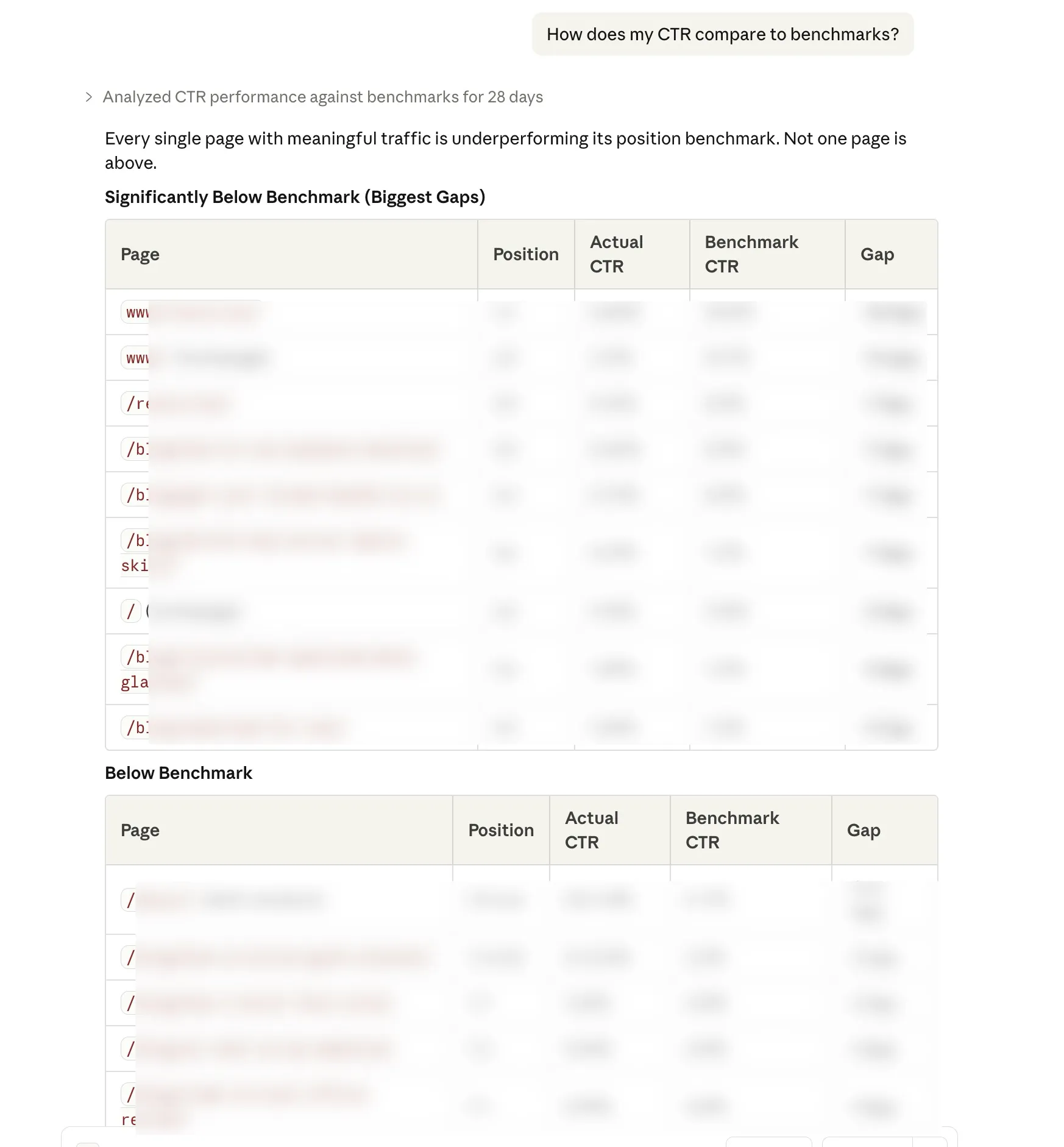
“How does my CTR compare to benchmarks?”
Compares your actual CTR at each position against industry averages. If you’re ranking 3rd but getting half the expected click through rate, your title tag and meta description probably need work.
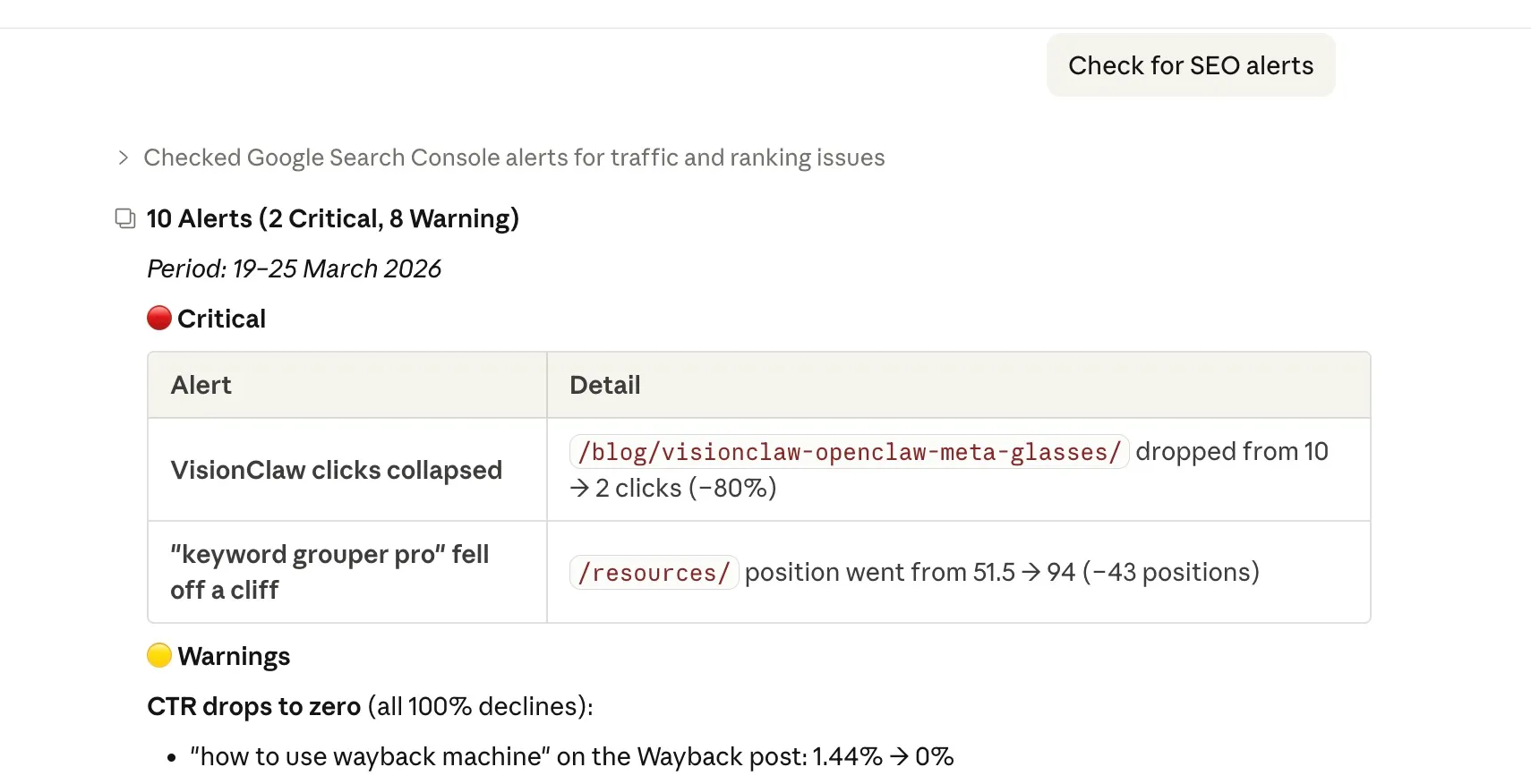
“Check for SEO alerts”
Proactive monitoring. Flags position drops greater than 20 spots, CTR collapses greater than 50%, click losses greater than 30%, and pages that disappeared entirely. Each alert is severity rated so you know what needs attention first. You can also customise the thresholds.
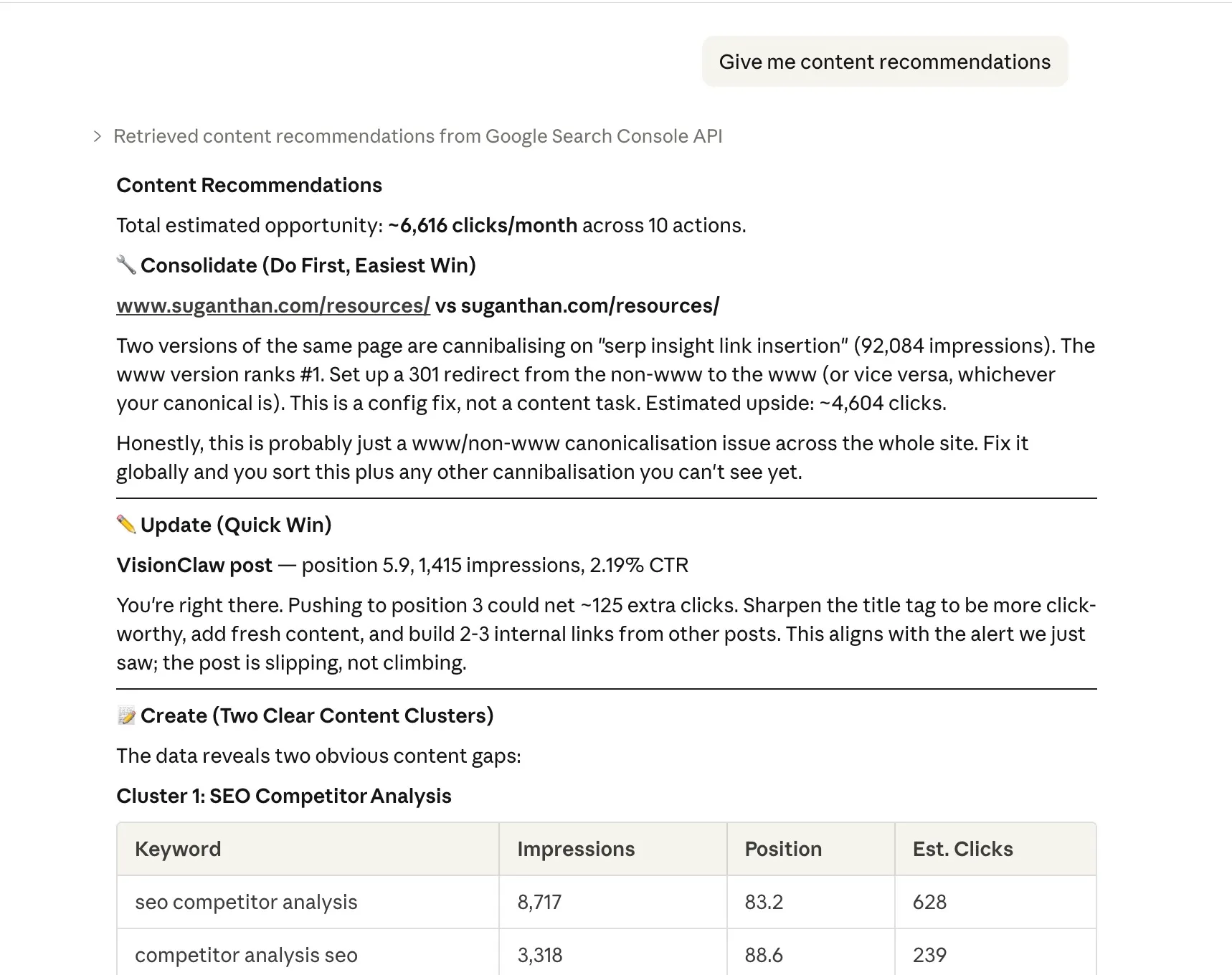
“Give me content recommendations”
Cross-references your quick wins, content gaps, and cannibalisation data to produce prioritised actions: pages to update, content to create, and pages to consolidate. Actionable output, not just data.
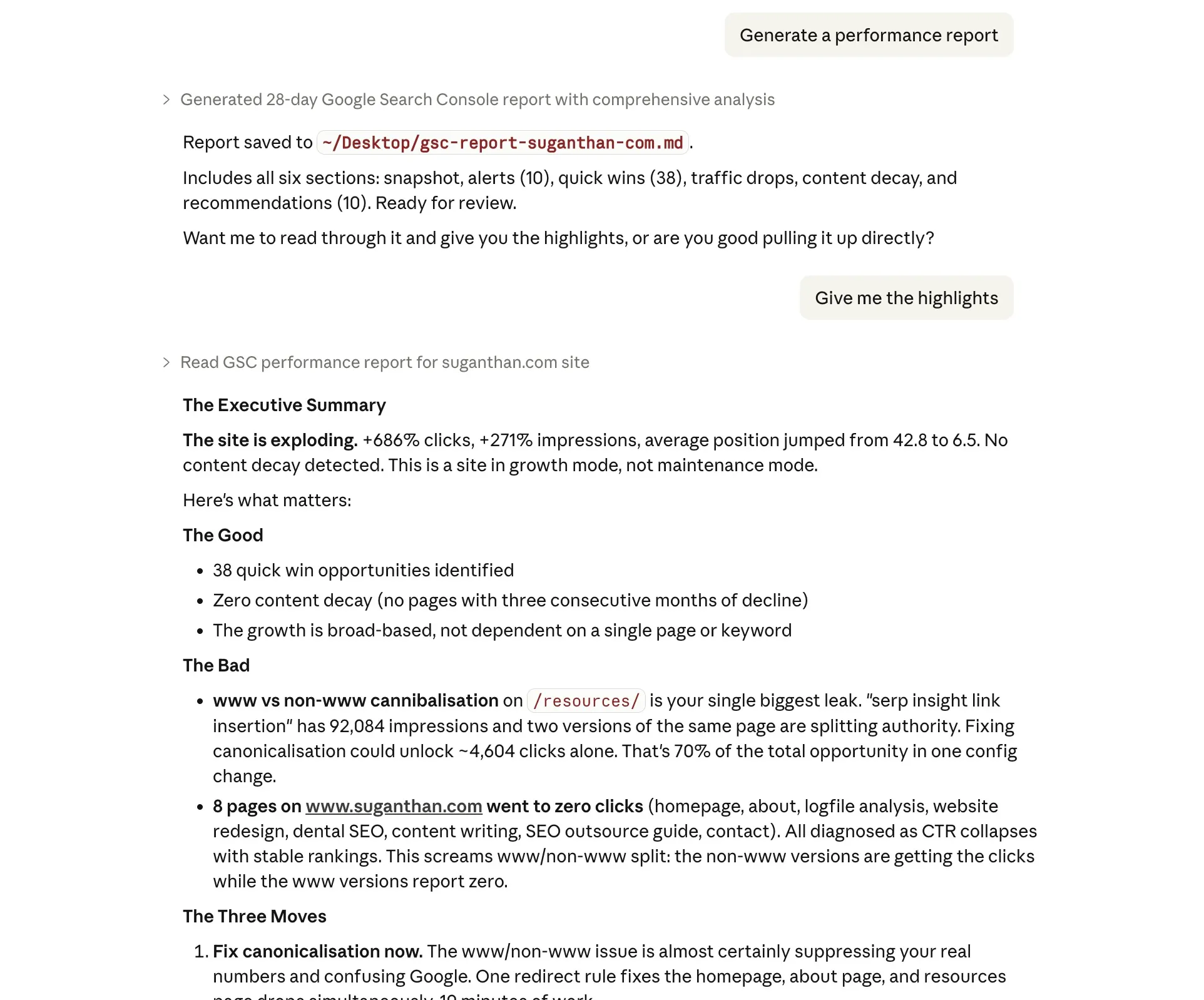
“Generate a performance report”
Produces a comprehensive markdown report covering your site snapshot, alerts, quick wins, traffic drops, content decay, and recommendations. Saves it to disk as a file you can share with clients, attach to a Slack message, or archive for weekly reviews.
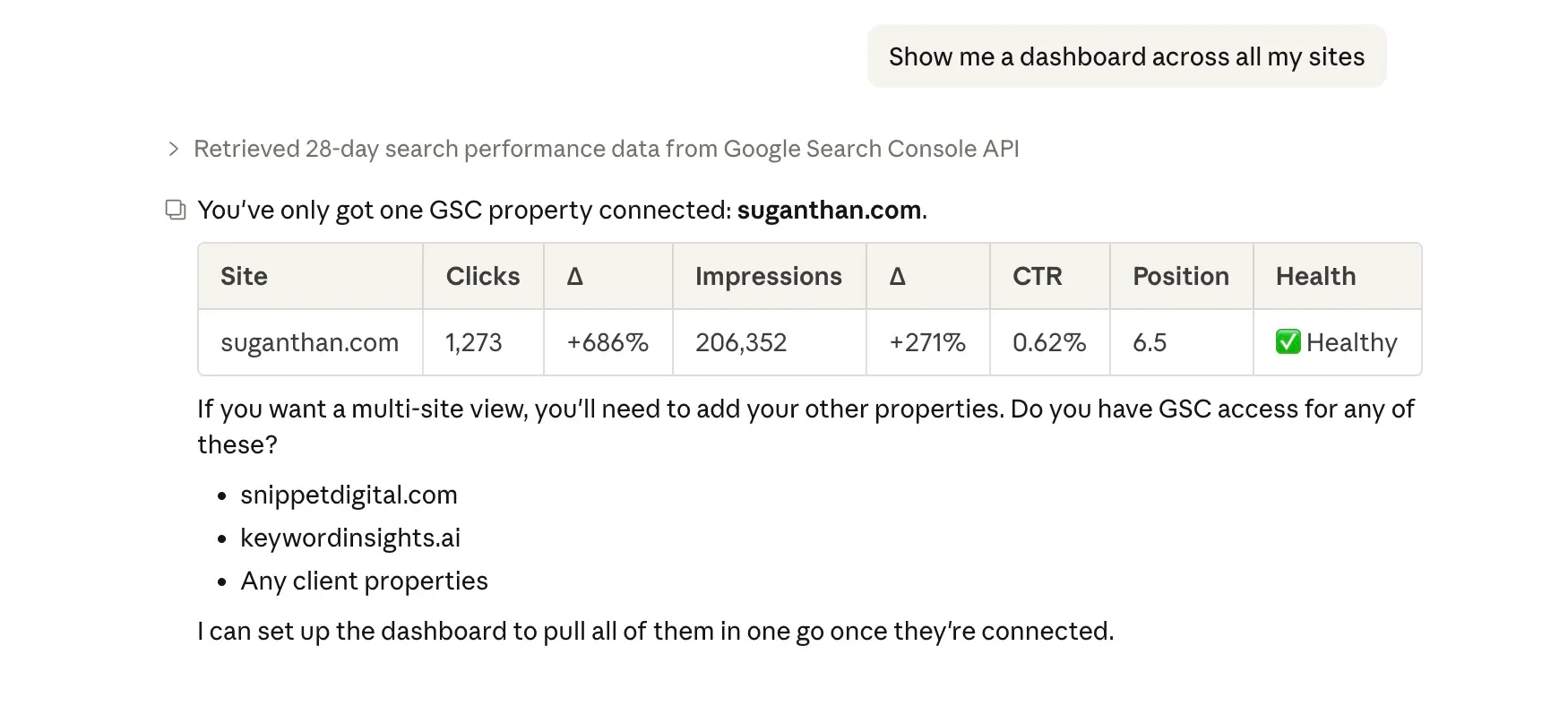
“Show me a dashboard across all my sites”
Multi-site health check in one command. Shows clicks, impressions, CTR, and position for each property with period comparison and health status. If you manage client sites, this is the Monday morning overview you actually want.
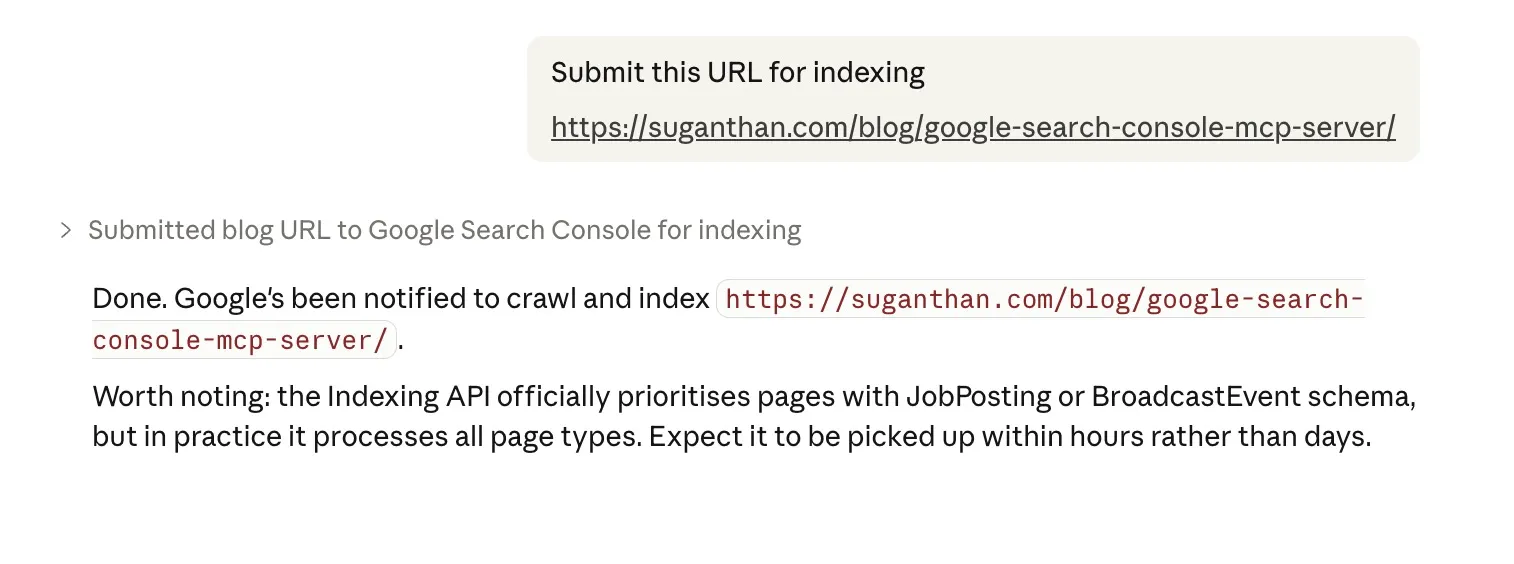
“Submit this URL for indexing”
Sends a URL directly to Google’s Indexing API without leaving your conversation. Useful after publishing a new post, updating content, or fixing technical issues. Batch submit handles up to 200 URLs at once.
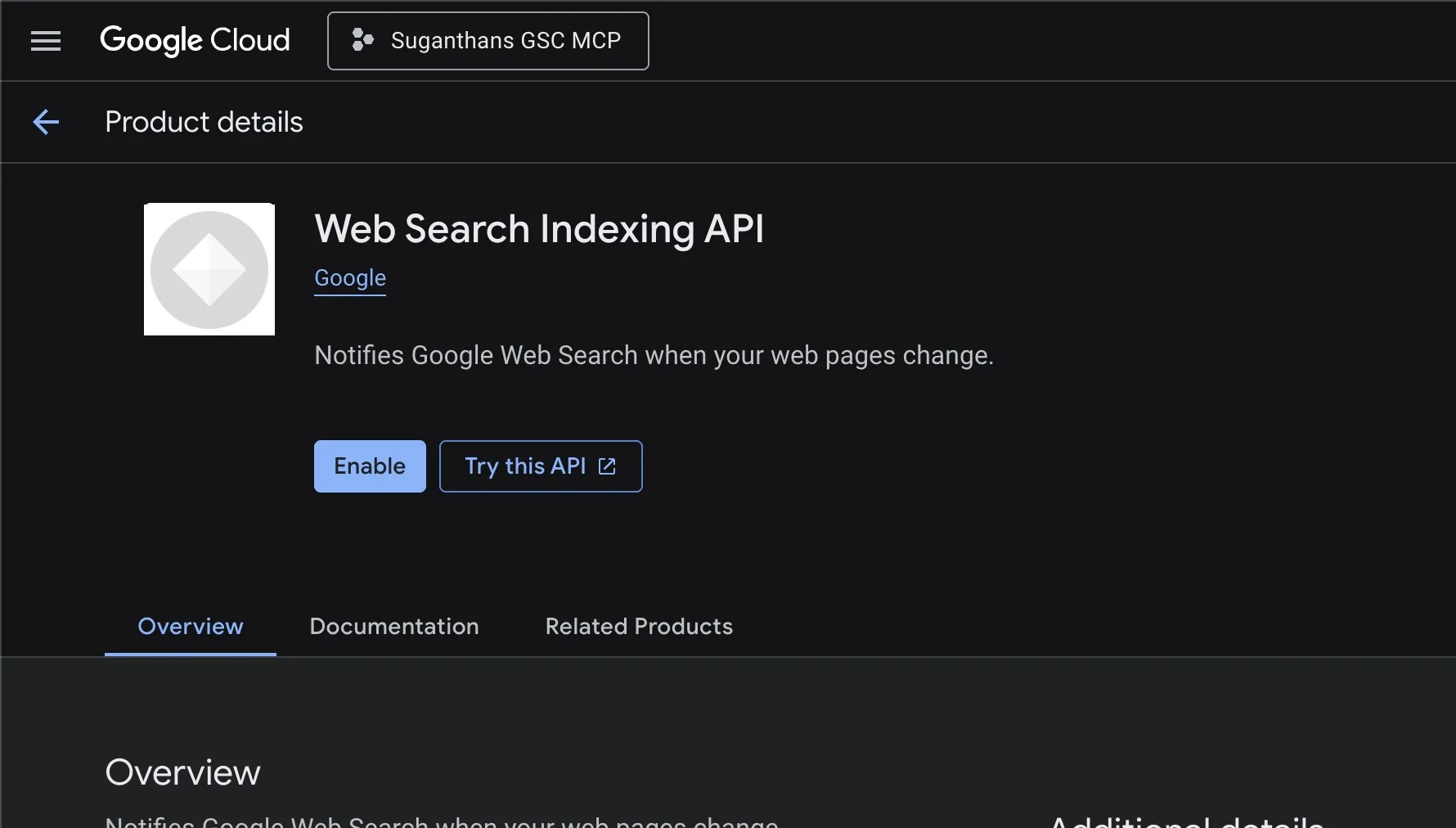
For this feature to work, you need to do 2 things.
-
Enable Web Search Indexing API.
-
Add your service account email as an “owner” inside your Google search console.
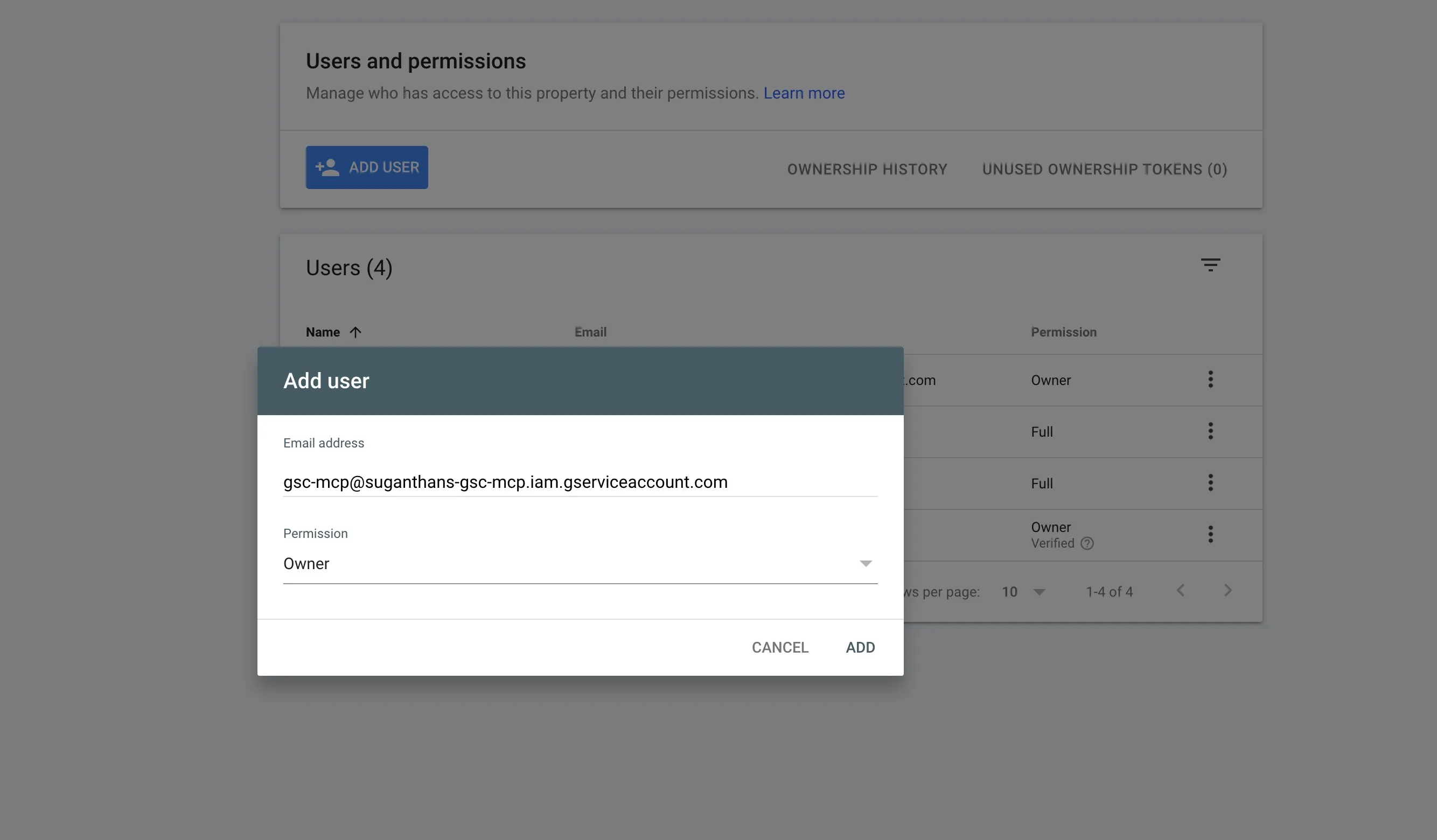
“List my sitemaps and their status”
Shows all submitted sitemaps with error counts, warnings, and indexed page counts. Quick health check for your sitemap setup.
“But I already have a paid SEO tool”
Good. Keep it.
This isn’t a replacement for Ahrefs, Semrush, Keyword insights or whatever you’re currently using for keyword research, clustering, backlink analysis, and competitive intelligence. Those tools have massive proprietary databases that this doesn’t replicate.
What this does replace is the fifteen browser tabs, three spreadsheet exports, and forty five minutes of clicking you spend every week just trying to understand your own performance data.
Think of it as the difference between asking your accountant a question and manually going through your own filing cabinet. The information is yours either way. The question is how much time you want to spend finding it.
Who built this and is it safe?
The MCP server is open source. The code is on GitHub. Anyone can read every line of it and verify that it does exactly what it says: reads your Search Console data and nothing else.
Your data stays on your machine. The server runs locally. It connects directly to Google’s API using credentials that only you control. No data is sent to any third party service. No analytics. No tracking. No “we may share anonymised data with partners”.
If you’re the kind of person who reads privacy policies (and as someone who works in SEO, you probably should be), you’ll appreciate that the only privacy policy that applies here is Google’s own Search Console API terms.
What about hallucinations?
After publishing this post, Krinal Mehta raised a good question: can the model hallucinate or misinterpret the data?
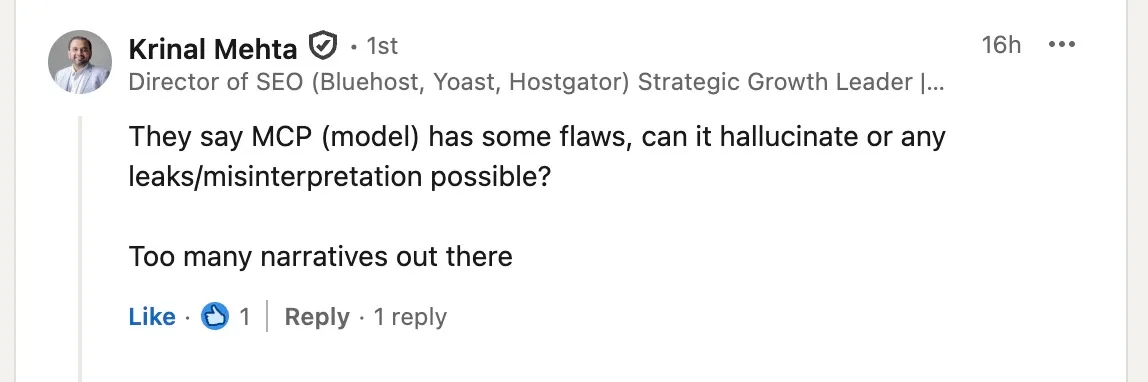
The MCP server itself cannot hallucinate. It’s a pipe to the Google Search Console API. The numbers it returns are exact values straight from Google. But Claude’s interpretation of those numbers can go wrong. It might round a number, invent an explanation for a traffic drop (“this was probably the March core update” when it has no evidence for that), or fill in gaps with assumptions from its training data.
So I added three layers of protection:
Guardrail prompts. Every tool description now explicitly tells Claude to base its analysis only on the returned data, report exact numbers, and say “I don’t know” rather than speculate about causes the data doesn’t support.
Data provenance. Every response now includes a _meta field confirming the data source (Google Search Console API), the tool that produced it, and the parameters used. This anchors Claude to the actual numbers.
Verify claim tool. A verify_claim tool lets Claude self-check before presenting findings. It takes a claim (“homepage gets 500 clicks”), re-queries the API, and confirms whether the numbers match. If there’s a discrepancy, it flags it.
These don’t eliminate the possibility of misinterpretation. But they significantly reduce it, and they make it much easier to catch when it happens.
Thanks to Krinal for pushing on this. The kind of feedback that makes tools better.
Changelog
v2.2.2 Published to npm as suganthan-gsc-mcp. The install instructions previously pointed at an unrelated gsc-mcp-server package maintained by someone else. Anyone who followed the old npx -y gsc-mcp-server command was running a different person’s v1.1.0 code with 7 different tools, not mine. Update your config to "args": ["-y", "suganthan-gsc-mcp"] to actually run my 20 tools.
v2.2.1 Fixed OAuth EADDRINUSE crash when multiple tool calls triggered concurrent authentication flows. The server now reuses the active auth session instead of spawning duplicate listeners. Thanks to Rushabh Rathod for finding and reporting this.
v2.2.0 Visual artifact rendering. All analysis tools now produce rich, interactive dashboards in Claude Desktop with summary cards, colour coded indicators, bar charts, and tabbed sections instead of plain text output. No reinstall needed, just restart Claude Desktop.
v2.1.0 Added Indexing API tools: submit_url, submit_batch, submit_sitemap, list_sitemaps. Request Google to crawl and index pages directly from Claude.
v2.0.0 Added OAuth authentication, advanced search analytics, check_alerts, content_recommendations, generate_report, multi_site_dashboard, verify_claim. Server grew from 10 to 16 tools.
v1.1.0 Added hallucination guardrails: explicit prompts in tool descriptions, data provenance metadata in responses, and verify_claim self-checking tool. Thanks to Krinal Mehta for the feedback.
v1.0.0 Initial release with 10 analysis tools and service account authentication.
Final thoughts
The Google Search Console MCP server lets you do in seconds what currently takes you minutes (or honestly, what you sometimes just don’t bother doing because the GSC interface makes it tedious enough to skip).
Setup takes 15 minutes. It costs nothing. Your data stays private. And once it’s running, you just talk to Claude like you’d talk to a colleague who happens to have your Search Console open on their screen.
No subscriptions to cancel. No free trials to remember. No “upgrade to Pro for the feature you actually need”.
Just your data, answering your questions, in plain English.
The GSC MCP server is open source and available on GitHub. If you find it useful, give it a star. If something breaks, open an issue.
Over and out!
Want to put this kind of thinking to work on your site? Let's talk.
Stay in the loop
I'll email you when I publish something new. No spam. No fluff.
Join other readers. Unsubscribe anytime.
You might also like

Entrepreneur & Search Journey Optimisation Consultant. Co-founder of Keyword Insights and Snippet Digital.
Comments
Got feedback, suggestions, or a response? Drop it in the comments.
All comments are manually moderated. No tracking. No ads. Replies appear once approved.